
1st Grade Push & Pull Pixie
 First graders are currently studying force and motion, especially pushing and pulling (SOL1.2c). So one class made Pixie animations. You may not know this hidden trick of Pixie’s, but if you copy and paste the same picture to multiple Pixie pages, move the picture a little bit in each document, and then Share it as a QuickTime movie, you can make some pretty cool animations. I gave the class a Pixie template with a hill on it to help them get started. They had to decide whether they wanted to push or pull an object up the hill and they wrote that word in the sentence. Then they went to Stickers and chose one to be the object. Next the took a picture of their face using the built-in webcam and painted their body using the Paintbrush tool. I did the final conversions for them and added the music. Take a look at their push and pull animation by clicking here. You can download the template with directions by clicking here.
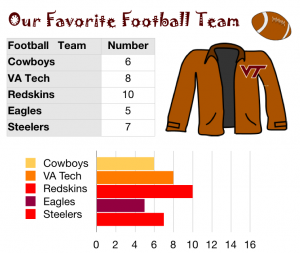 In first grade at Holladay today we made graphs of our favorite things using Numbers. I gave the students a template to get them started. You can take a look at what the template looks like by clicking
 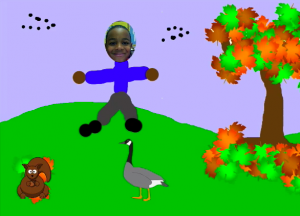 In first grade at Chamberlayne we made Fall Pixie movies today (SOL 1.7). The students designed a Fall landscape using the spray tool to spray on colorful leaves. Then they took their pictures and painted themselves wearing fall clothes. Finally they recorded their voices telling all about the fall… the weather, what animals do, what happens to plants, and how people dress. You can take a look at some sample student movies by clicking
 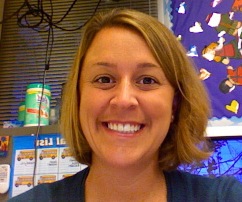 This week’s teacher spotlight is Mrs. Hilton. She’s been very enthusiastic about using technology in her second grade classroom at Trevvett. Her students created a podcast in Pixie all about themselves with an awesome “Funkytown” soundtrack. You can see it by clicking
 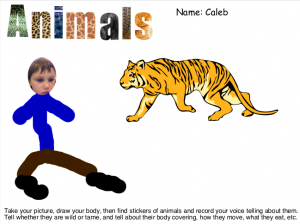 First grade students at Laburnum and Trevvett have been working on Animal Pixies. I gave them a template which you can download
  Fifth graders at Chamberlayne Elementary were rock stars today. They made rock podcasts with photos of the different types of rocks jammin’ out on electric guitars. They added their own voiceovers to describe the rocks and how they are formed, then they chose a musical soundtrack. They didn’t finish today, but you can see what they started on by clicking
 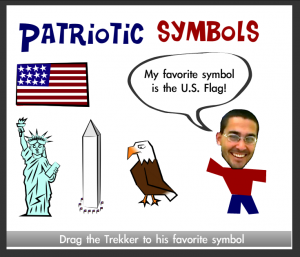 1st Graders at Trevvett are studying patriotic symbols in social studies (SOL 1.11) and graphing in math (SOL 1.18) so we decided to combine those into one integrated project using Pixie and Numbers. First the students found stickers of the symbols in Pixie and matched them with their names. Then they took their photo using the webcam tool and identified their favorite symbols by recording their voices. You can take a look at their projects
 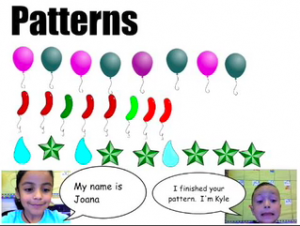 1st Graders at Trevvett are working on patterns (SOL 1.21) so they created shape patterns in Pixie using the Stamp tool. After making a few patterns on their own, they created part of a pattern and let their neighbor finish it. Then both partners took their photo using the webcam tool (under Stickers) and typed their names in the speech bubbles. You can see their work in a Pixie slideshow with transitions
 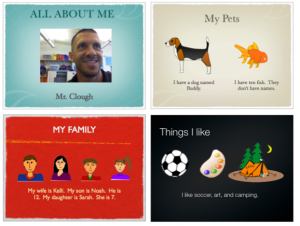 In 3rd grade today we made “All About Me” Keynotes. We took our photo in Pixie and got pictures to represent our family, pets, and interests by using the stickers in Pixie. So this activity combines two programs. If you’d like to do this activity with your class you can download the folder by clicking
 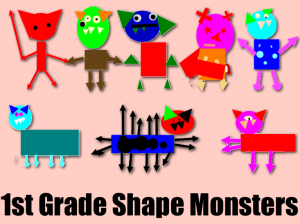 In first grade, we used the Shapes Tool in Pixie to make shape monsters. Take a look at some of the monsters they created in


