Tag: keynote

Kindergarten Shadows Keynote
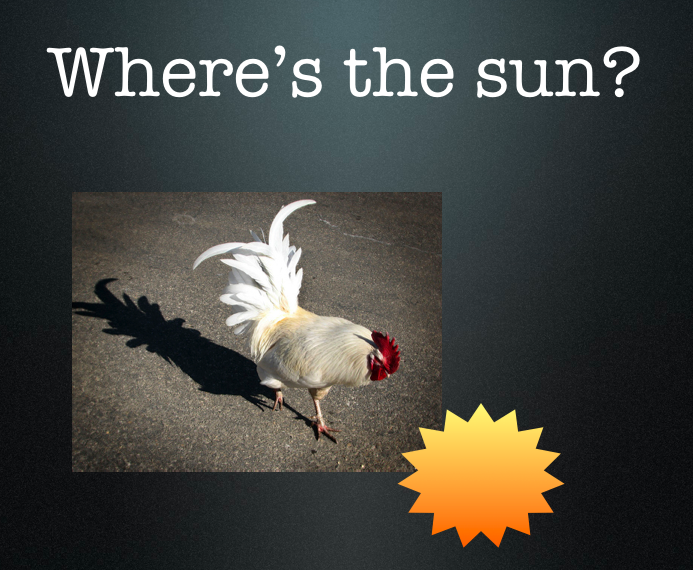
Kindergarten students at Laburnum have been learning about shadows (K.7) and they have also learned about positional words (K.3), so I decided to combine those concepts together into one Keynote lesson. I gave each student a template to use which you can download by clicking here. On the first slide, the students had to create a shape of their choice using the Shapes Tool and it automatically appears with a shadow. Students have to position the sun where it should be to cast that shadow. On the following slides they examine the shadow pictures and put the sun in the correct position. Next the students add motion to the sun (by clicking the Build tab in the Inspector) and they add a transition to each slide. Finally they record their voice telling the relative position of the sun to the object (the Record button is found in the Document tab of the Inspector under Audio). You can take a look at a sample by clicking here.
Tags:


3rd Grade Interactive Choices Keynote

Third graders at Chamberlayne have been learning about economic choices and opportunity costs (SOL 3.9) so we created interactive Keynotes that let someone click on a choice and find out what the opportunity cost would be. Take a look at my sample and a student sample to get an idea of what I’m talking about. Each student selected two pictures to represent two choices. Then they used the Hyperlink feature in the Inspector to link each picture to a specific slide showing the opportunity cost. We also added a Hyperlink to the arrows so people could try again. If you’d like to try this project with your class, click here to download a template and complete instructions.


Tags:


3rd Grade Explorers Animated Maps

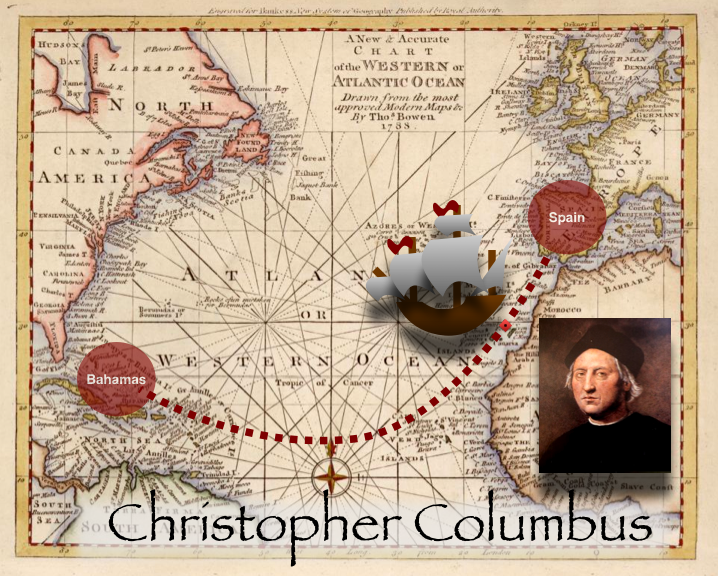
Keynote is an incredible program. You’ve already seen in past projects how you can add cool transitions and builds and record your voice and even export your projects as QuickTime videos. But did you know that you can also create paths for animations to follow? It’s in the Inspector under Builds (the yellow diamond) and you choose the Actions tab. Third grade students used this feature to create animated maps showing the routes the explorers took from their home countries to the New World. I gave them a template to get them started which you can download by clicking here. On each slide they had to move the red dots to the start and ending places on the map and label them. Then we moved the ship to the starting place and added a path with the Inspector. You can make the path curved to show how they followed the trade winds and stopped at islands along the way for supplies. You can also control how long the motion lasts by changing the Duration number. Finally the students used the record feature (in the Document Inspector under Audio) to record their voiceover explaining the routes and the goals of the different explorers. You can take a look at a finished project by clicking here.


1st Grade Shapes Keynote

Yesterday, first graders at Chamberlayne created cool Shapes Keynotes that I finished exporting today, so I wanted to share a couple of them with you. I gave them a template which you can download by clicking here. The students created a slide for each shape. They added the text box, typed the name of the shape, and used the Shape Tool to make the shape. They could also change the color of the shape. Finally they used the Recording feature (you find it in the Document Inspector under Audio) to record their voices talking about the shapes. It’s great practice for your ESL students because everyone is basically saying the same thing so they have a lot of repetition. Watch a couple of student samples here and here.


Tags:


4th Grade Moon Phases

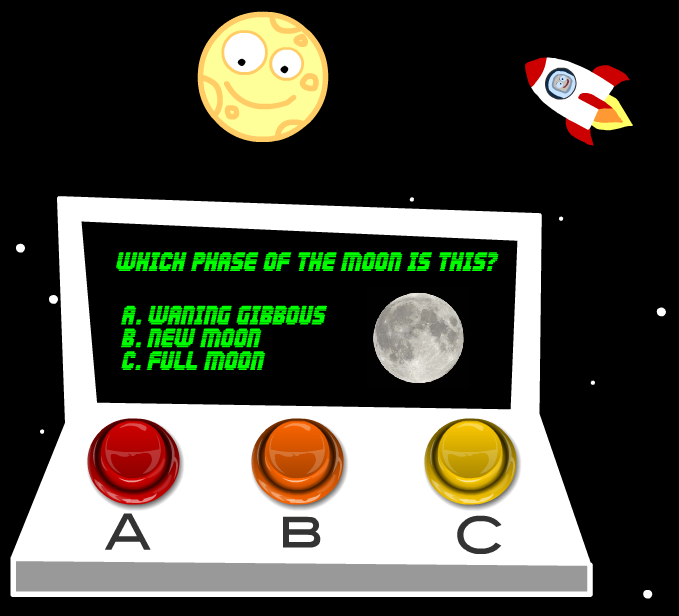
More snow this week! We were off Monday, Wednesday, and had a 2 hour delay today! So I missed teaching this lesson, but I figured I would post it anyway since some of you might like to try it. I was supposed to teach a fourth grade class about the phases of the moon. I created a website with animations and games that you can check out by clicking here. The site also shows the current phase of the moon and includes links to other fun websites. After reviewing the phases with the websites, the students were going to complete a Keynote about the phases of the moon. You can take a look at a sample here and download the template by clicking here. If you’ve had enough of Keynotes, I also have a Kidspiration activity that you can download by clicking here (take a look at it here). Finally if your students need a quick review of SOL 4.7 (earth, sun, moon, astronomers) they can watch this movie I put together in iMovie… maybe they will be inspired to make their own!


3rd Grade Animated Water Cycle

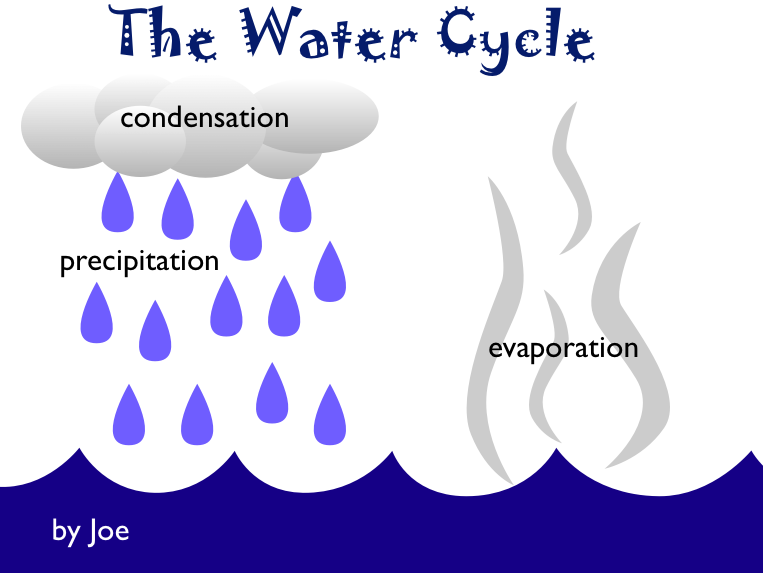
Third graders created animated water cycle movies today using Keynote. The lesson included a lot of important computer skills such as copying, pasting, resizing and grouping objects. I gave them a template to use with some water, one wisp of evaporation, and one raindrop. You can download the template by clicking here. The students had to copy, paste, resize and group the water vapor and the raindrops so that they moved together as one. Then they added the labels: evaporation, condensation, and precipitation. Next they used the Inspector to add animations to each part of the water cycle. Finally they used the voice recording feature in Keynote to record themselves explaining the different steps in the water cycle. This is always a great thing to do because it gives students the opportunity to practice their oral language skills plus it shows you, as the teacher, how much they really understand. You’ll discover a lot of misconceptions by listening to the students’ recordings. Take a look at a completed student project by clicking here.


Tags:


3rd Grade Greece & Rome Venn Diagram

Third graders across the county have been finishing up their Greece and Rome unit and many teachers have been asking for some sort of culminating activity. Here’s one idea that is fairly quick and easy, and it provides a good review of the important concepts from the unit. It’s a Venn diagram comparing Greece and Rome. It’s made in Keynote so students can add their own animations after they complete the activity. They can also record their voices. The great thing about that is you can really tell what the students know by what they say. Plus it provides an excellent way to review since students enjoy watching the videos they made. I provide the Keynote template which you can download by clicking here. You can take a look at a finished student example by clicking here.


Tags:


Kindergarten Beginning Sounds

An important reading skill in kindergarten is being able to identify the beginning sounds of words. To help students with this task I created a Keynote activity where the students type in the beginning letter and then push a button to find out if they are right or wrong. There are 15 different slides (you can see them all by clicking here). When the students get the answer right a green smiley face appears on the slide like in this picture. When they get an answer wrong a red sad face will appear so they can fix their mistake. If you’d like to expand the activity you can use the record feature on Keynote and instruct your students to record their voices reading the words aloud as the slideshow plays like in this example. You can download the activity by clicking here.


Tags:


Kindergarten Christmas Counting

Kindergarten students at Holladay have been learning their numbers 1-10. So in keeping with the holiday spirit, we made Christmas counting slideshows with Keynote. I gave them a template to use with clip art from Pixie. It already has all the animations built into it. The students typed the correct number on each slide. While they were working on that, we took their photo in Pixie and pasted it to the first slide with an elf hat. Finally we recorded their voices reading the short sentence on each slide. The final project turned out great! You can see a student example by clicking here. You can download the template to use by clicking here.


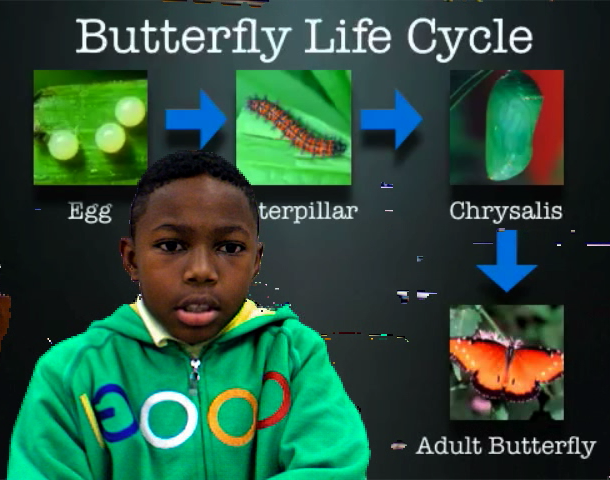
2nd Grade Life Cycle Movies

Second Graders at Laburnum have been learning about the butterfly and frog life cycles. They wanted to make movies about the life cycles and have them animate behind them as they talked about the different stages. So I created a template in Keynote for the frog and the butterfly, then exported them as videos. The students dropped the videos into PhotoBooth backgrounds and then filmed themselves describing the stages. The results were pretty cool. You can see one student example by clicking here. You can download the templates by clicking here. One thing I learned though, I may need to slow down the animations as you can see here.