Tag: animation

4th Grade Fractions Animations
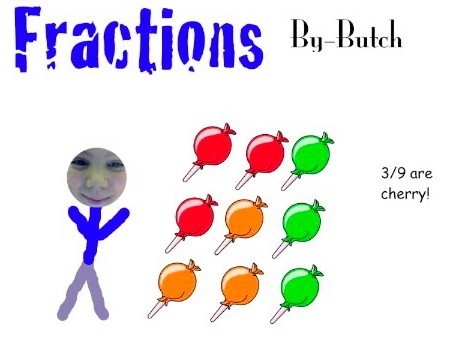
butch Fourth graders in Ms. Cousins’ class at Davis Elementary are just beginning their fractions unit (SOL4.2), so today we used Pixie to make animations showing fractions as part of a group in order to determine their prior knowledge. The students started by drawing a picture of themselves with a set of identical objects (such as 4 cherry pies). Then they duplicated the picture (File > Duplicate Picture) and added a few more different but similar objects to the group (like 3 peach pies). They could duplicate the picture, adding more sets to the group, as many times as they wanted. Finally we added pictures at the end identifying the fraction of the group each set represented. The students added a voiceover to each picture explaining the steps. This made very clear to us which students understood the concept. For example, one student drew a picture of 2 cookies and 1 car (so we could tell he wasn’t clear on making similar sets). Then he wrote the fraction as “3 2s” (in his voiceover he said “three twos”). So that let the teacher know he probably wasn’t ready to start comparing fractions (SOL4.2) and would need some remediation. I won’t post his example, but here are some students who did understand the concept and are ready to move on: Butch, Hannah, and Sryia.


2nd Grade Famous Americans Animations

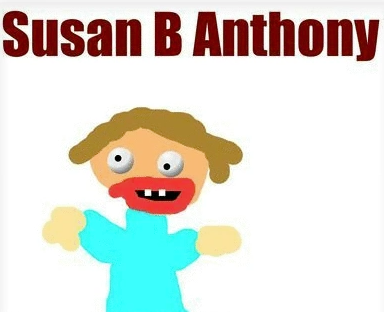
Screen shot 2014-03-25 at 12.57.03 PMSecond graders in Ms. Arnold’s class at Holladay Elementary have been researching famous Americans, and today they created speaking animated characters to share their information. First they drew their famous American in Pixie and typed his or her name. I showed them how to use the 3D brush to make “googly eyes” so their character looked more “cartoonish.” Next we had to make the mouth appear like it was talking. To keep it simple we just added two different mouth shapes. We duplicated the picture and redrew the mouth so that it was in a long shape for making the “ee” sound. Then we duplicated the picture again and redrew the mouth so it was in an O shape for making the “oh” sound. We exported all the pictures as PNG files and saved them to our folders. Next the students went to Voki to create the voice. They clicked the “TTS” button (text to speech) and typed in some factual sentences for their famous American to say about themselves. The fun part was choosing an accent! The students saved their Voki links to their folders as well. That was all we had time for, so it was my job to put the voices together with the drawings. I uploaded the 3 drawings of each character to Glickr in order to make an animated GIF. Then I clicked the link to their Voki. As the GIF and the Voki were playing at the same time I recorded it with Screencast-O-Matic. Take a look at a couple of student examples: Helen Keller by Alana and Susan B. Anthony by Hayden. I uploaded them all to a Google Doc that you can view here.


3rd Grade Moon Animations

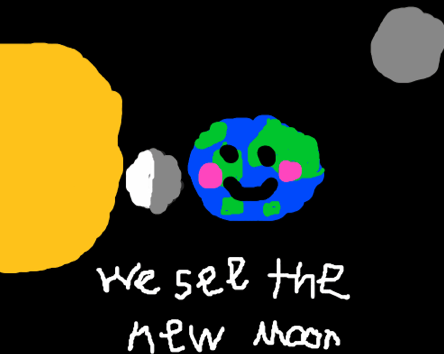
moonMs. Robinson’s 3rd graders at Laburnum Elementary have been learning about the simple phases of the moon (SOL3.8). In a previous post I showed how we used Flipbook to make animations of the moon’s movements and phases in a 4th grade class. It worked well for them, but third graders only study the simple phases (new, 1st quarter, full, and 3rd quarter) so I wanted to try something different. Flipbook doesn’t have a text feature, and I thought it would be easier and neater for the students to type the names of the phases, so we used ABCYa! Animate. First we discussed how the moon moves around the Earth and how, even though the sun was always shining on it from the same direction, it looks like different parts are illuminated from our viewpoint here on Earth. That’s important for them to understand because as we draw the moon going around the Earth in our animation, it will look the same (half light, half dark). So I explained that we will also need to add an animation of how the moon appears from Earth up in the corner. Once the students understood what they would need to draw, they began their animations. They were grouped with a partner so they could take turns drawing each frame. They used the circle tool to draw the Earth, sun, and moon. Then they used the drawing tool to add the details. We copied each picture using the Copy Cat button and then moved the moon and adjusted the phase image for each one. The students also typed a complete sentence (with capitals, periods, and correct spelling) identifying each phase of the moon. Take a look at a couple of examples: Marthaline & Keon, Joseph & Kimberleigh (the jittering on certain frames happened when we tried duplicating frames to slow down the animation).


3rd Grade Greek Multiplication

adityarThird graders in Ms. Dickey’s class at Davis Elementary have been learning about the ancient Greeks in social studies (SOL3.4) and multiplication in math (SOL3.2). So today we made Greek multiplication problems using Pixie and Keynote. First the students opened a blank Pixie document and used a combination of the painting tools and stickers to create a picture of one group of items that would be found in ancient Greece: like a ship with 7 jugs of olive oil, or a row of 8 grapevines, or a Medusa with 6 snakes coming out of her head. We exported the pictures as PNG files with transparency (so there wasn’t a background). Then we opened a blank Keynote, added a title and our name, and dragged the PNG file onto the slide. We shrunk it down and copied and pasted it as many times as we needed. Next the students made text boxes to write out the multiplication problem and its solution. I showed them how to click on each object in the order they want it to appear and add a build in animation using the Inspector. Finally the students recorded their voices telling about the multiplication problem and skip counting until they got their answer. I exported the Keynotes as QuickTime videos and posted them on this page.


4th Grade Moon Phases Animations

4thmoonToday fourth graders in Ms. Bennett’s class at Davis Elementary made animations of the moon phases using Flipbook (SOL4.8). I tried this lesson earlier with another class, but I had neglected to do my research ahead of time, and we got a lot of things wrong. Like did you know that the moon moves counterclockwise around the Earth (unless you’re looking at it from below)? But that shows that making animations requires a deeper understanding of processes than you would normally need to have. To give another example, I tried to make an animation of a power plant for the Virginia Trekkers based on my research (which I did do), but when I sent it to the director of the power plant to check it over, he pointed out several mistakes. It took many revisions and a lot more research, and through it all, my understanding of the process greatly improved. The point is, making animations is a valuable learning activity, even if it takes a bit of extra time. And it does take time. We didn’t get to finish our animations today, but they still turned out pretty good. The students illustrated where the moon is located at different phases and how it appears to us on Earth. You can see all the animations here.


1st Grade Earth & Sun Animations

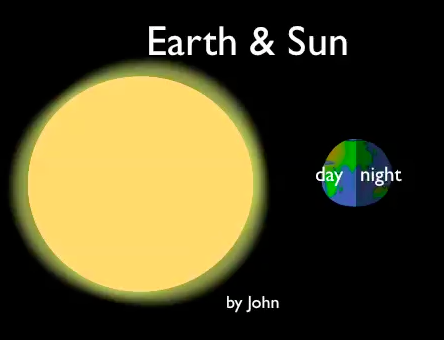
daynightFirst grade students in Mr. McFarling’s class at Davis Elementary have been learning about the Earth and sun and how the Earth’s rotation causes day and night (SOL1.6). So today I taught them how to make some simple animations explaining those concepts using Keynote. First I gave them a template that you can download by clicking here. I showed them how to make text boxes to label the day and night side of the Earth. Then we went to the inspector and added a “build,” or animation, to each label. On the next slide, the students used the Shapes tool to make a circle for the sun. I explained how to change the color to yellow and how to move the shape to the back so it went behind the other shapes. They placed the sun behind the hills in the east (or right side) and added an “action” to it by making it move from the horizon to the top of the slide, showing the sun rising in the east. Then they put the shadow in the correct spot. On the last slide they did the same thing but changed the animation and shadow to show the sun setting in the west. Finally they recorded a voiceover explaining the different animations. Take a look at a couple of student examples: John and Aden.


3rd Grade Multiplication Arrays

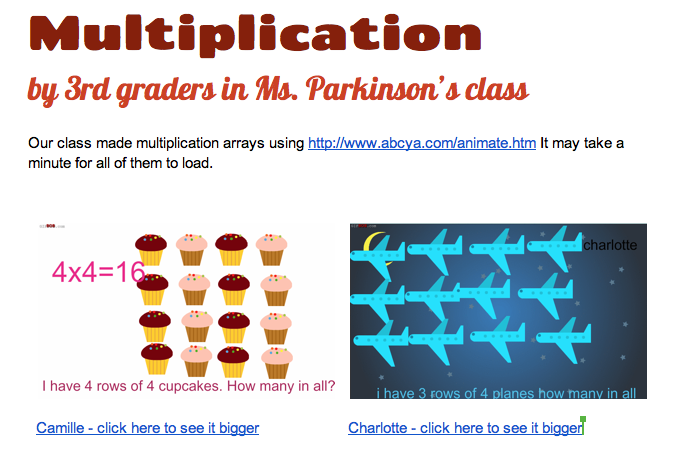
3rd arraysThird graders in Ms. Parkinson’s class at Davis Elementary are starting to learn about multiplication, and one of the ways they learn how to multiply is by making arrays. So today I taught them how to make animated multiplication arrays using ABCYa! Animate. First the students decided what numbers they wanted to multiply together. We discussed how one of those factors is the number of objects in a group and the other factor is the number of equal groups. They used pictures from the clipart library to create one row of objects representing a group. Then they typed out a simple sentence to describe their array such as “I have 3 rows of 4 trees. How many in all?” We duplicated that picture a couple of times (so our animation wouldn’t go too fast) and then added another row. We continued duplicating pictures and adding rows until we had a complete array. One problem we encountered was that some of the pictures would automatically group together. The only way we found to ungroup them was to delete them and start over. On our last picture we typed out the multiplication sentence and the answer, like “3 x 4 = 12.” Animating the array helps students understand the concept because as each group appears they can skip count until they get the total amount. Furthermore, they can review their multiplication facts by viewing each others’ animations (which they are always eager to show off to each other… and since they are online, they can show off and review at home too). If an animation ends up being too fast, I found a site called GifBob that will slow down a .gif file. You can see all the students’ multiplication arrays here.


3rd Grade Life Cycle Animations

lifecycleThird grade students in Ms. Dickey’s class at Davis Elementary have been learning about animal life cycles (SOL3.8). Animations are a great way to show life cycles (or any type of cycle) because each step can be illustrated and appear in sequence. Today I taught them how to make life cycle animations using Pixie and Keynote. First the students decided if they wanted to illustrate a frog or a butterfly life cycle. They used Pixie to illustrate the four stages then exported it as a PNG file (with transparency) so the background wouldn’t come through. Next we opened a Keynote template (that you can download by clicking here) and dragged our picture into the Keynote. We copied and pasted it three times and masked the picture so only one stage was showing for each picture. Looking back, we should have probably just drawn four separate Pixie pictures because masking was difficult for some students. After arranging their pictures in order, the students changed the them and added some transitions and builds using the Inspector. Finally they recorded their voices explaining each stage of the life cycle. Check out some of the students’ projects: Josie, Elena, Zoe, Owen, Isabella, and Alex (as you can see, most students picked the butterfly).


1st Grade Counting by Tens

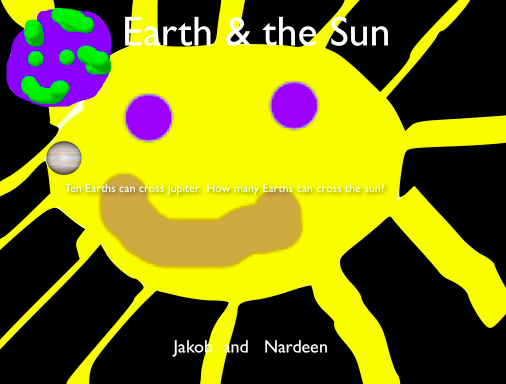
earthsunFirst grade students in Ms. Gerrard’s class at Davis Elementary have been learning how to county by tens to 100 in math (SOL1.2). They have also been studying about the Earth and sun in science (SOL1.6). So today we combined both topics into one lesson using Pixie & Keynote… a big task for first graders, but they were up for it! In my research I learned that the sun is about 870,000 miles in diameter and the Earth is about 8,000 miles in diameter, so about 100 (more like 110) Earths can cross the sun. But I wanted to find a unit they could use to count by tens, and I discovered that Jupiter is the perfect unit. It is about 87,000 miles in diameter. So about 10 Earths can cross Jupiter (more like 11) and 10 Jupiters can cross the sun. I created a Keynote template with most of the animations for this activity pre-built into it. You can click here to download it. I’ve done my work, now it’s time for the students to do their work. First they opened Pixie and, working with a partner, one drew a big picture of the sun and the other drew a picture of the Earth. We helped them take screenshots of their pictures and place them into their Keynotes. Next they added some transitions and animations using the Inspector. Finally they recorded their voices telling about how big the sun is and counting the Earths by tens to a hundred. You can see some student examples here: Mickaelly & Adin, Jakob & Nardeen.


4th Grade Math Equation Animations

Screen shot 2013-12-08 at 1.37.41 PMFourth graders in Ms. Lara’s class at Holladay Elementary have been learning about simple math equations using addition, subtraction, multiplication, and division. So today we used ABCYa! Animate to illustrate some equations that they made up. First they decided which two different functions they wanted to include in their equation. Most picked either addition/subtraction or multiplication/division, but a few attempted a multiplication/addition relationship. They had to write the first number on the first page of the animation and add a picture from the clip art library (example, 3). On the next page they illustrated the second number (example, 3 + 2). On the following page they began the second half of their equation (example, 3 + 2 = 10), and on the last page they completed their equation (example, 3 + 2 = 10 – 5). They saved their completed animations as .gif files which I then embedded into a Google Doc that you can see here. I learned that in order for the animations to play correctly you have to link to the document and not the published webpage. You also need to host the .gif files online, so I have mine in my Dropbox Public folder. The nice thing about animated .gif files is that they can be embedded anywhere and usually load very quickly.