Tag: pixie

3rd Grade Volume Pixie

Sometimes it is difficult for 3rd graders to visualize the hidden blocks in many volume problems. That’s why it’s important to practice this skill using actual blocks. The next best thing is to use virtual blocks on the computer. Today in Ms. Hill’s class at Pinchbeck Elementary we practiced finding volume using Pixie. In Pixie you can find blocks by going to Stickers, opening the Shapes folder, and then clicking on the Cubes folder. I gave them a template that you can download by clicking here. It has a sample problem with an invisible answer. The students try to figure it out and then they can click on the answer box, change the text color, and see the answer. Next I showed them how to create their own volume problem using the blocks stickers. They entered their answer in the text box and then made it invisible by turning it white. The last step was to find a friend, solve their volume problem, and check the answer by changing the color of the text box. If you’d like to see a sample, click on the picture to view it larger.

Tags:


Kindergarten Schools of the Future

At Pinchbeck Elementary they are celebrating “Five Decades of Learning” (founded in 1961, this year marks their 50th anniversary). Each class is taking a decade and doing a special project. The kindergarten classes were focused on the future. So today in Ms. Houghtaling’s class we created “Schools of the Future” videos. First we imagined what a school of the future would look like. Then they illustrated their ideas using the drawing tools in Pixie. Next the students used Photo Booth to record themselves explaining their pictures and their ideas. The results were pretty amazing – alien teachers, flying busses, classrooms on Mars! Click here to see some student samples.


1st Grade Measurement

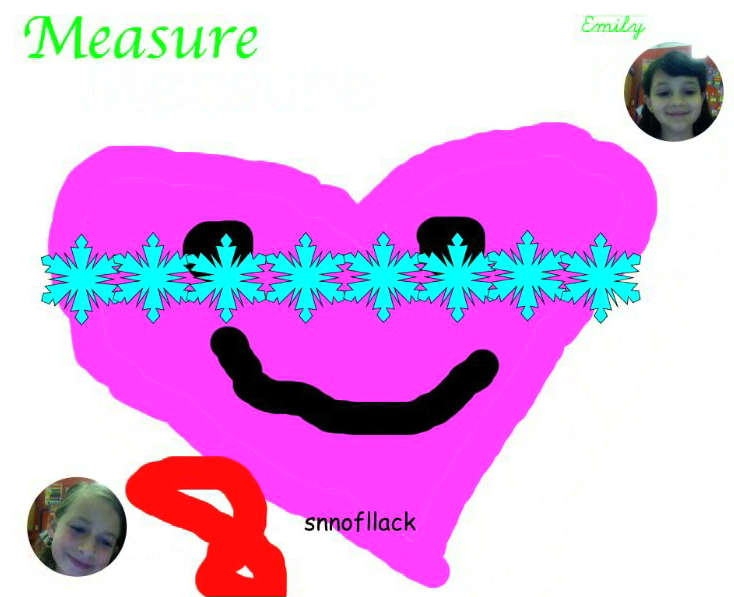
Today, first grade students at Pinchbeck Elementary worked together to make measurement videos. To get them warmed up I sent them to this Scribblar link to practice measuring pictures using nonstandard units (like an eraser or a paperclip). They entered their measurements in the chat box. Then I called on a couple of students to draw a picture for their classmates to measure. Once I was sure they had the hang of it, they opened a blank Pixie document and drew a large picture for a friend to measure. The friend used the stamper tool to measure the picture. Then they both took their photos and recorded themselves explaining the measurement. They were helping each other out and everyone was involved. If you’d like to see a couple of student samples, click here.


1st Grade Plant Animations

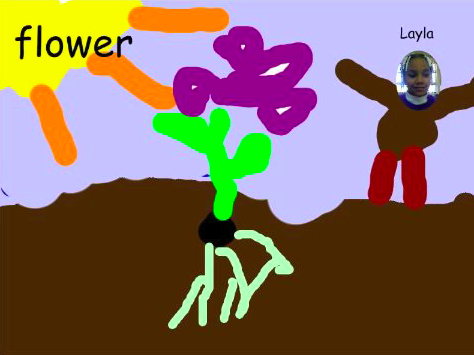
First grade students at Holladay Elementary created animations of plants growing using Pixie today. We started by painting a scene of a seed in the dirt with a picture of the student standing next to it. Then we added the word “seed” and recorded our voices describing what a seed does. To create the remaining scenes, we made a duplicate picture (go to File > Duplicate Picture) and changed a few things. Like we added roots, stem, leaves, etc, and changed the word “seed” to correspond to the part we added to the picture. Students recorded their voices for each scene and then exported it as a QuickTime movie (go to Share and click Video). You can see a couple of student examples here: Dylan and Zion.


Kindergarten Rhyming Words

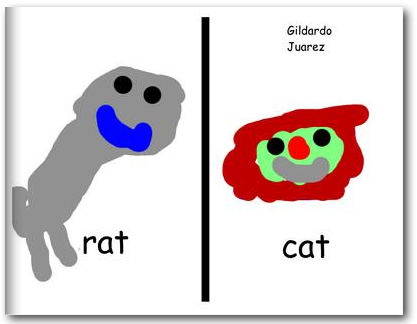
Kindergarten students at Holladay Elementary practiced their rhyming words today and made an online book. First I gave them a Keynote (which you can download here) and showed them how to record their voices as they read different sets of rhyming words (-am, -ap, -at, -ig, -it). The Keynote showcases several “smart builds” to transition between the words so you can see what they look like. Watch and listen to a student sample by clicking here. This activity got them thinking about many types of rhyming words so they wouldn’t all choose the same ones (like rat and cat). Next I gave them a Pixie (which you can download here) and they had to type two rhyming words and draw pictures to go along with each one. We exported them as JPEG files and then I combined them into one Keynote document which I printed as a PDF. Finally I uploaded the PDF to Youplisher. You can see the finished online book here.


2nd Grade Magnets

After trying Stixy earlier this week, I decided to go back to Scribblar for a similar classifying lesson in 2nd grade. They were studying magnets so I instructed them to draw a magnetic or a nonmagnetic object in Pixie. When they finished their drawings I showed them how to export them as .png files and save them to their folders. Then I sent them to Scribblar and they uploaded their pictures to the site and put them in the correct category: Magnetic or Nonmagnetic. Some were obvious while other required a bit of discussion, which was great. For example a child put a picture of a chair in the magnetic box, but some disagreed. He explained that the metal legs are magnetic even if the plastic seat isn’t. Having your students draw the artwork also makes the sorting a bit more personal and motivating than if you had drawn them yourself or used clipart. I plan on turning this into a drag and drop Flash activity, and I’ll include the link here when I do.


Kindergarten Living & Nonliving Things

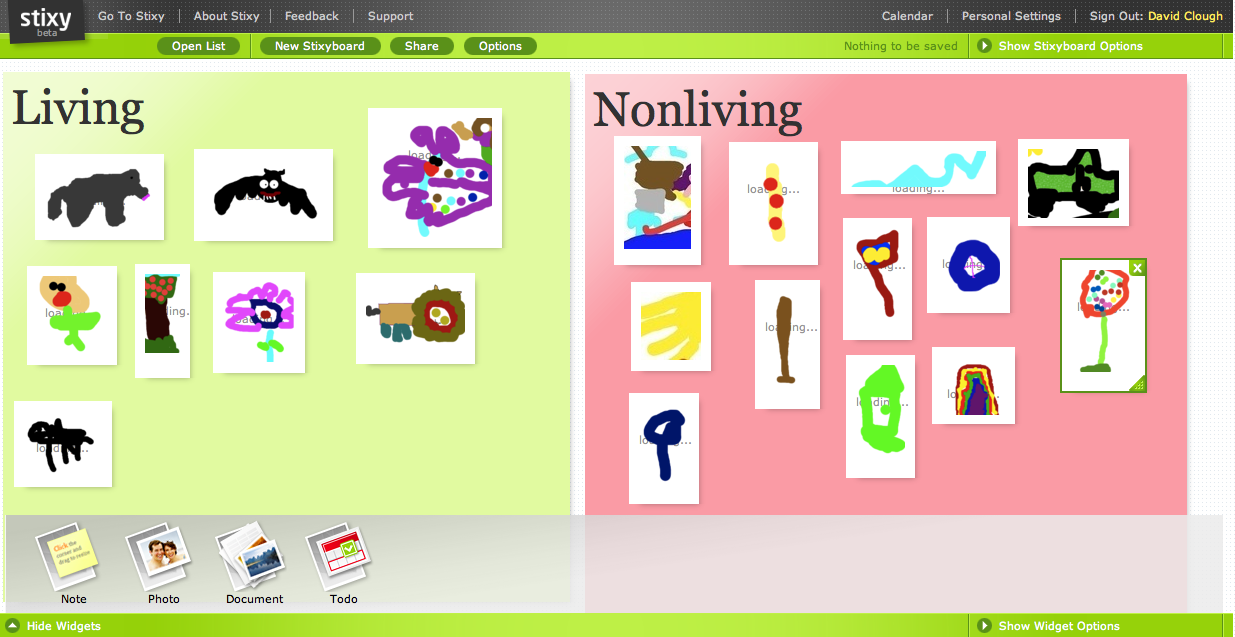
Kindergarten students at Pinchbeck Elementary demonstrated how to classify living and non living things using a web tool called Stixy today. First they chose whether to draw a living or non living thing using Pixie. As they finished their drawings, the teacher and I exported them as .jpg files and saved them to the students’ folders. When everyone was done I sent them to a link in Stixy that I had made editable by guests. I showed the students how to upload their photos and put them in the correct box. Students were able to see each others’ drawings almost instantly. However, after using this tool and comparing it with Scribblar, I think Scribblar is better.


1st Grade Interactive Timeline

I taught this lesson in a first grade class today at Holladay, but it could easily be adapted to any grade level. There are several web tools for creating timelines (TimeToast and Capzles to name a couple), but the one I think has the best features is Dipity (this website no longer works as of 4/3/2020). I wanted to try it out with a class, and Ms. Favale is always up for anything (thanks Doris!) so we made timelines about Abraham Lincoln’s life (since we celebrated his birthday yesterday). I gave each student an event in his life to illustrate using Pixie. You can download the list of events here. Then we exported the pictures as JPGs and I uploaded them to Dipity. One of the cool things about Dipity is that it not only makes an interactive timeline, but you can also display the events as a flipbook, a list, or even a map! (The embedded Dipity timeline has been removed 4/3/2020)


Kindergarten Coins Pixie

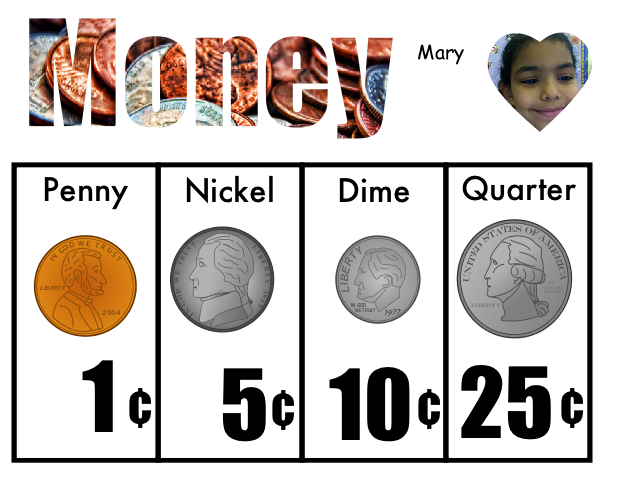
Today kindergarten students reviewed their coins using Pixie. You can download the template by clicking here. First students had to drag the coins to the correct column to identify them. Next they typed the value in the text boxes. Finally they took their photo and recorded themselves naming each coin telling its value. You can look at a sample here. Making audio recordings in Pixie to go along with a project is a great way to have your students clarify their understanding as well as practice oral language skills. If you notice, the template has a picture of coins inside the word “Money.” This is called Word Art, and it’s easy to do in Pixie. You drag a picture to your document, paste it down with the glue tool, then add a text box on top of the picture and type your words. Finally, click the word and click the “Word Art” button over the color selection box.


Tags:


1st Grade Economics Pixie

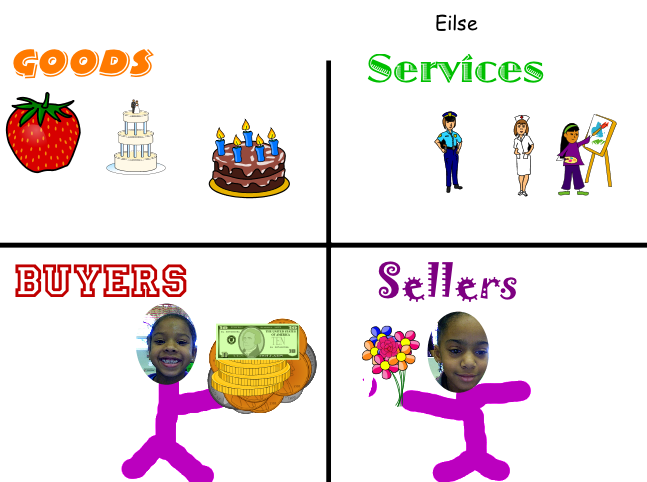
Today at Chamberlayne Elementary, first grade students shared what they have learned about economics (SOL 1.7) with this Pixie activity. I gave them a template to use that you can download by clicking here. First they found stickers to show goods and services and placed them in the correct sections. Then they took their photo and placed it in the buyers section. They also took a friend’s photo and placed that in the sellers section. They used the paint brush to paint a body for each of them. Next they found a sticker of something they wanted to buy and placed it in the seller’s hand. They also placed money stickers in their own hands to pay for the item. Finally they recorded their voices telling about the different pictures. You can take a look at some student samples here and here.


Tags: