Tag: animation

5th Grade Force & Motion Animations

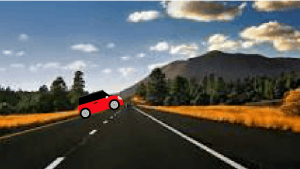
CaptureSince the upcoming 5th grade SOL test has questions from the 4th grade science curriculum, fifth graders at Varina have been reviewing force and motion (SOL4.2). So today students in Ms. Gallahan’s class created animations showing potential and/or kinetic energy. First we discussed the differences between them. One way to get students to think about kinetic and potential energy is to ask them how to increase each one. How would you increase the potential energy of a toy car on a ramp? (Answer: make the ramp higher or make the car heavier) How would you increase the potential energy of a bow and arrow? (Answer: pull back farther on the bow string). How would you increase the kinetic energy of a runner? (Answer: run faster). After our brief discussion, the students were ready to make thoughtful animations. I posted the link to ABCYa! Animate on Google classroom and showed them how to use the tools. The students created their animations frame by frame and exported them as GIF files. Next, we posted them to Google classroom with questions for our classmates to answer. You can see their animations and questions here.

5th Grade Light & Sound Animations

CaptureFifth graders at Davis Elementary are studying light and sound (SOL5.2 & 5.3) so today we made animations about their different properties. First we brainstormed ideas (frequency, amplitude, wavelength, refraction, reflection, spectrum, etc), and I shared a couple of sample animations, one for sound and one for light. I explained that they would need to post their animation on Google classroom with a thoughtful question for their classmates to answer. To practice, we generated a few questions for the sample animations. Next, I posted the link to ABCYa! Animate on Google classroom and showed the students how to use the animation tool. One part that the students really liked was the option to upload a photo for the background picture. After the students illustrated each frame, they exported their finished animations as GIF files and uploaded them to Google classroom. They also posted their question for their classmates to answer in the comments. You can see their animations here.


4th Grade Biography Blogs & Voki

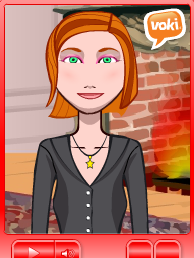
CaptureFourth graders at Davis Elementary have been reading nonfiction, especially biographies and autobiographies (SOL4.6), so today students in Ms. White’s class created biography blogs with an embedded animated talking person from Voki. First I showed them how to log into their blogs. Every student and teacher in Henrico has their own blog. Once we were logged in, I explained how to change the title and other blog settings. Then we created our first blog post. I wanted to show them how they could embed something in a blog post, so we went to Voki and made an animated talking famous person. They had actually already researched someone for another project, so they used that person for their Voki. We discussed ways to make the character resemble the person by changing their skin color, hair, and clothing. Then we added a pertinent background and typed a few sentences for the person to say about their accomplishments. When we were finished, we copied the embed code and went back to our blogs. I showed them how to paste in the embed code using the “code” button (press the “code” button at the beginning and end of the code). Finally they published their blog post and shared the link on Google classroom so their classmates could see them. You can take a look at them here.


3rd Grade Simple Machines

CaptureThird graders at Holladay Elementary have been studying simple machines (SOL3.2), so today students in Ms. Middleton’s and Ms. Edelblut’s classes created animations to show how different simple machines work. I posted a similar lesson a couple of years ago here, but I did a couple of things differently this time that I wanted to share with you. In Ms. Edelblut’s class, we used ABCYa!Animate and added a real photo for the background. First we did a Google image search for a background photo, then on ABCYa! we clicked the “Edit background” button and chose “Import photo.” It added a cool effect to the animations. You can see some student samples here. In Ms. Middleton’s class we used a different site I just discovered called ParaPara. It’s much simpler than ABCYa!Animate, but you have to draw everything, and there is no copy button, so you have to redraw your picture for every frame. For that reason I advised the students to keep their drawings very simple. The final animation isn’t saved as a .gif file either, but you can view them online. Several students were able to make two or three animations! You can see Ms. Middleton’s animations here .


Kindergarten Shadows Animations

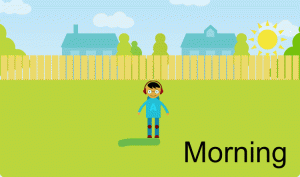
shadowsKindergarten students at Davis Elementary have been learning about shadows (SOLK.8) so today Ms. Dunkum’s class created shadows animations using ABCYa!Animate. Kindergarten students have a generic login, so instead of sharing the link with them, we had to type it in manually for each one. While we were doing that we discussed shadows: what causes them, which direction they point, and whether they are long or short. Once we were all on the animation page, I showed them how to pick a background. We made sure we picked a background where the sun would be visible (no night or underwater scenes). Next the students picked an image of a person they liked and an image of the sun. Since the sun image was orange, we clicked it, and then clicked the yellow color to change it. I instructed them to put the rising sun in the east (right side of the picture). Then we used the paint brush tool to paint a long shadow under the person, opposite the direction of the sun. Finally, we used the text tool to type “Morning,” and our first picture was done. We copied it with the copy cat button, moved the sun to the top center of the page, repainted a short shadow directly under the person, and typed the word, “Noon.” For the last frame, we used the copy cat button, moved the setting sun to the west (left side of the page), painted a long shadow under the person pointing away from the sun, and typed “Afternoon.” When we pressed the play button, the animation looked like the sun was moving across the sky and the shadows were moving along with it. Unfortunately, we didn’t have a way for the students to save their animations since kindergarten students don’t log in, but you can see a sample animation here.


3rd Grade Animated Life Cycles

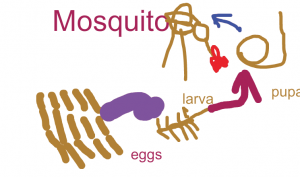
CaptureThird graders at Laburnum Elementary have been studying animal life cycles (SOL3.8b), so today students in Ms. Collins’ class created animated insect life cycles using ABCYa! Animate. We picked insects because many students are very familiar with the butterfly life cycle, but they are not familiar with other insects’ life cycles. First we did some research. The students picked an insect they were curious about (ants, fireflies, mosquitoes, cockroaches, ladybugs, etc) and searched for a life cycle diagram for that specific insect. Next they searched for photographs of each stage in the insect’s life cycle to see what they really looked like. Students were amazed at how bugs looked so different in their larva stages! When our research was finished, I posted the link to ABCYa! Animate on Google classroom. On the first frame of the animation I showed them how to draw a picture of the insect’s eggs and label it “eggs”. We used the copy cat button to copy the picture, and then we added an arrow to it. We copied that picture and added the “larva” stage. We continued copying each picture and adding stages to the life cycle until it was complete. Then we adjusted the speed of our animation and exported it as a .gif file. Finally, we uploaded our animations to Google classroom so everyone could see them. You can see them all here.


2nd Grade American Indian Math Animations

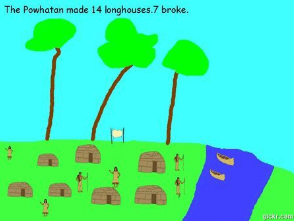
CaptureSecond graders at Davis Elementary have been learning about subtraction in Math (SOL2.7), and they’ve been studying American Indians in Social Studies (SOL2.2). Today students in Ms. Becker’s class created American Indian math animations. First we opened Pixie, and I instructed them to chose the Powhatan, Lakota, or Pueblo Indian tribe to illustrate. We discussed how to paint the environment for each tribe: the Powhatan lived in the woods, the Lakota lived on the plains, and the Pueblo lived in the desert. After the students painted the background, we went to stickers, and I showed them where the American Indian stickers were located. They added images of the Indians, their homes, plants, and animals. Since they were creating a subtraction problem, they had to copy and paste one of the stickers multiple times for the initial number (for example, 14 buffalo, 12 canoes, 18 pots). The students added a text box and wrote a sentence like, “The Lakota Indians saw 14 buffalo.” Next the students clicked File > Duplicate to make a copy of the picture, and they typed a sentence telling how many were subtracted. They also deleted the corresponding number of stickers. We exported the two pictures as JPG files, then went to Gickr and uploaded the image files. Gickr turns still photos into an animated GIF file. Once the GIF files had been created and downloaded, students uploaded them to Google classroom for their classmates to solve. You can see them all here.


3rd Grade Homophone Flip Pics

natalie.gifThird graders at Davis Elementary have been learning about homophones (SOL3.4a), so today we created homophone flip pics. First we reviewed different types of homophones so everyone wouldn’t do the same one (even though we still got many repeats). The students chose a homophone pair and illustrated each one using Pixie. I showed them how to add a text box and change the font, size, and color so the words would stand out. Next we exported our pictures as .JPG files and saved them to the Desktop. To create the animation we used Gickr. The students uploaded their pictures, chose a size and a speed for the animation, then Gickr turned them into animated gifs! The students posted them to Google classroom so they could comment on each others’ flip pics. You can take a look at some samples here.


1st Grade Spring PowToons

Screen Shot 2015-08-12 at 2.42.19 PMFirst graders at Davis Elementary have been learning about the changes that happen in the weather, plants, animals, and people in the spring (SOL1.7), so today students in Ms. Long’s class created animated spring pictures using PowToon. First we discussed some of the changes that happen, and I showed them a few samples so they would get an idea of how a finished PowToon animation looks. Once they had their ideas, we helped them log into PowToon with their Google accounts and get started. First we changed the background and added text. I showed them how each element has it’s own timeline for when it appears and when it leaves. Next we looked through the various free clipart galleries and added some images that were spring related. The last step was to add a speech bubble and make one of the characters say a sentence about the spring. We copied the links to our finished PowToons and posted them to Google classroom so our classmates could watch our animations. You can see a few samples here.


2nd Grade Magnet Fractions Animations

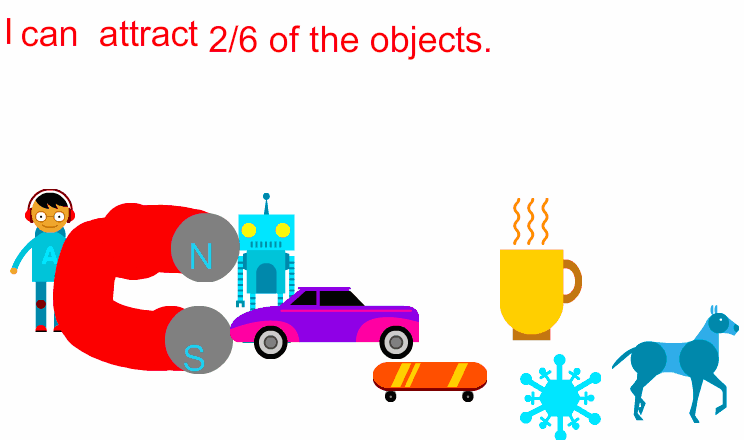
Screen Shot 2015-08-03 at 4.51.48 PMSecond graders at Holladay Elementary have been learning about magnets (SOL2.2) and fractions (SOL2.3) so today students in Ms. Gardner’s class created magnet fractions animations. First we reviewed the types of magnets (horseshoe or bar), their poles, and what types of objects they attract. Then I posted a link to ABCYa! Animate on Google classroom. I instructed them to use the clipart to add a person to their picture. Next they drew a magnet and labeled the poles with an N or an S. Then they went to the clipart library and added various objects that would be attracted to the magnet and others that would not. I showed them how to copy the picture into new frames and how to move the objects slowly toward the magnet in each frame. Finally they typed a sentence telling the fraction of objects that the magnet attracted. We published our finished animations to Google classroom. You can take a look at some of them here.