Tag: pixie

1st & 3rd Grade Migration Pixies
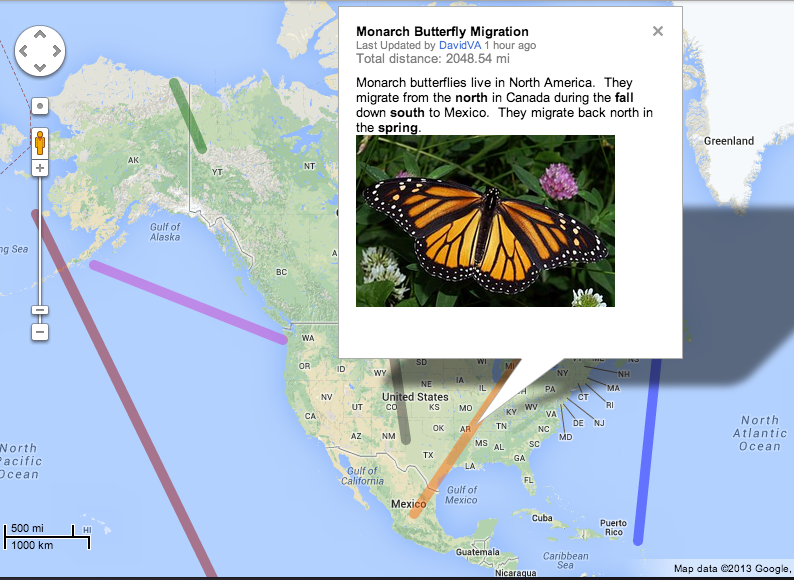
migrationmapFirst (SOL1.7) and third (SOL3.4) grades are both learning about migration at this time since it’s the fall. So I’ve been doing research projects with both grades and we’ve been using Pixie to present our findings. First students selected an animal that migrates (monarch butterfly, wildebeest, caribou, whale, salmon, etc), then they went to PebbleGo to research their animal. PebbleGo is a great site for elementary research because it’s easy to navigate, it uses simple vocabulary, it has lots of pictures and videos, and it can even read the text to the students. I wanted the students to also see how far the animals traveled on a map, so I created a Migration Google Map, where the students could click on a line and see a picture of the animal and read about its migration route. After the research part was finished, students opened a Pixie, added a sticker of the world map and a sticker of their animal, and then drew a line to show the animal’s migration path. Next they recorded their voices telling about the amazing journeys their animals make. Third grade was also able to animate their animals so they moved north to south. Check out a third grade student example here. You can download a Pixie template for this lesson by clicking here.
Tags:


1st Grade “Animal” Tracking

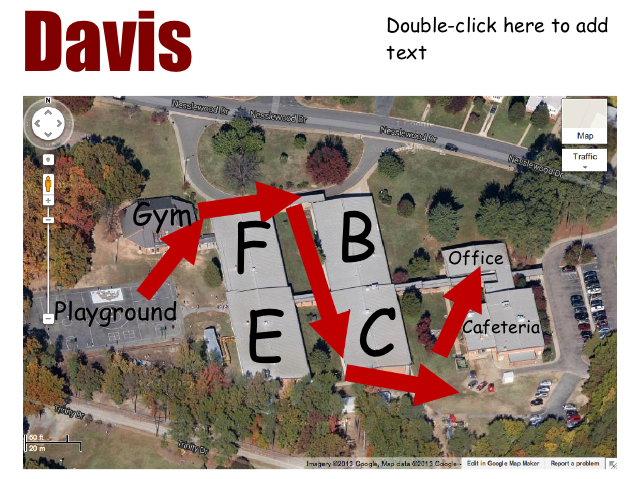
teachertrackingFirst grade students at Davis Elementary have been learning about animal migration (SOL1.7) and we discovered that scientists learn about where animals migrate by attaching tracking devices to them. We discussed why scientists wouldn’t be able to directly observe where the animals went (some swim, some fly, and some travel faster than a scientist can!) Here’s an example of a map scientists created after attaching tracking devices to blue whales: National Geographic: Mapping the Blue Whale Migration. So today, the first graders were “mini-scientists” and tried tracking some “animals” using the iPads as tracking devices. We attached the iPads to their hungry teachers who migrated around the school in search of food. When the teachers returned from their journey we examined the photos on their devices and tried to figure out where they went. I gave the students a map of their school in Pixie (see photo) and they used the arrow tool to draw their teachers’ migration routes. If you are up for a greater challenge, you could send the students out to migrate with the iPads. We just weren’t ready for that yet!


4th Grade Plant Prezis

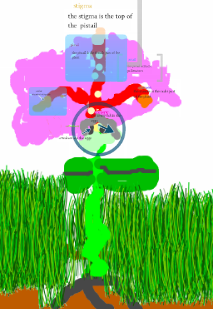
AzariahFourth graders at Chamberlayne Elementary have been studying the parts of a flowering plant (SOL 4.4) so today they made interactive diagrams of a flower using Prezi. First they drew a picture of a flower in Pixie. They looked at online photos to get different ideas for the type of flower they wanted to draw. I explained that they needed to include all the parts of a flower (pistil, stamen, anther, sepal, petal, ovary, ovule, stigma, etc) in their picture. Next they exported their Pixie drawings as PNG files with transparent backgrounds. The transparent background makes it look better in Prezi. Then they logged into Prezi and uploaded their pictures. I showed them how to use the selection tools to zoom into a part of the flower. They added text to label each part and to write a description. When they were finished, they viewed their presentations to make sure they worked correctly. When you click the arrows underneath a Prezi, it zooms into the different spots. It’s a very effective way to present information. Their projects turned out great, and you can see them all by clicking here.


Kindergarten School Maps

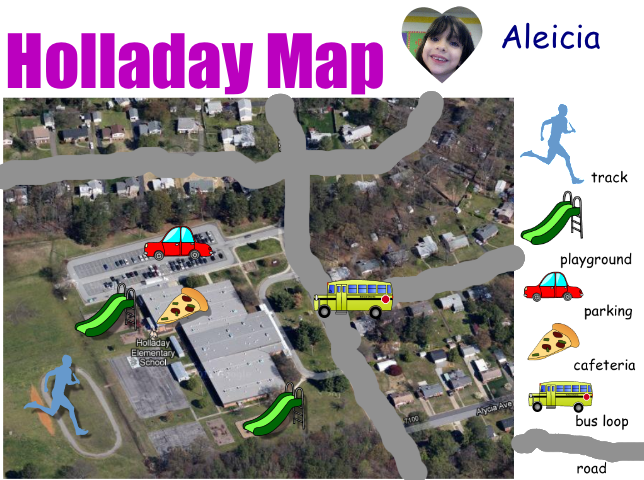
kmapKindergarten students at Holladay Elementary have been learning all about maps (SOL K.4 & K.5) so today they created simple maps of their school. First I showed them how to find their school in Google Earth, and I pointed out that maps show how places look from above. Next we opened a Pixie template that included a screenshot of the school from Google Earth and a few map symbols to include. You can download the template with the symbols by clicking here (just add a picture of your own school). Students identified the places in the school (playground, cafeteria, track, etc) and dragged the correct map symbols to the map. We discussed the purpose of the map key or legend, and I explained that they would be adding their own symbol to the key. Using the paint brush tool, the students traced over the roads in the picture, then they added a mark in the key to identify the symbol (color) they used for the roads. Finally the students added their own photo and name. You can see a student sample by clicking on the picture.


2nd Grade Indian Animations

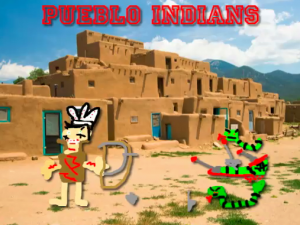
Picture 2Second graders in Ms. Marable’s class at Laburnum Elementary made animations about the different Indian tribes using Keynote today. First each student selected a tribe: Lakota, Powhatan, or Lakota. Then they opened up Keynote and did a Google image search for a picture of the region occupied by their tribe. I showed them how to drag the image into Keynote and resize it so it took up the whole background. Next they opened Pixie and drew a picture of an Indian from their tribe, a typical home, and an animal from that region. They exported their pictures as PNG files with a transparent background, and I helped them cut the pictures apart so they were separate. They dragged their pictures to the Keynote and added animations using the Build Inspector. Finally they recorded a narration explaining how their American Indian tribe lived. I exported those as QuickTime videos. You can see a few student examples here: Powhatan, Pueblo, Lakota.


1st Grade Goods & Services Town

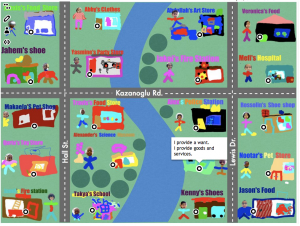
Picture 9Today first graders at Chamberlayne Elementary combined their knowledge of map skills (SOL1.4) and goods and services (SOL1.7) in a special project. Each class created their own interactive town map where you could click on a building and see whether it produced goods or services. Here’s how we did it. First we discussed what goods and services the people in a town would need or want. Then I instructed the students to choose one and design their store in Pixie. If we noticed that too many students were picking one type of store, we’d say, “We have a lot of pet stores in our town, what is something else our town should have?” I asked them to include several elements in their Pixie drawings: their names, their stores’ names, pictures of themselves, and pictures of what they sell or provide. I also asked them to highlight whether they provided goods or services or both. They exported their finished pictures as PNG files with transparent backgrounds. Next I added their buildings to a town map in Keynote (you can download the files we used for this project here). I uploaded the map to ThingLink and added the clickable hotspots. Since ThingLink sometimes has ads, I didn’t want to directly link to those, so I embedded them into Instabloggs. You can see the finished products from each class by clicking the links: Ms. Gardner, Ms. McLean, Ms. Kazanoglu. Teachers could then use these maps to review knowledge and encourage critical thinking: Is our town lacking anything? Which side of the river would you live on and why? Which direction would you travel to get from one specific store to another? Parents can also view the maps from home and leave comments!


Kindergarten Measurement in Pixie

KMeasureKindergarten students at Chamberlayne Elementary are learning about measurement using nonstandard units (SOLK.10), so today we measured our virtual selves using nonstandard units in Pixie. First I showed them how to take their photo with the webcam tool and paint a body with the paint brush tool. Next we used the stamp tool to find a stamp of something we wanted to use for our unit of measurement. We discussed and modeled the correct way to measure: start at the top or bottom, stack the units neatly on top of each other, stop when you get to the other end, and then count the units. After they measured themselves, I showed them how to record their voice saying their measurements. Click here to see a student sample.


1st Grade Boat Diagrams

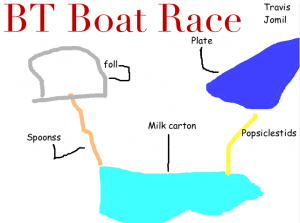
boatdiagramFirst grade students in Esra Kazanoglu’s class at Laburnum Elementary are preparing for a boat race! After studying Christopher Columbus’s ship (SOL 1.3) and understanding the principles of force and motion (SOL 1.2), each group of students must design a boat using various materials supplied by the teacher (milk cartons, cups, spoons, popsicle sticks, foil, paper plates, etc). Then they will test their boats in water in order to determine what adjustments they need to make before the big race. On the day of the race, the groups will attempt to make their boat go the farthest down a water-filled gutter within a certain time limit. They will measure the distance and record the race using the iPads. As you can see, this is an great example of cross-curricular project-based learning. So my job today was to help them create a diagram of their ship using Pixie. Since this was a group project, we discussed the importance of taking turns at the computer and the jobs of the students who weren’t on the computer at that time (to gather the materials in order to draw them correctly, to research spelling, to brainstorm ideas, etc.). First I showed the students how to add a creative title and change the font, size, and color of it. Next I explained how to draw a clear diagram using the paint tools. Finally, I taught them how to add text boxes for the labels and use a small paintbrush to connect them to the correct spot on the diagram. Using Pixie instead of paper and pencil allowed the students to move things around and make corrections easier (especially after their “test” run), plus the diagrams were a lot neater. You can see all the group’s diagrams by clicking here.


Tags:


2nd Grade Pixie Community Map

mapSecond graders at Holladay Elementary have been learning all about maps and cardinal directions so today they put their knowledge to use and created a map in Pixie complete with a compass rose, symbols, and a key. I showed them how to use stickers for the symbols and then shrink them to fit in the legend. We used the paint tool to add other features like rivers, lakes, and roads. Next they added their own photo using the built-in webcam and narrated a tour of their community using the recording tool. In the recording I asked them to give the cardinal directions for the various places of interest such as, “We have cattle farms in the southwestern region of our community.” Their projects turned out great, and the teacher was really able to see how well her students understood the maps concepts. You can see a student sample by clicking here.


Tags:


1st Grade Partner Patterns with Pixie

First graders at Holladay Elementary have been learning about patterns, so today they did a partner activity using Pixie to see if they could create patterns to stump their friends. I showed them how to use the stamps and stickers to create patterns. Then they added photos of themselves and painted their bodies using the paint brush tool. The last step was to try to figure out their partners’ patterns. They used the recording feature to record their voices saying the patterns using letters like they have learned in class (for example: A-B-A-B or A-A-B-B). The students checked each others’ work to see if they were correct. I exported the projects as QuickTime videos so they could be shared online. Click here to view a sample.


Tags: