Tag: GoogleMaps

4th Grade Virginia Regions Maps

There are many technology projects your students can do to review the Virginia Regions: a video, a website, a rap, a Keynote slideshow, or even a comic. Today in fourth grade at Chamberlayne Elementary, we made interactive maps online. There are many free sites for creating maps, but here’s what we found when we tried out three of them. A really cool one by National Geographic is called MapMaker. Your students can draw on maps, measure distances, add symbols, and see overlays with interesting data like population and climate. However, we couldn’t get it to load in class. So next we tried AniMaps which also lets you draw on maps and add symbols, but we found it was too complicated for the students, and had some glitches like panning and zooming too rapidly. At last we had success with ScribbleMaps. The students were able to draw the regions on the map, add labels, and search a huge library of symbols to show the products and industries of the regions. What I like best about it is that it gives two links for saving. One allows you to go back and edit it (using a password instead of a login). The other link is for simply sharing your map. I included both links on a GoogleDoc with all the student maps. You can see that by clicking here. Take a look at a student sample, and notice that you can zoom in and out and click on the symbols. It was a great way for the students to review the regions!



Making a Collaborative Map in 5th Grade

One of the great things about using Google Apps in the classroom is that students can collaborate on the same document at the same time. So partners could be writing in a Google Doc, entering data into a Google Spreadsheet, or making a Google Slideshow… together, even if they aren’t in the same class, or the same school! Today Ms. Lizotte’s fifth graders at Chamberlayne Elementary created a collaborative Google Map for their “Amazing Mail Race” project. Earlier this year they sent out letters to schools all over the USA and waited to see which schools replied. Here at the end of the year, they wanted to see all the different states where they received mail from displayed in one big map. So each student was assigned a letter/state to plot on the map. They chose an icon, marked the state, and wrote their name and where the letter was from. Then we embedded the map into a website created with CheckThis. You can see the website by clicking here. The map is interactive so be sure to click on the icons and zoom out, because they even received mail from as far away as Alaska! You could adapt this activity to your class by making collaborative maps about the explorers or Civil War battles or whatever else you are studying that can be displayed on a map. Let me know how I can help!


4th Grade Elapsed Time

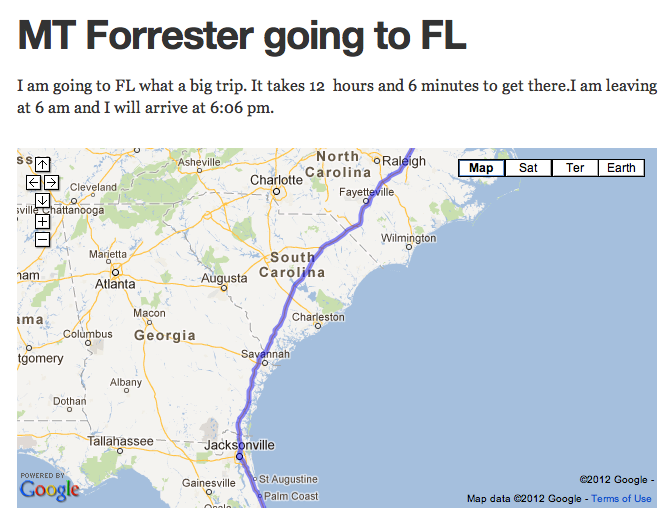
Did you know that tomorrow (April 7th) is International Pillow Fight Day? I wanted to go up to Washington DC to participate, and I used that trip as an example for today’s lesson with Ms. Waggoner’s fourth graders at Chamberlayne Elementary. She wanted her students to gain some real life experience calculating elapsed time. We decided to plan a trip using GoogleMaps. The students would first have to find out how many miles it was and how long it would take to get from Richmond, Virginia to their destination. Once they got that information they had to plan what time they would arrive if they left at a certain time. We published our trips online using CheckThis. The cool thing about using CheckThis is that we could embed the maps that we had created as well as add some pictures and even videos of our destination! I gathered all their URLs into one GoogleDoc that you can checkout here. Take a look at some of their sites and leave a comment if you wish. My site about International Pillow Fight is here (and by the way, I never made it up to DC, but we had our own local Pillow Fight Day right here in Richmond)!


Kindergarten Google Earth & Maps

Today Ms. Hall’s kindergarten class at Laburnum Elementary used Google Earth to locate their school. We even zoomed down so close that we could see the U.S. map on the blacktop! Next we tried to locate their houses. Ms. Hall has been working with them on memorizing their addresses, so this was a great way to practice. They would tell me their address and I would enter it into Google Maps and put a pushpin where they lived. Then they drew an icon of themselves in Pixie and we used those icons to replace the pushpin. So in the final map, you can see a picture of the student in the location where they live (click on the picture…I can’t show the embedded Google map because it has the addresses of students, but it’s an actual interactive Google map that you can click and drag and zoom and explore)!


4th Grade Virginia Regions Interactive Map

Fourth grade is currently studying the regions of Virginia. I’ve described some technology projects you can do for this unit earlier in my blog: here’s a video project and here’s a Keynote project. But today at Pinchbeck, Mr. Stein’s class wanted to make an embedded map like I did this summer. So first we used PhotoBooth to create videos about the regions. You could either download a folder of pictures to use as backgrounds by clicking here, or you can let your students take their own pictures of the different regions! How? Go to GoogleMaps and zoom down into a region, then go to Street View and take a screenshot of an interesting place. You take a screenshot by holding down the Apple (or Command) key + Shift + 4. The screenshots are saved in the Documents folder. Then use those pictures as backgrounds in PhotoBooth. If your students are having trouble finding a good spot to take a picture, I have some saved on this website. After the students made their videos, Mr. Stein created a embedded map with markers representing each student, so when you click on the marker you can view the student’s video. Take a look at the finished map here. The cool thing about putting the project on an embedded map on your website is that students are eager to show it off to their parents and friends so the motivation to review is built into the project.


5th Grade Henrico Place Names

The Henrico History unit in 5th Grade presents a great opportunity for you to try some technology projects with your class. You could make a comic in Comic Life, a slideshow in Keynote, or a podcast in Garage Band. Examples of these types of projects are found throughout my blog. Today at Pinchbeck we made movies about the history of the different street names… and students went to those streets virtually via Google Maps! First partners were assigned a road to research using the Henrico website. Then they went to Google Maps and typed in the name of the road. Once they found it, they located an intersection and went to street view to see if they could get an image of the road with a road sign. They snapped a picture of it using Apple+Shift+4 (snapshots now go into the Documents folder), and used the picture as a background image in Photo Booth. Finally they recorded a video of themselves standing in front of the picture of the road, sharing what they learned about its history. Here’s a great student example about Pouncey Tract Road. And this guy is destined to be a TV announcer. Here’s the sample video I showed the students. If you’d like to download the activity click here.