Tag: GoogleDocs

4th Data Collection & Graphing with Google Docs

Today 4th graders at Laburnum collected data from their classmates and graphed it using Google Docs. First we decided what we wanted to know about our classmates. We wanted it to be useful and authentic. So for example, one student noticed that his friends were sleepy, so he wanted to find out what time they go to bed. Another student wanted to know what problem her friends struggled most with at school. Others wanted to plan the next team game for recess or find out what treats the teacher should bring in for an upcoming class reward. Once we chose our question, I showed them how to create a form in Google Docs. I also showed them how they could change the theme to make it relate to their topic. Next students traveled around the room filling out each others’ forms. So everyone had plenty of data. I showed them how to look at all their data in the Google spreadsheet and how to sort it in a variety of ways. We sorted it by the question answer so they would be grouped together for easy counting. They counted the different answers and graphed them for the last step. You can take a look at some sample forms with the accompanying data/graphs below:
Stephany – What’s Your Favorite Candy? (data & graph)
Sedbreion – What Time Do You Go To Bed? (data & graph)
Precious – What Are You Having Trouble In School? (data & graph)

4th Grade Google Forms & Databases

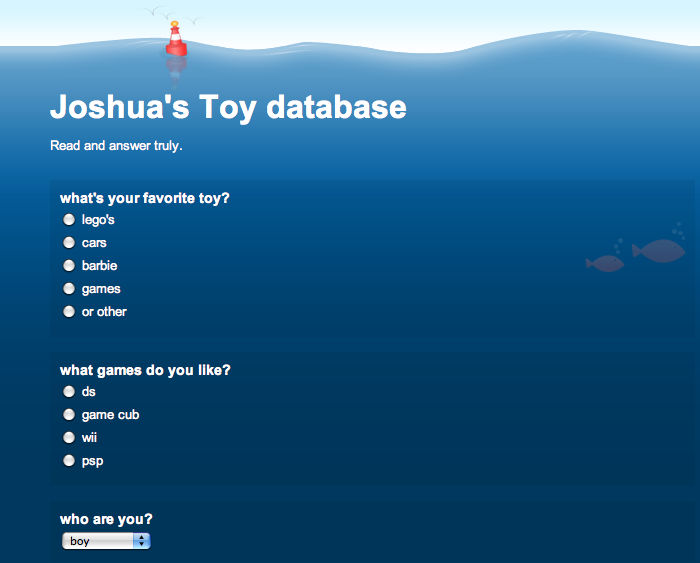
The database technology requirement often presents a quandary for teachers because we don’t have a database program per se on the computers anymore. However, a database is really just a collection of data that is organized into different categories, much like a spreadsheet. The key elements of a database are that it usually includes a form for entering the data, and the data can be sorted and filtered to show you exactly the information you want. So your students CAN make a database using Google Forms. That’s what we did today in Ms. Filer’s 4th grade class at Holladay Elementary. After building a sample form with the students, I showed them how to create their own form. Each student chose a topic of his or her interest, built the form using a variety of question types, and then travelled around the room filling out their friends’ forms. Next I showed them how they could access their data in Google Docs and sort and filter it. You can take a look at some students’ forms by clicking on the names below (and go ahead and fill out a couple if you want… the students will love it!)
Alex’s Pet Database
Skylar’s Field Trip Database
Joshua’s Toy Database
Emma’s Favorite Singer Database
Andrew’s Best SOL Test Database


4th Grade Moon Phases Websites

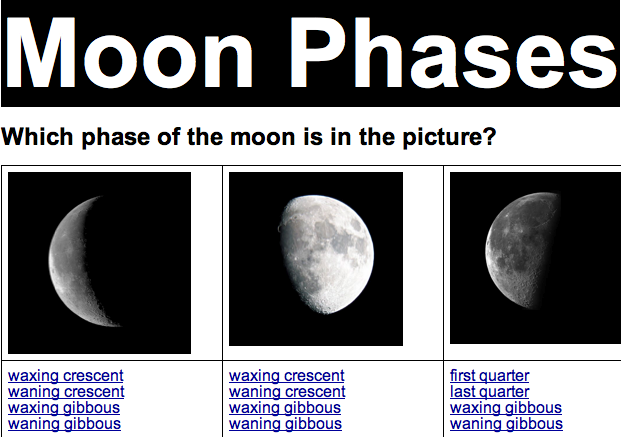
Today fourth grade students at Laburnum Elementary created interactive websites about the phases of the moon using GoogleDocs (SOL4.7b). Each student had to create a multiple choice question about a phase of the moon and make a response so when visitors clicked on an answer they would be taken to a message letting them know if they were right or wrong. I gave them a folder of pictures to use with phases of the moon and happy and sad faces. You can download it by clicking here. Then I taught them how to make the bookmarks and links using a sample website that you can see here. Check out some student examples: Asma, Charles, Milan, Monica, Ramar. Finally, be sure to take a look at my moon website for games and links about the moon.


5th Grade Elements Websites

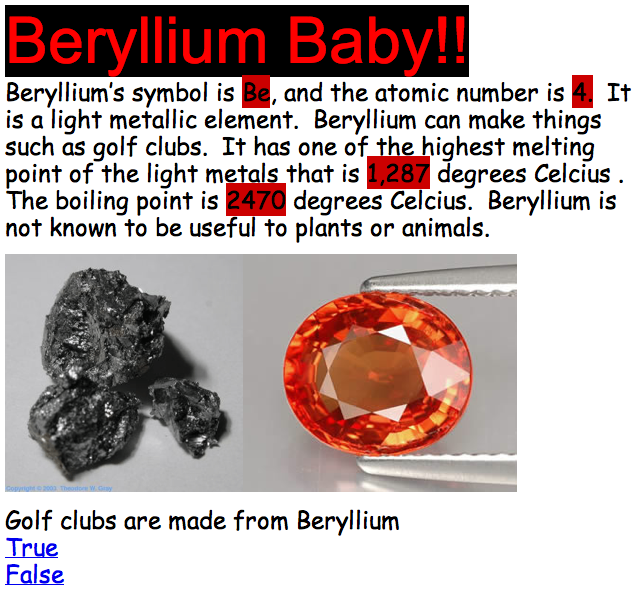
Fifth graders at Chamberlayne Elementary created their own interactive websites about the elements today. Each child was assigned an element from the Table of Elements which they had to research using Wikipedia, an online Periodic Table, and a cool iPad app called The Elements (Chamberlayne has a few iPads). There were certain facts they had to find like the symbol, the atomic number, and whether it was a metal or a nonmetal, but beyond that they could include anything else that they found interesting, as long as they understood it. Then the students created their websites using Google Docs. They included facts and pictures as well as interactive questions that utilized Google’s link and bookmark features. When viewers clicked on an answer to the question, they were told whether they were correct or incorrect. You can see some great samples here:
Michaela – Lithium Is Magnificent
Jenna – Learn About Sodium
Alex – Beryllium Baby!
Kyle – Aluminum
Ramses – Silicon


Henrico 21 Training

These past couple of weeks I’ve been conducting Henrico 21 training at my schools, and I’ve tried to incorporate different web tools into the presentation. So I thought I’d share them here on my blog. One great tool is Stixy which is basically on online sticky note board. That’s where I displayed all the important links and downloadable documents. You can see my Stixy by clicking here. After introducing Henrico 21, teachers shared their ideas about what makes a 21st century classroom using an online collaborative document called Type With Me. It was a great way to instantly share their ideas at the same time. As we discussed their ideas, I copied and pasted them into a Tagxedo document in the shape of 21. You can see it in the picture above. Next we looked at some videos of Henrico 21 lessons and evaluated them on a Google form. You can see a Prezi of my presentation below.


4th Grade Investigations

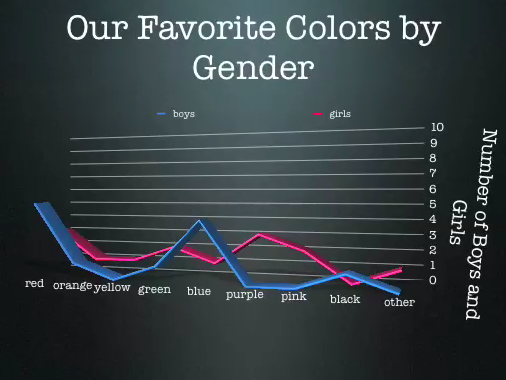
Today third and fourth graders at Laburnum worked on scientific investigations (SOL 3.1, 4.1) using Google Docs and Keynote. First they opened the Keynote template that you can download by clicking here. They made an hypothesis about which color was going to be the majority of the class’s favorite color, and they also hypothesized about the favorite color of the boys and the girls. Next they went to a Google Form online (you can see it by clicking here) and voted on their favorite colors. One of the advantages of using a Google Form is that it can instantly be sorted out in a Google Spreadsheet. So we looked at the spreadsheet (click here to see it), and I set it up with formulas to break the data down by whole class as well as gender. They used that to graph the results in their Keynote. Finally they added a conclusion at the end saying whether their hypothesis was right or wrong. You can check out a final version by clicking here.


3rd Grade Mali Slideshows

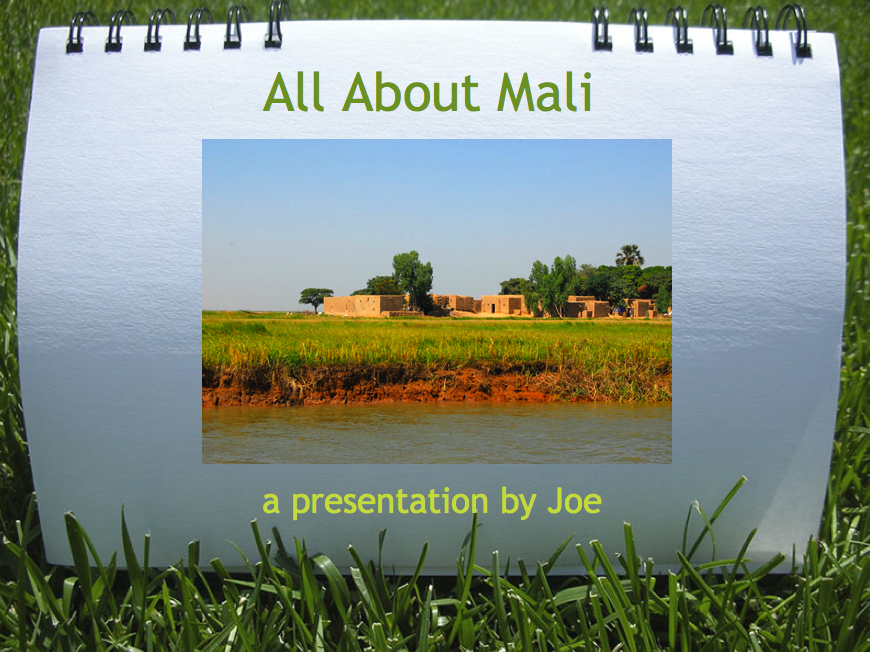
The 3rd grade Mali unit is one of those units where it’s difficult to find good resources. I know because I taught 3rd grade for 6 years and I can sympathize with you! So here’s a cool project idea if you have a Google account. You can have your students log in to your account (or just create a new one for your class), and they can create online slideshows like this one. One of the really cool things about doing it online is you can use the embed code to put the slideshows on your website and then parents can see their children’s work. However, if you don’t want to do it online, you can still make a really cool slideshow about Mali using Keynote. You can download the folder of pictures for this project by clicking here. You can see a sample Keynote video by clicking here.


EdTech Conference 2010

We’ve had off all week because of the snow, and today was our first day back! However, I was up in Ashland, Virginia, presenting at the EdTech conference hosted by Randolph-Macon College. My session was called “Frugal? Google!” and I explained how you can use Google Apps in your classroom. Did you know that with Google Apps you can create documents, spreadsheets, slideshows, forms, surveys, interactive maps, and calendars online for FREE? The great thing about doing it online is that you can work on it from any computer and more than one person can work on the same document. You can even embed some of them, like the slideshow, calendar, and forms, into your website. To see everything I shared click this link and this one. I’ve also had students create their own web pages using GoogleDocs which I described in this post.


4th Grade Cloud Websites & Writeboard

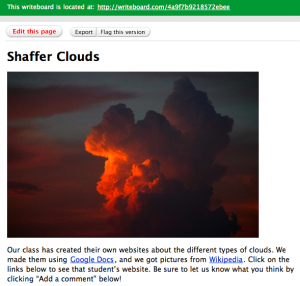
cloudsToday in 4th grade at Laburnum each student created their own website about clouds using GoogleDocs. Students wrote about cumulus, cirrus, stratus, and cumulonimbus clouds (SOL 4.6b) and added picture links from Wikipedia. You can download the folder of the Wikipedia links by clicking here. We are sharing the students’ websites with parents via Writeboard. That way all the links are on one page and parents can leave comments. If you click here you can visit the site and leave your own comments (the password is room28), or you can click here to see a finished student sample.