Category: Staff Development

EdTech 2011 at Randolph Macon
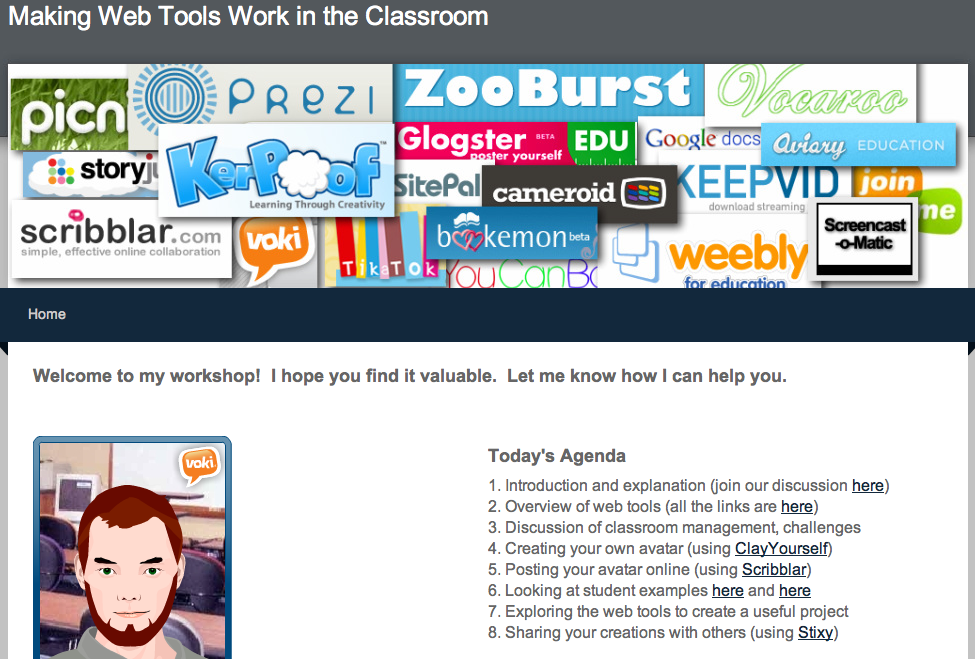
Today I presented two 2-hour workshops at the EdTech 2011 Conference at Randolph-Macon College in Ashland, Virginia. The workshops were both titled “Making Web Tools Work in the Classroom,” and I shared various web tools that I have used with students successfully (some web tools are just not successful in a real life classroom). You can view the entire workshop online here. I actually used a web tool, Weebly, to make the website. I’ve mentioned Weebly on this blog before, but it’s one of the best full-featured free website creation tools that I’ve found. One of the things I really like about it is the ability to add interactive features like polls, maps, and forms (which I included on the webpage so you could see how they look and work). I used another web tool called 3x3Links to share the various tools in an easy to navigate way. This is a great resource to use with your students if you have a wide range of websites that you want them to access easily.



VSTE Conference 2010

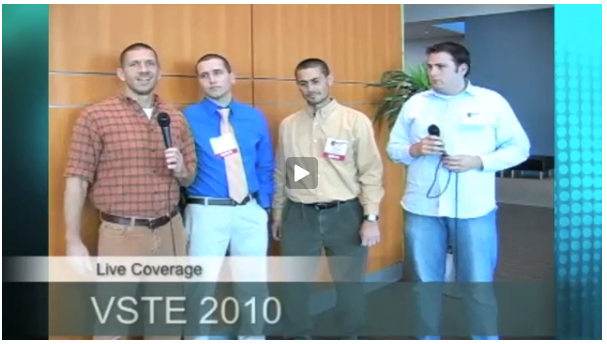
This Sunday Alfonso, Frank, and I presented a workshop at the VSTE Educational Technology Conference in Hampton, Virginia. It was called “Web Tools that Work in a Real Life Classroom.” You can see my website with all the links by clicking here. We basically shared many of the great web tools we’ve been using in your classrooms and which I’ve mentioned on this blog several times. One of the cool new things that we did during the presentation was use Today’s Meet. This site allows people to easily post questions during a presentation and have them displayed live so the presenters and audience members can respond instantly. It really encouraged participation and it might be a tool you’d like to try in your classroom. The Virginia Trekkers also presented Sunday and Monday and shared some of the new podcasts we’ve created this year: Frontier Culture Museum (people groups in Virginia VS.2d), McCormick’s Farm (technology and agriculture VS.9a), Richmond Slave Trail (with a special guest Trekker who traveled all the way to Africa VS.4a), Rock Quarry (the rock cycle 5.7), Ashland Bike Route (map skills), Monticello (Thomas Jefferson VS.5b), Richmond Squirrels Game Night (goods and services), Virginia Volcano (plate tectonics 5.7d), Pow Wow (Monacan Indians VS.2d), Appomattox (VS.7b and Veterans Day 3.11c), Museum of the Confederacy (Civil War VS.7), and Big Meadow in Shenandoah National Park (Blue Ridge Mountains VS.2, VS.10). Check out the all the latest podcasts and please consider submitting a class video to our Junior Trekkers Contest. It would be a great Henrico 21 project!


Tags:


Henrico 21 Training

These past couple of weeks I’ve been conducting Henrico 21 training at my schools, and I’ve tried to incorporate different web tools into the presentation. So I thought I’d share them here on my blog. One great tool is Stixy which is basically on online sticky note board. That’s where I displayed all the important links and downloadable documents. You can see my Stixy by clicking here. After introducing Henrico 21, teachers shared their ideas about what makes a 21st century classroom using an online collaborative document called Type With Me. It was a great way to instantly share their ideas at the same time. As we discussed their ideas, I copied and pasted them into a Tagxedo document in the shape of 21. You can see it in the picture above. Next we looked at some videos of Henrico 21 lessons and evaluated them on a Google form. You can see a Prezi of my presentation below.


Teacher Spotlight – Ryan Stein

Many teachers are creating websites this year with iWeb, and that is great! One thing you can do to simplify the process of publishing your site is to use the power of embed codes. Ryan Stein is a 4th grade teacher at Pinchbeck, and his website is a great example of this. He has embedded his Google Calendar and Google Docs for homework. That way, whenever he makes a change in Google, it automatically updates on his website without having to open iWeb and republish the site. He has also embedded videos which significantly reduces the size of his site and the upload times. Be sure to check out his Maps link where he has posted his interactive Virginia map project that I described on this post. If you’d like to get more ideas, I’ve created a website that just focuses on cool things you can embed on your own homepage. There are videos, photo slideshows, polls, forms, and even an online puzzle. Please let me know if you need any help creating your website!


Animated Historical Figures

I’ve used SitePal before (and Voiki) to create animated talking heads and turn text into speech using different voices and accents. It’s a really great resource that just got ten times better because now you can upload your own photos and animate them. You type whatever you want them to say and the motions are added automatically. It looks very realistic, almost like bringing the picture to life. Check out this video of Hellen Keller! Another neat possibility for animating historical figures is Blabberize. It’s a little more complicated than SitePal, but still very effective, and it’s free. You upload the picture and speak the words you want it to say. You also get an embed code to embed the video on your own webpage (like I have done below for James Lafayette).


New Teacher Academy Web Tools

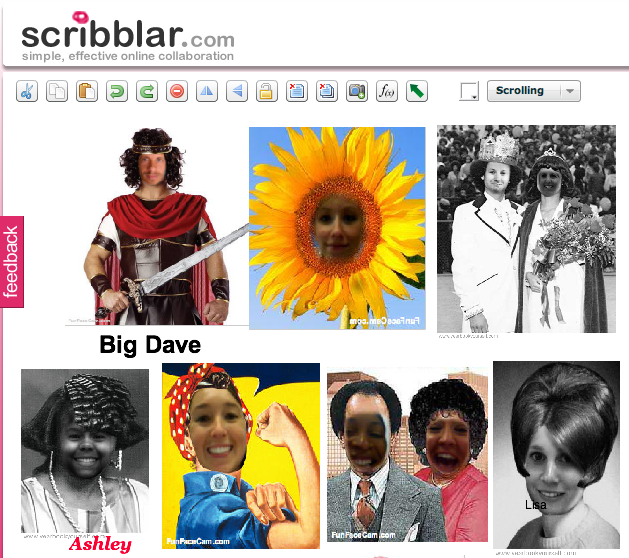
My focus this school year will be trying out new web tools with the students. There are so many amazing ways to create and collaborate online now. So for our new teacher academy this year, I shared some of the coolest ones with them. One of the first things we did was create funny pictures of ourselves using FunFace and YearbookYourself. Then we uploaded our pictures to an online writeboard called Scribblar. This would be a very cool opening week activity for your students as well. Next we went through some of the web tools and applications on the Mac and showed how they could be used to teach the first nine weeks’ curriculum. We practiced using some of the programs to make a Keynote, ComicLife, and PhotoBooth video for the animals unit (SOL 3.4, 3.5, 3.6). If you want to download the files and find out everything we taught you can visit the New Teacher Academy website. This Prezi gives an overview of some of the tools and provides links to examples.


Photo Booth Tutorial

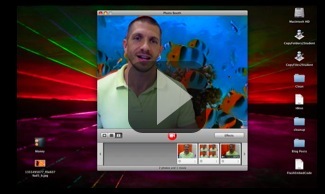
Last week I taught a workshop on using technology with social studies, and since then I’ve gotten several emails with questions about using Photo Booth. Photo Booth is a great program for teaching social studies in particular because students can put themselves into a historical picture using screenshots and backgrounds. However, it can be confusing. So I created a video and a handout that you can find by clicking here. Each step of the process is broken down into short 2-3 minute video segments so you can just watch the part that you need. I’ve also included several student samples showing how Photo Booth can be used effectively to teach content and assess learning. You may want to click the photobooth tag over on the right of this blog to read more about the various projects. Let me know if you have any questions, and if you teach a lesson using Photo Booth share it with me!


Social Studies Workshop

This week my fellow ITRTs, Frank, Brad, and I have been teaching the social studies contacts and your principals about how to improve social studies performance using technology. Today’s students, called Millennials, are also known as the digital generation because they have grown up with technology. Some are even creating YouTube videos and keeping blogs of their own, like the girl in the cartoon. Using technology in your classroom is a great way to tap into their natural abilities and interests. I created a website in GoogleDocs that I’d like to share with you because it has links to many valuable resources. First there’s an online poll using a site called PollEverywhere that you might like to use in your classroom. It provides a live updated graph as your students vote or respond to whatever topic you post… and it’s free! After trying the poll, you can take the Millennials Quiz to see how well you relate to today’s generation of students. Next, get inspired by projects that students are working on in Henrico and across the country by clicking the video links. Finally, you can learn how to use some of the programs I’ve mentioned in this blog by clicking the tutorial links. I hope the site is helpful, and let me know if you have any questions.


Using ActiVotes without a Board

Did you know that you can use the ActiVotes without a Promethean board? The ActiVotes are a great way to get all your students involved in review activities. They are usually stored in a grey box in your library (or maybe a classroom). Inside the box you will find 30-35 ActiVotes and an ActivHub. You plug the ActivHub into your USB port, pass out the ActiVotes to your students, and show some questions on your screen using the projector. The questions can be created with anything… Pages, Keynote, GoogleDocs, or you can even use Test Maker questions (just realize that the ActiVotes only have the letters A-F on them). To open the software look for expresspoll (Applications > Promethean > ActivInspire > expresspoll). You might even want to drag that to your dock for easy access. Once you open express poll, you will see a little question mark on your desktop. Roll your mouse over it, select the gear icon, and choose the ActiVote icon from the popup menu. Then a grid should appear on your desktop with numbers that correspond to each ActiVote. Students can start clicking their answers and watch as the grid lights up! When you press the red stop button, a graph will appear showing how many students chose each answer. It provides instant feedback so you will know what you need to review, and it keeps all the students engaged. I have a how-to video and handout on this website. Be sure to check out the Prezi explanation as well… it’s a cool new presentation program that you might like to try.


EdTech Conference 2010

We’ve had off all week because of the snow, and today was our first day back! However, I was up in Ashland, Virginia, presenting at the EdTech conference hosted by Randolph-Macon College. My session was called “Frugal? Google!” and I explained how you can use Google Apps in your classroom. Did you know that with Google Apps you can create documents, spreadsheets, slideshows, forms, surveys, interactive maps, and calendars online for FREE? The great thing about doing it online is that you can work on it from any computer and more than one person can work on the same document. You can even embed some of them, like the slideshow, calendar, and forms, into your website. To see everything I shared click this link and this one. I’ve also had students create their own web pages using GoogleDocs which I described in this post.