Category: 5th Grade

5th Grade Scientific Method
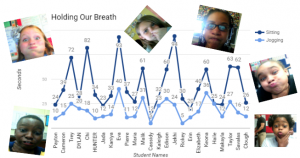
captureFifth graders at Varina Elementary have been learning about the scientific method in Science (SOL5.1) and nonfiction text features in Language Arts (SOL5.6a). To reinforce those concepts, students in Ms. Rumans’ and Ms. Gallahan’s classes conducted a quick experiment and wrote about the scientific method they followed, including some nonfiction text features. First I made a copy of a blank Google doc for each student in Google classroom. I usually like to review word processing skills for my first technology lesson. I showed them how to add a title and change the font, size and color. Then we wrote about our experiment using the vocabulary words we have learned: hypothesis, independent variables, and dependent variables. I demonstrated how to make the important words bold (a feature of nonfiction text). Next we opened this template (I changed the Share settings to “Anyone with the link can edit”) and each student typed their name in column A using the row with their student number. First we timed how long we could hold our breath while sitting quietly using Google stopwatch (just do a Google search for “stopwatch”). Then we ran in place for a minute and timed how long we could hold our breath. Students recorded their times in columns B and C. The template automatically generates a line graph. After collecting our data, the students went back to their own Google docs and clicked Insert > Chart > From Sheets. They navigated to the spreadsheet we just completed and clicked on the graph. Finally we added a photo of ourselves holding our breath by clicking Insert > Image > Take a snapshot. I linked their individual documents to their names on the spreadsheet. You can check out Ms. Gallahan’s class results here.

5th Grade Perimeter

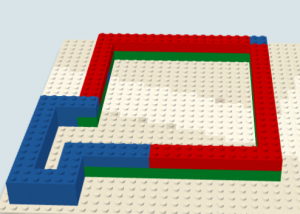
CaptureFifth graders at Varina Elementary have been learning how to find the perimeter of shapes (SOL5.8a), so today students in Ms. Shiew’s class created shapes out of virtual building blocks and asked their classmates to calculate the perimeter. First I posted a link to Build with Chrome on Google classroom. This is a great site for anyone who loves Legos (which means everyone in the world). Students could select different colors and sizes of bricks to build their shape. I explained that they would have to figure out the perimeter of their own shape before asking their classmates to do it, so they shouldn’t make it too complicated. Once the students finished building their shape, we took a screenshot of it (using the Snipping Tool on the Dell Start Menu). Then I posted a link to CheckThis on Google classroom, and the students created a simple webpage and uploaded their pic. Next they added a poll to their webpage and listed some possible perimeters, including the correct one. We used the knobs on the bricks as our unit of measurement. Finally the students published their webpages and posted the links to Google classroom so their classmates could figure out the perimeters of their shapes. You can see their projects here.


5th Grade Shapes & Angles

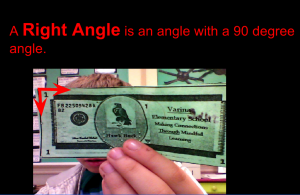
CaptureFifth graders at Varina Elementary have been studying angles (SOL5.12) and plane figures (SOL5.13), so today students in Ms. Parker’s class created slideshows about shapes and angles found in real life. I posted a blank Google slideshow template in Google classroom and made a copy for each student. For the title page we searched for a good background image to represent shapes. On subsequent slides, the students wrote sentences about angles and shapes, typing the important words in bold. Then they clicked the image button and either took a photo with the webcam or searched for an image online representing the geometric concept. Next they clicked the Shapes button and added arrows or shapes to highlight the relevant part of the image. The students also added transitions and animations to their slideshow. We only had time in class to make the first slide, but the students went on afterwards and added additional slides. You can see them all here.


5th Grade Sound Slideshows

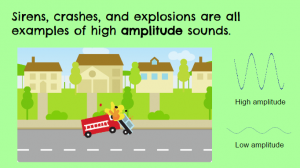
CaptureFifth graders at Holladay Elementary have been studying sound (SOL5.2), so today students in Ms. DiMatteo’s class created Google slideshows about two characteristics of sound waves: frequency and amplitude (SOL5.2b). First we explored these topics with various interactive websites. With the “Wave on a String” website, students can create their own waves and adjust the frequency and amplitude. With the “Virtual Oscilloscope” students can turn on their microphones and actually see how different sound waves look on the oscilloscope. With the “Oscilloscope & Sounds” website students can press different keys on a piano to see how the pitch is reflected in the frequency. They can also adjust the volume slider to see how that affects the amplitude. I suggest turning both of the dials to #1 at the beginning so the sound waves are big enough. The last site we explored is another virtual oscilloscope that lets students experiment with changing the pitch and volume. Now the students were ready to create their slideshows. I posted a template on Google classroom that you can copy here. On the cover slide, we clicked the Background button and searched for an image having to do with sound. We also typed our names in the blank. The next slide is about frequency, so I instructed the students to think of an animal or object that makes a high or low frequency sound and create an animation using ABCYa!Animate to illustrate it. We exported our animations as GIF files and added them to our slide. On the last slide we went through the same process, but this time, illustrating amplitude. Unfortunately we ran into problems with the animations only playing once and then disappearing. For this reason, I have no student samples to share, but I figured out a solution. You can upload your animation to EZGIFMaker, press the “Animate It” button, and download the newly created GIF file. That webtool also lets you delete frames that had mistakes. You can take a look at my sample here. P.S. If you are studying sound, be sure to check out our very own Matt Caratachea’s awesome sound video!


5th Grade Force & Motion Animations

CaptureSince the upcoming 5th grade SOL test has questions from the 4th grade science curriculum, fifth graders at Varina have been reviewing force and motion (SOL4.2). So today students in Ms. Gallahan’s class created animations showing potential and/or kinetic energy. First we discussed the differences between them. One way to get students to think about kinetic and potential energy is to ask them how to increase each one. How would you increase the potential energy of a toy car on a ramp? (Answer: make the ramp higher or make the car heavier) How would you increase the potential energy of a bow and arrow? (Answer: pull back farther on the bow string). How would you increase the kinetic energy of a runner? (Answer: run faster). After our brief discussion, the students were ready to make thoughtful animations. I posted the link to ABCYa! Animate on Google classroom and showed them how to use the tools. The students created their animations frame by frame and exported them as GIF files. Next, we posted them to Google classroom with questions for our classmates to answer. You can see their animations and questions here.


5th Grade Light & Sound Animations

CaptureFifth graders at Davis Elementary are studying light and sound (SOL5.2 & 5.3) so today we made animations about their different properties. First we brainstormed ideas (frequency, amplitude, wavelength, refraction, reflection, spectrum, etc), and I shared a couple of sample animations, one for sound and one for light. I explained that they would need to post their animation on Google classroom with a thoughtful question for their classmates to answer. To practice, we generated a few questions for the sample animations. Next, I posted the link to ABCYa! Animate on Google classroom and showed the students how to use the animation tool. One part that the students really liked was the option to upload a photo for the background picture. After the students illustrated each frame, they exported their finished animations as GIF files and uploaded them to Google classroom. They also posted their question for their classmates to answer in the comments. You can see their animations here.


5th Grade Shapes Comics

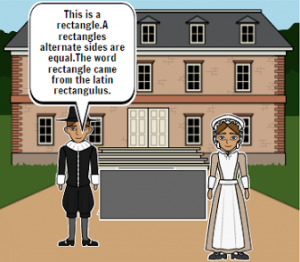
CaptureFifth graders at Laburnum Elementary have been learning about 2-D plane figures such as the rhombus, trapezoid, parallelogram, etc (SOL5.13), so today students in Ms. Hall’s class created comics about these shapes using StoryboardThat. First we discussed the various shapes and brainstormed ideas for making a comic about them. I explained that the comic would have three frames, and it should be consistent through all three frames. In other words, if one frame is about shapes in sports, the whole comic should be about shapes in sports. Next we went to Storyboard that and selected the backgrounds for the comic using the “Scenes” tab. We also added characters that fit the backgrounds. I showed them how to customize the characters’ appearance and poses. Then, using the “Shapes” tab, we added shapes that went along with the backgrounds and characters. To explain the shapes, students added speech bubbles using the “Textables” tab. We discussed the importance of using correct grammar and spelling. Finally, we took screenshots of our comics and posted them to Google classroom with a question for our classmates to answer. You can see them all here.


5th Grade Plant Inferences

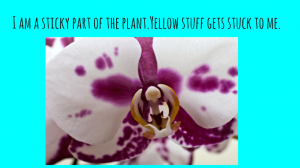
CaptureFifth graders at Varina Elementary have been learning about plants in science (SOL5.5) and they have been making inferences in reading (SOL5.5i). Since solving riddles often involves making inferences, students in Ms. Kirchmier’s class wrote plant riddles for each other to solve. We used Google slides to create the riddles. I gave them a blank template in Google classroom and showed them how to make a title page with a background image. For the second slide, students chose a color background and added a text box with their riddle. I explained that the riddle had to be about a plant part, and it had to make students think. Riddles shouldn’t be too easy to solve. Next students inserted a photo from a Google search and added animations and transitions. Finally they published their slideshows (File > Publish) and posted the links on Google classroom. Students solved each other’s riddles in the comments section. You can see them all here.


5th Grade Southeast Region Maps

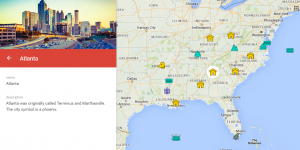
CaptureFifth graders at Davis Elementary have been learning about the southeast region of the United States, so today, students in Ms. Bailey’s class created interactive maps of the southeast region. First I posted a link to My Google Maps on Google classroom. My Google maps allows you to create and save your own maps. The students had to identify places of importance or interest in each state and place a marker on those spots. I showed them how to customize the markers and how to add text and photos to each one. Next the students clicked the Share button and changed the setting from “Private” to “Anyone with the link can view.” We copied the links and posted them to Google classroom so they could see each others’ maps. You can take a look at them here.


5th Grade Plot Comics

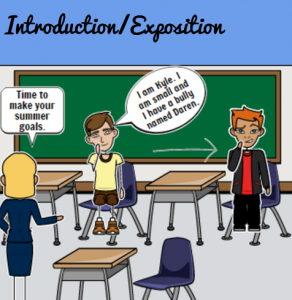
5thcomicFifth graders in Ms. Bailey’s class at Davis Elementary have been learning about plot development (SOL5.5c) as they read the exciting book, Escaping the Giant Wave by Peg Kehret. Today I showed them how to create a Google slideshow highlighting important events in the plot of the story. We used StoryboardThat to illustrate each scene. StoryboardThat includes a variety of backgrounds and characters that can be customized. The students searched for special items they wanted to add to their pictures, like fire and waves. Then we took screenshots of the pictures and imported them into our Google slideshow. Next we added text boxes to each slide identifying the parts of the “plot mountain”: introduction/problem, rising action, climax, falling action, and resolution. I showed them how to change the background color of the slides and add transitions. Finally we published the links to Google classroom where students could view each others’ slideshows and discuss similarities and differences. The featured image is from Sarah’s slideshow, but you can see them all here.