Category: 5th Grade

5th Grade Plants Under the Proscope
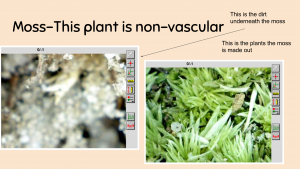
Fifth graders at Trevvett Elementary have been learning about vascular and nonvascular plants in Science (SOL5.5). Today students in Ms. Ballou’s class examined different types of plants using a digital USB microscope called a Proscope. First, the students got into self-selected groups, and we distributed the Proscopes and the plants (flowers, moss, celery, and ferns). Then they logged into Google classroom where I posted a Google slides template for them to use to share their findings (you can make a copy of the template here) Students put their names on the first slide, and on the subsequent slides they were to identify each plant as vascular or non-vascualr and upload a photo or two of the plant under the microscope. Proscope makes it easy to take photos by simply clicking a button. Some students also labeled different parts of the plants using the text box and arrow tools. They had a great time seeing the plants in a way they had never seen them before, and they also got some practice making a Google slideshow. You can see their finished slideshows here. Let me know if you’d like to use the Proscopes with your class. Each school has a couple, and I can bring a box of 15 additional ones.
5th Grade Animal Comics

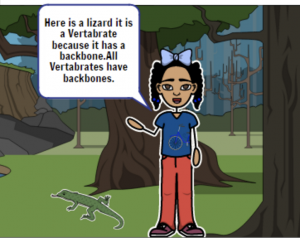
Fifth graders at Laburnum Elementary have been learning about vertebrates and invertebrates (SOL5.5b), so today students in Ms. Hall’s class created comics to help explain the difference between these two types of animals. We used StoryboardThat to create our comics. StoryboardThat is the best webtool around for creating comics because of its huge library of customizable clipart. I’ve used often in lessons (you can search my blog for other examples). The only problem with using it at the elementary level is that its terms of service specify that only students 13 years of age or older can have accounts. So we don’t let our students create accounts, but they can still make comics using the free version, then we save them by taking screenshots. First we created our three scenes (the free version is limited to 3 or 6 scenes). I explained that the first scene needed to be an introduction, the second scene would be about vertebrates, and the last scene would be about invertebrates. The students had to plan out which animals they were going to focus on so they could chose appropriate habitats for the backgrounds. A cool new feature on StoryboardThat allows you to customize the background scene by changing the weather and the time of day (click the blue “Edit Scene” button). Next the students added characters and animals (click the Characters tab at the top, then choose the Animals submenu). You can customize the characters as well by clicking the “Edit Pose” button. Finally we added speech bubbles, called “Textables” here, and typed complete sentences explaining the differences between vertebrates and invertebrates. I showed them how to take a screenshot of their finished comics using the Snipping Tool (or Command+Shift+4 on a Mac), and we shared them on Google classroom. You can see all their comics here.


5th Grade Ocean Tours

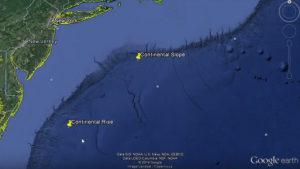
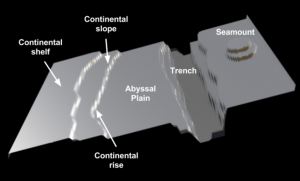
Fifth graders at Holladay Elementary have been studying the ocean floor in Science (SOL5.6), so today students in Ms. Haislip’s class created undersea tours with Google Earth and Screencastify. First we opened up Google Earth and I showed them how to put placemarks on the different features (continental plain, continental slope, continental rise, abyssal plain, trench, ridge, seamount, etc). I also demonstrated how they could go “underwater” and change the angle of the view by clicking and dragging the wheel in the top right corner. Once their view was just right, they clicked the yellow thumbtack button to add a labeled placemark on the spot. The placemarks appear in a list on the left side under “My Places.” When the students double-click a placemark from the list, Google Earth automatically takes them to that same view that was saved. Once all the placemarks had been created, it was time to record the tour using Screencastify. Screencastify is a Chrome extension that records the screen and lets you add an audio voiceover. Students worked with partners to “travel” around the ocean floor describing each feature. Screencastify saves the videos to Google drive, so it was easy to copy and paste the links from there to Google classroom. You can take a look at some of their projects here.


5th Grade 3-D Ocean Floor

Fifth graders at Trevvett Elementary have been learning about the oceans and the ocean floor in Science (SOL5.6). Today students in Mr. Hilton’s class created 3-D models of the ocean floor using this webtool. It’s a pretty cool webtool because when you upload a 2-dimensional black and white drawing, it transforms it into a 3-dimensional picture, making the lighter colors higher in elevation (it’s a great tool for teaching about topographical maps and contour lines too). We drew our black and white picture of the ocean floor using Pixie, but you could also use an online drawing tool like drawsave, vectorpaint, queeky, slimber, sketchpad, sumopaint, drawisland, sketchlot, abcya paint, and more (there are a lot of online drawing tools)! You just have to be sure that you only use black, white, and shades of grey. Remember, lighter colors are higher (sea mounts would be white) and darker colors are lower (the ocean trenches would be black). Next, we uploaded our pictures to the 3-D tool and adjusted a few settings on the right side. We changed the Model from “cube” to “plane” and we dragged the diffusion slider all the way to the right to the “1” position. Then we clicked the magnifying glass to enlarge the picture. We used Screencastify to record our screen as we clicked and dragged our model of the ocean floor, identifying the different parts. Take a look at some student examples here. If you didn’t want to make a movie, you could have the students import it into a word processing program and label the parts like this.


5th Grade Green Screen Videos

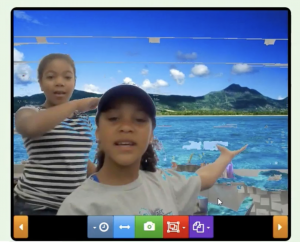
Fifth graders at Trevvett Elementary have been studying the ocean (SOL5.6), so today students in Ms. Adamonis’ class created green screen videos about the ocean. A green screen allows you to place a different image behind the speaker, making it look like the speaker is standing in or near the ocean, for example. It was a challenge finding a free web tool for making green screen videos (if you know of any, please let us know in the comments). There are several mobile apps that can do it, and Mac computers can do it with Photo Booth (see a similar lesson taught using Photo Booth here), but we needed something we could use on our Dell laptops. Finally I found this, which seemed to work pretty well. Our next challenge was making the green screen background. We used colored plastic tablecloths, but it’s actually better if you have something more permanent and smooth, like a solid colored wall or bulletin board. In order to use this webtool, you need to activate your webcam by following the prompts, then you click on the background and adjust the sliders at the bottom until it looks good (adequate lighting helps a lot). We used Screencastify to record our videos. Screencastify saves the videos to your Google drive, making it easy to share the links. You can see a couple of student examples here.


5th Grade Comparing Virginia Rivers

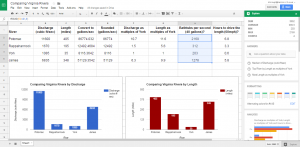
Fifth graders at Laburnum Elementary have been reviewing the rivers of Virginia (VS.2c) and watersheds (SOL4.9) in Social Studies and Science. They have also been multiplying decimals in Math (SOL5.5a). So today students in Mr. Hofilena’s class used those skills to compare Virginia Rivers. First we discussed ways to compare the rivers. Everyone agreed that we should compare the length, but I also suggested comparing the discharge. Discharge is the amount of water flowing down the river, measured in cubic feet per second. We discussed factors that influence discharge: river depth and width, rainfall, and the velocity of the current. Next I gave them a Google Sheets template that you can copy here. The students had to do their own research to find the length and discharge for each river (Google “River name length” and “River name discharge”). They entered the data into the correct cells on the spreadsheet (using only numbers, no units). Then I showed them how to highlight the data and analyze it using the new “Explore” button in the bottom right corner. We used the Insert Chart button (top toolbar) to create graphs of the data. It was interesting to see how the length compared with the discharge. For example, the Rappahannock River is almost 6 times the length of the York, but its discharge is only 1.5 times that of the York. What does that tell us about the two rivers? We didn’t have time to do further comparisons, but I’ve added them to the template. You could convert the discharge to gallons per second with a formula (CELL*7.48052). Then convert that to bathtubs per second (the average bathtub holds 40 gallons) to help students visualize it better. You could also figure out how long it would take to drive the length of the river by dividing the total miles by 60 (assuming you are driving 60 MPH). You could even compare the rivers using the York as the unit. Take a look at a sample here.


5th Grade Ocean Food Chain

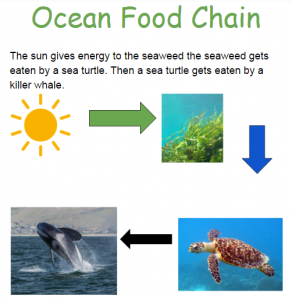
Fifth graders at Varina Elementary have been reading and writing nonfiction text (SOL5.6 & 5.7) and they have been learning about ocean food chains in Science (SOL5.6). So today students in Ms. Primrose’s and Mr. Williams’ classes created an ocean food chain in Google drawing and wrote about it. First I gave them each a copy of a blank Google doc in Google classroom. I showed them how to add the title and change the font, size, and color. Next we had to research our food chain. The students could pick whichever sea creatures they were interested in, but they had to have the correct predator-prey relationships. For example, they couldn’t have a jellyfish eating an octopus. I explained how to open a new tab and ask Google questions like, “What is an ocean plant? What eats seaweed? What predators does a dolphin have?” Once they had their correct food chain facts, they wrote about the sequence in their Google doc. Then we clicked Insert > Drawing, and the students created their food chain diagram using images (click the Image button > Search) and arrows (click the Shapes button). Finally, we clicked File > Publish to the web, copied the link, and posted our projects to Google classroom. You can see them all here.


5th Grade Scientific Method Videos

captureFifth graders at Holladay Elementary have been studying the steps in the scientific method (SOL5.1). One of their teachers, Ms. Haislip, emailed me asking if I could show them how to make a video reviewing the steps. Since the lesson was only one hour, I decided to focus on the most difficult step – identifying the independent and dependent variables (SOL5.1e), then they could add the other steps later. First we got into pairs, and I showed them how to log into WeVideo with their Google accounts. We switched over to Storyboard mode using the three lines menu in the top left corner since that’s easier than Timeline mode. Each pair of students brainstormed ideas for an experiment they’d like to do and typed the title in the Title clip of the storyboard. Next we used the record button to record their intro. They had to introduce themselves and explain the purpose of their experiment. Then they opened a new tab and searched for an image to represent their experiment. They downloaded the image and added it to their video timeline. I showed them how to record a voiceover for the photo, identifying the dependent and independent variables. Students had to convey their understanding that the independent variable is the one that the scientist changes and the dependent variable is the one that responds to the change. Finally the students added a theme with music and published their videos. We posted the links to Google classroom, but you can see some student samples here.


Tags:


5th Grade Animated Rock Cycle

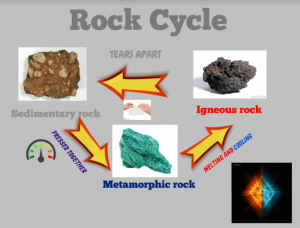
captureFifth graders at Trevvett Elementary are currently studying the rock cycle (SOL5.7a,b), so students in Mr. Hilton’s class and Ms. Catlett’s class created animated rock cycles using Biteslide and Gickr. First we went to Biteslide to design the rock cycle diagram. Biteslide is a paid site, but you can use the Demo for free (click “Try Demo”). It’s great for designing posters, diagrams, and slideshows because it has built-in templates, clip art, and a filtered Google image search. Students added a background image and a title. Then they searched for images of metamorphic, igneous, and sedimentary rocks and labeled them. Next they added arrows with explanations describing how rocks change from one form to another. I gave them a tip for finding pictures with no background by adding “icon” to their search (“fire icon” for example). Once their diagrams were complete, we took screenshots of them using the Snipping Tool. To prepare for the animation, we deleted parts of the diagram in reverse order and continued taking screenshots until we just had the first rock type left. Finally we uploaded our screenshots to Gickr which created an animated .gif file of our diagram. You can see all their diagrams here.


Reading Olympics Raps

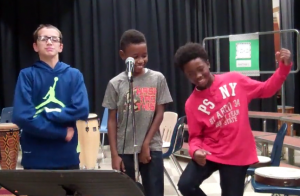
captureEvery year Ms. Teague, the librarian at Holladay Elementary, hosts a Reading Olympics competition for 4th and 5th grade students. The students have to read at least five books from the book list by March, then they compete in the Olympics by answering questions about the books with their teams. You can learn more about it on Mrs. Teague’s blog. It’s been very effective at getting the students engaged and excited about reading. In fact, this year, three fifth grade boys were so excited that they came up with the idea of creating a rap for the competition. They worked with the music teacher, Ms. Jones, and me to compose and record their rap. I showed them how to use ButtonBass to generate a good beat that matched their lyrics. Then Ms. Jones used a flip camera to record and edit their video. She published it on the school website, shared it on the morning announcements, and you can check it out here. Way to go, guys!


Tags: