Category: 5th Grade

5th Grade Henrico Math Websites
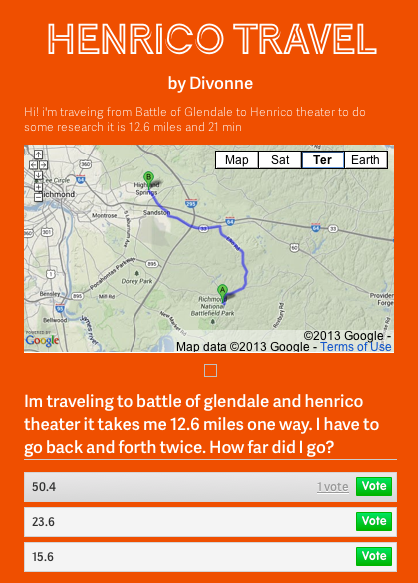
DivonneFifth grade students in Ms. Allen’s class at Laburnum Elementary have been learning about important places in Henrico County (HC.1). They have also been studying 2-digit multiplication in math. So today we combined the two topics into one lesson. First the students had to pick two famous places in Henrico County and use Google Maps to figure out the distance between them. Next we went to CheckThis and created a website with the embedded map and a word problem that involved multiplying the distance by a specific number. For example, a person might have to travel back and forth between the two places a certain number of times. Then the students created a poll question with various answers that visitors could choose. I posted all of their sites onto one page that you can see here. Students can answer each others’ questions to review multiplication as well as places in Henrico County.


5th Grade Spheres of the Earth

Screen shot 2013-11-22 at 4.20.07 PMToday 5th graders in Ms. Hall’s class at Laburnum Elementary used iMovie to make videos about the spheres of the earth: the lithosphere, the biosphere, the hydrosphere, and the atmosphere. First they went online to gather images of each sphere. They saved them to their folders and then imported them into iMovie. I showed them how to arrange the photos, crop them, and adjust them in the timeline. I also showed them how to record a video introduction and a voiceover for the photos. Next we added subtitles to identify the different spheres. Finally the students selected a song from iMovie’s soundtrack library to play during their video. It was a lot to do this early in the school year, but her students did a great job. Take a look at a student example here.


5th Grade Protractor Project

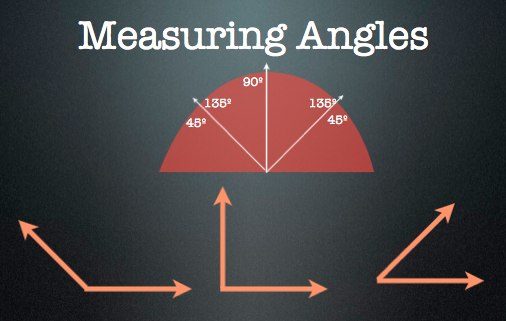
protractorFifth graders at Chamberlayne Elementary have been learning about angles and how to measure them with a protractor. They also have to know how to use a virtual protractor for their online SOL tests. So the teachers wanted me to practice these skills with their students. I thought what better way than to have the students create their own virtual protractors. So we used Keynote and I showed them how to create a protractor shape using the Vector Shape Tool. Next we added the labels and I explained how holding down Shift when drawing lines will snap the lines to 0º, 45º, and 90º. We discussed how a protractor has two labels for each angle since they could be obtuse or acute. So we labeled the parts of our protractors: 0º, 45º/135º, 90º, and 135º/45º. We also made our protractor transparent by changing the opacity. Next we created some angles with the Arrow Tool. I showed them how to use the Option + Drag trick to make a copy of the rays so that they didn’t have to recreate them each time. Finally we used the Group and Front buttons to group all the parts of our protractor together and bring it on top of all the angles. Then students practiced using each others’ protractors to measure the angles. I had a few minutes at the end of the lesson, so I showed the students a new program we have called Scratch. It allows students to create simple programs with an elementary coding language. We wrote a sample program that makes Scratch the Cat draw angles. You can see it by clicking here.


ActivEngage in 2nd Grade

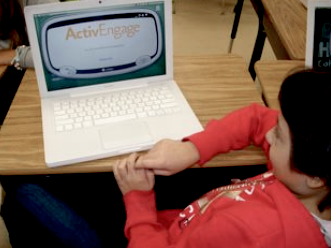
activeRecently I have been training the staff at my schools how to use the ActivEngage software. It turns the cart laptops into a student responders so that teachers can get instant feedback. You can learn more about it here. I’m happy to do a demo lesson in your class if you’d like to see it in action. Today I showed 2nd graders at Laburnum how to use it. I asked them a few questions about the famous Americans they’ve been studying (SOL2.11) using a simple GoogleDoc but then I sent them to TodaysMeet to generate their own questions. You can see some of their questions here. Even though ActivEngage works with ActivInspire flipcharts, you can actually use anything (PDFs, Word documents, websites, etc) to display the questions you want to ask. You just need the ExpressPoll program to be open so that you can receive the students’ input. Another free option that’s available if you want to implement a student response system in your class is to try Socrative. You set up a quiz on the website, and then then your students log in with the link to your class. They can respond in many different ways and even play online competitions.


2nd Grade Choose-Your-Own-Ending Stories

inkle2A couple of days ago I was searching for a way that students could make an online classification system for living things (SOL5.5). I wanted them to be able to answer questions about a living thing and have their search get narrowed until they were able to classify it. I found a site called Inklewriter that was pretty cool. It allows you to write “choose-your-own-ending” stories. It was perfect for the classification lesson, and I made a sample that you can see here. Unfortunately, that lesson was cancelled because of testing. However, I was able to try it out today with a couple of 2nd grade classes as part of a creative writing assignment. I explained the idea that their stories had to have a dilemma with two choices for the reader to make. One choice should result in something good happening, and the other should result in something bad happening. Each student typed up their stories and wrote the two choices. Then I showed them how to add a picture by searching for an image of something in their story and pasting in the weblink to that image. Next they wrote about the results of each choice. Inklewriter was fun and easy to use and it didn’t require any login to write the stories (although you need a login to save them… we did run into a little problem when we all tried logging into the same account, so I just saved their stories one at a time afterwards). Their stories turned out great! You can try a couple of student samples here and here, or you can find all their stories here: Marable and Street. (PS. This site would also work great with an economics lesson on choices and opportunity costs SOL3.9).


5th Grade Mean, Median, Mode with GoogleDocs

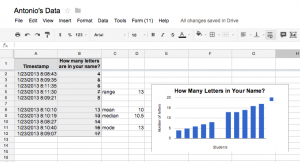
Picture 7Fifth grade students at Laburnum Elementary have been learning about mean, median, mode, and range (SOL5.16) so today I showed them how computers can help them figure out those numbers. First I wanted the students to collect data that was relevant to them. So I asked them to come up with a question to ask their classmates that would generate a variety of numbers. They thought of some great ideas like, “How many letters are in your name?” and “How many pairs of earrings do you own?” Then I showed them how to create a Google form with that question and they went around the room filling in each others’ forms. Next they looked at their data in the Google spreadsheet which was automatically generated from the form. We figured out the mean first. The students highlighted all the numbers and clicked on the AVG button. They rounded the answer and entered it into a cell labeled “Mean.” To figure out median and mode, the students had to sort their data. So I showed them how to click on the column heading and choose “Sort A – Z.” Now they could see which number(s) occurred most often. We wrote that in another cell labeled “Mode.” We used the slash button to cross off numbers until they got to the middle one(s) for the “Median.” If there were two middle numbers, the students knew they had to add them together and divide by two, but I showed them how the computer could make that calculation quickly by typing the “=” first. For example, if the two numbers were 15 and 18, they would type “=15+18” into a cell and hit Enter, then in another cell they would take that answer and divide by 2: “=33/2” and hit Enter. They could use that same idea to figure out the range by subtracting the smallest number from the largest number. Finally I showed them how to highlight the data and create a quick graph by clicking the Chart button. We published their forms and data sorts online, and you can see them here.


VSTE Conference 2012

Picture 8This weekend I attended the VSTE Conference in Virginia Beach. It was a great conference, and I learned lots of new ways to use technology in the classroom. I also presented a session with Alfonso Favale. The title of our presentation was “Make Meaningful Media with the Virginia Trekkers.” You can see our entire presentation here. The tool we used to create that website is actually one that you and your students could use too. It’s called Tackk and doesn’t require a login to use. It has lots of cool features like embedding videos and maps which I tried to include in our sample site. We started our presentation by sharing some of the latest updates to the Virginia Trekkers. This summer we traveled across the country thanks to a HEF grant. We went from Virginia to California, passing through seven other states along the way: Tennessee, Arkansas, Oklahoma, Texas, New Mexico, Arizona, and Nevada. We added those videos to our USA Trekkers page to help 5th graders with their study of the United States regions. After telling about the updates, we wanted to show teachers how they could create videos with their students like the Trekkers do. So we gave them a variety of resources and web tools that you can find linked on our Tackk page. Try some of them out and let me know how I can help you. You might even consider entering one of your videos to our Video Contest. After our presentation, the Trekkers took a Polar Plunge into the ocean and we made a “pop-up video” using a cool web tool we learned about at VSTE called Popcorn Maker. Students can use it to add pop-ups to their videos including maps, twitter feeds, text, pictures and more. Check it out!


5th Grade State Names Statistics

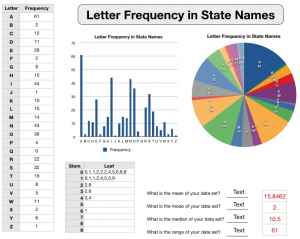
LetterFrequencyGraphsFifth graders in Ms. Corfield’s class at Chamberlayne Elementary have been learning about the different states in social studies. They have also been studying mean, median, mode, range, and stem and leaf plots in math. So Ms. Corfield came up with a great idea that would help students review all of these concepts! One of the benefits of project-based learning is the ability to connect cross-curricular topics in one assignment like this example. First the students had to figure out the number each letter occurs in all the states’ names. They could come up with their own strategies for accomplishing this task (some may even discover online tools like this one that count the occurrences of each letter in whatever you type). Once they had their data, they entered it into a template that I created for them. You can download it by clicking here. The template automatically generates a bar and pie graph of the data. The students had to create a stem and leaf plot of the data themselves. A quick way to do this is to sort the numbers by clicking on the heading of Column B and choosing “Sort Ascending” (afterwards they will need to click on the heading of Column A and choose “Sort Ascending” to put everything back in order). Next, students calculated the mean, median, mode, and range of the data. They could use any of the spreadsheet tools available to them to do this. Some will discover that when they highlight all the numbers, the median (average) is automatically calculated over on the bottom left side of the spreadsheet. Letting students make discoveries like this on their own is far more effective than you pointing it out to them. Here’s a final trivia question for you: Which is the only letter that is not found in any state name?


Tags:


5th Grade Journey to the Center of Earth

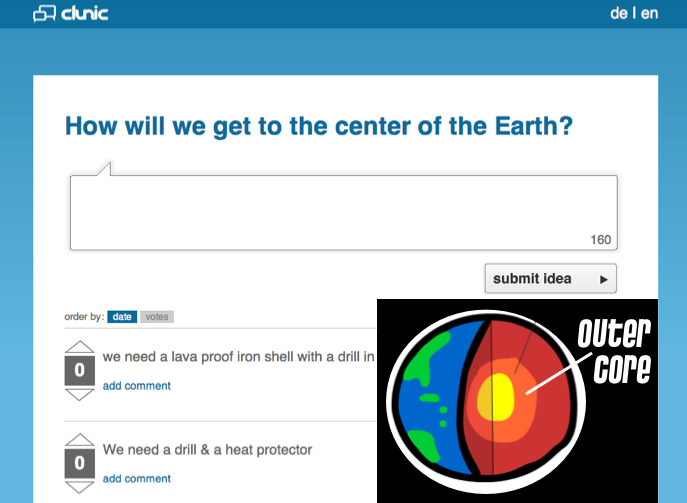
This summer, NASA sent the Curiosity rover to Mars, and their video explaining the process is amazing. You can view it here. Obviously, many of the skills we want to teach our students (critical thinking, problem solving, creativity, collaboration, communication, research, innovation, etc.) were involved in designing the rover and its transportation. Since 5th graders at Chamberlayne Elementary have been learning about the layers of the Earth (SOL 5.7), we tried designing a module for traveling to the center of the Earth. We had to figure out how to travel through each layer and what kinds of tools we would need to do the job without getting burned up or crushed. There are several sites students can use for research: Harcourt, Interactives, and a site I made. We started today by brainstorming ideas using a site called Clunic. Clunic allows anyone to share ideas and others can vote them up or down and make comments. You can see what we did by clicking here. After getting ideas and doing some additional research, students were going to get in groups and design a module. They could diagram it using online tools (like Kerpoof or DrawTo), or using programs on the computer (like Pixie or Keynote). They could even diagram it on paper if they chose. Then students could present their ideas by making a website using CheckThis or PageFin. I created a sample that you can see here.


Making a Collaborative Map in 5th Grade

One of the great things about using Google Apps in the classroom is that students can collaborate on the same document at the same time. So partners could be writing in a Google Doc, entering data into a Google Spreadsheet, or making a Google Slideshow… together, even if they aren’t in the same class, or the same school! Today Ms. Lizotte’s fifth graders at Chamberlayne Elementary created a collaborative Google Map for their “Amazing Mail Race” project. Earlier this year they sent out letters to schools all over the USA and waited to see which schools replied. Here at the end of the year, they wanted to see all the different states where they received mail from displayed in one big map. So each student was assigned a letter/state to plot on the map. They chose an icon, marked the state, and wrote their name and where the letter was from. Then we embedded the map into a website created with CheckThis. You can see the website by clicking here. The map is interactive so be sure to click on the icons and zoom out, because they even received mail from as far away as Alaska! You could adapt this activity to your class by making collaborative maps about the explorers or Civil War battles or whatever else you are studying that can be displayed on a map. Let me know how I can help!