Category: 4th Grade

4th Grade Hanover Tavern Padlets
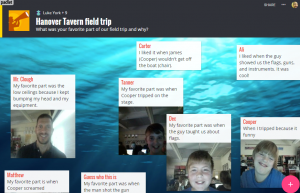
CaptureFourth graders at Davis Elementary just took a field trip to the Hanover Tavern to learn more about Patrick Henry and the Revolutionary War Era in Virginia (VS.5). Today students in Ms. White’s class reflected on what they learned using Padlet. I posted a link to Padlet on Google classroom, and the students signed in using their Google accounts. Since this is on the HCPS CORE Resources list, it’s OK for students to sign in and set up accounts. Padlet is a great webtool that provides an online bulletin board for your students to post text, images, and even videos. First we clicked the “New Padlet” button at the top to create our Padlet. Students customized the wallpaper and the icon, and typed a title. For the Description, students wrote an open-ended question for their classmates to answer on their Padlet. We discussed the difference between open-ended questions (like, “What was your favorite part and why?” or “What is something that surprised you?” or “What would you like to have explored more?”) and one-answer questions (like, “When did the Revolutionary War start?” or “Did you have fun?”). Next, students clicked the Share button, and we made sure that the Privacy was set to Secret (only people with the link could view it). Then we copied the link and pasted it to Google classroom. Now students could click on each others’ links and add posts to the Padlets by double clicking on them. They typed their name for the title of each post and their answer to the question in the box. They could also click the camera button and take a photo of themselves. We made sure that we didn’t put our posts on top of anyone else’s. With Padlet, you can move your own post, but not other people’s (the creator can move anyone’s posts though). You can see some student samples here.


4th Grade Virginia Products & Industries Maps

MapFourth graders at Laburnum Elementary have been learning about Virginia products and industries (VS.10b), so today students in Ms. Butler’s class created interactive Virginia product maps. First I posted a link on Google classroom to my Google Maps and a map layer (KML file) showing the different regions of Virginia (you can download it here). One of the nice things about creating Google maps is that you can upload map layers that other people have created, which saves a lot of time. Students accessed My Google Maps, then clicked “Add A Layer,” and they uploaded the KML file that they had downloaded. Next I showed them how to add markers to the different regions where they wanted to show a product or industry. I also demonstrated how to add a custom icon (click the paint bucket > More icons > Custom icon), and explained that transparent PNG files would look best since they don’t have a background. Students continued adding product icons to their maps with descriptions of each. When they finished, we shared our maps to “Anyone with the link” and posted the links to Google classroom. You can see them all here.


4th Grade Famous Americans Comics

CaptureFourth graders at Laburnum Elementary have been studying 20th Century famous Virginians (VS.9), so today students in Ms. Robinson’s class chose one of them and created a comic about their accomplishments. I posted a link to StoryboardThat on Google classroom, and once students accessed the website, they clicked the “Create a Storyboard” button. I explained that their comic would have three panels. Each panel needed to provide an important fact or accomplishment for the Virginian they chose. We discussed ideas for backgrounds and where to find authentic-looking characters (mostly from the 1900s tab). I also showed them how to customize the characters by changing their color, clothing, and poses. After students added backgrounds and characters to each panel, I showed them how to add speech bubbles. We discussed the importance of writing complete sentences that explain the facts and accomplishments. Students could open a new tab to do additional research if necessary. Once they were finished, I showed them how to take a screenshot of their comics (Click the Start button > Snipping Tool) to save them since they can’t create accounts. Finally we posted our comics to Google classroom for everyone to see. You can see them here.


4th Grade Electric Circuits

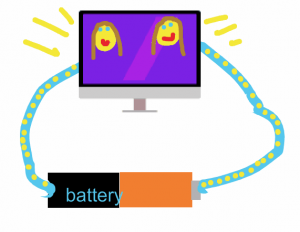
CaptureFourth graders at Varina Elementary have been learning about electricity and circuits (SOL4.3), so today students in Ms. Burcham’s class created animated circuits. First we discussed the parts of a circuit. To keep things simple for the amount of time we had, we limited our circuits to a power source for generating electricity (battery) and an object that converts the electrical energy into light, sound, heat, or motion. We left off the switch, but students could easily create other animations in the future with switches and additional parts. I posted a link to ABCYa!Animate on Google Classroom, and the first object we drew was the power source. I showed them how to use the shapes tool to draw a simple battery. We discussed the positive and negative end (the positive end is the part with the knob) and which direction the current would flow out of the battery so our animations would be accurate. When one student said it flows from positive to negative and another said it flows the opposite way, I said that they both were right, in a sense. The actual flow of electrons is from the negative end to the positive end, but when Benjamin Franklin and other early scientists wrote about electricity, before the electron had been discovered, they said that the flow was from the positive to the negative end. So that “current” was called “conventional current” because it was based on convention, or tradition. Many circuit diagrams show the flow of electricity according to convention, or from positive to negative, so that’s the way we showed it today. I also related it back to their force and motion unit (SOL4.2) by asking whether a battery has potential or kinetic energy. They were correct in stating that it has potential energy. Any resistor on the circuit, like a light bulb, slowed the flow of electrons due to friction. So now that their concepts were correct, they could draw the rest of the diagram. We drew the wire, making sure it connected to both ends of the battery so the electricity could flow, and we drew an object to be powered by the battery along the route of the wire. For each frame we represented the current by yellow dots along the wire. When the dots reached the object, we made it do something, like turn on or move. Then we continued the dots back to the battery. When we finished our animations, we exported them as GIF files and uploaded them to Google classroom with a question for our classmates to answer. You can see them all here (bonus if you can find the battery with no potential energy).


4th Grade Coding Shapes

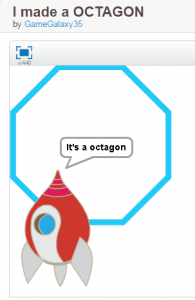
CaptureFourth graders at Davis Elementary have been learning about polygons (SOL4.12) and angles (SOL4.10), so today students in Ms. Bennett’s class used their knowledge of angles to create polygons using basic coding skills. Teaching students about coding is an important skill that is being emphasized more and more. Not only is it practical, but it also trains the brain in logical and sequential processing. I posted a link to Scratch on Google classroom, which is an excellent site for teaching elementary students how to write basic computer code. I helped them set up their accounts, and we used the teacher’s email for confirmation. Then we signed in and clicked “Create” to start our project. I did an example first, showing them how to use code to create a triangle. We discussed pixels (for the length of the sides), angles (for the corners of the shape), and position (for returning to the beginning). First I wrote a long code, programming each side and angle, then I asked if they thought there was a simpler way. Some of them figured out that they could use the loop feature to handle some of the repeated commands. Now they were ready to create their own shapes. We started by making a custom sprite (click “New Sprite” and choose file, drawing, or camera). The the students used the coding blocks to make their shape. They could create any polygon with less than 10 sides. They also added a speech bubble at the end for their sprite to say the name of the shape they created. When they were finished, they shared their projects on Google classroom. You can see them all here. Be sure to click the “See Inside” button to take a look at the code.


Tags:


4th Grade Patterns

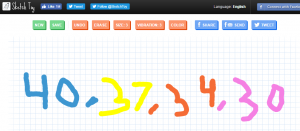
CaptureFourth graders at Varina Elementary have been learning about numeric and geometric patterns (SOL4.15), so today students in Ms. Thomas’ and Ms. Connell’s classes created patterns using a variety of webtools. Ms. Thomas’ class hadn’t used Google slides yet, so I wanted to show them how to make an animated slideshow. I posted a blank template on Google classroom and set it to make a copy for each student. When they opened their copy, each student clicked the Background button at the top and searched for a pattern image to use. Then they typed their title and name. Next, we created a new slide and chose a background color. I showed them how to add shapes and change the border and fill colors. They created their patterns with shapes, then I explained how to add a transition to each shape so that they appeared in order. When they were finished, we clicked the Share button and changed the privacy settings so that anyone with the link could view the slideshow. The students pasted their links to Google classroom so that their classmates could try to solve their patterns. Ms. Connell’s class had already made slideshows, so I showed them three webtools for animation: Parapara, SketchToy, and ABCYa!Animate. The students could choose which one they wanted to use, and they could use more than one if they had time. Parapara is good for quick, simple animations. Sketchtoy redraws anything you draw with cool vibrating lines. I’ve showcased ABCYa! Animate many times on this blog because it’s one of the best animation webtools for kids that I’ve seen. Ms. Connell’s class created both geometric and numeric patterns. You can see them all here.


4th Grade Biography Blogs & Voki

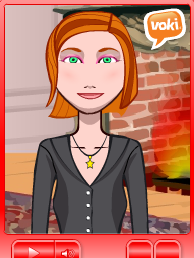
CaptureFourth graders at Davis Elementary have been reading nonfiction, especially biographies and autobiographies (SOL4.6), so today students in Ms. White’s class created biography blogs with an embedded animated talking person from Voki. First I showed them how to log into their blogs. Every student and teacher in Henrico has their own blog. Once we were logged in, I explained how to change the title and other blog settings. Then we created our first blog post. I wanted to show them how they could embed something in a blog post, so we went to Voki and made an animated talking famous person. They had actually already researched someone for another project, so they used that person for their Voki. We discussed ways to make the character resemble the person by changing their skin color, hair, and clothing. Then we added a pertinent background and typed a few sentences for the person to say about their accomplishments. When we were finished, we copied the embed code and went back to our blogs. I showed them how to paste in the embed code using the “code” button (press the “code” button at the beginning and end of the code). Finally they published their blog post and shared the link on Google classroom so their classmates could see them. You can take a look at them here.


4th Grade Civil War Marching Maps

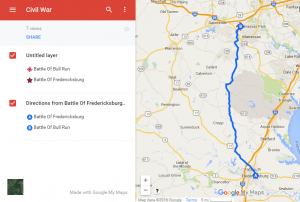
CaptureFourth graders at Holladay Elementary have been learning about the Civil War in Social Studies (VS.7) and measurement in math (SOL4.7) so today we created Civil War Marching Maps using My Google Maps. First the students chose two major Civil War battles to mark on the map (Bull Run, Fredericksburg, Richmond, Appomattox, or Hampton Roads). Then they added an image and some brief factual information about the battle to each marker. Next we clicked on a marker and chose the directions icon at the bottom of the popup window (it looks like an arrow). That added a new layer to the map legend on the left with the location marked as “B”. We added the name of the other marker in the “A” box, and clicked the three dots to choose “Step-by-step directions.” That gave us the distance in miles. However, the time wasn’t accurate because it was based on driving, whereas the Civil War soldiers marched. So we clicked the car icon and changed the Transportation mode to walking. Now students had an estimate of how long it would take for the soldiers to march from one battle to another. Yet that still was not accurate because soldiers didn’t march nonstop. They averaged 15-30 miles per day, so students could divide the distance by 20 or 25 to figure out how many days it would take for Civil War soldiers to march that distance. Students shared their maps on Google classroom, and you can see them all here.


4th Grade Revolutionary War Maps

CaptureFourth graders at Davis Elementary have been learning about the Revolutionary War (VS.5), so today students in Ms. White’s class created Revolutionary War maps using My Google Maps. First I posted a link to My Google Maps on Google Classroom. With My Google Maps, anyone with a Google account can create their own customized maps. I showed the students how to add a title and change the way the base map looks (click the arrow next to “Base Map”). Next we added markers to the places where important events and battles occurred. The students wrote a description of each event and added a photo (click the camera button). Then I showed them how to customize the marker icon with an image (click the paint bucket, click “Custom Icon,” and do a Google image search). Finally, we clicked the “Share” button, changed the settings so that the map could be seen by anyone with the link, and copied and pasted the link to Google classroom. You can see all the students’ maps here.


4th Grade Revolutionary War Comics

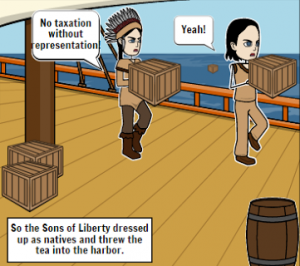
CaptureFourth graders at Davis Elementary have been studying the Revolutionary War in Social Studies (VS.5), and they have been learning how to formulate questions about nonfiction text in Reading (SOL4.6b). So today students in Ms. White’s class created Revolutionary War comics and asked their classmates questions about them. We used StoryboardThat to make the comics because it has plenty of Revolutionary War backgrounds, characters, and props for the students to use. First we brainstormed ideas for the comics so everyone wasn’t doing the same thing. Students could make comics about any Revolutionary War event they had learned about so far. Since they were just beginning the unit, they didn’t have many events to choose from yet, but as they learn more, they can make additional comics. I showed them how to change the characters’ poses and expressions to fit the context. I also explained that the speech bubbles needed to include enough facts and information for their classmates to answer the questions. When they were finished, we took screenshots of the comics and posted them to Google classroom with a question. The students enjoyed reading each others’comics and answering their questions, plus, it was a great review. You can see some student samples here.