Category: 4th Grade

4th Grade Revolutionary War Websites
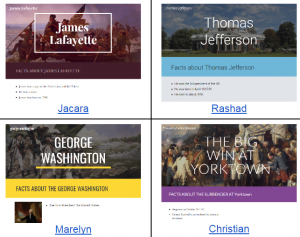
Fourth graders at Holladay Elementary have been learning all about the Revolutionary War (VS.5) and nonfiction text elements (SOL4.6). Today students in Ms. Zimmerman’s class chose a Revolutionary War battle or person and created an informative website about the topic using the new Google sites. Google sites has made some dramatic changes in its layout and interface that allow you to create a great-looking site in minutes. The students logged into their Google drive, then clicked New > More > Google Sites. They typed the name of their Revolutionary War battle or person in the title box. Next they chose a theme for their website by clicking the Themes tab on the right. The theme changes the default fonts, colors, and layout of the site. We clicked back on the Insert tab and added a text box. The students changed it to a Heading (SOL4.6a) using the dropdown menu and typed “Facts about ___ (their topic)” Now it was time to do some research. We opened a new tab in the browser and searched for our battle or famous person. The students could also use their class notes. I discussed the importance of writing the facts in their own words and the problems that could result from plagiarism. Back on their website, the students added another text box and typed their facts using the bullets option. I showed them how to add an image by clicking the Images button on the right and doing a Google search for their battle or person. In order to make a caption (another nonfiction text element they’ve learned about), we had to double click on the section with the photo, chose Text from the popup menu, and type our caption. We changed it to a Subheading so it would stand out. Finally we added a map (since graphics are an important part of nonfiction text) by clicking the Map button in the Insert panel and searched for the location of the battle or a place of importance in the person’s life. The students added a caption to explain the map, then we published our websites using the Publish button. You may want to check under “Settings” to be sure that it is public on the web. We posted the links to our websites on Google classroom, but you can see them all here.

4th Grade Jamestown Maps

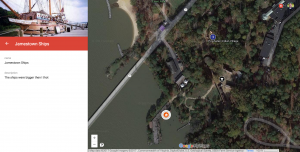
Fourth graders at Trevvett Elementary have been studying Jamestown, the first permanent English settlement in America (VS.3), and they recently took a field trip there. Today students in Ms. Harlow’s class reflected on their trip and what they have learned. I posted a link to My Google Maps on Google classroom. My Google Maps allows you to create your own map (you can also access it through your Google Drive by clicking New > More > Google My Maps). We titled our map “Jamestown,” and I showed them how to find Jamestown by zooming instead of using the search box. First, we switched to Google Earth view (click the box in the bottom left corner) and zoomed into Virginia. Then we found the James River and zoomed into one of the big bends in the river. As we zoomed in, we saw Jamestown appear on the north bank. We continued to zoom into Jamestown until we saw the park and the dock. Students were amazed that they could actually see the ships, the fort, and the Powhatan Indian village. They already knew that the park isn’t the true location of Jamestown, but we were able to find the true location nearby. I showed them how to add markers to different parts of the map. They wrote a description for each marker, explaining what they learned or what surprised them at that spot. I also showed them how to click the camera button and add a photo. Finally we gave our map some finishing touches by customizing the markers (click the paint bucket, and you can change its color and the icon on the marker). We clicked the Share button and shared our maps with “anyone with the link.” The students posted their links to Google classroom, but you can see them all here.


4th Grade Data Collection

Fourth graders at Holladay Elementary have been learning how to collect, organize, display, and interpret data from a variety of graphs (SOL4.14), so today students in Ms. Tonello’s class used the new Google forms to collect data. I’ve taught similar lessons in the past, but since then Google has added some cool new features. You can now add photos to each individual answer choice, you can mark answer choices correct or incorrect (for grading purposes), and there are new ways to explore your data. We tried out a couple of these features today. First, the students came up with topics they were interested in for collecting data. Since it’s the day after Halloween, many students chose topics relating to that. Next they signed into their Google drives and created a new form (click Create > New Form). They typed a title and a question for their classmates to answer. Some students added photos for each answer choice (click the photo icon). We published our forms and posted the links to Google classroom (click the Preview button to get the link). After the students responded to each others’ forms, they clicked “Responses” on their own form templates. This showed a quick pie chart of the results, but Ms. Tonello wanted them to create bar graphs, so we clicked the green button at the top to export the data to a spreadsheet. The spreadsheet doesn’t automatically tally the number of votes for each answer choice, so the students had to do that calculation. Then they highlighted the tallies, clicked the graph button, and created a bar graph of their results. Google Sheets has a new “Explore” button in the bottom right corner that lets you explore your data in a variety of ways. We didn’t get that far, but you can take a look at their forms here.


Tags:


4th Grade Jamestown Videos

Fourth graders at Holladay Elementary have been learning about Jamestown (VS.3) and many of them have been on field trips there, so today students in Ms. Rivara’s class created Jamestown videos. They used WeVideo to create their movies. Since this was the second time they’ve used it (their first time is here), their skills improved. We worked with partners again, since WeVideo works better when less computers are online. First we clicked the red record button and filmed our intro. Then the students searched for photos of Jamestown to use in their movie. They uploaded the photos and arranged them in order on the timeline. Next, they pressed the microphone button and recorded a voiceover explaining the photos. Finally the students selected a theme with music. We had to turn down the volume of the music on the timeline and turn up the volume of the voiceover in order to hear it. The students published their videos and posted the links to Google classroom. You can watch some of their videos here.


Tags:


4th Grade Jamestown Animated Timelines

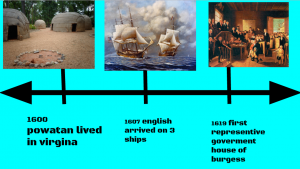
Fourth graders at Holladay Elementary have been learning about Jamestown (VS.3), so today students in Ms. Anthony’s class created animated timelines about important events in Jamestown using Google slides. First I gave each student a copy of a blank Google slides template in Google classroom. I showed them how to add a background image of the James River (Background button > Image > Choose) and edit the title and subtitle on the first slide. On the second slide I showed them how to change the background color and use the line tool to create a timeline. We chose 3 important dates for our timeline and typed them in text boxes: 1600 Powhatan Indians live in Virginia, 1607 English arrive at Jamestown, and 1619 First representative government, House of Burgesses. Next we clicked the Image button and searched for pictures of each of these events. The students resized their pictures and moved them to the correct spots on the timeline. They also added animations to the events, making them appear in order. Finally we clicked File > Publish to the web and copied the link to share on Google classroom. You can see some of the students’ timelines here.


4th Grade Fire Safety Diagrams

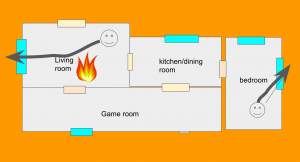
October 9-15th is Fire Prevention week in memory of the famous Chicago Fire on October 9th, 1871. Fourth graders at Trevvett Elementary had a visit from the fire truck today, and students in Ms. Harlow’s class created digital fire escape floor plans for their homes. First we discussed the importance of creating a plan for everyone in your family to get out of a burning house and the need to practice different scenarios where the fire may be blocking an exit. I explained that a creating a floor plan with arrows for directions is a good place to start, like the fire escape diagrams hanging in each classroom. There are a couple of websites students can use to create fire escape routes such as The Burn Institute and The Fire Escape Planner. They could even design 3-D models of their home with Planner5d, Homestyler, RoomSketcher, or HomebyMe. However, I needed to show them how to make Google slideshows, so we created our fire escape plans using Google slides. I made a blank Google slides template and shared a copy with each student in Google classroom. On the first slide we clicked the “Background” button and searched for a picture of fire to use. Then we added a title and our names in a font, size, and color of our choice. I showed them how to add a new blank slide by clicking the arrow next to the “+” button in the top left corner. On this slide we created the floor plan of our house using the shapes tool. We used rectangles for the rooms, doors, and windows. Then we used the text tool to add labels to each room. Many students used the smile shape to add their family members, but I explained that they could also do a Google image search for a “person icon.” I pointed out that adding “icon” to their search would provide simple drawings with transparent backgrounds. We used that strategy to search for a “fire icon” and added a fire to the house, blocking an exit. Then students used the arrow tool to show how the people would escape. I showed them how to change the thickness and color of the arrow using the buttons to the right of the arrow tool. Finally we published our slideshows (File > Publish to the web) and pasted the links to Google classroom. You can see their projects here.


4th Grade Virginia Indians Videos

pasted-image-0Fourth graders at Holladay Elementary have been learning about the Virginia Indians (VS.2d), so today I showed students in Ms. Tonello’s class how to make videos about a Virginia Indian group using WeVideo. First they picked a partner to work with because WeVideo puts a bit of strain on the wireless bandwidth. Next, we logged in with our Google accounts and switched to Storyboard mode (since it is easier for beginners). Each pair chose a Virginia Indian group (Powhatan, Monacan, Cherokee) and typed the name of their group on the title clip. Then they clicked the red record button and recorded their introduction video. I showed them how to drag their video down from the media frame into the storyboard frame. Next, we opened a new tab and searched for a map of Virginia to include in our video (most used this one since it was part of the Wikimedia commons). They used the Snipping Tool to take a screenshot of the map, and they used the pen tool to circle where their Indian group lived. Then students uploaded the map to their video project and recorded a quick voiceover using the microphone button. We switched to Timeline mode in order to drag the voiceover to match up with the map. Finally we clicked the Themes button and chose a theme with music. We discovered that we needed to turn down the volume of the music track or we couldn’t hear our voices. That’s all we had time for today, so we posted our links to Google classroom with the hopes of finishing them later. Check out a few student examples here.


Tags:


4th Grade Virginia Regions Videos

captureFourth graders at Holladay Elementary have been learning about the regions of Virginia and their products (VS.10b) in Social Studies. Since Ms. Rivara let me know that she wants to do more video projects with her class this year, I taught them how to use WeVideo to create short movies about the regions of Virginia. First we got in self-selected groups, and each group discussed the region they wanted to do. One student from each group signed into WeVideo with their Google account. We switched from Timeline mode to Storyboard mode (using the 3 lines in the top left corner) to use a simpler layout at the beginning. We clicked on the Title slide and added the name of our region. Next I showed them how to use the red record button to record their introduction using the webcam. We added that to our video storyboard by clicking and dragging it. Then we searched online for pictures of our region and added those our video storyboard as well. I explained how to use the microphone button to record a voiceover, and we switched over to Timeline mode (using the 3 lines) so that we could adjust the duration of the photos to match our voiceover. Finally we clicked the Themes button and chose a theme with the effects and music we liked. When the students finished editing their videos, we clicked the Finish button, chose the 480 size to load it faster, and published it. Now we could copy our links and paste them to Google classroom so we could watch each other’s videos. You can see them all here. UPDATE 10/13/2016 Ms. Adamonis’ 4th graders at Trevvett did a similar project which you can see here.


Tags:


4th Grade Bordering States Place Value

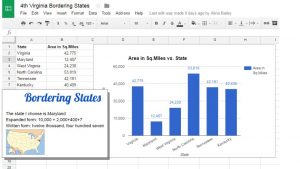
border-place-valueFourth graders at Holladay Elementary have been learning about the bordering states in Social Studies (VS.2a) and place value in math (SOL4.1a). Today students in Ms. Zimmerman’s class found the place value of the sizes of the bordering states. I posted a template to Google classroom that you can download here, and I set it so that all the students could edit it. Then I instructed them to research and find out the size of each state. The first student to find the answer wrote it in the correct cell (I explained that it’s like a race, but if they see a color in the cell, that means someone else is already in that one). We discovered that the quickest way to find the answer is to Google “size of [state name].” The template automatically creates a graph of the data. You can see their finished graph here. Next they opened a blank Google doc and selected a bordering state to write about. I showed them how to import the graph (Insert > Chart > From Sheets), and they wrote the area in written form and expanded form. You can take a look at a student sample here.


4th Grade Moon Animations

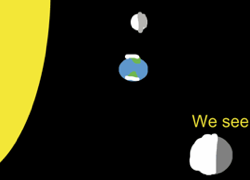
Screen Shot 2016-05-01 at 3.19.41 PMThe phases of the moon give us a beautiful calendar in the sky, but sometimes that calendar is difficult to read. Is the first quarter when the right or left side is lit up? Is the moon waxing or waning? Answering these questions takes a bit of perspective, and that’s why animation is an excellent way to broaden students’ understanding of these processes, especially if the students create the animation themselves. Third graders at Varina Elementary used ABCYa! Animate to create animated .gifs of four moon phases: (1) new moon, (2) first quarter, (3) full moon, and (4) last quarter (SOL3.8a). In order to be accurate, the students had to do some research. They had to find out which direction the moon orbits the Earth and what the moon looks like from Earth at different positions. Once they had their facts, they illustrated the position of the Sun, Earth, and moon for each phase, showing what we see from our perspective here on Earth. Next they exported the four images as one animated .gif file. Then they posted their animations to Google classroom with a question for their classmates to answer. After watching each other’s animations and answering each other’s questions, these third graders have a much clearer understanding of how the moon phases happen and the order in which they occur. This was actually submitted as an H21 lesson, which means you can download the lesson plan here. Student samples: Layla Obey and Erin Hardin.