Category: 1st Grade

1st Grade Fractions

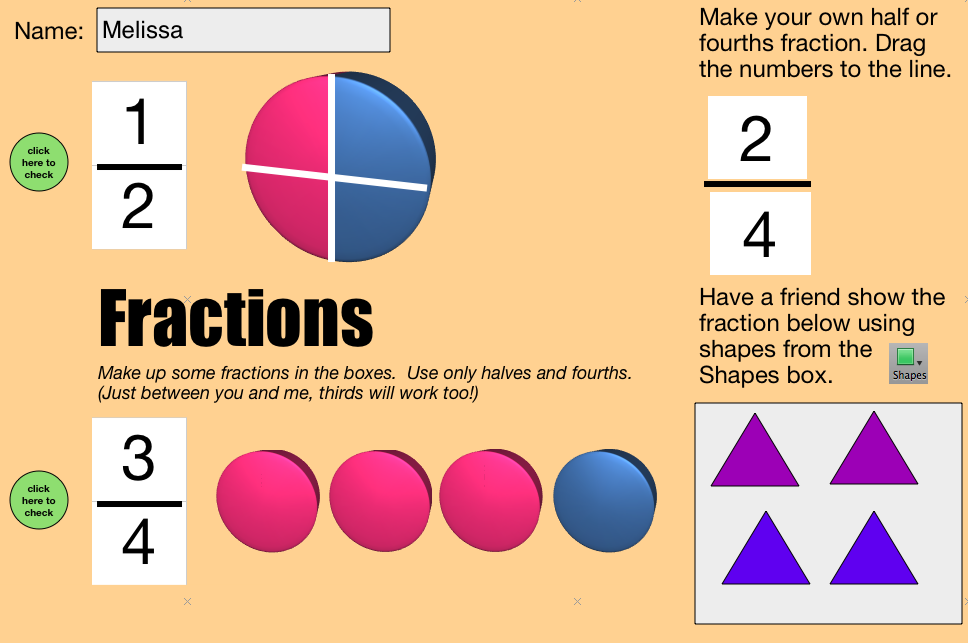
Today first graders at Chamberlayne Elementary explored fractions and made their own using Numbers. At this beginning level, they are just learning about halves and fourths (SOL 1.6) so I created a template for them, focusing on those fractions that you can download by clicking here. It also includes thirds (some of Ms. Johnakin’s students knew them). The students started out by entering different numbers into the fractions and seeing how they changed the pictures. The template is set up to let them know if they entered a wrong number (like 5). Next they made their own half or fourth fraction. I showed them how to use the shapes tool to illustrate the fraction. Then they went to a friends’ desk and illustrated their friends’ fraction. To see a sample, click on the picture to make it larger. For some fun online fractions games click here.
Tags:


1st Grade Measurement

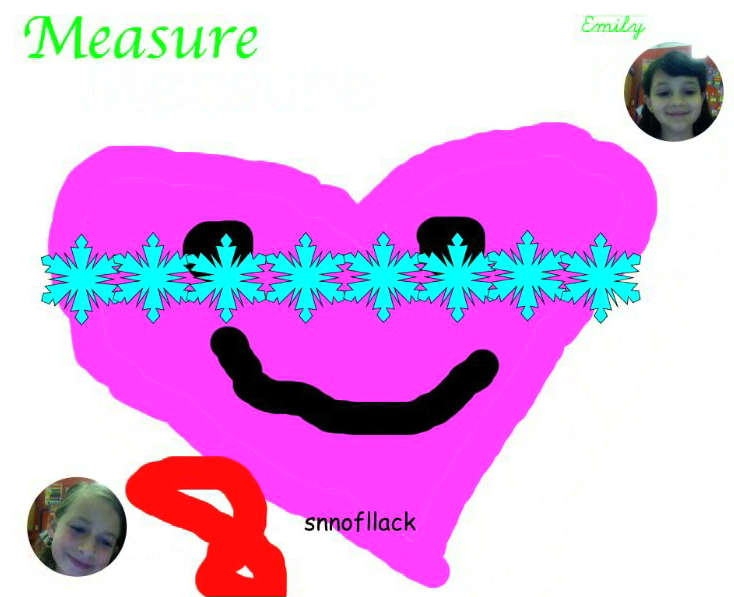
Today, first grade students at Pinchbeck Elementary worked together to make measurement videos. To get them warmed up I sent them to this Scribblar link to practice measuring pictures using nonstandard units (like an eraser or a paperclip). They entered their measurements in the chat box. Then I called on a couple of students to draw a picture for their classmates to measure. Once I was sure they had the hang of it, they opened a blank Pixie document and drew a large picture for a friend to measure. The friend used the stamper tool to measure the picture. Then they both took their photos and recorded themselves explaining the measurement. They were helping each other out and everyone was involved. If you’d like to see a couple of student samples, click here.


1st Grade Plant Animations

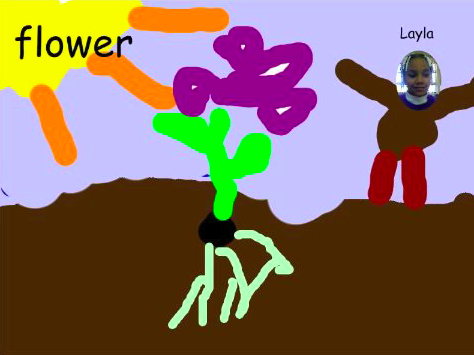
First grade students at Holladay Elementary created animations of plants growing using Pixie today. We started by painting a scene of a seed in the dirt with a picture of the student standing next to it. Then we added the word “seed” and recorded our voices describing what a seed does. To create the remaining scenes, we made a duplicate picture (go to File > Duplicate Picture) and changed a few things. Like we added roots, stem, leaves, etc, and changed the word “seed” to correspond to the part we added to the picture. Students recorded their voices for each scene and then exported it as a QuickTime movie (go to Share and click Video). You can see a couple of student examples here: Dylan and Zion.


1st Grade Jack & the Beanstalk (continued)

First grade students in Ms. Edmond’s class at Holladay Elementary have been reading Jack and the Beanstalk. She had them write a continuation of the story and then sent them to me in small groups to create a picture using Kerpoof and type it up using Pages. I’ve mentioned Kerpoof before on this blog. It’s a great website for students to create stories using clipart and their own drawings. In the sample picture you can see the student drew Jack and used clipart for the giant and his wife. After they created their pictures, we saved them as JPG files. Then the students typed their stories using this template in Pages. I helped them add their picture to the documents, then we saved them as PDFs. The cool thing about saving documents as PDFs is that they can be published online and if your school uses iPods or iPads you can upload them to the iBook app. Take a look at some student samples: Kimber, Ra’Quan.


Dr. Seuss Day & Running Records

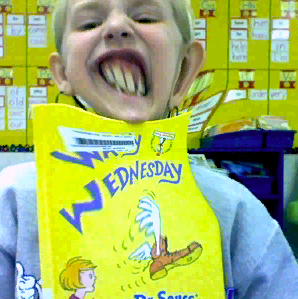
Wouldn’t it be great if your students could take their own running records? You can teach your students how to record themselves, listen for their mistakes, self-correct, and re-read for better fluency… all with GarageBand! Since today was Dr. Seuss Day, this first grade class recorded themselves reading excerpts from his books. To make it a bit more entertaining, they added a funny photo of themselves taken with the Photo Booth special effects (we did have to flip the pictures so the covers weren’t backwards, you do that by clicking Edit > Autoflip New Photos). Finally they added some music of their choice. Once they get good at this, it’s a great way for them to improve their fluency in a self-directed way. Think of how that will help your ESL students especially! Here are two examples from ESL students: Chahd and Jose.


Famous Americans & Student Choices

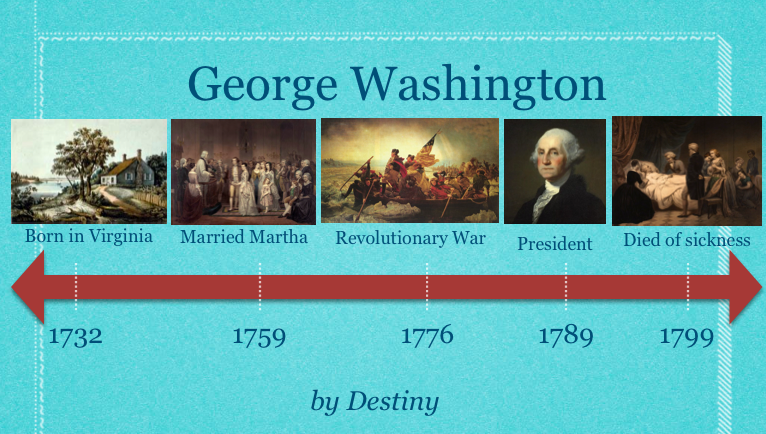
An important 21st century skill to include in your lessons is making choices. The famous Americans unit is a great opportunity to provide choices for your students. Not only could you let them choose which person they want to research, but they they could also choose how they want to present the information. As long as you’ve introduced the programs, let your students select the one they want to use… or they could even choose to use multiple programs. Students could do a Comic Life, a Garage Band podcast, a Keynote slideshow, or use some of the online web tools for their projects. Just to give you a couple of examples from recent lessons: in first grade, this student did a Keynote and video about Benjamin Franklin, and this student did an animated timeline about George Washington (you can download the template by clicking here); in second grade, this student made a podcast with music about Jackie Robinson, and this student should really just have his own talk show. Most of the pictures of the famous Americans can be downloaded on this post. Go ahead, give your students choices! What could be more American?


1st Grade Interactive Timeline

I taught this lesson in a first grade class today at Holladay, but it could easily be adapted to any grade level. There are several web tools for creating timelines (TimeToast and Capzles to name a couple), but the one I think has the best features is Dipity (this website no longer works as of 4/3/2020). I wanted to try it out with a class, and Ms. Favale is always up for anything (thanks Doris!) so we made timelines about Abraham Lincoln’s life (since we celebrated his birthday yesterday). I gave each student an event in his life to illustrate using Pixie. You can download the list of events here. Then we exported the pictures as JPGs and I uploaded them to Dipity. One of the cool things about Dipity is that it not only makes an interactive timeline, but you can also display the events as a flipbook, a list, or even a map! (The embedded Dipity timeline has been removed 4/3/2020)


1st Grade Place Value Movies

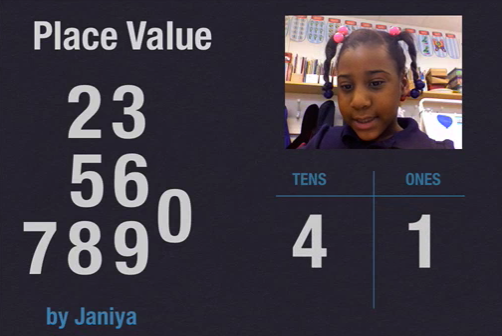
Ms. Hancock’s first grade students at Laburnum Elementary made place value movies today. I gave them a Keynote template that you can download by clicking here. The students recorded a video of themselves instructing a friend to show a two-digit number, like “Can you show me 47?” You could skip this step by just doing an audio voiceover right in Keynote, but the video makes it more interesting, plus students can replay it if they missed a part. Then we helped them drag the video onto their Keynote. Next they went to a friend’s computer and showed the number by dragging the digits to the correct spot in the place value chart. I added the animation at the end. Students could continue trying each others’ problems for additional practice. You can see a couple of examples here and here.


1st Grade Word Processing

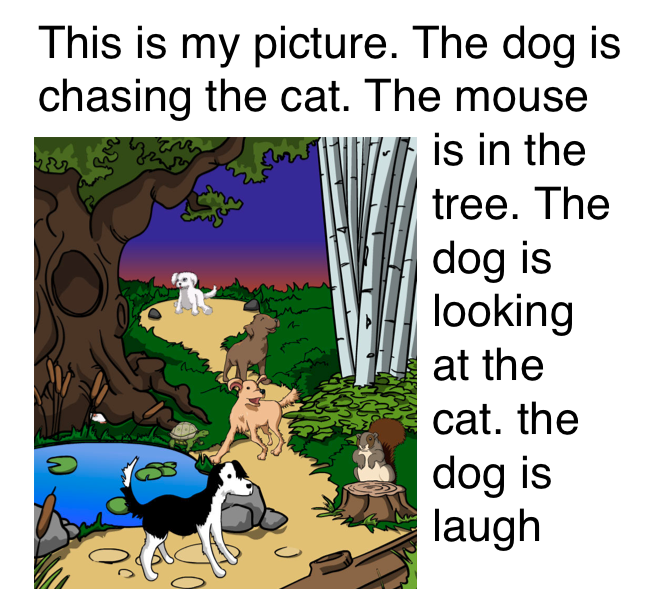
It’s a great idea to start word processing instruction as early as possible since students use those skills through all grades. So here’s a sample word processing lesson I taught in first grade. I gave the students a very simple template that you can download by clicking here. It basically just has the font preset for 36 (large for first graders) and has a starting sentence: “This is my picture.” First the students went to Kerpoof, drew a picture, and saved it as a JPEG image (Kerpoof makes it easy). Then they opened the word processing template and dragged their picture into it. Next they wrote sentences describing their pictures. As you can see from these examples (Edwin, Giuliana, Lily, John, Maty, Reyna, Shriya, Yusuf) some students wrote a lot of details while others wrote only a few. But they all got some good experience with word processing and writing.


1st Grade Economics Pixie

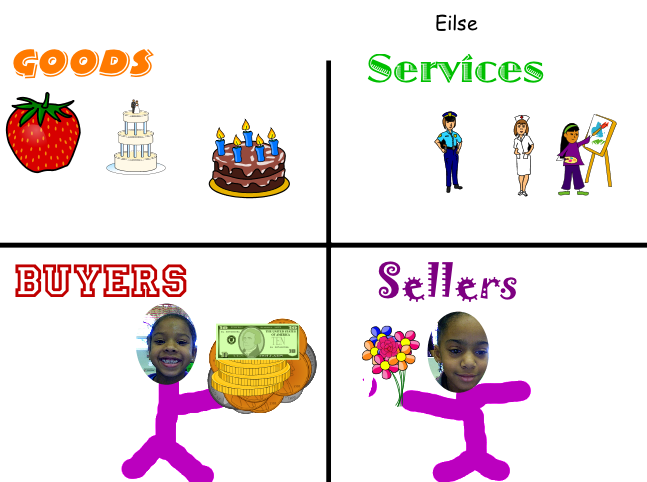
Today at Chamberlayne Elementary, first grade students shared what they have learned about economics (SOL 1.7) with this Pixie activity. I gave them a template to use that you can download by clicking here. First they found stickers to show goods and services and placed them in the correct sections. Then they took their photo and placed it in the buyers section. They also took a friend’s photo and placed that in the sellers section. They used the paint brush to paint a body for each of them. Next they found a sticker of something they wanted to buy and placed it in the seller’s hand. They also placed money stickers in their own hands to pay for the item. Finally they recorded their voices telling about the different pictures. You can take a look at some student samples here and here.


Tags: