Category: Social Studies

3rd Grade China & Egypt Multiplication
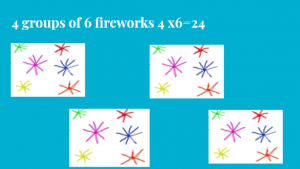
Third graders at Holladay Elementary have been learning about ancient Egypt and China in History (SOL3.2) and multiplication in Math (SOL3.4), so today students in Ms. Pumphrey’s class created multiplication problems about the inventions and contributions of these great civilizations. We began with a blank Google slideshow and chose a theme. Then they decided if they wanted to solve a problem about China or Egypt and included that in the title slide. On the next slide, we started building our multiplication problem. One concept that is often difficult for third graders to understand is that multiplication is really just multiple groups that are equal. To help them grasp this idea, I instructed them to make one group of objects from Egypt or China with a story explaining the grouping. For example, one family has three kites, or one piece of paper is made from seven papyrus plants, or one silk cloth is produced by ten silkworms. They typed a sentence and illustrated the group. Some students used a Google image search to find pictures, while others drew their own pictures using Kleki. On the next slide, the students made multiple groups by copying and pasting the one group. Then they asked the multiplication question, like, “How many kites do four families have?” or “How many silkworms would make five cloths?” On the final slide, students recorded the answer (you may want to leave the answer off, and let classmates solve each others’ problems). They shared their slideshows on Schoology, but you can see them all here.


5th Grade Henrico Election Posters

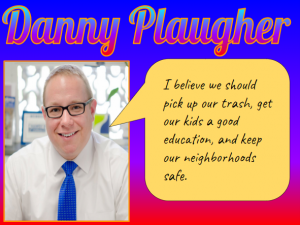
Fifth graders at Trevvett Elementary have been learning about Henrico county government (HC.2) in Social Studies, and they’ve been identifying the main idea and summarizing nonfiction text in Language Arts (SOL5.6d,e). Since elections are coming up in November, students in Ms. Harris’s class and Ms. Brown’s class conducted research to find information about the candidates running for office in Henrico County. Then we summarized our findings to create campaign posters. First, we used this site to see the list of candidates. Each student chose a candidate they weren’t familiar with since many of them already had a family favorite, and I wanted them to be exposed to different viewpoints. Next, they did a Google search for their candidate and explored their campaign website. I showed them where to look to find the “Beliefs” or “Issues” sections. After the students read some of their viewspoints, we discussed ways to summarize their views into a couple of sentences for the campaign poster. Students could use Google Docs, Google Slides, or Google Drawings (as well as other tools like DesignCap) to make posters, but we chose to use Google Drawings since we hadn’t used that tool yet. For the poster’s background, we added a square shape, made it as large as the poster, and changed the fill color so it was a solid color or gradient. Then we clicked “Insert > Word Art” and typed the candidate’s name. I showed them how to change the font, fill, and outline color of the text. We imported a photo of the candidate using the Google image search feature. Finally, we added a speech bubble with the Shapes button and typed a summary of the candidate’s beliefs. We shared our campaign posters on Schoology, but you can see them all here.


4th Grade Virginia Math Quizzes

Fourth graders at Varina Elementary have been learning about Virginia geography in Social Studies (VS.2) and rounding and place value in Math (SOL4.1). Today, students in Ms. Stevens’ class synthesized these concepts, along with research skills, to create Virginia Math quizzes using Google forms. First, I explained that we would be creating 1-question quizzes, but when we took each others’ quizzes, we would end up answering several questions. So their job was to create a really good question about place value or rounding that would make their classmates think. We reviewed types of questions they could ask: What is the value of the digit __? What number is in the __ place? How would you write this number in word form? What is this number rounded to the nearest ten thousand? Next, they had to do research to find a fairly large Virginia number. I showed them how they could use the microphone tool to audibly ask Google a question like: What is the population of Richmond? How tall is the tallest mountain in Virginia? How many chickens live in Virginia? How far is it from Roanoke to Arlington? How long is the James River? Once they had their number and a math question, we opened a blank Google form (New > More > Google Form), and they typed their question. I pointed out that their multiple choice answers should be tricky, based on errors that students typically make. For students who finished early, I showed them how they could change the theme of the form and add images. To turn their regular Google forms into self-grading quizzes, I demonstrated how to go to the gear icon at the top, click the Quizzes tab in the pop-up window, and change it to a quiz. Then, they had to mark the correct answer to their question. Finally, we shared the links to our forms on Schoology, and took each others’ quizzes. You can see them all here.


2nd Grade Extreme Weather Skip Counting Maps

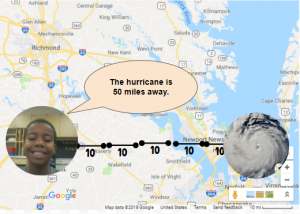
Second graders at Laburnum Elementary have been learning about extreme weather in Science (SOL2.6), skip counting in Math (SOL2.2a), and map skills in History (SOL2.1b). So today, students in Ms. Pope’s class reviewed all three concepts with a Google Drawing project. First, the students decided if they wanted to skip count by 2’s, 5’s, or 10’s, and they chose the corresponding template (you can copy each template by going here). Next, we right-clicked on one image holder and replaced it with a picture of some type of extreme weather (hurricane, tornado, blizzard, flood, etc.) using the “Replace image > Search the web” button. We added our own photo to the other image holder using “Replace image > Camera.” I encouraged the students to look surprised or scared in their photos since the extreme weather was heading their way! Now it was time to practice skip counting. We moved the map scale segments from the bottom to create a line showing the distance from the weather image to our photo. Then we skip counted the segments. Finally, we changed the words inside one of the speech bubbles to say something like, “The weather is ___ miles away.” You can see all their projects here.


4th Grade Predicting and Graphing Virginia Rivers

Fourth graders at Trevvett Elementary have been learning how to make graphs in Math (SOL4.14), and they have been studying the major rivers of Virginia in Social Studies (VS.2). Today, students in Ms. Catlett’s class predicted and graphed the lengths and discharge rates of the rivers. First we located the rivers on Google Maps. I created the map with different layers so that you can click the check boxes on the side of the map to turn on/off the rivers and/or the Virginia border as you discuss each one. We looked at the map scale at the bottom to try to predict the lengths of each river. If you wanted to show your students the watershed for each river (Science SOL4.9a), a great research tool is Streamer. Click the “Trace Upstream” button at the top, then click on a river, and the entire watershed will show up in red. I was amazed at how big the Potomac watershed was and how far it reached into Virginia! After discussing the lengths of the rivers, we tried to predict the discharge. Discharge is the volume of water flowing out the end of the river, measured in cubic feet per second (cu.ft./s). A cubic foot is about 7.5 gallons. We estimated the discharge rate of each river, taking into account their total length, watershed area, and size of the mouth (where it empties into the bay or ocean). Many students automatically assumed that longer rivers would have greater discharge rates, so I asked them a question to help clarify this misunderstanding. Does a longer hose have more water coming out the end than a shorter hose? What does affect how much water flows out the end of the hose? (Water volume, speed and the width of the hose). Does the discharge rate stay the same for each river, like its length? What would make the discharge rate change? (Amount of rainfall). Students recorded their predictions on this spreadsheet. Then they did some research to find the answers. Wikipedia has the information as well as simply asking Google, “What is the length/discharge of the ___ River?” The students entered the correct data into their spreadsheet and compared it to their predictions. Finally, I showed them how to highlight the data and graph it. The graph makes it very easy to see relationships between the rivers. You can see a few student examples here and in the screenshot above.


Tags:


3rd Grade Mali Perimeter & Area

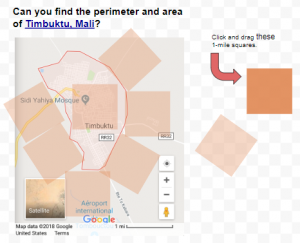
Third graders at Trevvett Elementary have been learning about perimeter and area in Math (SOL3.10), and they have been studying the ancient civilization of Mali in History (SOL3.2). Today, students in Ms. Cockrum’s class found the perimeter and area of the famous Malian city, Timbuktu. First, we found Timbuktu on Google maps and used the scale to estimate its perimeter and area. To record our data, we made a copy of this spreadsheet that I had prepared ahead of time with the correct font sizes and cells. I demonstrated how to make some practice shapes by clicking and dragging through the cells and using the paint bucket to change the fill color. Then we used the squares to calculate the perimeter and area of our shapes and entered the values into the corresponding cells. Now the students were ready to measure Timbuktu, Mali. We made a copy of this Google drawing to make the process a little easier. The students could click and drag the square miles around the perimeter (turning the squares by dragging the blue circle that appears over each one when it’s clicked), and they could drag the squares inside of the city to find the area. The squares are transparent so the students could see what is underneath. Once they found the perimeter and area of Timbuktu with the squares, they entered the values into their spreadsheet. Finally, we clicked the Share button on our spreadsheets and pasted the links into Schoology. You can take a look at them all here.


1st Grade Maps

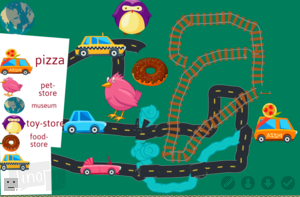
First graders at Trevvett Elementary have been learning about maps (SOL1.4) and how to make maps with symbols and a legend (SOL1.5). Today, students in Ms. Robinson’s class created their own maps with ABCYa! Paint. First, we drew some land and water features. Next, we used the rainbow brush to paint roads, railroads, and rivers on our map. I explained that rivers usually flow into the ocean and roads and railroads need to go to different parts of the land. Then we looked at the stickers and discussed what they could symbolize. For example, a loaf of bread could be a symbol for a bakery and the Earth could be a symbol for a science museum. They added sticker symbols to their map, and they also added them to their map legend. The last step was to use the text tool to type words next to the symbols in the legend, explaining what they mean. We saved our maps and uploaded them to a Lino board (it’s similar to Padlet, which recently changed its policy for free accounts). You can see their finished maps here. (UPDATE: I taught a similar lesson in Ms. Shelly’s class at Holladay, and you can see their maps here).


2nd Grade Animated Famous Americans

Second graders at Holladay Elementary have been learning about some of our famous Americans: George Washington, Abraham Lincoln, Helen Keller, Jackie Robinson, Martin Luther King, Jr., and Susan B. Anthony (SOL2.11). Today, students in Ms. Fournier’s class created animations of a famous American. First, they chose which person they wanted to animate and drew their face on ABCYa! Animate. We did some research online to make sure that we were drawing them correctly. We even asked Google about their hair color and eye color! Next, we used the copy cat button to make a copy of our picture and deleted the mouth. I showed them how to redraw the mouth in a new shape. We repeated the process for a few more pictures and changed the mouth into different shapes so it looked like the person was talking when we pressed the “Play” button. I explained that they could add additional realism by making the person blink or by making their ears and eyebrows move. When we were finished, we exported our animations as .gif files. Then, I showed them how to import their GIFs into WeVideo and add a voiceover to make it look like the person is talking. The voiceovers told about the famous American’s contributions and accomplishments. You can see their videos here. (UPDATE: Unfortunately, WeVideo recently changed their policy for free users so the video links expire after 90 days. However you can see another class’s animations without sound here).


Kindergarten Presidential Portraits

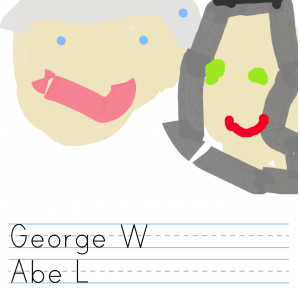
Kindergarten students at Trevvett Elementary have been learning about Presidents Day and the two presidents it honors: George Washington and Abraham Lincoln. Today, students in Ms. Gouldman’s class painted presidential portraits based on research. Yes, even kindergarten students can start learning how to do research. I explained that we wanted our portraits to look like the real presidents, so we had to find out what color their skin, eyes, and hair were. First I asked them to guess, then we looked online for portraits and photographs to confirm or revise our initial thoughts. It was difficult, though, to tell some of the colors from just paintings or black and white photos, so I showed them how to ask Google a question with the microphone button. “What color were George Washington’s eyes?” I asked, and the answer came back: blue grey. Then the students tried it with Abraham Lincoln. We discovered that his eyes were green or grey or hazel (that type of eye color fluctuates depending on the light). We already knew that Abraham Lincoln sported a beard, but we learned that George Washington had light brown or reddish hair, and powdered it so it appeared white (it was a military thing, like a modern day buzz cut). As we looked at the different websites in our research, I explained that some sites are reliable, and some are not. I pointed out that anyone can make a website, in fact, they will be making a sort-of website today, actually. Our website won’t be reliable since we are not professionals, but websites like encyclopedias or museums or scientific organizations are usually reliable, especially when they agree with each other. Now that we had our facts, we went to ABCYa! Storymaker to paint our portraits. The students had already practiced drawing on the computer this year, so that part didn’t take too long. It was a perfect time to teach some typing skills. Storymaker makes typing seem easy and familiar by including elementary lined paper (press the yellow button on the right). I showed the students how to use Shift to make an uppercase letter, and we typed the presidents’ first names. Finally, we exported our pictures and shared them on a Padlet, which is their own “sort-of” website that Ms. Gouldman can send home to parents.


4th Grade Social Studies Videos

Fourth graders at Laburnum Elementary have been reviewing the regions of Virginia (VS.2b) and famous people from the Civil War era (VS.7c), so today Ms. Mayer’s class created Social Studies videos on these topics to help them review. First, they chose a partner to work with and decided together on a Virginia region or a Civil War person to research. Next, we spent a few minutes looking over our notes and finding information online to share. I showed them how to download and save online images about their topic to use in their video. Then we logged into WeVideo to begin making our movies. WeVideo starts out in Timeline mode, which is a little complicated, so we switched to the simplified Storyboard Mode (click the three lines in the top left). Storyboard Mode already has a Title page set up in the timeline. We clicked the Edit icon on the Title page and typed our title, remembering to use capital letters. Now it was time to record our intro. I guided them through the process of installing the webcam extension and modeled how to record an effective intro (speak loudly with enthusiasm while stating your names and your topic). After the students had recorded themselves, we uploaded the pictures we had saved and dragged them into the movie timeline. The students planned what they would say about each image, but before they recorded their voiceover, they chose their Theme by clicking the magic wand icon. I found that it is helpful to choose the theme before recording the voiceover because the theme sometimes changes the duration of the video. Just be sure to mute the audio while recording the voiceover so it’s not playing while you are recording. The students recorded their voiceovers, providing facts about each picture. Finally we published our videos and shared the links on Schoology. You can see them all here.