Category: Social Studies

4th Grade Civil War Timelines
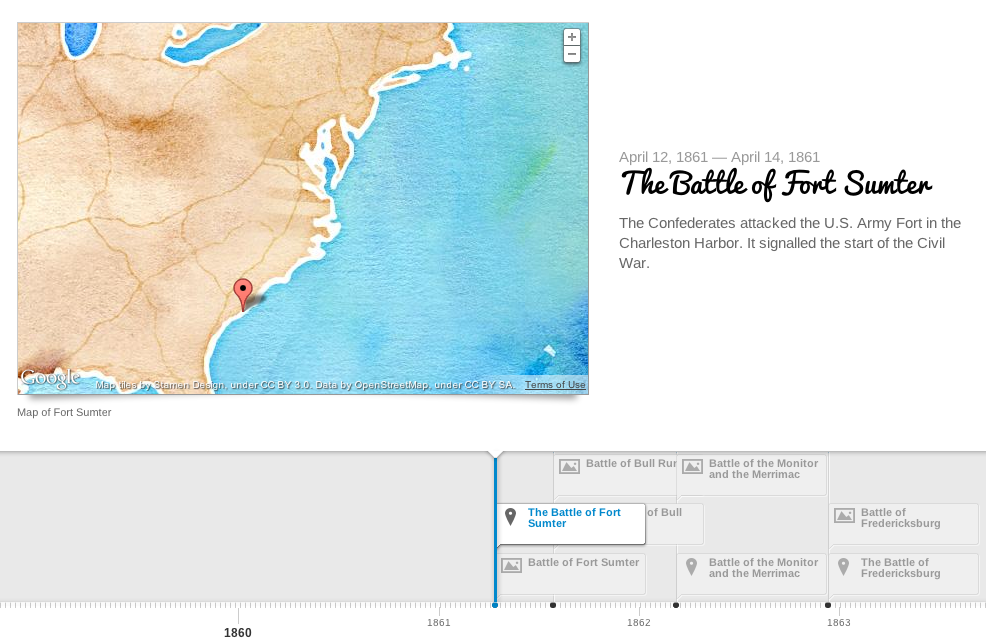
Picture 2Fourth graders at Chamberlayne Elementary are currently studying the Civil War. There are a lot of people, places, and battles they have to remember, and making a timeline helps keep everything in perspective. My supervisor, Tom Woodward, just told me about a cool webtool, TimelineJS, that can create a timeline from a Google spreadsheet. So I decided to try it out with the fourth graders today. First I set up a Google Spreadsheet for each class using the template found on the website. Then the students choose a partner to work with, and we generated a list of people, events, and battles from the Civil War. Each team selected one topic and conducted some very quick research. They also found a picture and made a Google Map to embed in the timeline. They were assigned rows on the spreadsheet corresponding to their student numbers (it doesn’t matter if the events are listed in order on the spreadsheet… the webtool sorts it all out). They entered the information into the correct columns and copied/pasted the link to the picture or map. It was a great example of crowdsourcing because in just a few minutes we had collected enough information to make a timeline about the Civil War without having to enter all the data individually. What’s really cool is, each student can use the same data to create their own customized timeline. All they need to do is copy the document link into the TimelineJS Embed Generator, choose the font and style they like, and press a button! I have some samples I created as well as the student projects linked here.
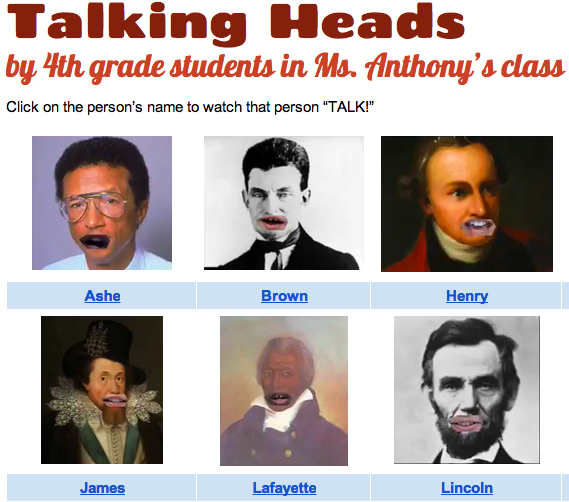


4th Grade Talking Heads

Picture 1Fourth graders at Holladay Elementary are reviewing all the famous Americans they have studied this year. Each student chose a person to research and they will present their information in a “Living Wax Museum” later on in the spring. I’ve been showing them different options to use for the technology part of their presentation, and today we learned how to make a “talking head.” I gave them a Keynote template that you can download by clicking here. The students went online to find a picture of their famous person (a headshot), and they dragged the picture onto their Keynote template. They sent the picture to the back (using the “Back” button in the toolbar), so that the shape with the hole cut out of it was on top. I showed them how to position the shape over the picture so that the mouth was centered in the hole. Next they selected both the shape and the picture (by clicking and dragging across them) and went to Format > Mask with Selected Shape. That left the picture of the famous person with a gaping hole where their mouth used to be. Now we were ready to add the students’ talking mouth to the picture to make it look like the famous person was doing the talking. Students recorded themselves in Photo Booth speaking like they were the famous American telling about his or her life and accomplishments. I told them to keep their heads still while they were recording (so the mouth wouldn’t move around). We dragged the finished videos out of Photo Booth onto the Keynote and sent them to the back with the “Back” button. We had to resize and reposition the video so that the mouth fit in the hole, and then we covered up the remaining pieces of video that showed with black shapes (using the “Shapes” tool). Finally, we exported the Keynote as a video and I published them on a GoogleDoc. You can see them all here.


1st Grade Community Maps

samplemap1Today 1st grade students at Chamberlayne Elementary created their own community maps using ScribbleMaps (SOL1.4 & 1.5). Since I knew it would be kind of tricky for 1st graders to find their school on the map, I put a direct link to it in their classroom folder on the computers. With ScribbleMaps, there’s no log in so we could get started right away. First we talked about what we saw on the map and how it showed their community from above. We located their school and the different parts (playground, bus loop, cafeteria, their classroom, etc.), and we also located the nearby shopping center. I showed them how to select a color and size for the marker tool and they drew on the roads. Then we clicked the “Create a Legend” link in the top left, and they added a colored line to the map key identifying it as a road. Next we discussed how maps often use symbols for places, so we clicked on the “Place Marker” tool and added a symbol of a school to our maps (it can be found in the Places folder under “Geology/Locations”). We also added that same symbol to our map key. Finally we went to the folder called “Places-High Detail” and found a symbol of our choice to represent the shopping center. We added that to the map and to our map key. Each symbol on the map has a label so we labeled the school “Chamberlayne Elementary” and the shopping center “Dollar General.” Some students went on to add descriptive sentences (photos can also be added to the labels). Since I wanted to publish all of their maps to one page for easy access, I created a form for them to copy and paste their links (I had to help with this). Then I published the results here.


3rd Grade Explorer Websites

samplesiteToday 3rd grade students at Chamberlayne Elementary created their own websites about the Explorers (SOL3.3) using CheckThis. I taught a similar lesson last year but this time I wanted them to include a Google map of the location where their explorer landed. I also wanted them to work on creating a more difficult polling question. So first they wrote their facts about their explorers in their own words. Next we searched for a picture of their explorer and pasted the link into the webpage. Then I showed them how to search for the location where their explorer landed in Google Maps. They copied the link and added it to their webpage, which embeded the actual interactive map (if we had more time students could create their own map showing the path the explorer took with markers like in this example). Finally we talked about writing a good poll question that would make visitors think. Some of the students thought of some really good questions. Take a look at a student sample here or you can check them all out by clicking this link. One of the benefits of posting student work online like this is that they can be accessed anywhere, so students review their facts every time they share their webpage with a friend or family member. Encourage them by “liking” their pages, answering their poll questions, and even leaving a comment!


2nd Grade Choose-Your-Own-Ending Stories

inkle2A couple of days ago I was searching for a way that students could make an online classification system for living things (SOL5.5). I wanted them to be able to answer questions about a living thing and have their search get narrowed until they were able to classify it. I found a site called Inklewriter that was pretty cool. It allows you to write “choose-your-own-ending” stories. It was perfect for the classification lesson, and I made a sample that you can see here. Unfortunately, that lesson was cancelled because of testing. However, I was able to try it out today with a couple of 2nd grade classes as part of a creative writing assignment. I explained the idea that their stories had to have a dilemma with two choices for the reader to make. One choice should result in something good happening, and the other should result in something bad happening. Each student typed up their stories and wrote the two choices. Then I showed them how to add a picture by searching for an image of something in their story and pasting in the weblink to that image. Next they wrote about the results of each choice. Inklewriter was fun and easy to use and it didn’t require any login to write the stories (although you need a login to save them… we did run into a little problem when we all tried logging into the same account, so I just saved their stories one at a time afterwards). Their stories turned out great! You can try a couple of student samples here and here, or you can find all their stories here: Marable and Street. (PS. This site would also work great with an economics lesson on choices and opportunity costs SOL3.9).


1st Grade Pictures of the Past

PastLearning the difference between the past and present (SOL 1.1) is a difficult concept for first graders to understand since they have little to no experience of life in the past. Providing lots of opportunities to see and hear about the past through videos, stories, and pictures is essential for helping them understand the differences. So today first grade students in Ms. Edmonds’ class at Holladay Elementary created pictures about the past using Kerpoof. Pixie would be another good option, but this class already had lots of experience with Pixie, so they wanted to try something new. Kerpoof has a relatively large collection of clip art, and many of them relate to life in the past. First we chose “Create a Picture” and they selected a background for their picture. We discussed which backgrounds would be good for the past (nature scenes) and which ones would not (cities, schools, sports fields, etc). Then the students added clip art to their pictures. We focused on family life and transportation. I gave them a few words they could search for in order to find good clip art (cabin, past, horse, wagon, pilgrim work well). If they couldn’t find a particular picture, they could draw their own. To practice this, all the students drew a fire and added it to their scene. Another cool feature of Kerpoof is that each clip art object has a speech bubble icon that can be used to make the object “talk” or to create a label. Some of the advanced students were able to use that feature. Finally we posted the pictures online so the students could see each others’ scenes. They could then use these pictures to write a story or they could contrast them with pictures from the present.


3rd Grade Famous African Americans

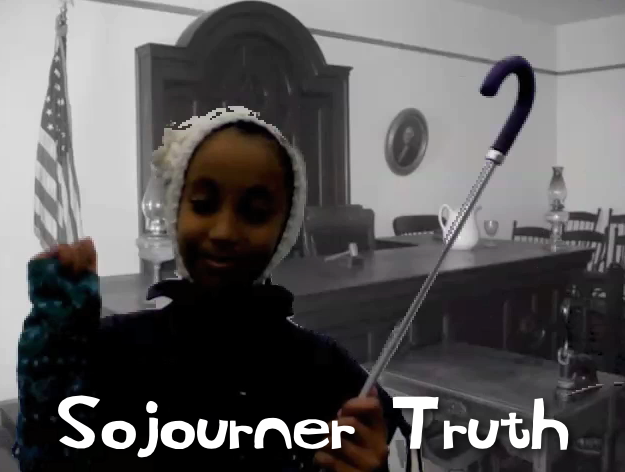
Picture 4As a special enrichment project for Black History Month, a small group of third grade students in Ms. Marion’s class at Holladay Elementary researched, created, and presented their own videos about famous African Americans. The three pairs of students selected Sojourner Truth, Malcolm X, and Rosa Parks for their projects. First, with the help of the media specialist, they gathered information about their person using books from the library and various websites. Then I helped them with some of the technology for their presentation. Some wanted to do a Keynote, and others wanted to do an iMovie project. These students already knew the basics of the programs, but I showed them how to use the advanced features like adding backgrounds, music, and special effects. They did all of the scripting and editing themselves. They also selected their own pictures and music to use. They even designed their own costumes and props! When they finished, I exported their projects as QuickTime videos and uploaded them to Vimeo so the students could share them with their classmates and families. You can check them out here: Sojourner Truth, Malcolm X, and Rosa Parks.


Kindergarten Timelines About Martin Luther King, Jr.

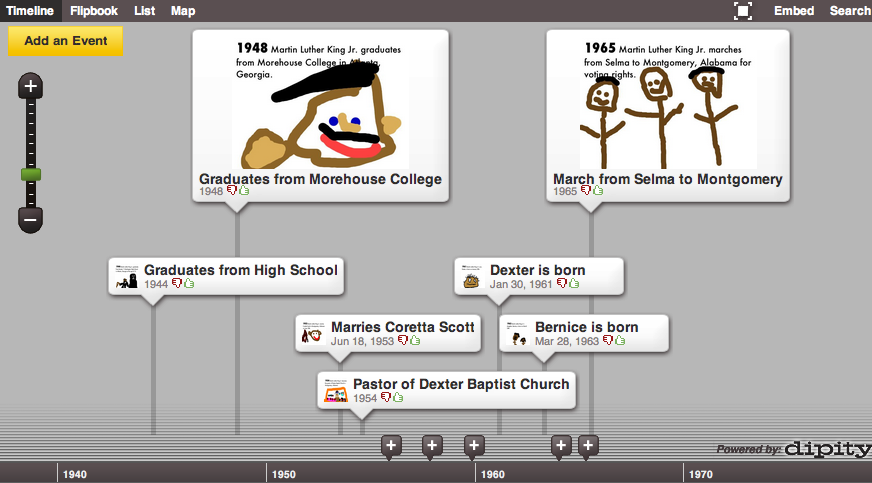
timelineKindergarteners at Holladay Elementary have been learning about Martin Luther King, Jr. since his birthday is this month (SOL K.1b). Today we created a timeline of his life using Dipity (site no longer works 4/2/2020). Dipity makes it easy to create a cool, interactive timeline (you can see ours embedded below – deleted 4/2/2020). First I took them to my Martin Luther King, Jr. site to hear his speech and see a sample timeline. Then I gave them each an event in his life to illustrate using Pixie. You can download the folder of events by clicking here. I also showed them various photos of each event so they could get some ideas for their drawings. You can download the folder of pictures by clicking here. After the students drew the pictures, I showed them how to export them as a JPEG file so we could upload them to Dipity. Once they were uploaded, Dipity does some cool things with the information. You can view it as a timeline, of course, but you can also view it as a flipbook, a list, and even a map showing where the events took place! You can access those different views by clicking the links at the top left of the timeline. You can see our timeline here, or embedded below (links deleted because they no longer work 4/2/2020)


2nd Grade American Indian Websites

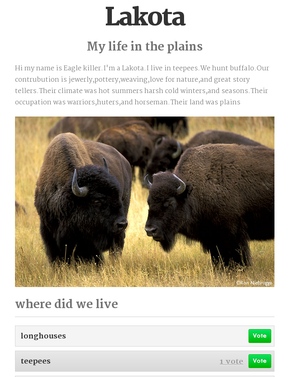
IndianSiteSecond graders at Laburnum Elementary are currently reviewing the American Indian tribes they’ve been studying for the past several weeks (Powhatan, Lakota, and Pueblo). So to help them review, they made websites today using CheckThis. CheckThis is a great way for elementary students to create websites because it doesn’t require a login, and adding new parts is as simple as clicking a button. To get them started brainstorming ideas, each child chose a tribe and pretended that they lived in the tribe. They gave themselves a name and an occupation and thought about what their lives would be like. Then we went to CheckThis and started writing. They wrote about where they lived, what they ate, what the land and climate were like, and any other creative ideas they wanted to add. Next we got a picture to embed. We discussed good search terms that would get the best picture (“lakota indian” would get more results than just typing “indian”). Finally, I showed them how to add a poll question that would help the reader review the American Indians. I posted all the links to a Google Doc that you can see here.


Kindergarten School Maps

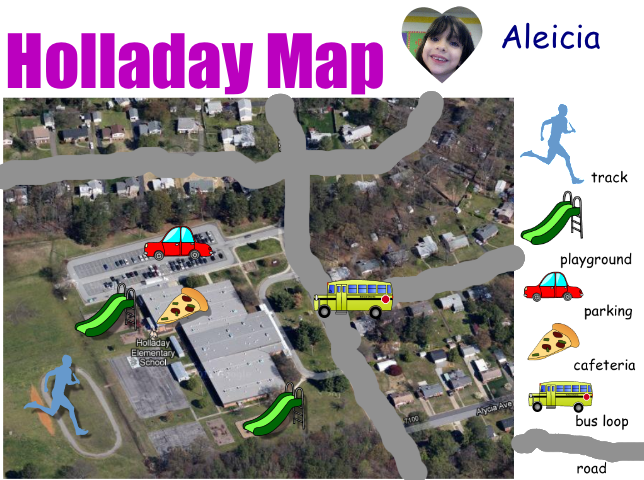
kmapKindergarten students at Holladay Elementary have been learning all about maps (SOL K.4 & K.5) so today they created simple maps of their school. First I showed them how to find their school in Google Earth, and I pointed out that maps show how places look from above. Next we opened a Pixie template that included a screenshot of the school from Google Earth and a few map symbols to include. You can download the template with the symbols by clicking here (just add a picture of your own school). Students identified the places in the school (playground, cafeteria, track, etc) and dragged the correct map symbols to the map. We discussed the purpose of the map key or legend, and I explained that they would be adding their own symbol to the key. Using the paint brush tool, the students traced over the roads in the picture, then they added a mark in the key to identify the symbol (color) they used for the roads. Finally the students added their own photo and name. You can see a student sample by clicking on the picture.