Category: Science

2nd Grade Habitats & American Indians Comics
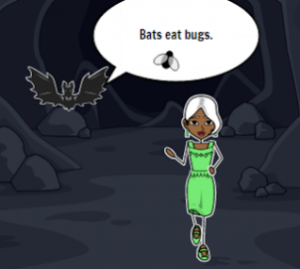
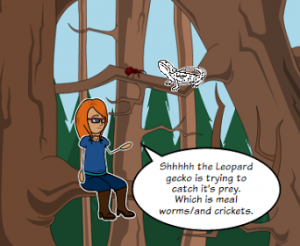
Second graders at Laburnum Elementary have been learning about animal habitats in Science (SOL2.5b) and American Indian tribes in Social Studies (SOL2.2). Today they could chose an animal or one of the three tribes (Powhatan, Lakota, and Pueblo) and create a comic with three facts. We used StoryboardThat to create the comic. First we added the background scenes. There were pictures of almost every kind of habitat for the animals, as well as pictures that look like the Eastern Woodlands, Great Plains, and southwestern desert for the tribes. I showed how they could click “Edit Scene” to change the weather in the picture. Next we clicked the “Characters” tab at the top and clicked “1600s to 1800s” for pictures of the American Indians or the “Animals” tab to find pictures of the animals they needed. The characters also have an “Edit Pose” button that allows the students to customize their poses and expressions. Finally we clicked the “Textables” tab at the top and added speech bubbles. In each speech bubble the students wrote a complete sentence with one fact (such as the animal’s habitat or the Indian’s home). We posted them to Google classroom, but you can see them all here.
Kindergarten Measuring with Nonstandard Units

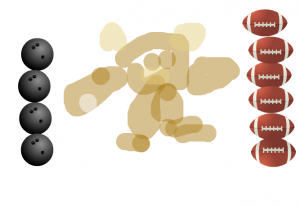
Kindergarten students at Trevvett Elementary have been learning about bears and hibernation in science (SOLK.6,K.7) and about measurement in math (SOLK.10). Today students in Ms. Sharpe’s class used ABCYa!Paint to draw a bear and measure it with nonstandard units. First we reviewed how to click and drag to paint, then the students clicked the paintbrush, chose a color, and drew a big bear. As they drew their bears, we discussed the special features bears have (ears, tail, claws, teeth, fur, etc.), and I displayed some photos of real bears for their reference. Next I showed them how to use the stickers to find a nonstandard unit of measurement. They had to click the “Categories” button to choose a type of sticker, like “Sports,” “Birthday,” or “Yum.” We reviewed how they had to use the same sticker for their measurements, and they had to stack them one on top of the other to be accurate. Some students were able to make two measurements with different units and compare them (like the image on this blog post). We didn’t put the answers on the pictures because we wanted Ms. Sharpe to use them as a review. So I exported their drawings and uploaded them to CoMemories (a great site for easily sharing photos). Now Ms. Sharpe, or even parents, can go to that site and look through the images to review measurement and/or bear facts. You can see them all here.


3rd Grade Temperature Predictions & Comparisons

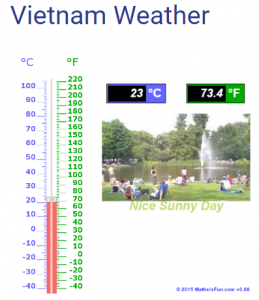
Third graders at Holladay Elementary have been learning about the motions of the Earth in Science (SOL3.8a) and temperature in Math (SOL3.13). Today we predicted, researched, and compared temperatures from around the world, and then discussed reasons why they were so different. I gave each student a copy of a blank Google slideshow, and showed them how to create the title slide, “Temperature.” I also showed them how to change the theme. Then we added a new slide and titled it “Richmond Weather.” Before looking up the current temperature, I asked them to predict the temperature based on what they saw and felt this morning. We used this interactive thermometer to show the temperature. I like how it displays the temperature in Fahrenheit and Celsius and provides a representative photo for different temperatures. We took a screenshot and added it to our slide. Then, we did a Google search for “Richmond weather” to find the current temperature and added the actual temperature to the slide. Many of the students’ predictions were very close. Next, we wanted to see what the weather was like in some other part of the world. The students could pick a city or country of their choice. Holladay has students from all over, so many of them picked their home countries–China, Vietnam, Mexico, El Salvador, and more. When they typed the name of their city/country and “weather” in a Google search, they found the current temperature and time. We talked about why the time and weather were different (because of the rotation and tilt of the Earth). They adjusted their interactive thermometer to display that temperature, took a screenshot, and pasted it to a new slide. We also added an image of the city/country to the slide (click the image button > Search). Finally we published our slideshows (File > Publish to the web), and pasted the link to Google classroom. You can see them all here.


5th Grade Animal Habitat Comics

Fifth graders at Varina Elementary have been reviewing animal habitats and ecosystems (SOL4.5), so today students in Ms. Rumans’ class created animal habitat comics. We used StoryboardThat to create the comics. First students selected a wild animal of their choice. I told them to pick an animal they were interested in and curious about. To broaden their horizons a bit, we discussed a variety of wild animals so they all didn’t pick cheetahs (which are insanely popular with elementary students for some reason). Once they picked their animals, they had to research their animals’ habitats and food webs. I showed them some quick guidelines for getting the information they needed by typing “name of animal” + “habitat” or “predators” or “prey” into a Google search. We used the basic layout on StoryboardThat with three panels, and each panel had to explain one of these facts. First we used the Scenes tab to get images of the animals’ habitats. Most of the habitats are included in the clip art. However, when it came to adding the animals, the clip art is somewhat limited. So students had to be creative and use animals that looked similar. I think the best example of creative problem-solving was using the hedgehog image for a beaver! I also showed them how to use the search box to look for additional items they needed, like nuts for a squirrel. They quickly found the blood splatter clip art which truly enhanced their predator/prey images. Finally we added the speech bubbles, and students wrote their facts in complete sentences. Some of them got creative with that too, writing it like it was a television documentary. I think you’ll enjoy looking at their final projects here.


3rd Grade Graphing Plant Growth

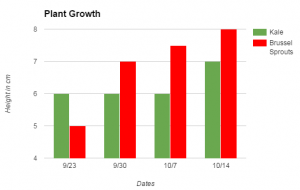
Third graders at Trevvett Elementary have been studying plants (SOL3.5), measurement (SOL3.9a), and graphing (SOL3.17), so today students in Ms. Hufnell’s class learned how to graph their plant measurements using Google sheets. Over a 4-week period, they have measured and compared the growth of kale and brussels sprouts in the Trevvett Learning Garden. They had their data, and now they were going to analyze their data. I gave them each a blank Google sheets template in Google classroom. Before they recorded their data, we discussed how it should be organized. Should we put the plants in Column A and the dates in Row 1 or the reverse? (Most put plants in Column A). Would that affect the way the graph looked? (It didn’t, necessarily, because of the customization features under Chart Types). I explained that they would need to put their units of measurement as a label on the graph instead of in the data cells, otherwise the graph wouldn’t recognize the numbers (for example, put 5 instead of 5cm). After entering our data, we highlighted it and clicked the graph button. I showed them how to use the Customization tools to change the title and labels on each axis. Then we inserted the chart into our spreadsheet and moved it so it wasn’t covering up our data. Finally, the students clicked the bars to change their colors (use the paint bucket button). The graph made it easy to analyze and compare the plants’ growth. Which plant grew fastest? Which plant grew tallest? Why did the kale not grow at all for 3 weeks? What might be the reasons for the differences since they were both in the same garden with the same sunlight and rainfall? We published our spreadsheets and pasted the links to Google classroom. You can see an example here.


Tags:


1st Grade Winter Changes

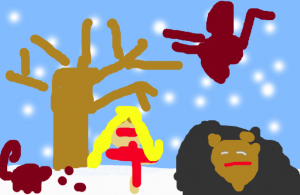
First graders at Holladay Elementary have been learning about changes in the weather during winter, and the effect those changes have on animals, plants, and humans (SOL1.7). They have also been learning how to write complete sentences (SOL1.13). Today students in Ms. Sokolowski’s class and Ms. Harris’s class practiced writing sentences about winter to accompnay digital drawings they created with ABCYa! Storymaker. First we drew our winter pictures. We used the paint bucket to make the sky blue, then we used the big roller brush to paint the ground white with snow. The spray can tool was perfect for drawing snowflakes in the sky. The students added people, animals, and plants, showing how they are affected by the winter (for example, they drew people wearing coats, trees without leaves, and animals hibernating or migrating). Next we clicked the yellow button on the side to type a complete sentence beginning with “In winter….” Finally we clicked the green button to print our assignments and saved them as PDF files. We shared them on a Padlet that you can see here: Ms. Sokolowski and Ms. Harris.


5th Grade Plants Under the Proscope

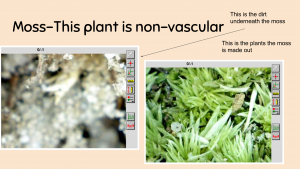
Fifth graders at Trevvett Elementary have been learning about vascular and nonvascular plants in Science (SOL5.5). Today students in Ms. Ballou’s class examined different types of plants using a digital USB microscope called a Proscope. First, the students got into self-selected groups, and we distributed the Proscopes and the plants (flowers, moss, celery, and ferns). Then they logged into Google classroom where I posted a Google slides template for them to use to share their findings (you can make a copy of the template here) Students put their names on the first slide, and on the subsequent slides they were to identify each plant as vascular or non-vascualr and upload a photo or two of the plant under the microscope. Proscope makes it easy to take photos by simply clicking a button. Some students also labeled different parts of the plants using the text box and arrow tools. They had a great time seeing the plants in a way they had never seen them before, and they also got some practice making a Google slideshow. You can see their finished slideshows here. Let me know if you’d like to use the Proscopes with your class. Each school has a couple, and I can bring a box of 15 additional ones.


5th Grade Animal Comics

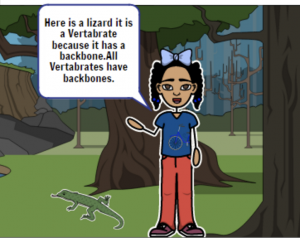
Fifth graders at Laburnum Elementary have been learning about vertebrates and invertebrates (SOL5.5b), so today students in Ms. Hall’s class created comics to help explain the difference between these two types of animals. We used StoryboardThat to create our comics. StoryboardThat is the best webtool around for creating comics because of its huge library of customizable clipart. I’ve used often in lessons (you can search my blog for other examples). The only problem with using it at the elementary level is that its terms of service specify that only students 13 years of age or older can have accounts. So we don’t let our students create accounts, but they can still make comics using the free version, then we save them by taking screenshots. First we created our three scenes (the free version is limited to 3 or 6 scenes). I explained that the first scene needed to be an introduction, the second scene would be about vertebrates, and the last scene would be about invertebrates. The students had to plan out which animals they were going to focus on so they could chose appropriate habitats for the backgrounds. A cool new feature on StoryboardThat allows you to customize the background scene by changing the weather and the time of day (click the blue “Edit Scene” button). Next the students added characters and animals (click the Characters tab at the top, then choose the Animals submenu). You can customize the characters as well by clicking the “Edit Pose” button. Finally we added speech bubbles, called “Textables” here, and typed complete sentences explaining the differences between vertebrates and invertebrates. I showed them how to take a screenshot of their finished comics using the Snipping Tool (or Command+Shift+4 on a Mac), and we shared them on Google classroom. You can see all their comics here.


1st Grade Animal Sentences

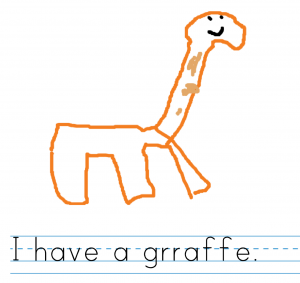
First graders at Trevvett Elementary have been learning about animals in science (SOL1.5) and how to write complete sentences with a capital and a period in Language Arts (SOL1.13e). Today students in Ms. Lucas’ class used ABCYa! Storymaker to draw an animal of their choice and type a complete sentence about the animal. First we helped them log into their accounts which, in itself, is a major accomplishment. Then we helped them navigate to the website, and I showed them how to use the drawing tools to draw an animal. We talked about a variety of different animals to help them get ideas and not all draw the same one (everyone seems to love cheetahs)! Next, we clicked the writing button (yellow button on the right side) to write our sentences. I really like how this site uses the lined paper format familiar to first graders and a kid-friendly font. I taught them how to use Shift to make the first letter a capital. I also explained that they should press the space bar once between each word. After they typed their sentences, I pointed out where the period key was for the ending. We pressed the green button on the right side to see both the writing and the painting together. Then we clicked the Print button to save it as a PDF. I wanted to save them all to one place, so I tried out a new feature in Google forms: file upload. I created a short URL to a simple form http://tinyurl.com/lucasform, and we helped the students upload their PDFs to the form. It automatically creates a folder in Google drive where all the files are collected. It worked great! You can see all their hard work from today here.


5th Grade Ocean Tours

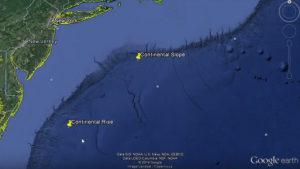
Fifth graders at Holladay Elementary have been studying the ocean floor in Science (SOL5.6), so today students in Ms. Haislip’s class created undersea tours with Google Earth and Screencastify. First we opened up Google Earth and I showed them how to put placemarks on the different features (continental plain, continental slope, continental rise, abyssal plain, trench, ridge, seamount, etc). I also demonstrated how they could go “underwater” and change the angle of the view by clicking and dragging the wheel in the top right corner. Once their view was just right, they clicked the yellow thumbtack button to add a labeled placemark on the spot. The placemarks appear in a list on the left side under “My Places.” When the students double-click a placemark from the list, Google Earth automatically takes them to that same view that was saved. Once all the placemarks had been created, it was time to record the tour using Screencastify. Screencastify is a Chrome extension that records the screen and lets you add an audio voiceover. Students worked with partners to “travel” around the ocean floor describing each feature. Screencastify saves the videos to Google drive, so it was easy to copy and paste the links from there to Google classroom. You can take a look at some of their projects here.