Category: Science

3rd Grade Animated Water Cycle
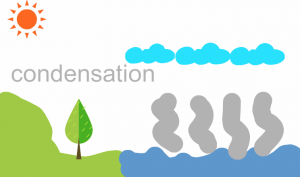
Third graders at Varina Elementary have been learning about the water cycle (SOL3.9), so today students in Ms. Cathcart’s class created animated water cycles using ABCYa!Animate. Before we got started, we reviewed the parts of the cycle and what was happening in each part: evaporation, condensation, precipitation, and runoff. On the first frame of our animation we painted a scene with water and land and typed the title. We duplicated the scene with the copycat button and added some evaporation. I pointed out that evaporation is actually invisible, but we had to show it somehow. On subsequent frames we continued adding parts to the cycle until we finished with water runoff from the land back into the sea. We clicked the Looping button so our animation would play repeatedly, then exported it as a .GIF file using the orange Export button. To share our animations, we uploaded them to a Padlet that you can see here.

Kindergarten Baby Animals

Kindergarteners at Trevvett Elementary have been learning about baby animals and how they look different from the adult animals, and sometimes they have special names (K.7d). Today students in Ms. Gouldman’s and Ms. Haskins’ classes created animated images showing a baby animal turning into an adult. First we brainstormed different kinds of animals and their babies so that we had a variety of ideas. There are also some great websites you can use to review: Cricket (match the baby to the adult), National Wildlife Federation (show what a baby will look like when it grows up), BBC (match the baby animal to its parents), National Geographic (baby animals memory), and Turtle Diary (help the adult find the baby). After our review, the students chose the animal they wanted to illustrate. Then we went to ABCYa! Animate, and I showed the students how to use the drawing tools to draw a baby animal. Next, we clicked the second frame at the top and drew the adult version of the animal. We slowed down the animation with the speed button and set it to loop so it would repeat (just like a life cycle). Finally we pressed the Export button to save it as a .GIF file and uploaded it to a Padlet so we could see everyone’s. You can take a look at their animations here.


2nd Grade Matter Comics

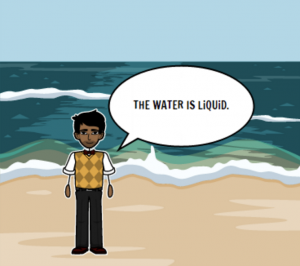
Second graders at Laburnum Elementary have been learning about the states of matter (SOL2.3), so today students in Ms. MacKenzie’s class created states of matter comics using StoryboardThat. First we reviewed different types of solids, liquids, and gases so everyone wasn’t doing the same ones. I’ve found that students are very creative when it comes to solids, but they need a little help thinking of different liquids and gases. I pointed out that anything that flows is a liquid: lava, honey, ketchup, even applesauce. For gases, we talked about the sun and the gas giants, as well as helium, oxygen, hydrogen, and more. Then we used the three-panel comic on StoryboardThat to illustrate the three types of matter. We clicked and dragged background scenes to each panel, then we added characters. I showed them how to use the “Edit Pose” button to change their poses and facial expressions. Finally we added the speech bubbles (textables) and typed a sentence in each one describing the state of matter shown. We used the snipping tool to take a screenshot of our finished comics and posted them on Google classroom. You can see them all here.


4th Grade Animal Research Websites

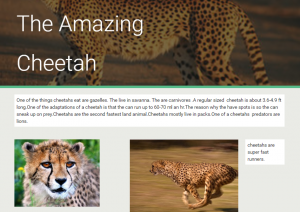
Fourth graders at Holladay Elementary have been learning about animal ecosystems in Science (SOL4.5) and measuring length in Math (SOL4.6). Today students in Ms. Rivara’s class researched an animal and created a website about it. First the students chose their animals (we made sure that there weren’t too many duplicates by brainstorming a variety). Next, I gave them some guidelines for their research: they had to find out the animal’s (1) habitat, (2) predators, (3) prey or diet, (4) length, and (5) an interesting fact. I showed them how to do quick Google searches to find the information they needed, such as “animal name + predators,” for example. There are also several great sites for researching animals: National Geographic Kids, Go Wild by WWF, A-Z Animals, and Arkive (more advanced reading, but lots of photos and videos). To create the websites we used the new Google sites. Students went to their Google drive and selected “New > More > Google Sites.” They added a title and found a suitable background header image. Then they added a text box and typed the facts they found in their own words (we reviewed the problems with plagiarism). For images, the students used the built-in Google image search to find copyright-free pictures of their animals. I showed them how to add a caption by double clicking next to a picture and choosing the text box option from the pop-up menu. Some students even added videos after class. Finally we published the websites and pasted the links to Google classroom. You can see them all here.


4th Grade Measurement Movies

Fourth graders at Trevvett Elementary have been learning how to estimate and measure length in both metric and U.S. customary units (SOL4.7). Today students in Ms. Town’s class created measurement movies using WeVideo. First we reviewed the different customary units of measurement from smallest to largest (inches, feet, yards, and miles), and we reviewed the metric units (millimeter, centimeter, meter, kilometer). Then I explained that they would create movies about the units with a partner or by themselves. Each group chose a unit until all the units were chosen. The students logged into WeVideo with their Google accounts and created a new video project. I outlined three main requirements for the video: (1) introduce themselves, (2) describe their unit of measurement, and (3) give examples of objects that would be measured by that unit. For the first two parts, students used the built-in webcam to record their video directly to WeVideo. For the third part, students had to do some research online and find images of appropriately-sized objects. They downloaded their images to the desktop, then imported them into WeVideo. Finally, we selected themes with music, and I showed them how to adjust the volume so the music wasn’t too loud. We published our videos and pasted the links into Schoology so our classmates could watch them and comment on them. You can see them all here.


Tags:


3rd Grade Coding with Cycles

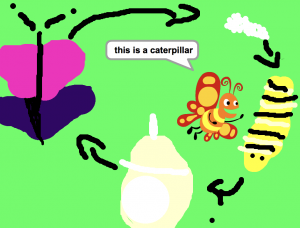
Third graders at Trevvett Elementary have been learning about cycles (SOL3.8): the lunar cycle and plant and animal life cycles. Today students in Ms. Smith’s class used basic coding skills to create animated diagrams of a cycle of their choosing. First we went to the Scratch website and created an account. Scratch is a programing language developed by MIT to teach children about coding. We started a new project and clicked the Stage button. Then we clicked the paint brush icon to create a new stage. The students used the paint tools to draw a diagram of one of the cycles. Next we right clicked on the default sprite (the Scratch character) and deleted it. I showed the students how to choose a new sprite from the sprite library. Now it was time to write some code. The students positioned their sprite where they wanted it to start. They chose “When the flag is clicked” Event to begin their code and added a “go to x-y” element from the Motion library. Then they added a “say _ for _ secs” element from the Looks library and typed the first step in the cycle. For each subsequent step, they moved their sprite to another part of the cycle, added a “glide 1 secs to x-y” Motion element and a “say _ for _ secs” Looks element until all the parts were identified. Testing the code is the most important part and provides an excellent opportunity for logical thinking and problem solving when the animation doesn’t work out as planned. When the students’ projects finally worked, they pressed the “Share” button and pasted the links to Schoology. You can see all their projects here (be sure to press the “See inside” button to take a look at their coding).


Tags:


5th Grade Habitat Stem and Leaf Plots

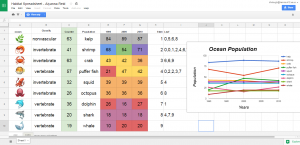
Fifth graders at Holladay Elementary have been learning about stem and leaf plots and line graphs in Math (SOL5.15), and they have been studying ways to classify animals and plants in Science (SOL5.5). Today students in Ms. DiMatteo’s class created stem and leaf plots and line graphs about the populations of animals and plants in different habitats. First I gave each student a copy of this Google spreadsheet (you can make a copy by clicking File > Make a copy). They clicked the arrow in box A1 and chose a habitat from the drop down list. Depending on the habitat they choose, a list of animals and plants appears. Google now has emojis (click Insert > Special Characters > Emoji), so that’s where I got the images. Next the students had to identify each one as an invertebrate, vertebrate, vascular or non-vascular plant. I tried to include at least one of each kind. (You will notice as you edit the spreadsheet the counter numbers change, that’s supposed to happen). Next the students acted like scientists and recorded the data for each year by typing the number in the counter box at that moment. The numbers have conditional formatting rules that will turn them different colors based on their tens digits (to help with the stem and leaf plot). To create the stem and leaf plot, the students type the numbers 1-9 in the Stem column (column H), and record the ones digits in the Leaf column (column I). To create the line graph, the students highlight the data in rows D-G and click the graph/chart button. Then they click the “Chart Types” tab in the window that appears and choose a line graph. They also need to check the box that says, “Switch rows/columns” so each line shows a specific living thing. Finally, I showed them how to customize the colors, titles, and labels of their graphs by clicking on each one. As we looked at our data, we discussed why there were more of the smaller creatures and less of the larger ones, and what would cause populations to increase or decrease. You can take a look at the students’ projects here.


3rd Grade Valentine Machines

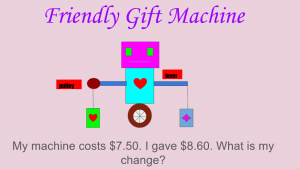
Third graders at Holladay Elementary have been learning about simple machines in Science (SOL3.2) and adding and subtracting money in Math (SOL3.8). Today students in Ms. Whittaker’s class created their own Valentine machines with a money math problem for their classmates to solve. First I made a copy of a blank Google slideshow for each student in Google classroom. I showed them how to click the Background button and choose a background color. Next we moved the “Title” textbox to the top of the page, and the students typed a title for their machine. We moved the “Subtitle” textbox to the bottom of the page, and the students typed in a money math problem about their machine (adding two amounts together or calculating change). We did the written part first because that was the most important part, and I wanted to make sure it was finished. I showed them how to change the font, size, and color of their text. Then it was time to draw the machine. I demonstrated how to use the Shapes Tool to create a machine that would deliver Valentines. It could be just one simple machine, or it could be a compound machine, made of several simple machines. After the students drew their machines, they labeled the machine parts with text boxes. Finally we published them to the web (File > Publish to the web) and pasted the links to Google classroom, so we could solve each others’ problems. You can see them all here.


2nd Grade Magnet Animations

Second graders at Laburnum Elementary have been learning about magnets and how opposite poles attract and like poles repel (SOL2.2). Today students in Ms. Jones’ class created magnet animations using ABCYa!Animate. First I explained how animation works (it’s a series of still pictures that are viewed rapidly so it looks like objects in the pictures are moving). I also explained that their animations would show magnets attracting to and repelling from each other. Most students chose to draw bar magnets, but they could also have drawn horseshoe magnets. They knew to paint the north pole red, and the south pole could be any color (traditionally, it is blue or grey). We used the “Text” tool to add an “N” and an “S” at the respective poles. After they drew their first magnet, we grouped it together so we could move it as one object. Then they drew their second magnet with the opposite pole facing the first one. We grouped that one together as well. Next we used the “Copy Frame” button to copy our picture and move the magnets a little closer to each other. We also typed the word “Attract.” We continued copying the frames and moving the magnets closer to each other until the opposite poles touched. Now it was time to show “Repel.” I taught them how to flip the magnet around so like poles were facing each other (put the cursor in the corner of the magnet and click and drag the curly arrow that appears). We typed “Repel,” and copied the frames, moving the magnets further apart in each frame. Finally clicked the “Loop” button so the animation played over and over, then we exported it as a GIF. We shared our animations on Google classroom, but you can see them all here. (UPDATE: I taught a similar lesson with Ms. Ernst’s class and posted them to a Padlet).


3rd Grade Matter Animations

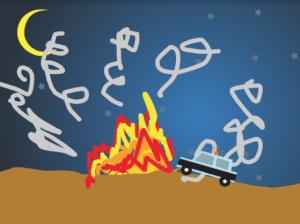
Third graders at Trevvett have been learning about how matter undergoes physical and chemical changes (SOL3.3). Physical changes don’t change the type of matter, like breaking, cutting, or melting. Chemical changes change the type of matter, like burning, cooking, and rusting. Today students in Ms. Robinison’s class used ABCYa! Animate to create animations showing physical or chemical changes. First we brainstormed different types of changes they could illustrate so that we had a variety. I showed them how they could add a background image if they wanted. Next we used the paint tools and the “Images” library to create our first picture. I explained how to group objects together so they would move. Then we copied the frame and students added motion. Some showed change by adding additional parts or erasing parts of their first image. We continued copying and changing the frames until we had a complete animation of the process. Finally we uploaded our animations to an album in Schoology, and the students added comments to each others’ pictures, identifying the type of changes. You can see all their animations here.