Category: Science

1st Grade Plant Sentences

First graders at Holladay have been learning about plants and their needs (SOL1.4). They have also been learning how to write complete sentences starting with capital letters (SOL1.13d,e). Today students in Ms. D’Antonio’s class used ABCYa! StoryMaker to create drawings of plants and write a sentence about plant needs. First, we reviewed the things that most plants need to live: sunlight, water, and soil. Then, we went to StoryMaker, and I showed them how to use the different brush tools to draw a picture of a plant. I suggested that they also include the things that their plant needs. Some students even knew that sunlight + rain make a rainbow, so they used the rainbow brush to add a rainbow to their picture. Next, we clicked the yellow button on the side to go to the writing section. Storymaker has the familiar lined paper and a font that early elementary students can read easily. I showed the students how to use Shift to make a capital letter and how to use the space bar to make spaces between each word. We started our sentences the same way: “A plant needs…,” then they chose the ending and added a period. You can see their plant drawings and sentences here.

5th Grade Sound eBook

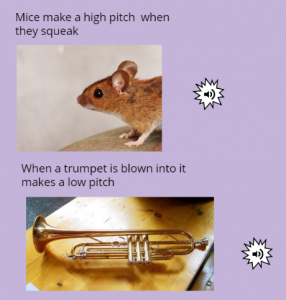
Fifth graders at Trevvett Elementary have been learning about sound (SOL5.2), so today students in Ms. Capano’s class created sound eBooks. I explained that an eBook can do things that a regular book can’t do. It can have videos, animations, and sounds, which make it perfect for a sound book. First, Ms. Capano set up a class in BookCreator, and her students joined with a code. Then we created a new book. I asked them all to choose the square shape, so when we combined the books together at the end, they would all match in size. For the cover, I showed them how to change the color, add a title, pick a font, and search the web for a photo of sound. Inside the book, I instructed them to write complete sentences about sound. If they used a vocabulary word, like frequency or amplitude, then they could make it bold. They could also add photos of objects that make sound or draw sound waves with the pen tool. When they finished their pages, I showed them how to search for and download sounds on SoundBible. Then we uploaded our sounds to our books by clicking the + button and choosing Import > Files. Now we have a book about sound that actually has sounds in it! I combined all their books together into one class book. You can read their book here. (UPDATE: I taught a similar lesson on 3/20 with Ms. DiMatteo’s class at Holladay, and you can read their book here).


Tags:


1st & 2nd Grade Melting Matter

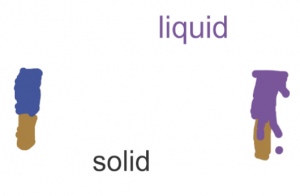
First graders at Holladay Elementary have been studying matter (SOL1.3), and they have learned that matter can be solid or liquid. Today, students in Ms. Milteer’s class created animations showing how a solid can turn into a liquid by melting. First, I showed them some time-lapse videos of various solids melting (ice cream, snowman, ice cube, butter, crayon, chocolate, candle). You may even want to record your own time lapse video of something melting. Many phones and tablets have a time lapse recording feature. Next, we went to ABCYa! Animate, and the students drew a solid object in the first frame. In the second frame, they drew the same object melted into a liquid. Then, we pressed play and slowed down the speed to watch our animations. Finally, we exported the projects as .gif files and shared them on Padlet). You can see them all here. UPDATE: Second graders learn about the states of matter as well (SOL2.3), so here are some student samples from a similar lesson I did with them using BrushNinja.


4th Electrical Circuit Animations

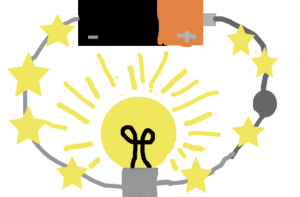
Fourth graders at Laburnum Elementary have been learning about electrical circuits (SOL4.3b), so today, students in Ms. Waltz’s class created animated circuit diagrams using ABCYa! Animate. First, we reviewed the parts of a simple electrical circuit and how the parts work–batteries, switches, and objects that turn on. We discussed a variety of electrical objects so everyone didn’t draw the same one (lights, radios, toys, televisions, computers, washing machines, ovens, robots, etc.). If your students need some extra help with circuits before doing this activity they can practice building their own here, here, here, or here. Next, we went to ABCYa! Animate, and I explained the process of creating the animation: (1) draw the complete circuit with an open switch in the first frame, (2) slowly close the switch in the next few frames, (3) show the flow of electricity however you like, (4) turn on your object in an interesting way. Finally we saved our animations as .gif files and shared them on Schoology. You can see them all here.


5th Grade Energy Animations

Fifth graders at Varina Elementary have been reviewing potential and kinetic energy (SOL4.2), so today, students in Ms. Primrose’s class created animations to illustrate these concepts. For this lesson, we used a different way to animate that I learned about from a fellow ITRT, Michael Price. He showed me how to create an auto-playing animation with Google slides. First, we reviewed potential and kinetic energy and brainstormed several examples (pulling back on a bow and arrow, squatting before a dive or a basketball throw, twisting a rubber band, squashing a spring, blowing up a balloon before releasing it, etc). I explained that we would be animating both the potential and kinetic energy of an action, so the students needed to choose one they found interesting. Next, we opened a blank Google slide, and clicked the Background button. The students used the built-in Google image search to look for a background that would fit their action. Then we added Shapes to make our characters and objects. We copied the slide (right click > Duplicate slide), and moved the shapes around slightly to make it look like the characters and objects were moving. We continued copying slides and making adjustments until our animations were complete. Now it was time to add the animation magic! We clicked File > Publish to the web and chose “Auto advance slides every second.” We also clicked the two boxes so that it would start automatically and repeat when it was finished. When the link appeared, we changed the number that came after “delayms=” to 100 to speed up the animation. You can see their final projects here.


5th Grade Physical & Chemical Changes

Fifth graders at Laburnum Elementary have been learning about how matter can change physically or chemically (SOL5.6), so today, students in Ms. Hall’s class created animations to illustrate some of these changes. First, we reviewed the differences between physical and chemical changes and looked at some examples. Then, the students chose a type of change they wanted to animate, and I explained how to download a suitable background image with a Google image search. Next, we went to ABCYa!Animate to create our animations. We clicked the “Edit Background” button and uploaded our background image. Then, we used the paint tools or the image library to create our first frame. I demonstrated how to copy the frame and make small changes in each subsequent frame so that when they press “Play,” it shows matter changing over time. When we were finished, we exported our animations as .gif files and shared them on Schoology. You can see them all here.


2nd Grade 3-D Habitats

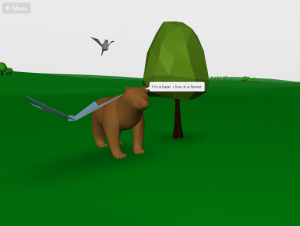
Second graders at Holladay Elementary have been learning about animal habitats (SOL2.5b), so today, students in Ms. Brown’s class used CoSpaces to create 3-D models of different habitats. First we reviewed the habitats they have studied (desert, woodlands, grasslands, ocean, arctic, etc.), and they chose one they wanted to illustrate. Next, we went to CoSpaces, logged in with our Google accounts, created a new space, and chose an image from the Environment library that resembled our habitat. Then, the students needed to find plants and animals from the Objects library that would live in their environment. There are plenty of models to choose from, but students could also design their own using the 3-D shapes. I showed them how right clicking on an object presents a menu they can use to change its color, size and position. They clicked the speech bubble icon on one of the animals and wrote a complete sentence about that animal and its habitat. Finally, we published our model and shared the link with our classmates on Schoology. You can see them all here. v


Tags:


5th Grade Science Review Comics

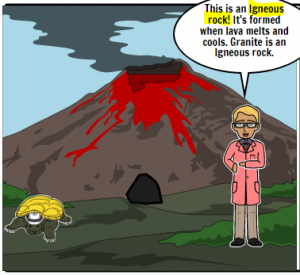
Fifth graders at Trevvett Elementary have been reviewing various science topics in preparation for Benchmark testing. A fun way to review is to make a comic study guide. Today students in Ms. Capano’s class used StoryboardThat to make comics about science topics of their choice. First, we reviewed the units they have been studying, such as rocks (SOL5.7), oceans (SOL5.6), and cells (SOL5.5). Then, they selected an idea they were interested in and went to StoryboardThat where they chose background scenes to best represent that topic. I showed them how they could use the “Edit Scene” button to change its weather or appearance. Next we clicked the Characters tab at the top and added people or animals. They could customize the characters as well by clicking the “Edit Pose” button. Finally, we added speech bubbles with the Textables tab. The students wrote complete sentences providing facts and information for review. Many of them even added bold or highlighted words, which they’ve learned are text features of nonfiction (SOL5.6a). In order to save and share our comics, we took screenshots and posted them to Schoology. You can see them all here.


3rd Grade Life Cycle Movies

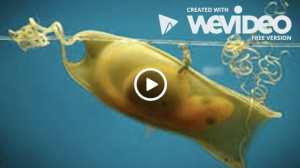
Third graders at Holladay Elementary have been studying animal life cycles (SOL3.8b), so today students in Ms. Haley’s class researched an animal life cycle of their choice and created a video about it. I asked them to pick an animal they were curious about. To help spark their curiosity, I asked questions like: Do sharks lay eggs? What does a baby firefly look like? Do jellyfish go through metamorphosis? Once they had their ideas I gave them a few minutes to research online. We discussed reliable and unreliable websites: encyclopedias, museums, and science websites would be reliable, whereas a personal website or blog would be less reliable. I also explained how to tell the difference between real photos and fake photos. A real photo will have several examples that look similar. For example we did a search for “jellyfish eggs” (they don’t lay eggs) and found an image of a fried egg jellyfish (which isn’t quite what we were looking for, but it’s an actual thing). A better search phrase would be “life cycle of a jellyfish” (we discovered that its life cycle is quite complicated). After the students gathered their facts and photos, we logged into WeVideo with their Google accounts. We switched to Storyboard mode, which is simpler, by clicking the three lines at the top left. I demonstrated how to import their photos with the green cloud icon, and we changed the title of our video. Next, the students recorded an introduction using the webcam feature. We dragged our photos from the media folder down into the timeline and recorded a voiceover. Finally we selected a theme with music, turned down the volume of the music so it didn’t drown out our voiceovers, and published our videos. You can see them all here.


Tags:


4th Grade Moon Fractions

Fourth graders at Varina Elementary have been learning about the phases of the moon in Science (4.8c) and about fractions in Math (SOL4.2). Today students in Ms. Belcher’s class illustrated the fractional parts of the lunar cycle with ABCYa! Animate. First we divided the lunar cycle into eight parts and discussed the fraction representing each part. I pointed out that some of the fractions can be reduced, and they even provide names for some of the phases. For example, 2/8 of the cycle is called the first quarter because it is actually 1/4 of the way through. On each frame of their animations the students illustrated a different phase of the moon and wrote its corresponding fraction (new moon = 0/8, waxing crescent = 1/8, first quarter = 2/8 or 1/4, waxing gibbous = 3/8, full moon = 4/8 or 1/2, etc). We used the copy cat button to make sure that the moon stayed in the same place so that when the animation played, it would look like the phases of the moon were really happening. You can see them all here.