Category: Science

5th Grade 3-D Models of the Earth
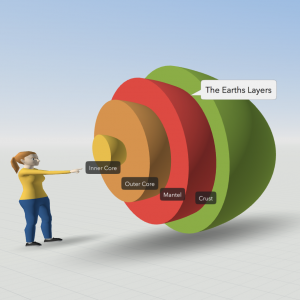
Fifth graders at Laburnum Elementary have been learning about the layers of the Earth in Science (SOL5.7d), so today students in Ms. Johnson’s class created 3-D models of the Earth using CoSpaces. First, I set up a free classroom account, and the students logged in with a code. Usually, the first thing you do in CoSpaces is click the Environment button at the bottom and chose an environment. We decided to use the default environment for this project to save time. Then, we clicked on Library button and chose the Build tab to find the half-sphere shape. We added that to our scene, and I showed them how to use the pop-up tools to raise the shape and rotate it. Right-clicking on the shape brings up a menu that we used to change the color of the shape. Since this represented the crust, we also added a label using the right-click menu. Then, we duplicated the shape, shrunk it a bit, recolored it, and labeled this new half-sphere as the mantle. Some chose to try to push the shape into the crust, while others left theirs out. The students continued in this way, adding the rest of the layers of the Earth. Finally, we chose a character from the characters library to add to the scene. The characters can be customized and given speech bubbles by right-clicking on them. CoSpaces has a coding component as well, but we didn’t have time to code during this lesson. We shared our projects in Schoology, and you can see some student examples here.

2nd Grade Extreme Weather Skip Counting Maps

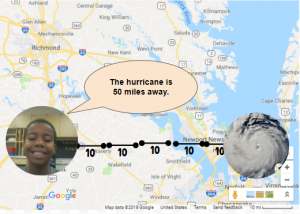
Second graders at Laburnum Elementary have been learning about extreme weather in Science (SOL2.6), skip counting in Math (SOL2.2a), and map skills in History (SOL2.1b). So today, students in Ms. Pope’s class reviewed all three concepts with a Google Drawing project. First, the students decided if they wanted to skip count by 2’s, 5’s, or 10’s, and they chose the corresponding template (you can copy each template by going here). Next, we right-clicked on one image holder and replaced it with a picture of some type of extreme weather (hurricane, tornado, blizzard, flood, etc.) using the “Replace image > Search the web” button. We added our own photo to the other image holder using “Replace image > Camera.” I encouraged the students to look surprised or scared in their photos since the extreme weather was heading their way! Now it was time to practice skip counting. We moved the map scale segments from the bottom to create a line showing the distance from the weather image to our photo. Then we skip counted the segments. Finally, we changed the words inside one of the speech bubbles to say something like, “The weather is ___ miles away.” You can see all their projects here.


3rd Grade Animal Research

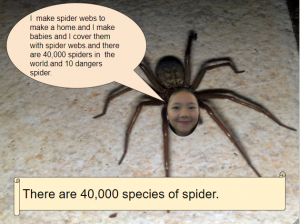
Third graders at Trevvett Elementary have been learning about animal adaptations in Science (SOL3.4) and place value for six-digit numbers in Math (SOL3.1a). Today students in Ms. Hufnell’s class used their research skills to find images and facts about an animal of their choice, including how many exist. This gave us the opportunity to review and read large numbers up to six digits. First, we made copies of a Google drawing template (you can make your own copy here). Then, students clicked the Image button and did a Google image search for their animal. When we added the picture, we noticed that it covered the speech bubble, so I showed them how to click Arrange > Order > Send to back. Next, they clicked the Image button and chose “Webcam.” Each student took a photo of their own face to put in place of the animal’s face. To make it more realistic-looking, we used the cropping tool to make the face into a circle shape. Students typed complete sentences in the speech bubble explaining their animal’s adaptations. Finally, they asked Google: “How many (of my animal) are there?” and they wrote the number in the scroll shape. They could change the color of the speech bubble and scroll with the paint bucket tool when they finished. We shared our projects with each other on Schoology, but you can see them all here.


5th Grade Hurricane Hypothesis

Fifth graders at Varina Elementary have been learning about the scientific method: forming a hypothesis, collecting data, taking measurements, graphing information, and analyzing the results (SOL5.1). Since Virginia is currently facing the threat of Hurricane Florence, and since the 5th graders need to review weather (SOL4.6), we decided to research hurricanes using the scientific method. First, I showed them some photos of past hurricanes and identified the eye of the hurricane. If the “eye” is the center, then the “eyelid” can be the area near the eye, and the “eyebrow” can be a bit further out. What part of the hurricane has the strongest winds? We made a copy of this spreadsheet, and I asked the students to write their hypothesis in the purple box. For example: If the distance from the eye increases, the windspeed will increase (or decrease). Now it was time to make some measurements and collect data. We went to Windy and Earth which show live storms on the Earth. You can click anywhere in the storm to get the windspeed (you may need to go to settings to change the units to mph). We used Accuweather or the National Hurricane Center to get the names of the hurricanes. The students could measure the winds in any hurricane they wanted, and I pointed out that the more data they collect, the more reliable their conclusions will be. They recorded the information in their spreadsheet, including the name of the hurricane and the windspeed measured at the eye, eyelid, eyebrow, and maximum (found by just searching around the storm for the biggest number). Finally, I showed them how to graph the data and customize the colors. We analyzed the results to confirm or revise our hypothesis. Most of us discovered that the strongest winds were in the eyebrow area, so as the distance from the eye increased, the windspeed increased. You can take a look at some student samples here. UPDATE: Schools closed the next day, 9/14, due to Hurricane Florence, and on 9/17 we had tornados!


5th Grade Classifying Our Classmates

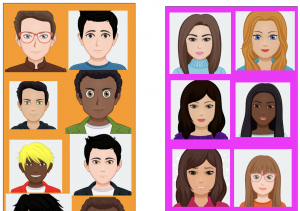
Fifth graders at Holladay Elementary have been learning about classifying objects (SOL5.1a) and organisms (SOL5.5b) using various characteristics. Today, students in Ms. Haislip’s class practiced this skill by classifying their classmates. First, we went to AvatarMaker and created an avatar that looked like us–same hair style, eye color, etc. We downloaded the image as a 200×200 png file (click “Download”). Then we uploaded it to a shared Google slideshow so everyone could see each other’s avatars. Once all the avatars were uploaded, I turned off file sharing so no one would accidentally move or delete the images. I arranged the avatars neatly on the slide then instructed the students to make a copy of the slideshow (File > Make a copy). On their own copies, they duplicated the class slide (Right click > Duplicate slide), and we discussed ways to classify the students into groups with common characteristics. The students had many great ideas: gender, hair color, eye color, glasses, facial expression, etc. They chose a characteristic and typed it in the top of the slide. Next, they clicked and dragged the images to sort them into groups. As an option for making the groups clearer, I demonstrated how to create shapes with the Shapes tool and send them to the back (Arrange > Order > Send to Back). If students finished, they could make additional copies of the slide and create different sorts. You can see some student examples here.


1st Grade Push & Pull Animations

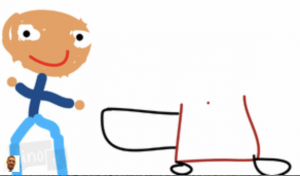
First graders at Holladay Elementary have been learning about force and motion, specifically how pushing and pulling can change the motion of an object (SOL1.2c). Today, students in Ms. Wimmer’s class used Wick to create animations showing a push or a pull. First, we discussed and demonstrated different types of pushes and pulls that first graders would be familiar with: kicking a ball, opening a door, fishing, swinging, jumping, running, etc. Next we went to Wick, and the students discovered something I never knew about Wick. (By the way, that’s one thing I absolutely love about teaching technology–the students often teach me things). They showed me that you could click on the letters on the homepage and different animations occur! After that awesome discovery, we launched the editor, and I explained how to use the paint brush tools. In the first frame they painted a picture of someone pushing or pulling something. We clicked the Clone Frame button to make a copy of the image, and I showed them how to group the objects together and drag them with the arrow tool. We continued making copies and moving the objects until we had about five frames. When we clicked “Run,” the students were thrilled to see their animations play out. Since the animations were a little fast, we clicked the Settings gear in the top right and changed the frame rate to 5. Finally, we exported our animations as GIF files (File > Export Animated GIF) and uploaded them to Lino (an online bulletin board similar to Padlet). You can see them all here.


5th Grade Student-Created Review Activities

Fifth graders at Varina Elementary have been reviewing science SOLs for the year. Today, students in Ms. Messer’s and Mr. Williams’ classes used Wick to create interactive review questions. First, we brainstormed a list of topics they have studied this year: weather, rocks, cells, oceans, planets, sound, light, force, and elements. Next, students chose a topic and developed a good, thoughtful question with plausible answer choices. We went to Wick, added a background color, and typed our question and answers with the text tool. I showed them how to change the font, size, and color of the text using the toolbar on the right. We used the shapes tool to draw circles next to each answer choice and turned them into clickable buttons with the “Create Button” tool (pointing finger icon). Then, we used the paint tools to draw a character who would respond to the correct or incorrect answer. In order to create the code, the character had to be a named group, so we highlighted all its parts and clicked the “Group Objects” button. Beside “Name” in the Group tool bar, we gave it a name (like “boy” or “girl”). Then we double clicked the character and clicked the “Clone Frame” button to make two copies of it. Frame 2 represented the correct answer, so we gave our character a smile. Frame 3 represented the incorrect answer, so we gave our character a frown. Now we could add code to the buttons. Wick makes coding easy by including code snippets in the library. For the correct button, we used this code (changing the name boy to whatever the group was called):

function mousePressed() {
boy.gotoAndStop(2)
}

For the incorrect button, we used the same code, but just changed the code to gotoAndStop(3) so it went to Frame 3 of the character. We clicked “Run” to test our activity. If everything worked, we exported it as an HTML file and shared it on Schoology for our classmates to try. You can see all their questions here.


Tags:


2nd Grade Coding Magnets

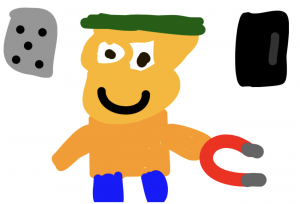
Second graders at Holladay Elementary have been learning about magnets and magnetism (SOL2.2), so today, students in Ms. Edmonds’ class used Wick to code a magnets activity. First, I showed them a finished sample so they could see what they would be creating. Basically, they will have a person, a magnet, and two objects–one that’s magnetic and one that’s nonmagnetic. Then, they will use code to make the person smile when the user clicks on the magnetic object and frown when the user clicks on the nonmagnetic object. We reviewed different objects that were magnetic and nonmagnetic, then we got started. The students used the drawing tools to draw a person, a magnet, and two objects. I showed them how to change the objects into buttons (click the finger icon) and we added some code to the buttons. I like how Wick uses real code, but they keep it simple by including a code library that students can choose from. So instead of typing the code, they just click it. Our code for the buttons read: mousePressed gotoAndStop(2) for the magnetic object and mousePressed gotoAndStop(3) for the nonmagnetic object. Next, we duplicated Frame 1 (right click on it) and changed the face in Frame 2 to be smiling. We did the same thing for Frame 3, but changed the face to be frowning. Finally, we tested our code to be sure it worked and clicked File>Export HTML. That’s it! They just created their own interactive magnets website, which is really impressive for 2nd graders! You can see all of their activities here.


Tags:


3rd Grade Animated Food Chain Relationships

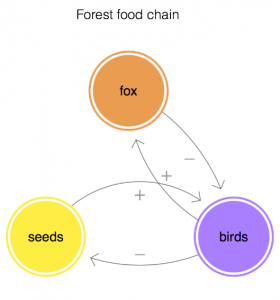
Third graders at Holladay have been learning about the relationships among organisms in aquatic and terrestrial food chains (SOL3.5), so today, students in Ms. Haley’s class created animations with Loopy to illustrate some of those relationships. First, we reviewed the different ecosystems: forest, desert, arctic, freshwater, ocean, etc. Then, students chose one ecosystem and typed the name of it in Loopy using the Text tool. Next, they used the pencil tool to draw a circle to represent a plant. If students didn’t know a plant that lived in their ecosystem, I showed them how to ask Google using the microphone. Next, students added an animal that eats that plant. Again, they could use Google for research. A great feature of Loopy is that it can show positive or negative relationships with arrows. We drew an arrow from the plant to the animal and discussed whether it should be positive or negative. It’s positive because more plants would mean more animals since they have a bigger food source. Then, we drew another arrow from the animal to the plant and made it negative (click the box in the upper right corner). It’s negative because more animals would mean less plants since they eat them. Students could continue adding animals to their web and using arrows to show the relationships between them. Finally, we pressed play and explored what happens when we change the population of each organism (by pressing the up or down arrows). We saved our animations as weblinks and shortened them with bitly. You can see them all here.


Kindergarten Life Cycle Animations

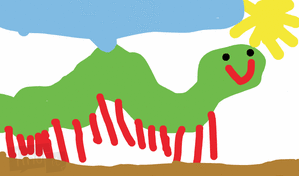
Kindergarten students at Trevvett Elementary have been learning about life cycles (SOLK.7c), so today, Ms. Gouldman’s class used ABCYa! Animate to create animations of the butterfly life cycle. First, we reviewed the stages a butterfly goes through–from egg, to larva, to chrysalis (metamorphosis), and to adult. Next, we went to ABCYa! Animate, and I showed them how to use the paint tools to draw some butterfly eggs in frame one. We looked at some pictures of butterfly eggs on the Internet so they could see the size and color of them. I pointed out that many butterfly eggs were laid on plants. Why do you think that is? Then, we went to frame two and drew the caterpillar. We looked at caterpillar images online to see the incredible variety in their colors and designs. We continued with the other stages, looking at photos of each stage, and then drawing our own creative ideas. When we were finished, we slowed down the animation using the frame rate button (bottom right), turned on looping so it repeated, and pressed play. The students were excited to see their butterfly move through each stage. Since it loops, it also shows how an adult lays more eggs and the life cycle repeats itself. Finally, we exported our animations as GIFs, and I uploaded them to a Lino page. Lino is similar to Padlet for sharing files, but since I’ve reached my limit on Padlet for the free account, I had to find something different. You can see all their animations here.