Category: Science

Kindergarten Butterfly Life Cycles
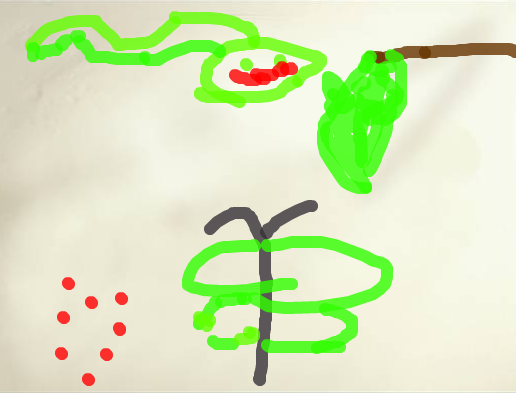
CoreyMs. Lee’s kindergarten students at Davis Elementary have been learning about the butterfly life cycle in science (SOLK.6). Since a life cycle is a sequence that involves change, it’s a perfect subject for an animation. So today we made animations of the butterfly life cycle using a site called ArtPad. First the students used the paint brush to illustrate each of the four stages: egg, larva (or caterpillar), pupa (or chrysalis), and adult. The paint brush tool is easy to use and you can change the size by simply dragging a button. The paint brush actually changes appearance as well. When they were finished, I showed them how to publish their drawings and get the link. If they click the link, they can watch the animated replay of their painting from start to finish, so it shows the sequence of the life cycle. It’s actually really cool to watch and the students loved it! I gathered all their links together and put them on a Google Doc that you can take a look at by clicking here.

1st Grade Spring Acrostic

springFirst graders in Ms. Smith’s class at Laburnum Elementary have been learning about poetry in language arts and spring in science, so today they wrote an acrostic poem that spelled out SPRING. They came up with their own words or phrases to go with each letter and typed them on a Pages document. When they were finished, I showed them how to highlight the first letter of each line and change the font, size, and color so it stood out. Next we went online and I showed them how to do a Google image search to find spring pictures that went along with their ideas. They learned how to drag and drop the pictures from the browser onto their document (that took a lot of practice for some of them)! Finally, they saved their acrostic poems, and I combined them together into one document. I exported it as a PDF and uploaded it to another publishing site called Issuu. You can take a look at their finished project by clicking here.


3rd Grade Simple Machines Animations

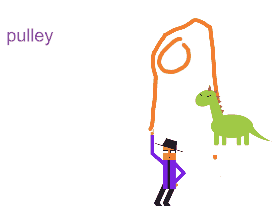
machinesThird graders in Ms. Leo’s class at Varina Elementary have been learning about simple machines (SOL3.2). Since simple machines involve motion, making animations is a great way to demonstrate and understand how they work. Today we used ABCYa! Animate to create short animations of the simple machines: lever, pulley, wheel and axle, wedge, inclined plane and screw. The students picked a simple machine to illustrate and then used the drawing tools and the clip art to design their animations. They could also use the text tool to label their machines. Most of the animations were just two frames long so they move kind of quickly, but you can slow them them down by clicking the Copy Cat button a couple of times for each picture. The students downloaded their animated GIFs, and I published them online. You can take a look at their projects by clicking here. UPDATE 2/3/15: Here are a few more examples from Ms. Middleton’s class at Holladay. UPDATE 3/25/16: I taught a similar lesson with Ms. Johnson’s class at Laburnum, but this time students had to identify each others’ simple machines in the comments. You can see those here.


1st Grade Flower Animations

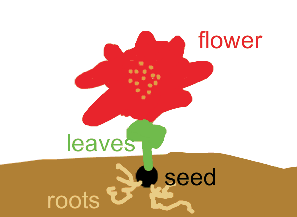
flowerFirst graders in Ms. Long’s class at Davis Elementary have been learning about flowers and how they grow (SOL1.4) so today we made animations of growing flowers using ABCYa! Animate. I taught a similar lesson last year but I learned a couple of lessons since then. First, I learned a big lesson about modeling. I have found that if I draw a picture while modeling the steps in a process, the majority of students will end up copying my drawing. That’s what happened in my last lesson… almost all of the students’ flowers were red like mine. So this time I purposely drew an ugly grey flower that resembles Medusa. None of the children copied it. Also I learned how to make the animated GIF actually animate in the Google Doc (host the images on another site and link to the URL instead of importing them directly into the Google Doc and then link to the publicly shared Google Doc instead of the published web version). Finally, in order to keep the animations from moving too quickly, we pushed the Copy Cat button a few times for each picture so there were duplicates. You can see their finished projects here.


Kindergarten Signs of Spring Video

springEvery grade in elementary school learns about seasonal changes and the weather (SOL K.10, 1.7, 2.7, 3.8, 4.8, 5.7) so I have been working with a small group of kindergarten students at Laburnum Elementary to create an informational video announcing the start of spring that would be played on the school-wide morning announcements. Nathaniel, Jaziah, Karen, and Taliyah have been excited about this project since we started it last month. First we met together to discuss the signs of spring and they selected which ones they wanted to do. They came up with four main signs of spring: the weather gets warmer, animals have their babies, flowers start to bloom, and gardens begin to grow. Next they read books and watched videos about the spring to get ideas and background knowledge to share in their video. On some of our project days it was too cold to film outside (and very un-spring-like) so they decided to include some of their artwork in the video. They used Pixie to draw pictures, illustrating their special sign of spring. Finally, today it was warm enough to film, so we explored the grounds of the school looking for signs of spring and filmed at the sites we found. They improvised their lines in the video (there was no written script since we weren’t sure what we’d find, but we had made some predictions). The finished film will be presented on the morning announcements to the entire school and submitted to our county’s H21 website. You can watch it here!


3rd Grade Finds the Best Bait for Three Lakes Park

fishingEach year the 3rd grade students at Holladay Elementary take a PE field trip to Three Lakes Park to go fishing. This year they decided to do a science experiment to see which type of bait worked best. In groups, they researched which kinds of fish are at the park and what types of bait to use. The students developed their own hypotheses about which type of bait would work best, and then they tested their hypotheses at the park by keeping track of which types of bait caught which kinds of fish. They also measured the fish as they caught them and took photos. They had practiced measuring fish earlier in Art class using fish rubbings. The photos were posted online here using CoMemories. (CoMemories is a great site for sharing pictures because anyone can contribute with the given link). Back at school, students analyzed the data and drew conclusions. They concluded that worms were, by far, the best bait. I helped them publish their findings in a brochure for the visitors center at Three Lakes Park. They also created group presentations about the different types of fish using a program of their choice (Comic Life, Keynote, Pixie, and/or video). You can take a look at the students’ presentations here. Finally, they scored their projects using a rubric. This project was also Holladay’s entry for Henrico21. Hopefully we’ve helped future 3rd graders and other visitors to Three Lakes Park catch lots of fish!


1st Grade Review with Padlet & Socrative

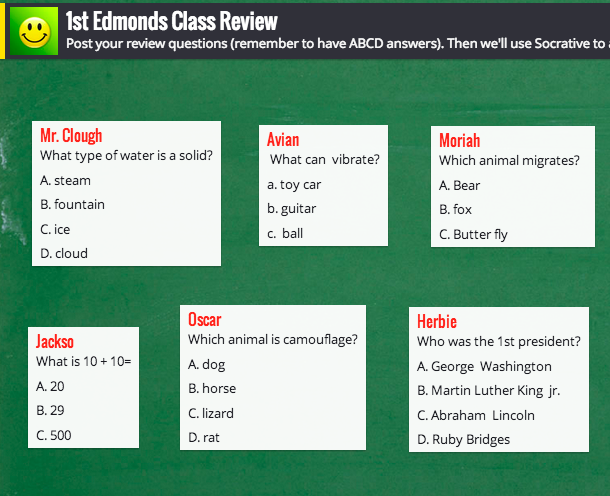
Screen shot 2014-03-31 at 11.08.06 AMFirst graders in Ms. Edmonds’ class at Holladay Elementary have been reviewing for upcoming tests, so today I showed them how to create their own review questions using two web tools, Padlet and Socrative. First we talked about what makes a good multiple choice question. Most importantly, it should make people think. If the answer is obvious or if some of the choices are ridiculous, then it’s not a good question. Next we discussed topics that they could write questions about: In Social Studies they’ve been studying famous Americans (SOL1.2). In Science they’ve been learning about animals (SOL1.7) and force & motion (SOL1.2). In Math they’ve been adding doubles (SOL1.5). Once they thought of their question, each student went to a wall I created for them in Padlet and posted their question to the wall. Click the link to see their questions. Next they logged into our class on Socrative and I gave them questions to answer from the wall. Socrative is similar to ActivEngage in that questions appear on each student’s screen, they answer them, and the teacher gets instant feedback with a graph that shows how their responses. The students enjoyed answering each others’ questions, and they had a great review through the process.


3rd Grade Simple Machines with Prezi

Screen shot 2014-03-25 at 11.21.24 AMThird graders at Holladay Elementary have been learning about simple machines (SOL3.2) so today I showed two classes (Ms. Marion’s & Ms. Cowart’s) how to make an interactive presentation about the simple machines using Prezi. First they selected a theme and wrote the title. We did the first slide together for the lever. I showed them how to make a picture of a lever using the shapes tool. For each subsequent slide they wrote the name of the simple machine, a brief description of how it helped make work easier, and added a picture. I showed them 3 ways to add pictures: they could draw it with the shapes, they could use the built-in clip art, or they could search online for a picture. On the last slide I showed them how they could upload their own picture from Photo Booth. Their final presentations look great! Take a look at a couple of student examples: Gavin’s from Ms. Marion’s class and Omayma’s from Ms. Cowart’s class. I posted all of the presentations to a Google Doc that you can also check out: Ms. Marion’s class and Ms. Cowart’s class.


Tags:


5th Grade Cell Comics

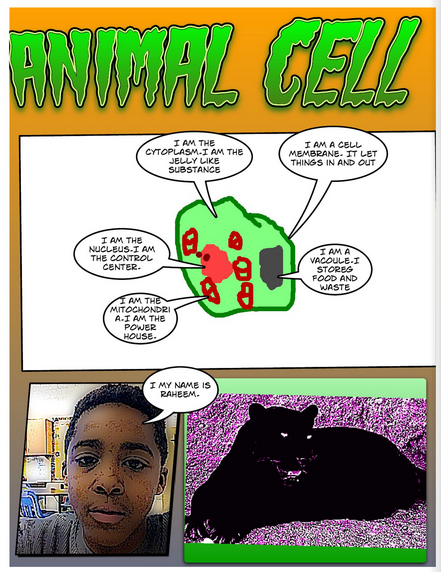
cellFifth graders in Ms. Payne’s class at Laburnum Elementary have been learning about plant and animal cells (SOL5.5). Today they made a comic book to review the different parts and their functions. The students could chose whether they wanted to illustrate an animal or a plant cell. They started by drawing the cell and its organelles in Pixie. Then they exported it as a PNG file and dragged it into a Comic Life document. Next they used the speech bubbles to make each part of the cell “talk” and describe its function. I stressed to them the importance of writing complete sentences with correct grammar and spelling. Then they did a Google Image search and found a photo of a plant or animal to accompany their cell diagrams. They also used the built-in webcam to take a picture of themselves to add to their comic. I combined all the pages together into one document, saved it as a PDF, and uploaded it to Youblisher. Youblisher is a site like Flipsnack that allows you to upload PDFs and it publishes them as online flipbooks. You can see their finished comic here.


3rd Grade Quadrats

Screen shot 2014-03-17 at 1.41.18 PMThird graders in Ms. Ford’s class at Laburnum Elementary have been learning about multiplication in math (SOL 3.5) and animals in science (SOL 3.4 & 3.5) so today we showed how real life scientists use those skills to calculate animal populations. Many scientists use a tool called a quadrat to figure out how many animals live in a certain area. A quadrat is basically a large square that they place in a habitat and count the creatures in the square. Then they multiply the amount of total squares that would fill the area by the number of animals they counted to get an estimated population for the total area. In order to demonstrate this, the students first drew an animal in Pixie. We exported it as a PNG file and dragged it into a Keynote template that you can download here. Then they made several copies of their animal to place in the quadrat. They also colored the grid to match the animal’s habitat (green for woods, yellow for grasslands, blue for water, etc). Next they made a text box with the multiplication problem and solution (Example: 4 electric eels in the quadrat x 9 total quadrats in the area = Est. population of 36 electric eels). Finally they recorded their voices like they were giving a report to their “boss” and we exported their Keynotes as QuickTime videos. I posted them all to a Google doc that you can take a look at here.