Category: Math

5th Grade Ocean Floor Diagram

KasmiraFifth graders at Holladay Elementary have been studying the ocean (SOL5.6) in science, and they have been learning about line graphs in math (SOL5.15). So today Ms. Haislip’s students made line graphs of the Ocean Floor. First we had to collect our data. I showed them how they could use Google Earth to find the ocean depth at various spots. The goal was to take measurements at different places (the continental shelf, the continental slope, the continental rise, the abyssal plain, a sea mount, and a trench), and then enter that data into our spreadsheet. To save time, different groups of students could find a specific feature and share that measurement with the class. Next we opened a Google spreadsheet and wrote down the different features in the first column. We entered the depths in the second column. I explained that they would need to duplicate some of the measurements so that we would have a couple of points to plot (for example, the abyssal plain would need at least 2 equal points in order to make a straight line). Then I showed them how to make a line graph out of the data (it was actually an area graph so that it could be filled in with a color). I let them figure out how to adjust the data so that the resulting graph looked like the ocean floor. They learned the difference between negative and positive numbers very quickly! The final step was to customize the color and size and publish their graphs. I took screenshots using the snipping tool and posted them to CoMemories (which is a quick and easy way to share pictures). You can see their graphs here.


4th Grade Data Collection

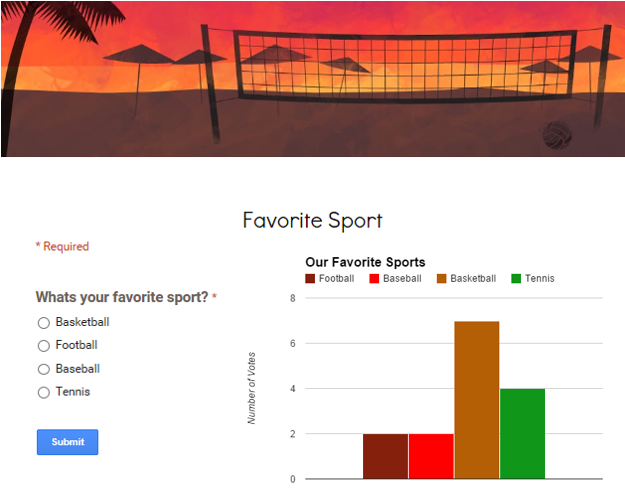
4thWhiteFourth graders at Davis Elementary are learning about data collection and graphs (SOL4.14), so today, Ms. White’s students collected data from their classmates using Google forms. They chose a topic of interest to them and selected their own Google form template. Then they wrote their question, such as “What is your favorite thing to read?” or “Who is your favorite singer?” and provided four choices. I showed them how to load the live form, then they traveled around the room completing each others’ forms. At the end of the process, each student had between 16-20 responses. Now it was time to do some data analysis. They looked at the Google spreadsheet with the responses and counted the votes for each choice. Next they added that information to their spreadsheet and graphed the results. I showed them how to customize the fonts, colors, and labels of the graph. You can see all their graphs and forms by clicking here.


5th Grade Distributive Property

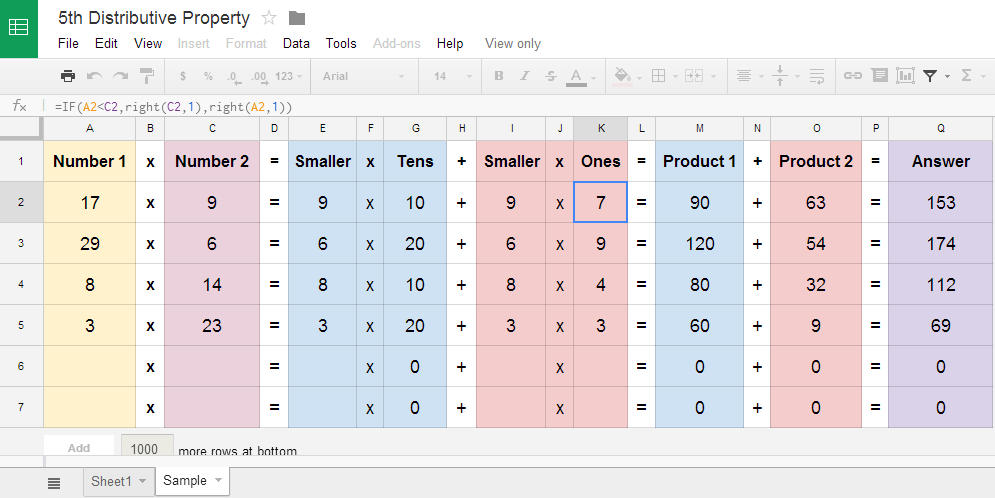
5thDistributiveFifth graders at Laburnum Elementary have been learning about the distributive property of multiplication (SOL5.19), and today students in Ms. Conway’s class broke the process down into its steps using a spreadsheet. First they logged into Google classroom and I gave them a template to get started. I explained that formulas are what computer programmers use to solve math problems quickly. Formulas also give students practice with using variables, another 5th grade math concept (SOL5.18). So they started by typing a variety of 2-digit and 1-digit numbers into columns A & C. It didn’t matter which cell they typed the 2-digit or 1-digit numbers, and I told them to mix them up. All the rest of the cells would be filled in automatically by our formulas. The first formula in column E would identify which of the two numbers was the 1-digit number. I helped the students figure out that the formula would be =IF(A1C2,left(A2,1)*10,LEFT(C2,1)*10) which basically finds the left digit of the 2-digit number and multiplies it by 10. Once I helped them with those two formulas, they could figure out the other formulas on their own without much help. The magic happens when they click and drag the blue dot in the corner of the formula cells down through the other cells. All the answers automatically pop up! The students really enjoyed seeing the results of all their hard thinking… and now they have a better understanding of the distributive property. You can use the template with your students by opening the template and clicking File > Make a copy. Sheet 2 has a finished sample for your reference.


3rd Grade Place Value

3rdPlaceValueToday students in Ms. Wells’ class at Varina Elementary learned how to write some basic computer code for calculating place value (SOL3.1). They logged into Google classroom and I gave them a template to get started. I already entered most of the formulas into the template, but I wanted the students to experience writing some formulas as well. I explained that some of them may grow up to write computer codes for designing games and apps, and they would need to know how to write formulas. Plus formulas are fun! First they wrote any 4 digit number that they wanted in cell B1. The spreadsheet automatically separates the number into its digits in the following cells. Underneath each digit the students wrote a formula to show that digit’s value. For example, if an 8 was in the hundreds place and it was in cell D1, their formula would be =D1*100 to get 800. Using cell references (D1) instead of the actual number (8) allows the students to enter new 4-digit numbers into B1 without changing their formulas. So the students are also getting exposed to the idea of variables. Finally, they answer a couple of place value questions that I created, then they create their own question for a neighbor to answer. If you would like to use the template with your class, just open the template and click File > Make a copy. There is a finished sample for your reference on Sheet 2 of the template.


2nd Grade Ordinal Numbers

2ndOrdinalsThis year, with the new Dells and new log in procedures, I am encouraging my teachers to use Google classroom. Since all Henrico students have Google accounts now, it provides a great way for them to share their work. Today I showed Ms. Crostic’s class at Holladay how to log into Google classroom and work on their first Google doc (online word processing). My focus this year is on math and writing, so I decided to combine some writing with ordinal numbers (SOL2.2), which is what they are currently studying in math. First I instructed them to search for a picture of a group of objects and insert it into their document (Insert > Image > Search). We discovered that it was better to type the words “line of…” instead of “group of…” when doing the search so we could get an orderly group for identifying the ordinal numbers. After they got their pictures, they wrote questions for a partner to answer such as “Which car is red? What color candy is 6th?” I showed them how to change the font size and color, and we discussed the importance of using capital letters and question marks. Then they switched seats and answered each others’ questions in a different color. Since all their work was posted to Google classroom, Ms. Crostic had a quick and easy way to access them. You can see some student examples here.


1st Grade Fact Families

factfamToday I tried out two new web tools with Ms. Edmond’s first graders at Holladay Elementary. She’s always willing to try new things! They have been learning about fact families in math (SOL1.5) so we illustrated some fact families with QuikSlides and SketchToy. I like both of these sites a lot because they are easy to use and don’t require a login. QuikSlides is a way to make a simple slideshow. You can change the font and color of the slides and even link to online images and videos. You can also set a password so you can go back and edit your slideshow later. The slideshows can be viewed online with any device including the iPads! The students made a new slide for each of the four members of the fact family that they wanted to show. You can see their slideshows by clicking here. Next we created animated illustrations of those fact families using SketchToy. With SketchToy you can draw pictures and then watch an animated replay of your drawing. The students especially liked how they could adjust the vibration of the lines. The students drew a picture showing the number of objects in their fact families and then wrote out the corresponding addition and subtraction equations. I instructed them to make the color of the objects match the numbers. Most of them did a great job following directions. I put all their links together into a Google doc that you can check out here:


4th Grade Probability Spinners

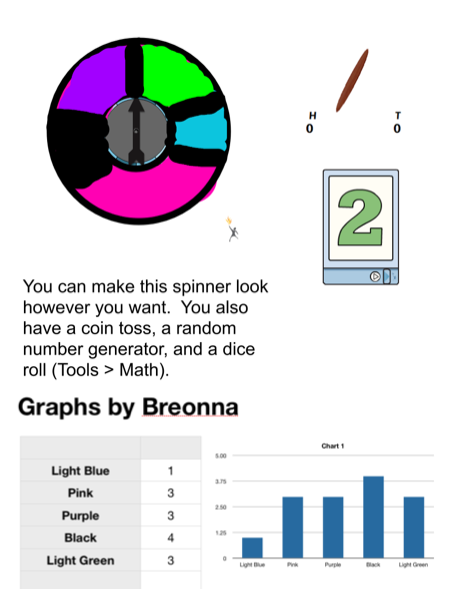
probabilityMs. Thomas’s 4th graders at Varina Elementary have been learning about probability and predicting the outcome of events (SOL4.13) so today we created digital spinners to test our predictions. A gave them a Promethean flipchart that you can download by clicking here. It has a pre-made spinner, a coin toss, and a random number generator. I showed the students how they could use the paint tools to make the spinner have different sections of different colors. If they made the sections different sizes, we discussed how that would affect their predictions of the spinner’s outcomes. Next we opened a Numbers template (found in the same download link above) so they could record the results of their spins. The spreadsheet automatically generates a graph based on the data, but you could delete that if you want your students to create the graph themselves. Your students could also add a text box telling about their predictions and whether they were right or wrong. If you’d like to see a student example, click the image to see it larger (Breonna’s original files are also included in the download).


4th Grade Fractions Flipchart

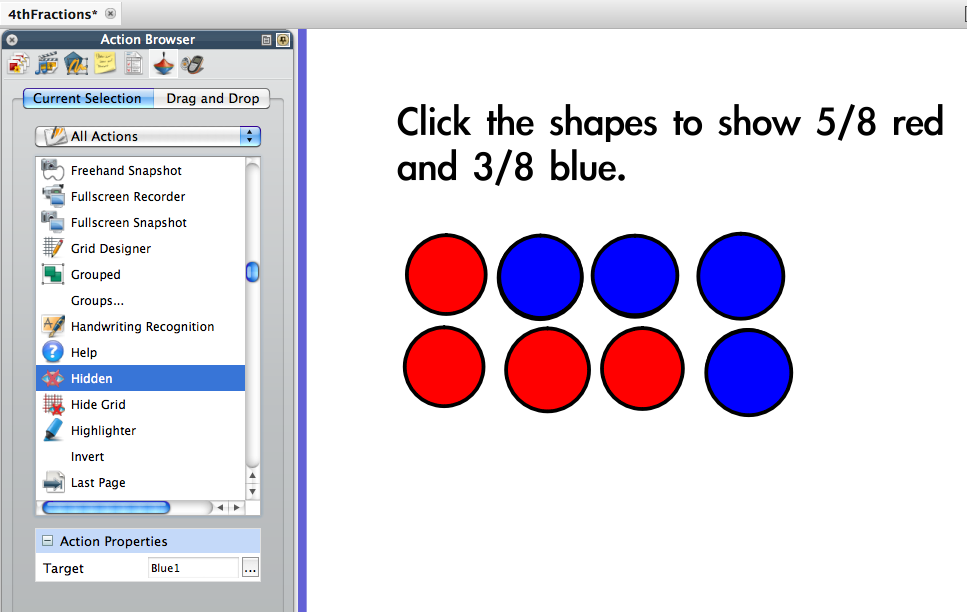
ScreenshotFourth graders at Davis Elementary have been preparing for the upcoming SOL tests. Some of the questions are what is called TEI, or Technology Enhanced Items. They have been practicing these types of questions using pre-made Promethean flipcharts. Today I wanted to show students in Ms. White’s class how they could make their own TEI samples for each other to solve. I only had 30 minutes, so it was a quick lesson. Our goal was to create a fraction question where the user would have to click on some shapes to change their color so that picture represented a fraction. We opened a blank flipchart and then added a shape of their choice. I showed them how to change the color and outline of the shape. We also gave it a name in the Properties Browser (like “circle1”). Next they made as many copies of the shape as they wanted (less than 10 though). Now it was time to put identical shapes of a different color on top. So we made another copy of the shape, changed its color, duplicated it, and placed the duplicates on top of the first shapes. Adding the interactive part was a little trickier. The students had to go to the Actions browser and find the “Hidden” action. They added this action to each of the top shapes, making the Target the shape itself so that when it was clicked it would become “hidden” revealing the shape below. Finally, they added a text box and typed a question to solve, such as “Click the shapes to show 2/5 orange and 3/5 yellow.” You can download a sample flipchart by clicking here.


2nd Grade Coin Graph & Calculator

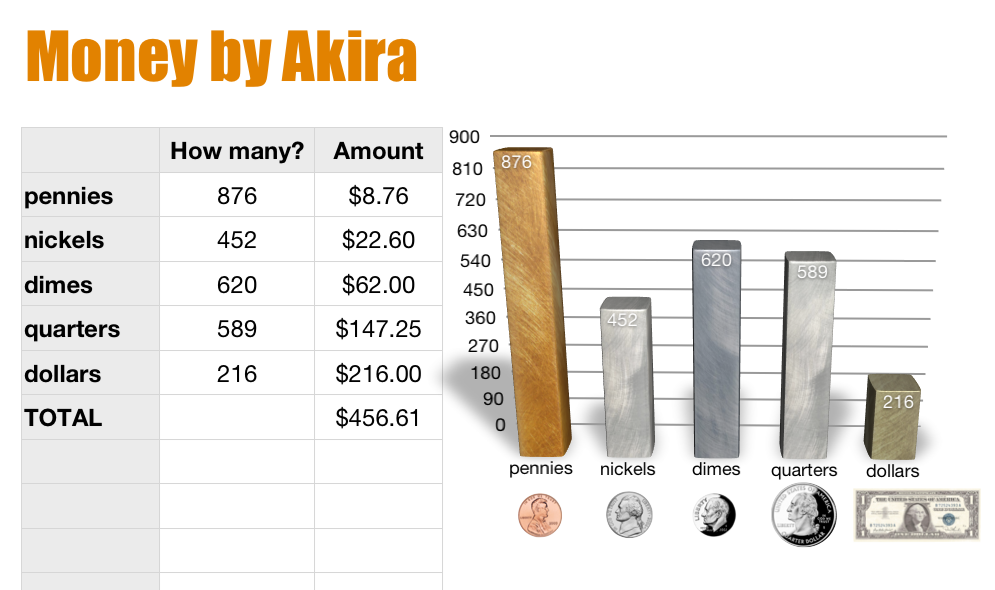
moneySecond graders in Ms. Vest’s class at Davis Elementary have been learning how to count coins and bills up to $2.00 (SOL2.10). But when it comes to money, most kids want to count to the billions and higher! So why not? They can if they create their own calculator based on what they know, which is the value of each coin and bill. I gave them a Numbers template that you can download by clicking here. It has the coins and bills listed in the first column, and the students have to write formulas for calculating the total value based on the number of coins and bills that are entered into the 2nd column. I guided them through the first couple of formulas. For example, the formula to find the value of pennies would be: (NUMBER IN 2ND COLUMN * .01). They caught on pretty quickly and were able to write the rest of the formulas on their own. The template has a built-in graph, but with this class I had them create the graph themselves. You could do that as well by just deleting the pre-made graph. That way, they get practice with not only money, but graphing as well!


3rd Grade 3-D Shapes

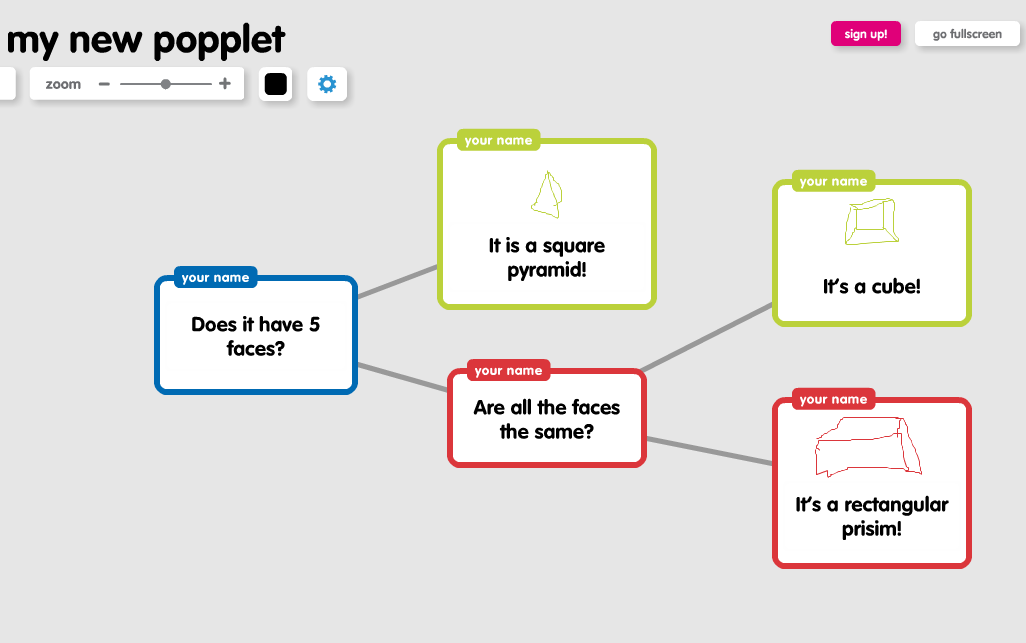
mackenzieThird graders in Ms. Leo’s class at Varina Elementary have been learning about solid shapes (SOL3.14). They had to be able to identify the number of angles, edges, vertices, and faces of each shape. Today I showed them how to create a program that would identify the shape based on its features. We started out, like most programmers do, by making a flowchart. I thought about using Gliffy because there is no sign in required to create one (although you can’t save it), and it has the ability to type on the connectors, so we could have typed “yes” or “no” like this example. However, I decided to go with Popplet since it was much easier to use and you can draw pictures in the shapes. Since we couldn’t write on the connectors like with Gliffy, we worked around it by making the shapes green for “yes” and red for “no”. Their flowchart was basically a decision tree for identifying the shape based on its faces (so it was limited to the cube, rectangular prism, and square pyramid). They created their flowchart, drew pictures of the 3-D shapes, and then took a screenshot. You can see a couple of student examples here: Lauryn and McKenzie. Next I showed them how a spreadsheet and a formula can be used to identify the shape in a similar way. You can download the Numbers spreadsheet I used by clicking here. After looking at the example, I wanted them to write a simple formula on their own for distinguishing a cone and a cylinder. They had to come up with one good “yes” or “no” question and then write the formula (which was something like this: “IF ANSWER=”YES” THEN “CONE,” IF NOT, THEN “CYLINDER”). There is a sample included with the template, if you download it, so you can see how it works.