Category: Math

1st Grade Math with Pixie
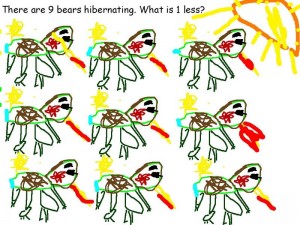
UntitledFirst graders at Holladay Elementary have been learning about patterns in math (SOL1.17) and how to find one more or one less than a given number (SOL1.2). So today students in Ms. Schemmel’s class reviewed these skills with Pixie. This was their first lesson with Pixie, so we started by learning how to make a text box and type their names. Next I showed them how to use the stickers to create a pattern. Since they were learning about animals in Science (SOL1.5), we make patterns with the animal stickers. Then I showed them how to use the paint brush tool to draw their own animal. This time we made copies of the animal (by selecting it and using the copy and paste buttons). The students added a text box and wrote a sentence stating how many animals there were. Some students even included words like “hibernating” and “migrating” (SOL1.7a). Then they wrote a question for their classmates: “What is one more?” or “What is one less?” We exported their pictures at JPG files and uploaded them to Comemories so they could solve each others’ problems. You can see them all here.
Tags:


Kindergarten Measurement

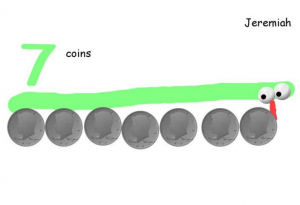
CaptureKindergarten students at Holladay Elementary have been learning about measurement with nonstandard units (SOLK.10) and they’ve been studying money (SOLK.7). Today students in Ms. Silber’s class used coins to measure a snake they drew. This was their first lesson with Pixie, and since many kindergarten students have a hard time using the computer track pad, we decided that a snake would be the easiest thing for them to paint. First they opened Pixie, and I showed them how to add a text box and type their name. Next, they used the paint brush tool, selected a color, and painted a (kind of) straight line for their snake. We used the 3D brush to make two googly eyes. Then I showed the students how to use the coin stamp tool, and they chose a coin they wanted to use for their nonstandard unit of measurement. We discussed the importance of placing the coins right next to each other. After the students stamped out how many coins long their snake was, they used the paint brush and painted the number. We exported the finished paintings as JPEG files and posted them to CoMemories. You can see them all here.


Tags:


2nd Grade American Indian Place Value

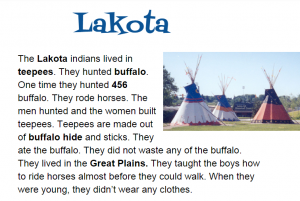
CaptureSecond graders at Holladay Elementary have been learning about the American Indians in Social Studies (SOL2.2) and place value to hundreds in math (SOL2.1). So today Ms. Fournier’s class wrote place value questions about the American Indians for their classmates to solve. I posted an assignment in Google classroom with a blank Google document and made a copy for each student. When they opened their copy, I instructed them to chose an Indian tribe (they had only learned about the Powhatan and the Lakota so far) and to type the name of the tribe for the title. Then we changed the font, size, and color of the title. Next they typed a few facts about their tribe, and one of the facts needed to include a 3-digit number. I also suggested that they make the important words bold, since they’ve been learning about that as a nonfiction text feature (SOL2.9a). Finally I showed them how to insert an image. We published our assignments, copied the links, and posted them to Google classroom with a question for our classmates to answer. They had to identify the ones, tens, or hundreds place of the number in the text. You can take a look at all their stories here.


4th Grade Polls from the Past

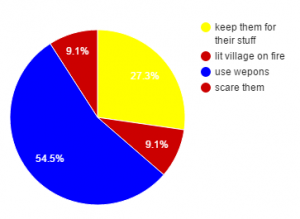
CaptureWith Presidential elections coming up next year, it seems that public opinion polls are popping up everywhere, asking Americans for their views on issues ranging from economics to the environment. Today students in Mr. Cochran’s class created public opinion polls from the past. They are currently learning about the Jamestown colony (VS.3) so they created created polls asking the Jamestown settlers or the Powhatan Indians for their input on different problems they faced. First they had to decide if they were going to poll the settlers or the Indians. Then I showed them how to create a Google form with a multiple choice poll question. We customized our forms by changing the header images and adding photos. Next the students walked around the room and answered each others’ poll questions as if they were a Jamestown settler or a Powhatan Indian. After the voting was finished, I showed them how to view the responses in a spreadsheet. The students graphed the results and posted them to Google classroom. You can see all of them here.


4th Grade Interactive Word Problems

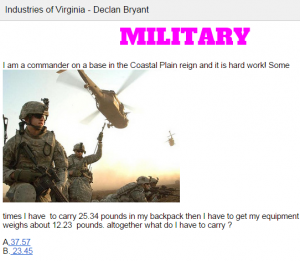
Capture1Fourth graders at Davis Elementary have been learning how to add and subtract decimals in Math (SOL4.5c), and they have been studying Virginia industries in Social Studies (VS.10b). Today I showed them how to use Google Docs to create interactive decimal word problems about the industries of Virginia. First I shared a blank template with them in Google classroom. I reviewed how to add a title and change the font, size, and color. The students chose a region and an industry, then they wrote a word problem that involved adding or subtracting decimals. They also added a photo of the industry (Insert > Image). For the interactive part, we created multiple choice answers that, when clicked, would let the visitor know if they were right or wrong. The process involved using bookmarks and links. First we skipped about 20 lines down the document and wrote a “correct” message, like “You’re right!” Then we skipped about 20 more lines and wrote an “incorrect” message, like “Try again!” We added a bookmark next to the title, the correct message, and the incorrect message (Insert > Bookmark). Next we highlighted each answer choice and turned it into a link by clicking the link button (it has a chain icon) and linked the choices to the correct bookmark. Finally we highlighted the correct and incorrect messages and linked them to the title bookmark so visitors could click them and go back to the top. Take a look at some student examples here.


4th Grade Virginia Weather Graphs

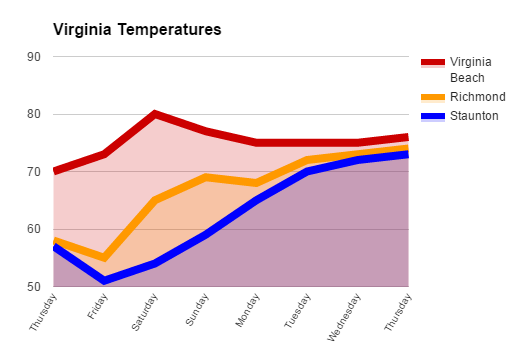
VAGraphFourth graders at Davis Elementary are learning about weather in science (SOL4.6), Virginia regions in social studies (VS.2b), and graphing in math (SOL4.14). So today students in Mr. Cochran’s class researched current temperatures in different regions of Virginia and graphed them. I gave them a template that you can copy here. First we clicked the “City” link and looked at the current temperatures in different Virginia cities. I showed them how they could click the column headings to sort by that category, so we sorted by temperature. We took a city from the highest temperatures (Virginia Beach), a city in the middle temperatures (Richmond), and a city in the low temperatures (Staunton). Then we located those cities on a map of Virginia and discussed why the temperatures might be different. The students noticed that the colder cities were further west (higher altitude) and north (higher latitude). Next we looked at the weekly forecast for the three cities (linked on the spreadsheet). Your students could choose their own cities to graph, but we just graphed the temperatures for the three cities we researched to save time. On the spreadsheet I showed them how they could click the “Thursday” cell and drag the small blue square handle down through seven more cells to have them fill in with the days of the week. Then they filled in the rest of the cells with the temperatures. Next we clicked the graph button and chose a line graph. I showed them how to customize the color and thickness of the lines, and we added a title. They posted their graphs to Google classroom, but you can take a look at some here.


5th Grade Number Patterns

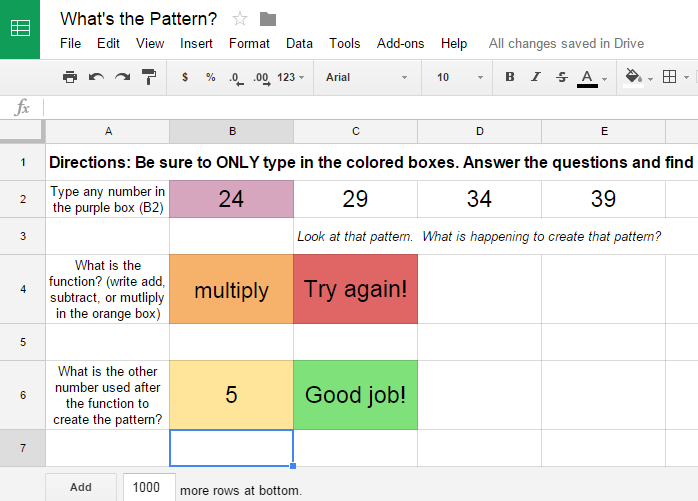
PatternFifth graders at Davis Elementary are reviewing addition, subtraction, multiplication, and division (SOL5.4) as well as studying number patterns (SOL5.17). So today students in Mr. Cangelosi’s class created number patterns for their classmates to solve using Google spreadsheets. First I gave them a template to use and shared it using Google classroom. Feel free to make a copy of the template for yourself. There’s a sheet on the template with an example for your reference. We discussed how spreadsheets work and how each cell has a name (like C5). Then we looked at the first formula to see how it was written to create a pattern. The students changed the formula to create their own pattern. Then they dragged the blue square from the cell that had the formula across the other cells in the row to continue the pattern. Next they changed the answer responses in the other formulas to reflect the correct answers and wrote their own feedback words (like, “Way to go!” or “Did you spell it correctly?”). Finally they posted their spreadsheets to Google classroom so their classmates could try to figure out their patterns. You can try to solve some here.


1st Grade Flower Fraction Graphs

MykalaFirst graders at Laburnum have been learning about spring (Science SOL1.7) and fractions (Math SOL1.3). So today students in Ms. Wingfield’s class made spring flower fraction graphs. First we helped them log into Google classroom where I gave them a Google spreadsheet template that you can copy here (File > Make a Copy). The students had a choice of four flower bouquets photos. They picked one and deleted the others. Then they counted the number of flowers for each color. They typed the color and the number into the correct columns on the spreadsheet and a graph was automatically generated. Below the graph, you can see the fractions of the group. Click the sample tab at the bottom of the template to see a finished product. You can also take a look at the student samples here.


2nd Grade Butterfly Measurement

Screen Shot 2015-08-12 at 9.20.04 AMSecond graders at Holladay Elementary have been learning about the butterfly life cycle in science (SOL2.4a), and they’ve been measuring length in inches and centimeters in math (SOL2.11a). Today students in Ms. Gardner’s class created butterfly life cycle diagrams with actual size butterflies. First they logged into Google classroom where I posted a link to a website about Virginia butterflies. This is a great site because its shows the different stages of most of the butterflies’ life cycles. Once the students picked a butterfly they liked, they opened this template that I shared with them on Google classroom. First they changed the title text to be the name of their butterfly. Then they inserted a picture of their butterfly from the website. The template has an actual size ruler on it which they can use to measure the butterfly or they can use a real ruler. I instructed them to resize their butterfly picture (using the corners to keep it from being distorted) so that the image is the same size as the real butterfly. Students found the length of the butterfly on the website (under wingspan). Next I showed them how they could use the drawing tools to draw the other stages in the life cycle or they could insert images from the website. They labeled each stage and added connector lines to link them together. Connector lines (Insert > Line > Curved Connector) are different than regular lines because they link to small dots that appear on the images so when you move the image the line moves with it. Finally we shared our butterfly life cycles with our classmates by posting the links on Google classroom. They also wrote the size of their butterfly in inches on their post. You can take a look at some of them here.


3rd Grade Coding Angles

Screen Shot 2015-08-12 at 7.53.57 AMThird graders at Davis Elementary have been learning about different types of angles – acute, obtuse, and right (SOL3.15), so today students in Ms. Cousins’ class at Davis used computer code to create different angles. First we logged into Google classroom where I posted a link to Code.org. This website provides tutorials for elementary students to learn how to write simplified computer programming code. Students log in with their Google accounts and they can either create an app or a drawing. To make the angles, we chose the drawing option, but at the end of the lesson I gave them the opportunity to explore that apps part as well, which they loved because it is similar to coding games. First I showed them how to draw a straight line with code. Then we figured out the angle “drawing man” would have to turn to make a right angle (90ยบ), and we added that part to our code. Next I asked if they could figure out how to draw an acute angle in another spot with a different color. Finally I challenged them to draw an obtuse angle. The students posted the links to their finished angles on Google classroom so they could see each others’ projects. That’s all we had time to do today, but once your students become familiar with the coding process, they can write all sorts of elaborate programs. Check out some of their work here.


Tags: