Category: Language Arts

4th Grade New Year Goals
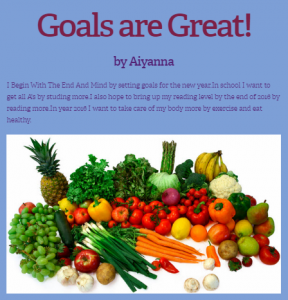
CaptureHolladay Elementary is a Leader in ME Lighthouse school (the first elementary school in Virginia to reach that status), and students here try to show the 7 habits of highly effective people. Fourth graders in Ms. Tonello’s class wanted to include the 7 habits in their goals for the new year. Today I showed them how to publish their goals by making a quick website with CheckThis. First we went to CheckThis, and I showed them how to choose the fonts and colors for their website by clicking the “Aa” button in the top right corner. Next they typed their title, subtitle, and wrote about their goals for 2016. We clicked the green “+” button to add photos that represented each goal. Then we added a poll question to allow visitors to vote on which idea they liked best. Finally we published the websites and pasted the links to Google classroom so they could visit each others’ pages. You can see them all here, and feel free to answer their poll questions.
5th Grade Plant Inferences

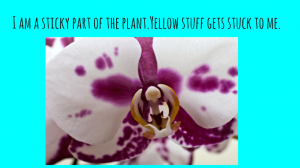
CaptureFifth graders at Varina Elementary have been learning about plants in science (SOL5.5) and they have been making inferences in reading (SOL5.5i). Since solving riddles often involves making inferences, students in Ms. Kirchmier’s class wrote plant riddles for each other to solve. We used Google slides to create the riddles. I gave them a blank template in Google classroom and showed them how to make a title page with a background image. For the second slide, students chose a color background and added a text box with their riddle. I explained that the riddle had to be about a plant part, and it had to make students think. Riddles shouldn’t be too easy to solve. Next students inserted a photo from a Google search and added animations and transitions. Finally they published their slideshows (File > Publish) and posted the links on Google classroom. Students solved each other’s riddles in the comments section. You can see them all here.


2nd Grade American Indian Place Value

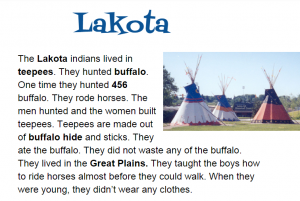
CaptureSecond graders at Holladay Elementary have been learning about the American Indians in Social Studies (SOL2.2) and place value to hundreds in math (SOL2.1). So today Ms. Fournier’s class wrote place value questions about the American Indians for their classmates to solve. I posted an assignment in Google classroom with a blank Google document and made a copy for each student. When they opened their copy, I instructed them to chose an Indian tribe (they had only learned about the Powhatan and the Lakota so far) and to type the name of the tribe for the title. Then we changed the font, size, and color of the title. Next they typed a few facts about their tribe, and one of the facts needed to include a 3-digit number. I also suggested that they make the important words bold, since they’ve been learning about that as a nonfiction text feature (SOL2.9a). Finally I showed them how to insert an image. We published our assignments, copied the links, and posted them to Google classroom with a question for our classmates to answer. They had to identify the ones, tens, or hundreds place of the number in the text. You can take a look at all their stories here.


Kindergarten Rhyming Words

CaptureKindergarten students at Davis Elementary have been learning about rhyming words (K.4b) so today in Ms. Dunkum’s class we created pictures of rhyming words using Pixie. This was their first lesson with the computers, so we logged in using a generic kindergarten login. I showed the students how to open Pixie by clicking the Start button and typing PIX. First we reviewed several rhyming words so the students weren’t all using the same ones. You could use a site like Frog’s Rhyming Machine or Freeze Dance Rhyming to review. Then we created a text box and typed a rhyming word. We didn’t change the font or size since this was their first lesson. After we typed a second rhyming word, I showed them how to click and drag to paint a picture of each word. Clicking and dragging is a difficult skill for kindergarteners, but they caught on quickly. When they finished, the teacher wanted a way to save their work and maybe print them later. The only problem with logging in the generic way instead of with the student’s username and password is that it’s difficult to save their work. So we got creative and saved their finished pictures to CoMemories. You can see their rhyming word pictures here.


4th Grade Nonfiction Text Features

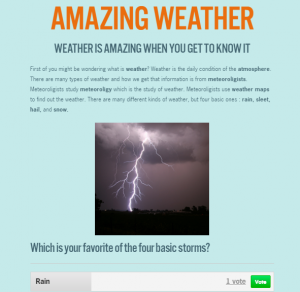
website2Fourth graders at Davis Elementary have been learning about nonfiction text features (SOL4.6a) and drawing conclusions using textual information (SOL4.6f). So today students in Ms. White’s class created nonfiction websites using CheckThis. Since they have been studying clouds (Science SOL4.6) and Jamestown (VS.3), they made their websites about one of those topics. First we reviewed text features to include like bold type, headings, captions, and photographs. I also explained that their classmates would be using the information in their websites to draw conclusions, so they needed to be thinking of good questions to ask about their topics. Next, we went to CheckThis and created a website without signing in. Since students can’t create an account, we had to finish the website during the one hour lesson, which wasn’t a problem for this class. I showed them how to customize the colors and fonts of their page. Then the students typed their information, making important words bold. I was surprised at how much they were able to type in such a short time! They also added a photo and a poll. The polling feature is one of the reasons I prefer CheckThis to other webpage-creation services because it adds an interactive element to the students’ websites. Finally we published our sites, copied the links, and posted them to Google classroom with a good question for our classmates to answer in the comments. You can take a look at all their websites here.


3rd Grade Pumpkin Facebook

FacebookThird graders at Davis Elementary have been working on pumpkin creative writing projects. Each student decorated a pumpkin like a story character and chose from a variety of suggested ideas for writing about their pumpkin (journal, interview, comic, etc). The 3rd grade teachers wanted a technology activity as one of the choices, and Ms. Parkinson came up with the Facebook idea. I developed a template that you can download here and gave a copy to each student through Google classroom. The students right clicked on an image, chose “Replace image,” then clicked “Take a snapshot.” This opens the webcam so students could take a photo of their pumpkin. Next they typed their pumpkin’s name and some information about their pumpkin. They also typed a post that their pumpkin would have made on Facebook. Their favorite part was walking around taking pictures of the other pumpkins in the same way as they took the first picture and adding posts from their pumpkin “friends.” You can see some student samples by clicking here.


2nd Grade Weather Sequence

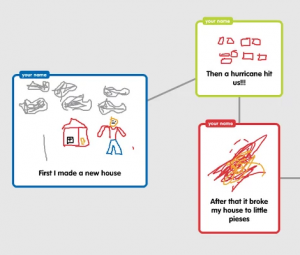
CaptureSecond graders at Davis Elementary have been learning about different types of storms in Science (SOL2.6a) and sequence words in Language Arts (SOL2.6c). So today in Ms. Becker’s room we created weather sequence diagrams using Popplet. This was my first lesson using Popplet since their recent update. Since students aren’t allowed to create accounts, we need to use the demo mode. It used to be full-featured, but now the demo mode has some restrictions (you can’t delete bubbles, and you can’t change the title of the bubbles). Due to these restrictions, I’ll probably use Google diagrams instead of Popplet for future lessons. First the students chose a type of storm: thunderstorm, tornado, hurricane, blizzard, flood. Then they created three bubbles to tell their storm story in sequence. They used words like “first,””next,” and “then.” Using the connectors they connected the bubbles together in order. The students also drew a picture in each bubble (that is one feature of Popplet I really like). We exported the images as .JPG files and then published them to Google classroom. The students were instructed to finish each others’ stories in the comments section using words like “Finally” or “Last.” You can take a look at some samples here.


3rd Grade Homophone Flip Pics

natalie.gifThird graders at Davis Elementary have been learning about homophones (SOL3.4a), so today we created homophone flip pics. First we reviewed different types of homophones so everyone wouldn’t do the same one (even though we still got many repeats). The students chose a homophone pair and illustrated each one using Pixie. I showed them how to add a text box and change the font, size, and color so the words would stand out. Next we exported our pictures as .JPG files and saved them to the Desktop. To create the animation we used Gickr. The students uploaded their pictures, chose a size and a speed for the animation, then Gickr turned them into animated gifs! The students posted them to Google classroom so they could comment on each others’ flip pics. You can take a look at some samples here.


4th Grade Interactive Word Problems

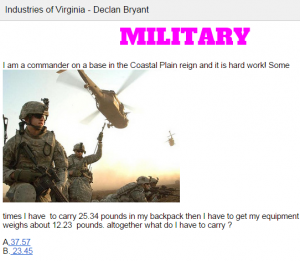
Capture1Fourth graders at Davis Elementary have been learning how to add and subtract decimals in Math (SOL4.5c), and they have been studying Virginia industries in Social Studies (VS.10b). Today I showed them how to use Google Docs to create interactive decimal word problems about the industries of Virginia. First I shared a blank template with them in Google classroom. I reviewed how to add a title and change the font, size, and color. The students chose a region and an industry, then they wrote a word problem that involved adding or subtracting decimals. They also added a photo of the industry (Insert > Image). For the interactive part, we created multiple choice answers that, when clicked, would let the visitor know if they were right or wrong. The process involved using bookmarks and links. First we skipped about 20 lines down the document and wrote a “correct” message, like “You’re right!” Then we skipped about 20 more lines and wrote an “incorrect” message, like “Try again!” We added a bookmark next to the title, the correct message, and the incorrect message (Insert > Bookmark). Next we highlighted each answer choice and turned it into a link by clicking the link button (it has a chain icon) and linked the choices to the correct bookmark. Finally we highlighted the correct and incorrect messages and linked them to the title bookmark so visitors could click them and go back to the top. Take a look at some student examples here.


5th Grade Plot Comics

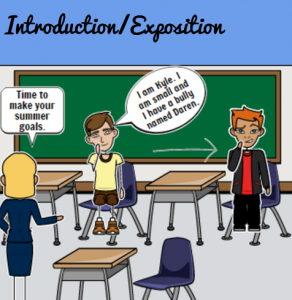
5thcomicFifth graders in Ms. Bailey’s class at Davis Elementary have been learning about plot development (SOL5.5c) as they read the exciting book, Escaping the Giant Wave by Peg Kehret. Today I showed them how to create a Google slideshow highlighting important events in the plot of the story. We used StoryboardThat to illustrate each scene. StoryboardThat includes a variety of backgrounds and characters that can be customized. The students searched for special items they wanted to add to their pictures, like fire and waves. Then we took screenshots of the pictures and imported them into our Google slideshow. Next we added text boxes to each slide identifying the parts of the “plot mountain”: introduction/problem, rising action, climax, falling action, and resolution. I showed them how to change the background color of the slides and add transitions. Finally we published the links to Google classroom where students could view each others’ slideshows and discuss similarities and differences. The featured image is from Sarah’s slideshow, but you can see them all here.