Category: Language Arts

3rd Grade Descriptive Habitat Maps

Screen Shot 2015-04-29 at 2.55.26 PMThird graders at Varina Elementary have been learning about habitats and ecosystems in science (SOL3.6) and writing good descriptive details in Language Arts (SOL3.9), so today we created descriptive habitat maps in Ms. Wells’ and Ms. Leo’s classes. First we practiced writing descriptive sentences about our weekend, posting our ideas to the Google classroom page. Then I posted a link to My Google Maps and the students clicked the “Create a New Map” button (they were already logged into their Google accounts). We switched the Base Map to Satellite view so we could see the landscape. We discussed how the different colors on the map indicated the habitat–brown for deserts, green for forests, blue for water, and white for ice and snow. Next I showed them how to create markers for the different habitats and instructed them to write a good descriptive sentence about each habitat on the marker. I also showed them how to add a photo by clicking the camera icon. We tried to find pictures with animals that lived in the ecosystems. Finally I taught them how to change the look of their markers to reflect the habitat, like using a sun icon for the desert and a tree icon for the forest. We posted our maps to Google classroom, and I collected both classes’ maps together for you to view here.


Kindergarten Letter Paintings

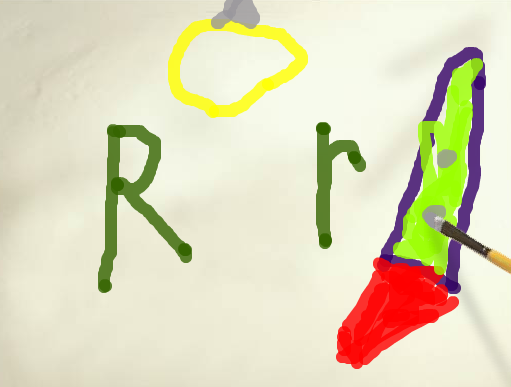
Screen Shot 2015-03-26 at 12.19.46 PMKindergarteners in Ms. Hart’s class at Laburnum Elementary have been learning the letter R this week. So I showed them how to use ArtPad to not only practice writing their letters, but to also practice the important computer skill of clicking and dragging. First we practiced just scribbling on the paper using different colors. Then I showed them how to change the size of the paintbrush by clicking and dragging the slider. They thought it was really cool that the brush changes! I also taught them about Undo. We undid our painting until we had a plain sheet of paper again (or you could just click Start Over, but we wanted to practice Undo). Now we painted an uppercase letter R and a lowercase letter r. I told them to draw one or two things that begin with the letter R. When they were finished I showed them how to replay their painting. They loved that! It’s also valuable for you as a teacher because you can watch exactly how the students are forming the letters. Take a look at a couple of student samples here and here. You could even make examples of other letters for students to watch and see how they are formed and try to guess the pictures before you finish. Here’s an example like that.


4th Grade Inferring & Predicting

4thInferPredictFourth graders at Varina Elementary have been learning how to make inferences and predictions (SOL4.5h,i) so today students in Ms. Dixon’s class practiced creating their own using Google Docs. Since this was their first time using Google docs, I also wanted to teach them some basic word processing skills such as changing the font, size, and color of the text. I instructed them to write about a person saying or doing things in such a way that the reader could infer how a person was feeling, without actually telling the reader how the person was feeling. Then a partner read their situation and inferred how the person was feeling. They wrote their reply in a different color. Next, the partner wrote a new scenario where the reader would have to make a prediction about what would happen next. They switched back, and the original writer wrote their prediction in a different color. If you had additional time, you could show your students how to insert a picture, but this was just a quick lesson. It gave the students some practice inferring and predicting while also learning some basic word processing skills.


2nd Grade Rock Observations

Yashesh rockSecond graders in Ms. Jefferson’s class at Davis Elementary have been making scientific observations about rocks (SOL2.1k) including their texture, color, and weight. Each student picked a rock, wrote down their observations about it, and today we turned their descriptive words into word clouds. I posted the link to Tagxedo on Google classroom so they could find it easily if they wanted to make another word cloud in the future. With Tagxedo you can pick a shape for your word cloud, so I instructed them to choose a shape that looked like their rock. Then they typed their words into the box and selected a color theme and font (some of them even selected colors that were similar to their rock). We downloaded our finished word clouds, and I taught them how to post their pictures to Google classroom. Since readers of my blog can’t access the classroom pages, I’ve also posted them to a Google doc so you can see them.


5th Grade Collaborative Writing

5thcollabFifth graders at Holladay Elementary have been learning about plot elements and conflict resolution (SOL5.5c) so today students in Ms. Filer’s class wrote collaborative stories where one partner began the story with a problem, and the other ended it with a solution. Before we got started, I gave them a quick warm-up in Google classroom asking them to write an example of a story conflict. They came up with great ideas from winning a football game to surviving a forest fire to having an eating disorder in the middle of a tornado! Next I assigned a Google word processing document to each student in Google classroom. I taught them the basics of changing the font, size, and color since this was the first time many of them had used Google Docs. Then they started writing their stories, focusing on the conflict. I showed them how to Insert > Image and search for a picture that reflected their story’s problem. The next step was to collaborate with a partner. In Google you can click the Share button and give a friend editing rights to your document. However, for us, it was simpler and faster just to switch seats. So partners read the first part of the story then wrote a logical conclusion that resolved the conflict (using a different color font). I showed them how to “Take a snapshot” with the Image panel and they added of photo of themselves with their partners. Finally we clicked the Share button, copied the link, and pasted it to our Google classroom page.


1st Grade Spring Acrostic

springFirst graders in Ms. Smith’s class at Laburnum Elementary have been learning about poetry in language arts and spring in science, so today they wrote an acrostic poem that spelled out SPRING. They came up with their own words or phrases to go with each letter and typed them on a Pages document. When they were finished, I showed them how to highlight the first letter of each line and change the font, size, and color so it stood out. Next we went online and I showed them how to do a Google image search to find spring pictures that went along with their ideas. They learned how to drag and drop the pictures from the browser onto their document (that took a lot of practice for some of them)! Finally, they saved their acrostic poems, and I combined them together into one document. I exported it as a PDF and uploaded it to another publishing site called Issuu. You can take a look at their finished project by clicking here.


Kindergarten Wishes

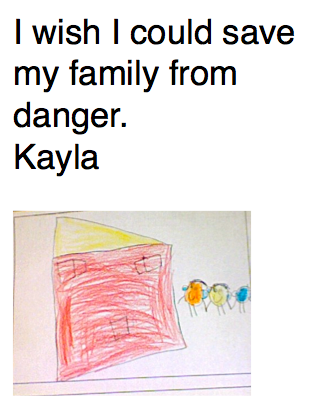
Screen shot 2014-06-29 at 7.45.16 PMKindergarten students in Ms. Fennell’s class have been working hard all year to get to the point where they are finally ready to write complete sentences. That’s a pretty amazing accomplishment, considering when they started in September they were just learning to identify their ABCs! They had previously written a sentence on paper about their wishes and drawn a picture, so today we were making a digital copy for their portfolios. I was also teaching them some basic word processing skills such as using Shift to make capital letters and using the space bar and punctuation keys. First I gave them a Pages template with the font already set to a large size. They typed their sentences and added their names. Then I showed them how to use Photo Booth to take a picture of their drawings. Ms. Fennell and I helped them drag the photos to their Pages documents. They saved their files, then I combined them together into one document and uploaded them to Flipsnack for publishing. You can take a look at it online here or download the complete PDF here. I love how their wishes are all unique and some are quite moving.


Kindergarten Rhyming Words Comic

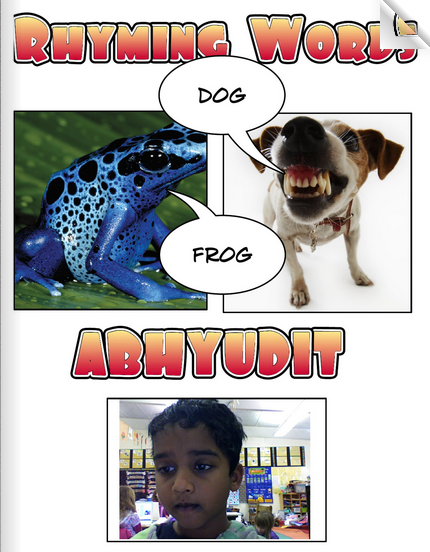
krhymingwordsKindergarten students in Ms. Lewis’s class at Davis Elementary have been studying rhyming words (K.1e) so today we created a class comic book of rhyming word pairs. I gave them a Comic Life template that you can download by clicking here. The students opened the template and added their name to it. Then we brainstormed rhyming word pairs and wrote them on the Promethean Board. I asked them to choose a pair to illustrate on their page. We did a Google Image Search to find the pictures, but they needed a lot of help with that, so I made a folder of images that you can use (download here). After the students added the pictures to the comic, they typed the rhyming words in the speech bubbles. Then I showed them how to change the style of the images using the Style button. We ran out of time at that point, but if you have extra time you could also show them how to change the Style of the text, the paper, and the speech bubbles. I combined their documents together into one Comic Life and saved it as a PDF (go to File > Print > PDF > Save As PDF). Then I uploaded it to Youblisher to create an online flipbook for embedding in a blog or sharing with parents. You can take a look at it here.


1st Grade Review with Padlet & Socrative

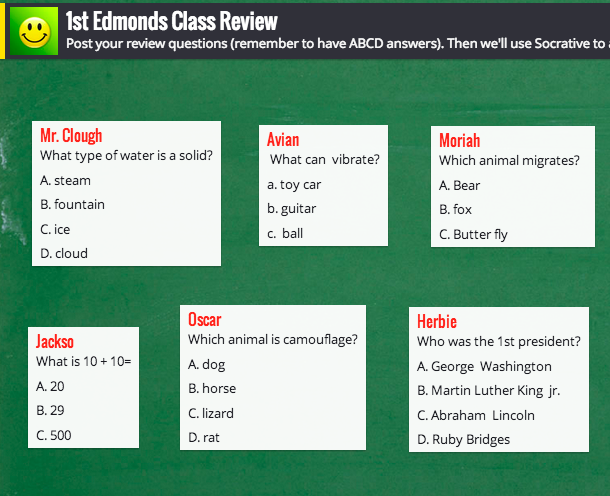
Screen shot 2014-03-31 at 11.08.06 AMFirst graders in Ms. Edmonds’ class at Holladay Elementary have been reviewing for upcoming tests, so today I showed them how to create their own review questions using two web tools, Padlet and Socrative. First we talked about what makes a good multiple choice question. Most importantly, it should make people think. If the answer is obvious or if some of the choices are ridiculous, then it’s not a good question. Next we discussed topics that they could write questions about: In Social Studies they’ve been studying famous Americans (SOL1.2). In Science they’ve been learning about animals (SOL1.7) and force & motion (SOL1.2). In Math they’ve been adding doubles (SOL1.5). Once they thought of their question, each student went to a wall I created for them in Padlet and posted their question to the wall. Click the link to see their questions. Next they logged into our class on Socrative and I gave them questions to answer from the wall. Socrative is similar to ActivEngage in that questions appear on each student’s screen, they answer them, and the teacher gets instant feedback with a graph that shows how their responses. The students enjoyed answering each others’ questions, and they had a great review through the process.


3rd Grade Library Project

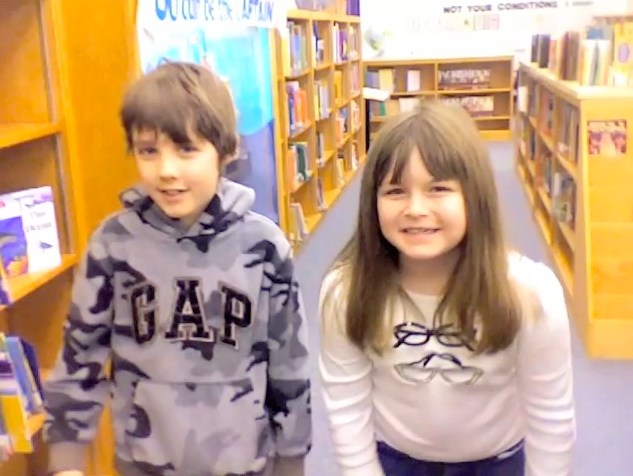
libraryToday I worked with small groups of third graders at Holladay Elementary to create videos for a contest. The theme was “The Library is the Heart of the School.” The students had to extend that analogy and think of creative ways to express it. I was really impressed with the ideas they came up with. Like Jacob thought of this excellent analogy: “The library pumps in people and the hallways are like the veins. Then it pumps out people with books. The people with the books are like the clean blood and the people with no books are like the dirty blood.” Some of the students gave a walking tour of the four parts of the library, comparing it to the four chambers of the heart. Others pointed out that the heart is often considered the place of emotions, and the books in the library make you feel all kinds of emotions like happiness, sadness, and fear. The students used Photo Booth to film themselves and iMovie to edit the videos. Some of them also added Keynote slides. Their projects turned out great! Take a look at them here: Group 1 and Group 2.