Tag: webtools

4th Grade Patterns

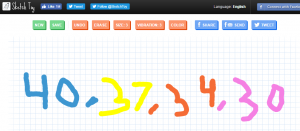
CaptureFourth graders at Varina Elementary have been learning about numeric and geometric patterns (SOL4.15), so today students in Ms. Thomas’ and Ms. Connell’s classes created patterns using a variety of webtools. Ms. Thomas’ class hadn’t used Google slides yet, so I wanted to show them how to make an animated slideshow. I posted a blank template on Google classroom and set it to make a copy for each student. When they opened their copy, each student clicked the Background button at the top and searched for a pattern image to use. Then they typed their title and name. Next, we created a new slide and chose a background color. I showed them how to add shapes and change the border and fill colors. They created their patterns with shapes, then I explained how to add a transition to each shape so that they appeared in order. When they were finished, we clicked the Share button and changed the privacy settings so that anyone with the link could view the slideshow. The students pasted their links to Google classroom so that their classmates could try to solve their patterns. Ms. Connell’s class had already made slideshows, so I showed them three webtools for animation: Parapara, SketchToy, and ABCYa!Animate. The students could choose which one they wanted to use, and they could use more than one if they had time. Parapara is good for quick, simple animations. Sketchtoy redraws anything you draw with cool vibrating lines. I’ve showcased ABCYa! Animate many times on this blog because it’s one of the best animation webtools for kids that I’ve seen. Ms. Connell’s class created both geometric and numeric patterns. You can see them all here.
1st Grade Famous Americans

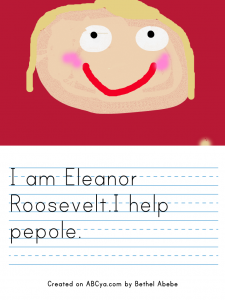
Story Maker1First graders at Davis Elementary have been learning about famous Americans including George Washington, Abraham Lincoln, Eleanor Roosevelt, Martin Luther King, Jr., George Washington Carver, and Benjamin Franklin (SOL1.2). Today students in Ms. Gerrard’s class used ABCYa! Storymaker to draw and write about a famous American of their choice. This easy-to-use webtool is a great way to give your younger students an opportunity to practice drawing and writing with a computer. First we logged into Google classroom where I posted the link. Once students opened the website, they used the paint bucket tool to fill the background with their favorite color. Then we looked at pictures of the famous Americans to be sure we painted them correctly. We used the paint brush tool to draw a circle for the face and filled it in with the paint bucket tool. I showed them how to use the roller brush to paint two white eyes. Then they added pupils, a mouth, and hair with the paint brush tool. We kept the drawings simple so they could start writing their sentences. To type, students click the “Aa” button on the right side. The paper is similar to the lined paper they use in class and the font is developmentally appropriate. I explained how to use shift to make capital letters and wrote a word bank on the board for them to use. The students typed two complete sentences about their famous American, then we clicked the download button. Ms. Gerrard and I helped them upload their files to Google classroom so everyone could see and read them. You can take a look at them here.


4th Grade Biography Blogs & Voki

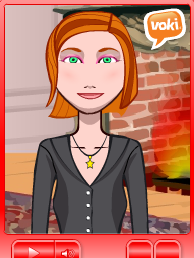
CaptureFourth graders at Davis Elementary have been reading nonfiction, especially biographies and autobiographies (SOL4.6), so today students in Ms. White’s class created biography blogs with an embedded animated talking person from Voki. First I showed them how to log into their blogs. Every student and teacher in Henrico has their own blog. Once we were logged in, I explained how to change the title and other blog settings. Then we created our first blog post. I wanted to show them how they could embed something in a blog post, so we went to Voki and made an animated talking famous person. They had actually already researched someone for another project, so they used that person for their Voki. We discussed ways to make the character resemble the person by changing their skin color, hair, and clothing. Then we added a pertinent background and typed a few sentences for the person to say about their accomplishments. When we were finished, we copied the embed code and went back to our blogs. I showed them how to paste in the embed code using the “code” button (press the “code” button at the beginning and end of the code). Finally they published their blog post and shared the link on Google classroom so their classmates could see them. You can take a look at them here.


3rd Grade Simple Machines

CaptureThird graders at Holladay Elementary have been studying simple machines (SOL3.2), so today students in Ms. Middleton’s and Ms. Edelblut’s classes created animations to show how different simple machines work. I posted a similar lesson a couple of years ago here, but I did a couple of things differently this time that I wanted to share with you. In Ms. Edelblut’s class, we used ABCYa!Animate and added a real photo for the background. First we did a Google image search for a background photo, then on ABCYa! we clicked the “Edit background” button and chose “Import photo.” It added a cool effect to the animations. You can see some student samples here. In Ms. Middleton’s class we used a different site I just discovered called ParaPara. It’s much simpler than ABCYa!Animate, but you have to draw everything, and there is no copy button, so you have to redraw your picture for every frame. For that reason I advised the students to keep their drawings very simple. The final animation isn’t saved as a .gif file either, but you can view them online. Several students were able to make two or three animations! You can see Ms. Middleton’s animations here .


5th Grade Shapes Comics

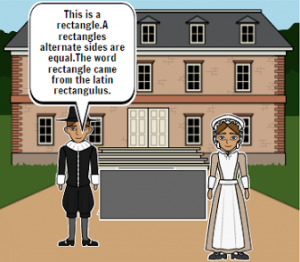
CaptureFifth graders at Laburnum Elementary have been learning about 2-D plane figures such as the rhombus, trapezoid, parallelogram, etc (SOL5.13), so today students in Ms. Hall’s class created comics about these shapes using StoryboardThat. First we discussed the various shapes and brainstormed ideas for making a comic about them. I explained that the comic would have three frames, and it should be consistent through all three frames. In other words, if one frame is about shapes in sports, the whole comic should be about shapes in sports. Next we went to Storyboard that and selected the backgrounds for the comic using the “Scenes” tab. We also added characters that fit the backgrounds. I showed them how to customize the characters’ appearance and poses. Then, using the “Shapes” tab, we added shapes that went along with the backgrounds and characters. To explain the shapes, students added speech bubbles using the “Textables” tab. We discussed the importance of using correct grammar and spelling. Finally, we took screenshots of our comics and posted them to Google classroom with a question for our classmates to answer. You can see them all here.


1st Grade Earth & Sun Stories

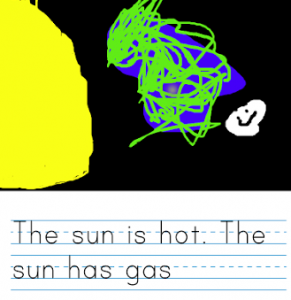
CaptureFirst graders at Holladay Elementary have been learning about the Earth and the sun in science (SOL1.6), and they have been learning how to write complete sentences in English (SOL1.13d), so today they wrote Earth & Sun stories with Storymaker. Storymaker gives students a fun way to write and illustrate stories on the computer. First we illustrated the picture. Students used the paint bucket to fill in the background with black. Then we discussed the relative sizes of the sun, Earth, and moon, and they painted them as realistically as possible. Some students even included the moon’s craters! Next we worked on the writing part. I instructed the students to write facts about the Earth, sun, and moon in complete sentences. They used phonetic spelling (SOL1.12c) for words they didn’t know, and they used capitals and periods (SOL1.13e). Finally we saved our stories and published them to Google classroom. I put them all on a Google doc so you can read them here.


4th Grade Revolutionary War Comics

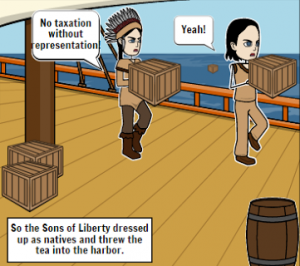
CaptureFourth graders at Davis Elementary have been studying the Revolutionary War in Social Studies (VS.5), and they have been learning how to formulate questions about nonfiction text in Reading (SOL4.6b). So today students in Ms. White’s class created Revolutionary War comics and asked their classmates questions about them. We used StoryboardThat to make the comics because it has plenty of Revolutionary War backgrounds, characters, and props for the students to use. First we brainstormed ideas for the comics so everyone wasn’t doing the same thing. Students could make comics about any Revolutionary War event they had learned about so far. Since they were just beginning the unit, they didn’t have many events to choose from yet, but as they learn more, they can make additional comics. I showed them how to change the characters’ poses and expressions to fit the context. I also explained that the speech bubbles needed to include enough facts and information for their classmates to answer the questions. When they were finished, we took screenshots of the comics and posted them to Google classroom with a question. The students enjoyed reading each others’comics and answering their questions, plus, it was a great review. You can see some student samples here.


2nd Grade Rounding with Habitats

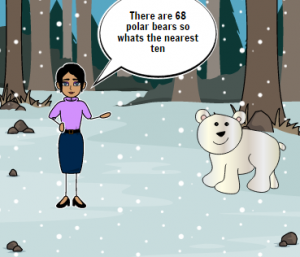
CaptureSecond graders at Holladay Elementary are learning how to round to the nearest ten in math (SOL2.1b) and they are studying habitats in science (SOL2.5), so today students in Ms. Edmonds’ class created comics about rounding numbers in habitats. First, I posted a link to StoryboardThat on Google classroom. StoryboardThat is an amazing webtool that students can use to create their own comics. I introduced the lesson by explaining that scientists often count living and nonliving things in a habitat, but since they can’t count every single one, they usually round the numbers. I instructed the students to choose a habitat they were curious about (desert, forest, ocean, etc) and think about the living and nonliving things in that habitat. They could do some quick research online if necessary. When the students had their ideas, they clicked the Storyboard link and were given a blank comic strip with three boxes. I explained that they would put living things (plants and animals) from the habitat in two boxes and nonliving things (rocks, shells, etc) in the other box. They dragged in backgrounds, characters, and clip art into each scene. They enjoyed changing the facial expressions and poses of the characters. Then we added speech bubbles for the characters to say how many of each living and nonliving thing there were in the habitat. We took a screenshot of our comics and posted them to Google classroom with a question about rounding the animals, plants, or nonliving things in the habitat. Our classmates tried rounding the numbers in our comics to the nearest ten, and they posted their answers in the comments. You can try them yourself here.


3rd Grade Greece & Rome Nearpod

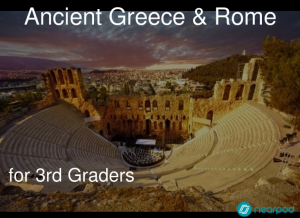
CaptureNearpod is a cool webtool for making interactive presentations that provide live feedback from your students. They can answer your questions, draw or label a picture, take a quiz, vote on a poll, fill-in-the-blank, and more! Ms. Middleton at Holladay Elementary wanted to learn more about it, so today I showed her 3rd graders a Nearpod activity I created about Greece and Rome (SOL3.1). I tried to showcase each feature: it includes (1) a poll about the occupations in ancient Greece and Rome, (2) a 2-question quiz about the building projects of these two civilizations, (3) a fill-in-the-blank activity about the geography, (4) a map students can draw on to locate Greece and Rome, (5) a matching memory test, and (6) a free response question. If you wanted to create your own Nearpod, you would log in with your Google account and click “Create.” Then you would add different slides by clicking the type of activity you wanted. You could also upload a PDF file and each page would become its own slide. When you finish, you click “Publish.” To start a live session with your class you would go to “My Library” and click “Live Lesson” on the slideshow you want to share with them. Nearpod will give you a PIN number for the lesson, and when students go to Nearpod, they just enter the PIN number. They don’t need to log in. Let me know if you’d like me to show Nearpod to your class!


1st Grade Needs & Wants Qwikslides

CaptureFirst graders at Davis Elementary have been reviewing needs and wants (SOL1.8), so today students in Ms. Gerrard’s class created needs and wants slideshows using a webtool called Qwikslides. Qwikslides has many great features: there’s no login, it’s fairly easy to use, and the finished slideshows work great on the iPads and laptops. First the students deleted the default text and typed their names. Then they went to the next line and typed “Needs.” They opened a new tab and used Google image search to find pictures of needs (food, water, shelter, clothing, etc). The students copied the links to the photos and pasted them into Qwikslides. Next they wrote “Wants,” and repeated the process to add pictures of wants. Finally, they customized the fonts and colors of the slideshow. We posted the links to our slideshows on Google classroom, but you can see them all here.