Tag: webtools

Social Studies Digital Resources

One of the great things about attending conferences is getting the opportunity to come back and share what we learned with other teachers. Today I was asked to present at the Social Studies contact meeting, and I shared many of the things I learned at VSTE. First, I created my presentation using the new Google sites, so they could be inspired by the new layout, like I was. I showed them the cool, creative ways to use Google maps in their Social Studies lessons, which I learned from one of the VSTE presenters. Carol Simopoulos, the director of Elementary Social Studies, also asked me to share some of the resources available through the Library of Congress (LOC). If you haven’t been there in a while, you may want to check it out. It has an incredible collection of primary resources that are clearly organized and easily searchable. You can find historical maps, early children’s books, vintage news broadcasts, and more. Finally, I shared a few links to webtools that students enjoy using for Social Studies projects. StoryboardThat is great for creating comics about people and events in history. Padlet provides an online “bulletin board” for quickly sharing projects. Kahoot is a fun way to assess student understanding, and WeVideo is an easy-to-use movie editing resource. Let me know if you’d like some help using some of these ideas in your classroom!
VSTE 2016 Conference

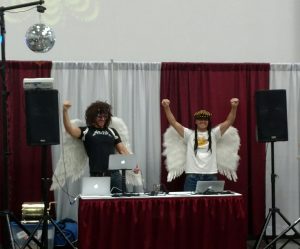
This year the VSTE Educator’s Technology Conference was held in Virginia Beach from December 4-6. My friend, Alfonso, and I presented a session called “EDM: Educator’s Doing Multimedia.” We shared how teachers and students can create videos, animations, and music using free online tools. We also shared several examples of student projects using multimedia (you can find many more examples on our blogs). Since Alfonso and I are DJ’s on the side, we included some of the other EDM (Electronic Dance Music) in our presentation. There was a disco ball, lasers, and glowsticks for the crowd. At the end we collected the attendees’ names using a Google form on our website and pasted them into a random name picker to choose a lucky winner for an iTunes gift card. The random name picker is a great tool to use in your class as well. We attended several other VSTE sessions yesterday and today, but my favorite was one about Google maps by Adam Seipel. I learned some cool tricks and features I didn’t know about and was inspired to redo my own session’s website using the new Google sites (in your Google Drive click New > More > Google sites). Tonight we DJ’d a special reception for the vendors (that’s where the photo in this post was taken). If you get the opportunity to attend VSTE or another educators’ technology conference in your state/country, I’d encourage you to go. It’s a wonderful way to expand your professional knowledge and network.


1st Grade Writing about the Past

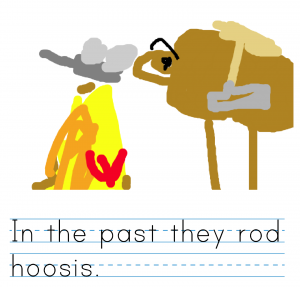
First graders at Trevvett Elementary have been learning about life in the past in History (SOL1.1) and how to write complete sentences with capitals and punctuation in English (SOL1.13e). Today students in Ms. Fletcher’s class showed off their skills by writing sentences about the past. We used ABCYa! Storymaker because it has a familiar writing paper template and an age-appropriate font. The students got to the website all by themselves by typing “ABCYa” in a Google search, clicking the link, then clicking the 1st grade button, and finding the Storymaker link on that page. First we discussed different ideas they could write about so they weren’t all writing about the same thing. We talked about how they cooked on a fire, traveled using horses and wagons, washed clothes in a bucket or the river, went to school in a one-room schoolhouse, sent letters instead of texts, and many more ideas. The students typed their sentence about the past using Shift to make a capital at the beginning and remembering their period at the end. We encouraged them to use sight words and sound out any unknown words (SOL1.12c). Then they used their newly-learned click-and-drag skill to draw a picture illustrating their sentence. When they were finished we saved them as PDF files (click the Print button). Finally we helped them upload their files to a Padlet (a free online bulletin board). You can see them all here (click each one to view the whole page).


5th Grade Animal Comics

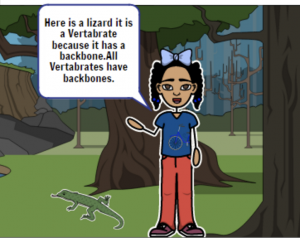
Fifth graders at Laburnum Elementary have been learning about vertebrates and invertebrates (SOL5.5b), so today students in Ms. Hall’s class created comics to help explain the difference between these two types of animals. We used StoryboardThat to create our comics. StoryboardThat is the best webtool around for creating comics because of its huge library of customizable clipart. I’ve used often in lessons (you can search my blog for other examples). The only problem with using it at the elementary level is that its terms of service specify that only students 13 years of age or older can have accounts. So we don’t let our students create accounts, but they can still make comics using the free version, then we save them by taking screenshots. First we created our three scenes (the free version is limited to 3 or 6 scenes). I explained that the first scene needed to be an introduction, the second scene would be about vertebrates, and the last scene would be about invertebrates. The students had to plan out which animals they were going to focus on so they could chose appropriate habitats for the backgrounds. A cool new feature on StoryboardThat allows you to customize the background scene by changing the weather and the time of day (click the blue “Edit Scene” button). Next the students added characters and animals (click the Characters tab at the top, then choose the Animals submenu). You can customize the characters as well by clicking the “Edit Pose” button. Finally we added speech bubbles, called “Textables” here, and typed complete sentences explaining the differences between vertebrates and invertebrates. I showed them how to take a screenshot of their finished comics using the Snipping Tool (or Command+Shift+4 on a Mac), and we shared them on Google classroom. You can see all their comics here.


1st Grade Animal Sentences

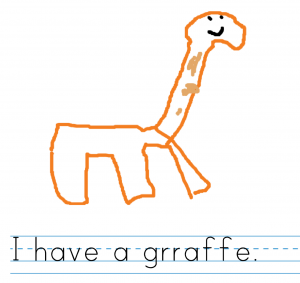
First graders at Trevvett Elementary have been learning about animals in science (SOL1.5) and how to write complete sentences with a capital and a period in Language Arts (SOL1.13e). Today students in Ms. Lucas’ class used ABCYa! Storymaker to draw an animal of their choice and type a complete sentence about the animal. First we helped them log into their accounts which, in itself, is a major accomplishment. Then we helped them navigate to the website, and I showed them how to use the drawing tools to draw an animal. We talked about a variety of different animals to help them get ideas and not all draw the same one (everyone seems to love cheetahs)! Next, we clicked the writing button (yellow button on the right side) to write our sentences. I really like how this site uses the lined paper format familiar to first graders and a kid-friendly font. I taught them how to use Shift to make the first letter a capital. I also explained that they should press the space bar once between each word. After they typed their sentences, I pointed out where the period key was for the ending. We pressed the green button on the right side to see both the writing and the painting together. Then we clicked the Print button to save it as a PDF. I wanted to save them all to one place, so I tried out a new feature in Google forms: file upload. I created a short URL to a simple form http://tinyurl.com/lucasform, and we helped the students upload their PDFs to the form. It automatically creates a folder in Google drive where all the files are collected. It worked great! You can see all their hard work from today here.


5th Grade Green Screen Videos

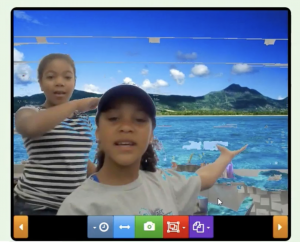
Fifth graders at Trevvett Elementary have been studying the ocean (SOL5.6), so today students in Ms. Adamonis’ class created green screen videos about the ocean. A green screen allows you to place a different image behind the speaker, making it look like the speaker is standing in or near the ocean, for example. It was a challenge finding a free web tool for making green screen videos (if you know of any, please let us know in the comments). There are several mobile apps that can do it, and Mac computers can do it with Photo Booth (see a similar lesson taught using Photo Booth here), but we needed something we could use on our Dell laptops. Finally I found this, which seemed to work pretty well. Our next challenge was making the green screen background. We used colored plastic tablecloths, but it’s actually better if you have something more permanent and smooth, like a solid colored wall or bulletin board. In order to use this webtool, you need to activate your webcam by following the prompts, then you click on the background and adjust the sliders at the bottom until it looks good (adequate lighting helps a lot). We used Screencastify to record our videos. Screencastify saves the videos to your Google drive, making it easy to share the links. You can see a couple of student examples here.


3rd Grade Create a Holiday Logo

Third graders at Trevvett Elementary have been learning about being a good citizen and celebrating national holidays, like Veterans Day (SOL3.11). Students in Ms. Robinson’s class created their own national holiday, and today she asked me to help them make a logo to represent their holiday. First we talked about logos. They are easily recognized symbols with simple designs and just a one or two colors. I showed them a few logos to see if they could recognize them (Apple, T-Mobile, Xbox, Android, Playstation, Olympics, McDonalds, Domino’s, etc). Some logos even have hidden symbols (like the arrow in FedEx, 31 in Baskin Robins, two people sharing a chip in Tostitos, the letter g/face in Goodwill, and the kiss in Hershey Kisses). I explained that the logos they create for their holiday needed to be simple and easily understood, but they could also have hidden messages or surprises. I gave them each a copy of a blank Google doc in Google classroom and showed them how to type the name of their holiday and change the font, size, and color. We discussed the importance of fonts in logos and realized that the most important thing was that it was easy to read. There are not many cursive fonts in logos (Coca-Cola is a famous exception). Next we went to LogoMakr to design our logo. This is a great site for any kind of illustration because there’s no login, it has a huge collection of clip art, you can customize the colors, and your art is quickly downloaded as a PNG file with a transparent background. After students created their logos, we imported them into our Google doc (Insert > Image > Upload from your computer) and wrote about the holiday. Finally we published our work to Google classroom. You can see all the holiday logos here.


4th Grade Fire Safety Diagrams

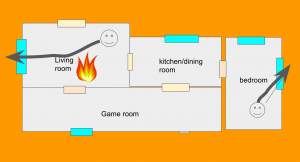
October 9-15th is Fire Prevention week in memory of the famous Chicago Fire on October 9th, 1871. Fourth graders at Trevvett Elementary had a visit from the fire truck today, and students in Ms. Harlow’s class created digital fire escape floor plans for their homes. First we discussed the importance of creating a plan for everyone in your family to get out of a burning house and the need to practice different scenarios where the fire may be blocking an exit. I explained that a creating a floor plan with arrows for directions is a good place to start, like the fire escape diagrams hanging in each classroom. There are a couple of websites students can use to create fire escape routes such as The Burn Institute and The Fire Escape Planner. They could even design 3-D models of their home with Planner5d, Homestyler, RoomSketcher, or HomebyMe. However, I needed to show them how to make Google slideshows, so we created our fire escape plans using Google slides. I made a blank Google slides template and shared a copy with each student in Google classroom. On the first slide we clicked the “Background” button and searched for a picture of fire to use. Then we added a title and our names in a font, size, and color of our choice. I showed them how to add a new blank slide by clicking the arrow next to the “+” button in the top left corner. On this slide we created the floor plan of our house using the shapes tool. We used rectangles for the rooms, doors, and windows. Then we used the text tool to add labels to each room. Many students used the smile shape to add their family members, but I explained that they could also do a Google image search for a “person icon.” I pointed out that adding “icon” to their search would provide simple drawings with transparent backgrounds. We used that strategy to search for a “fire icon” and added a fire to the house, blocking an exit. Then students used the arrow tool to show how the people would escape. I showed them how to change the thickness and color of the arrow using the buttons to the right of the arrow tool. Finally we published our slideshows (File > Publish to the web) and pasted the links to Google classroom. You can see their projects here.


5th Grade Animated Rock Cycle

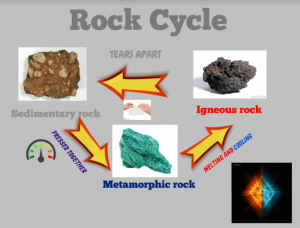
captureFifth graders at Trevvett Elementary are currently studying the rock cycle (SOL5.7a,b), so students in Mr. Hilton’s class and Ms. Catlett’s class created animated rock cycles using Biteslide and Gickr. First we went to Biteslide to design the rock cycle diagram. Biteslide is a paid site, but you can use the Demo for free (click “Try Demo”). It’s great for designing posters, diagrams, and slideshows because it has built-in templates, clip art, and a filtered Google image search. Students added a background image and a title. Then they searched for images of metamorphic, igneous, and sedimentary rocks and labeled them. Next they added arrows with explanations describing how rocks change from one form to another. I gave them a tip for finding pictures with no background by adding “icon” to their search (“fire icon” for example). Once their diagrams were complete, we took screenshots of them using the Snipping Tool. To prepare for the animation, we deleted parts of the diagram in reverse order and continued taking screenshots until we just had the first rock type left. Finally we uploaded our screenshots to Gickr which created an animated .gif file of our diagram. You can see all their diagrams here.


Techapalooza 2016

captureEvery August we host an elementary technology conference here in Henrico, Virginia. This year it was called Techapalooza, and it had a music festival theme. We had a full day of presentations by fantastic educators sharing how they use technology in their classrooms. There were also food trucks, great door prizes, and DJs spinning tunes. It was a great day all around! You can check out the conference blog here, and if you join the G+ community, you’ll find links to most of the presentations. I presented on two topics. First I shared examples of how teachers and students have created their own videos, animations, and music using free, easy-to-use webtools. It was called “EDM: Educators Doing Multimedia” (since EDM, Electronic Dance Music, is often heard at music festivals). My second presentation was about using student response webtools in the classroom. There are several sites that give you live feedback from assessments, and some of the sites provide practice with TEI (technology-enhanced item) questions, similar to those found on recent standardized tests. You can explore the tools I shared here: “PLUR: Processing Live Uploaded Responses” (since PLUR–peace, love, unity, respect–is the music festival mantra). If you couldn’t make it to our technology conference this year, come out next August!