Tag: GoogleDocs

4th Grade Virginia Weather Graphs
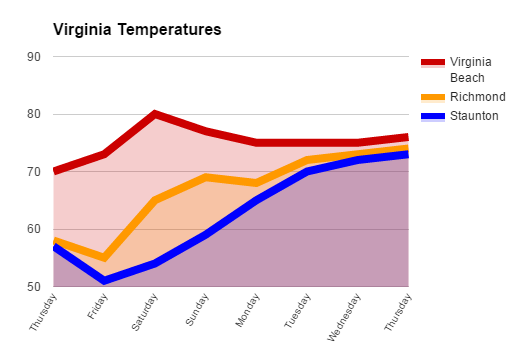
VAGraphFourth graders at Davis Elementary are learning about weather in science (SOL4.6), Virginia regions in social studies (VS.2b), and graphing in math (SOL4.14). So today students in Mr. Cochran’s class researched current temperatures in different regions of Virginia and graphed them. I gave them a template that you can copy here. First we clicked the “City” link and looked at the current temperatures in different Virginia cities. I showed them how they could click the column headings to sort by that category, so we sorted by temperature. We took a city from the highest temperatures (Virginia Beach), a city in the middle temperatures (Richmond), and a city in the low temperatures (Staunton). Then we located those cities on a map of Virginia and discussed why the temperatures might be different. The students noticed that the colder cities were further west (higher altitude) and north (higher latitude). Next we looked at the weekly forecast for the three cities (linked on the spreadsheet). Your students could choose their own cities to graph, but we just graphed the temperatures for the three cities we researched to save time. On the spreadsheet I showed them how they could click the “Thursday” cell and drag the small blue square handle down through seven more cells to have them fill in with the days of the week. Then they filled in the rest of the cells with the temperatures. Next we clicked the graph button and chose a line graph. I showed them how to customize the color and thickness of the lines, and we added a title. They posted their graphs to Google classroom, but you can take a look at some here.


5th Grade Number Patterns

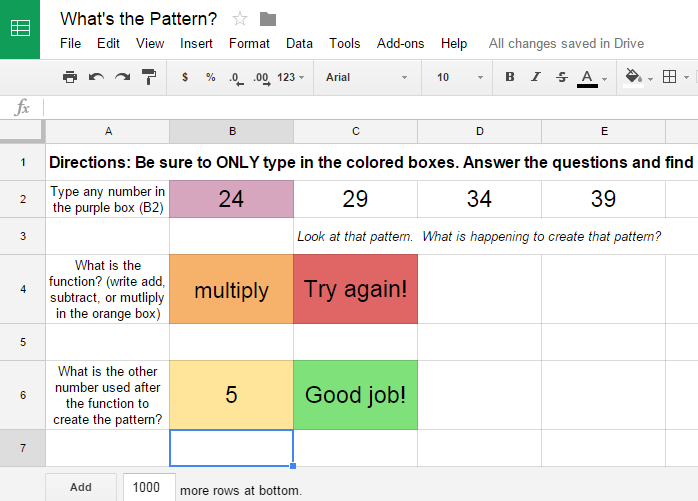
PatternFifth graders at Davis Elementary are reviewing addition, subtraction, multiplication, and division (SOL5.4) as well as studying number patterns (SOL5.17). So today students in Mr. Cangelosi’s class created number patterns for their classmates to solve using Google spreadsheets. First I gave them a template to use and shared it using Google classroom. Feel free to make a copy of the template for yourself. There’s a sheet on the template with an example for your reference. We discussed how spreadsheets work and how each cell has a name (like C5). Then we looked at the first formula to see how it was written to create a pattern. The students changed the formula to create their own pattern. Then they dragged the blue square from the cell that had the formula across the other cells in the row to continue the pattern. Next they changed the answer responses in the other formulas to reflect the correct answers and wrote their own feedback words (like, “Way to go!” or “Did you spell it correctly?”). Finally they posted their spreadsheets to Google classroom so their classmates could try to figure out their patterns. You can try to solve some here.


2nd & 5th Grade Superheroes

superhero1Many schools have a superhero theme this year, and there are lots of cool websites for turning yourself into a superhero. Some of my favorites are: Hero Machine, Marvel Commics, and Heroized. Today 2nd graders in Ms. Becker’s class and 5th graders in Mr. Cangelosi’s class at Davis Elementary turned themselves into superheroes using Pixie and Google slides. First we opened up Pixie and painted a superhero body. Then we used the webcam tool to add our photo to the body. We exported the pictures as PNG images with transparent backgrounds. Next we opened up a Google slides template that I shared on Google classroom. Each student was assigned a slide, and they added a background image. Then they uploaded their superhero picture to their slide. Finally they wrote a sentence or two about their superpower and maybe their weakness (that was optional). Take a look at the Davis superheroes here: Becker and Cangelosi.


New Teacher Technology Training

4thFestToday we welcomed all the new elementary teachers to Henrico County and provided them with some technology training. Even if you’re not a new teacher, you may want to check out our new hire blog to get some fresh ideas for the upcoming school year. The ITRTs were paired up with grade levels to discuss possible projects and lessons for the 1st nine weeks. Alfonso and I worked with the 4th grade teachers. We used the new pacing website to find out what they would be teaching in language arts, math, science, and social studies. Then we shared some ways technology could be used across the curriculum as well as for simplifying classroom management and assessment. Take a look at our presentation here and feel free to share ideas of your own using the links in the slideshow (created using a template from SlidesCarnival).


2nd Grade Butterfly Measurement

Screen Shot 2015-08-12 at 9.20.04 AMSecond graders at Holladay Elementary have been learning about the butterfly life cycle in science (SOL2.4a), and they’ve been measuring length in inches and centimeters in math (SOL2.11a). Today students in Ms. Gardner’s class created butterfly life cycle diagrams with actual size butterflies. First they logged into Google classroom where I posted a link to a website about Virginia butterflies. This is a great site because its shows the different stages of most of the butterflies’ life cycles. Once the students picked a butterfly they liked, they opened this template that I shared with them on Google classroom. First they changed the title text to be the name of their butterfly. Then they inserted a picture of their butterfly from the website. The template has an actual size ruler on it which they can use to measure the butterfly or they can use a real ruler. I instructed them to resize their butterfly picture (using the corners to keep it from being distorted) so that the image is the same size as the real butterfly. Students found the length of the butterfly on the website (under wingspan). Next I showed them how they could use the drawing tools to draw the other stages in the life cycle or they could insert images from the website. They labeled each stage and added connector lines to link them together. Connector lines (Insert > Line > Curved Connector) are different than regular lines because they link to small dots that appear on the images so when you move the image the line moves with it. Finally we shared our butterfly life cycles with our classmates by posting the links on Google classroom. They also wrote the size of their butterfly in inches on their post. You can take a look at some of them here.


5th Grade Decibel Day

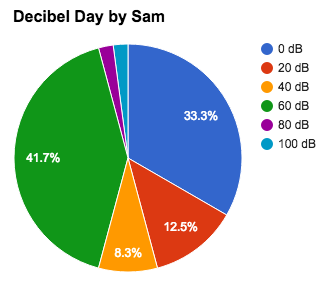
Screen Shot 2015-08-06 at 1.34.33 PMFifth graders at Holladay Elementary have been learning about sound in science (SOL5.2) and fractions in math (SOL5.2), so today students in Ms. DiMatteo’s class figured out the fractions of their day spent at different decibel levels. First we discussed what decibels measure (they are a way to measure the loudness or amplitude of the sound waves). Next we researched decibels using a variety of websites: Bouncy Balls, Dangerous Decibels, and the Interactive Sound Ruler. That last website has a valuable scale giving examples of sounds at different decibel levels. We used it to calculate the percentage of our day we spend at each level. I posted a Google spreadsheet template on Google classroom for the students to use. I made some changes to the template after teaching this lesson to simplify things. You can make a copy of the template here. It has some samples for you to look at in the tabs (sheets) at the bottom. Once we figured out how many hours we spend at each decibel level, we wrote a formula to convert it into a percentage. This is where we used fractions because the formula was a fraction with a variable in the numerator (# of hours)/24 hours. Next we highlighted all the percentages and created a pie chart. When the students posted their spreadsheets to Google classroom they estimated the fraction of their day spent at a certain level. You can take a look at some examples here.


3rd Grade Elapsed Time Slideshows

Screen Shot 2015-08-05 at 3.39.21 PMThird graders at Laburnum Elementary have been learning about elapsed time to the nearest hour (SOL3.11b), so today in Ms. Robinson’s class we created elapsed time slideshows. First they signed into Google classroom with their Google accounts. I had posted a blank Google slides template for each of them to open. I showed them how to choose a theme, add text, and change the font, size and color. Then they added a new slide. I explained that they would write an elapsed time problem about an activity of their choice for their classmates to solve. On this slide they would write about when their activity started. After the students wrote their problem, I showed them how to add a blank clock face (Image search “blank clock” or “clock face”). They could mask the clock with a circle (using the cropping tool) and add a frame (with outline color). Next we made arrows for the hands and placed them in the correct position. The students could make the hands a different color or thickness if they desired. Then we created a new slide and I gave them a choice to either tell what time the activity ended or tell how long the activity lasted. Their classmates would have to figure out the other part. We posted the links to their slideshows on Google classroom so they could write their answers in the comments. You can take a look at some of the slideshows and comments here.


1st Grade Fractions in Google Docs

Screen Shot 2015-08-05 at 11.21.49 AMFirst graders at Holladay Elementary have been learning about fractions showing halves, thirds, and fourths (SOL1.3), so today students in Ms. Bower’s class reviewed their fractions while learning how to use Google Docs for the first time. It took a while to help sign everyone into their Google accounts and get into Google classroom, but once we were there, I had posted a blank template for them to open. They typed the word “Fractions” at the top, and I showed them how to change the font, size, and color of the text. Next I demonstrated how to create a simple 1×2 table using the Table dropdown in the menu. The students created their table, and I asked how we could use that to show 1/2. They replied that they could color in one section of the table. I showed them how to use the paint bucket tool to fill in a section any color they wanted. Then we typed “1/2” in the remaining section. We followed the same procedure for thirds by creating a 1×3 table, but I let them decide whether they wanted to show 1/3 or 2/3, and they filled in the appropriate sections. By this time some of them were familiar enough with the procedure to create their fourths fraction on their own. Since all the tables were the same length I asked them how many fourths would fill in the same amount as 1/2? They could easily see that 2/4 = 1/2. They decided whether to show 1/4, 2/4, or 3/4 and wrote the fraction. Finally we helped them post the links to their fractions on Google classroom, and they enjoyed looking at each others’ creations. You can take a look at some of them here.


5th Grade POV Word Problems

Screen Shot 2015-08-03 at 3.05.34 PMFifth graders at Varina Elementary have been learning about solving multistep word problems (SOL5.4) and identifying the point of view of an author (SOL5.5f). Since those were two areas of need identified on the recent benchmark tests, I wanted to focus on those skills as well as teach the students how to create Google slideshows. So today in Ms. Parker’s class we created word problems that involved identifying the point of view. First we reviewed point of view. I provided a few examples of situations where the author is feeling strong positive or negative emotions, and we discussed the clues. Then I instructed the students to think of a multistep word problem involving an emotional situation. I gave them a blank Google slideshow template in Google classroom and taught them how to choose a theme, add text, change the font, size, and color, and add a picture. We wrote a multistep word problem for our classmates to solve on one slide, then we added another slide for them to identify our point of view. The last step was to add transitions between the slides. Finally we published our slideshows and copied the links to Google classroom so we could solve each others’ problems. You can take a look at their slideshows here. I taught the same lesson with a couple of classes at Holladay the next day, and you can see those here.


1st Grade Compound Words & Shapes

Screen Shot 2015-06-23 at 7.46.08 AMFirst graders at Laburnum Elementary have been learning about compound words (SOL1.6g) in language arts, and they’ve been studying shapes (SOL1.13) in math. So today students in Ms. Schumacher’s class created their first Google documents using compound words about shapes. We helped them log into their Google accounts and into Google classroom where I posted a blank template as an assignment. I showed them how to choose a font, size, and color, as well as how to type capitals and periods. Next we brainstormed some compound words that were shapes (pancake, football, bookmark, sunflower, hamburger, blueberry, cheesecake, bathtub, corndog, breadstick, watermelon, notebook, blacktop, etc). I instructed them to type a complete sentence using a compound work and a second sentence identifying its shape. When they were finished with their sentences I showed them how to add an image using the Google image search. We posted the links to their documents on Google classroom so they could read at each others’ sentences. You can read a few samples here.