Tag: animation

2nd Grade Matter Fractions

CaptureSecond graders at Holladay Elementary are learning about fractions in math (SOL2.3) and the states of matter in science (SOL2.3) so today students in Ms. Crostic’s class created matter fractions animations. First we discussed fractions and the parts of fractions. Looking at a sample group of solids, liquids, and gasses, we made fractions, identifying the denominator as the total number of things in the group, and the numerator as the smaller number of solids, or liquids, or gasses in the group. Next we went to ABCYa! Animate to create the animations. The students added clip art images of their choice to represent their own groups of solids, liquids, and gasses. In one frame they circled the total number of objects, and in the other frames they circled the specific groups of solids, liquids, or gasses. When the animations were finished, the students posted them to their Google classroom page with a question for their classmates to answer like, “What fraction are liquids?” They answered each others’ questions in the comments. I put a few examples into a Google doc that you can view here.


1st Grade Push-Pull Animations

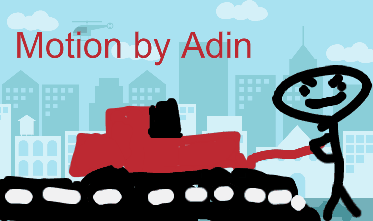
Screen Shot 2015-06-03 at 3.10.09 PMFirst graders at Holladay Elementary have been learning about force, and specifically push and pull motions (SOL1.2). So today students in Ms. Schemmel’s class created push and pull animations to illustrate these forces. We used ABCYa! Animate to create the animations. First we reviewed and demonstrated push and pull motions. I pointed out that the force is usually in front of an object when pulling, and it’s behind the object when pushing. The students used clip art and their own drawings to illustrate either a push or a pull. After saving the finished animations as GIF files, we uploaded them to our Google classroom page so we could look at each others’ and comment on them. I posted a few examples here for you to see. (UPDATE: I have been posting animated GIFs to Padlet lately and they seem to be working better. See here and here.)


4th Grade Earth Motion Animations

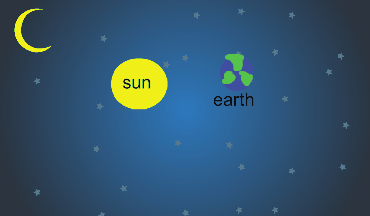
Screen Shot 2015-05-08 at 10.11.53 AMFourth graders at Davis Elementary have been learning about the motions of the Earth in science (SOL4.8) so today students in Ms. Bennett’s class created animations showing how the Earth revolves around the sun. I posted a link to ABCYa! Animate on their Google classroom page and showed them how to draw the first image using a space background and two circle shapes for the sun and Earth. We discussed the relative size of the circles (SOL4.8d) and which direction the Earth moves around the Sun–it’s counterclockwise (SOL4.8a). Then I showed them how to label the objects with text boxes and group them so they move together. Next we used the copy cat button to make a copy of our image, and we moved the Earth a little bit. We continued making copies and moving the Earth gradually until we had one revolution. We set the animation to loop and then published it as a .gif file. The students posted their finished animations to the classroom page and I gathered them together here. You can also see examples from Ms. Lara’s class at Holladay Elementary here.


1st Grade Motion Animations

motionFirst graders in Ms. Gerrard’s class at Davis Elementary have been studying different types of motion: straight, circular, pushing, pulling, vibrating, and back and forth motions. Animations are a great way to show motion! Today we used ABCYa! Animate to illustrate different motions. I instructed the students to pick a motion and to try to make it unique, something the other students in the class wouldn’t think of doing. Then they started drawing the first scene. I showed them how to duplicate it several times with the Copy Cat button to slow down the animation. Then they changed the image slightly to show the type of motion they were trying to display and duplicated that several times as well. Since it’s a loop, the motion just continues through the two different images and it looks like constant motion. They saved it as a GIF file, and I published them all to a Google Doc that you can see here. As you can see, Ms. Gerrard’s first graders did a great job being creative and sharing unique types of motion!


1st Grade Fact Families

factfamToday I tried out two new web tools with Ms. Edmond’s first graders at Holladay Elementary. She’s always willing to try new things! They have been learning about fact families in math (SOL1.5) so we illustrated some fact families with QuikSlides and SketchToy. I like both of these sites a lot because they are easy to use and don’t require a login. QuikSlides is a way to make a simple slideshow. You can change the font and color of the slides and even link to online images and videos. You can also set a password so you can go back and edit your slideshow later. The slideshows can be viewed online with any device including the iPads! The students made a new slide for each of the four members of the fact family that they wanted to show. You can see their slideshows by clicking here. Next we created animated illustrations of those fact families using SketchToy. With SketchToy you can draw pictures and then watch an animated replay of your drawing. The students especially liked how they could adjust the vibration of the lines. The students drew a picture showing the number of objects in their fact families and then wrote out the corresponding addition and subtraction equations. I instructed them to make the color of the objects match the numbers. Most of them did a great job following directions. I put all their links together into a Google doc that you can check out here:


Kindergarten Butterfly Life Cycles

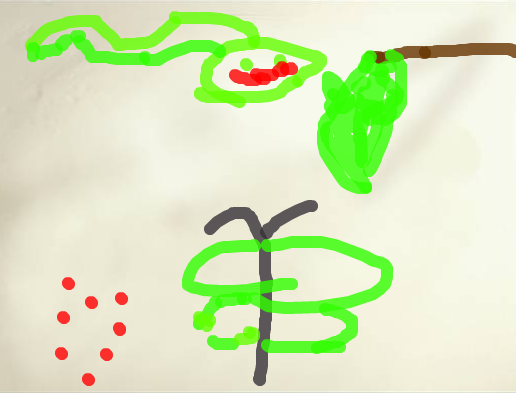
CoreyMs. Lee’s kindergarten students at Davis Elementary have been learning about the butterfly life cycle in science (SOLK.6). Since a life cycle is a sequence that involves change, it’s a perfect subject for an animation. So today we made animations of the butterfly life cycle using a site called ArtPad. First the students used the paint brush to illustrate each of the four stages: egg, larva (or caterpillar), pupa (or chrysalis), and adult. The paint brush tool is easy to use and you can change the size by simply dragging a button. The paint brush actually changes appearance as well. When they were finished, I showed them how to publish their drawings and get the link. If they click the link, they can watch the animated replay of their painting from start to finish, so it shows the sequence of the life cycle. It’s actually really cool to watch and the students loved it! I gathered all their links together and put them on a Google Doc that you can take a look at by clicking here.


3rd Grade Simple Machines Animations

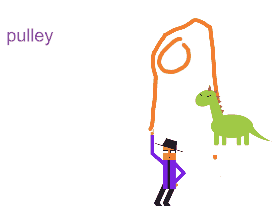
machinesThird graders in Ms. Leo’s class at Varina Elementary have been learning about simple machines (SOL3.2). Since simple machines involve motion, making animations is a great way to demonstrate and understand how they work. Today we used ABCYa! Animate to create short animations of the simple machines: lever, pulley, wheel and axle, wedge, inclined plane and screw. The students picked a simple machine to illustrate and then used the drawing tools and the clip art to design their animations. They could also use the text tool to label their machines. Most of the animations were just two frames long so they move kind of quickly, but you can slow them them down by clicking the Copy Cat button a couple of times for each picture. The students downloaded their animated GIFs, and I published them online. You can take a look at their projects by clicking here. UPDATE 2/3/15: Here are a few more examples from Ms. Middleton’s class at Holladay. UPDATE 3/25/16: I taught a similar lesson with Ms. Johnson’s class at Laburnum, but this time students had to identify each others’ simple machines in the comments. You can see those here.


4th Grade Civil War People

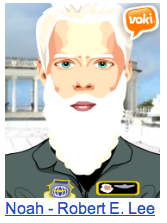
noahFourth graders in Ms. Cousins’ class at Davis Elementary have been studying the Civil War for several weeks now (SOLVS.7), and today they wanted a fun way to review the important people. I listed all of them on the board and the students chose one that they wanted to research. I explained that they would be making animated characters using Voki and they should try to make them look as much like the real people as possible. So part of their research involved looking at old photos of them. I showed them how to change the skin, hair, and eye color, and how to add different backgrounds and clothing. Once their character looked relatively realistic, they clicked the voice tab and chose text to speech. They typed a few facts for their person to say, explaining who they were and their important accomplishments. Then I showed them how to pick an accent, which is one of the best parts! Another thing I really like about Voki is that students can publish their creations without having to create an account. So each student published their animation and saved the link to their folder. I put all the links together on one Google Doc that you can see here.


1st Grade Flower Animations

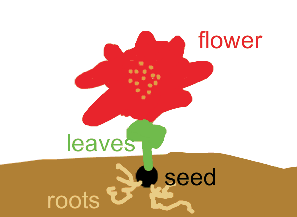
flowerFirst graders in Ms. Long’s class at Davis Elementary have been learning about flowers and how they grow (SOL1.4) so today we made animations of growing flowers using ABCYa! Animate. I taught a similar lesson last year but I learned a couple of lessons since then. First, I learned a big lesson about modeling. I have found that if I draw a picture while modeling the steps in a process, the majority of students will end up copying my drawing. That’s what happened in my last lesson… almost all of the students’ flowers were red like mine. So this time I purposely drew an ugly grey flower that resembles Medusa. None of the children copied it. Also I learned how to make the animated GIF actually animate in the Google Doc (host the images on another site and link to the URL instead of importing them directly into the Google Doc and then link to the publicly shared Google Doc instead of the published web version). Finally, in order to keep the animations from moving too quickly, we pushed the Copy Cat button a few times for each picture so there were duplicates. You can see their finished projects here.


2nd Grade Subtraction Animations

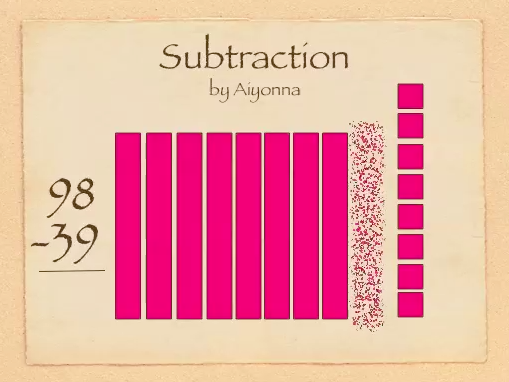
SubSecond graders in Ms. Gardner’s class at Holladay Elementary have been learning the difficult concept of subtracting with regrouping (SOL2.7). Sometimes abstract ideas become clearer when we can visualize them with an animation. It’s even better if we have someone verbally explaining the animation. The best way is to create and explain the animation yourself! So that’s what we did today using Keynote. First we opened up a blank Keynote and I showed them how to add a Title and change the theme. Next, I instructed the students to come up with two numbers less than 99 that would require regrouping to subtract. They added those numbers to their slide with text boxes. Then they used the shapes tool to represent the top number as base-10 blocks (bars for tens and cubes for ones). Now it was time to add the animations. This is where Ms. Gardner and I really got to see which students understood the concept and which ones didn’t. The used the Inspector to add “Build Out” or “Build In” animations to the different bars and cubes. They had to make one ten disappear and ten ones reappear. Next they had to make the correct number of ones and tens disappear to show the subtraction problem. At the end they should have had the same number of base-10 blocks as their answer. They used a text box to make their answer appear, and finally they recorded the voiceovers explaining each step. The students exported their slideshows as a QuickTime video. It was a lot of work for these second graders and took us a couple of days, but they hopefully they have a better understanding of subtraction with regrouping. You can see a couple of student examples here: Giada and Jessie.