Tag: webtools

3rd Grade Mali Comics
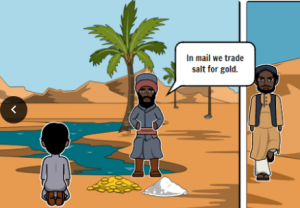
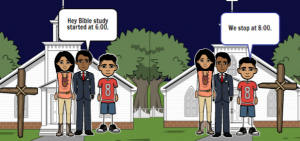
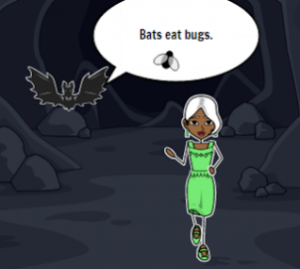
Third graders at Varina Elementary have been learning about the Empire of Mali (SOL3.2), so today students in Ms. Galvin’s class created comics about Mali using StoryboardThat. First we reviewed what they learned, and I wrote a word bank on the board: Africa, empire, Mali, gold, salt, trade, route, pilgrimage, Mansa Musa, Sundiata, Niger River, griot, Timbuktu, Sahara, etc. Next, we went to StoryboardThat, and I showed them how to search in the Scenes for background images that look like Mali. We compared the images from the American southwest desert with the ones of the Sahara Desert so they wouldn’t pick the wrong kind of desert. Next we searched the Characters for people that looked like the people of ancient Mali. I did a Google image search to show them how the people really dressed. I also demonstrated how to customize the characters by changing their skin colors and poses. Finally we added speech bubbles from the Textables, and students wrote complete sentences with facts about Mali. Since our students cannot have accounts (they are under 13), we saved our comics by taking screenshots using the Snipping Tool. Then we uploaded them to a shared Google folder so we could read each others’ comics. You can take a look at all of them here.


Kindergarten Living & Nonliving Things

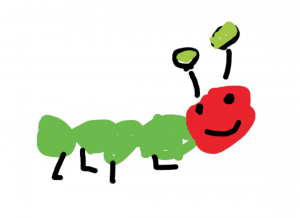
Kindergarten students at Holladay Elementary have been learning about living and nonliving things in Science (SOL K.6) and how to spell words phonetically to describe pictures in Language Arts (SOL K.12c). Today students in Ms. Ambrose’s class used ABCYa!Storymaker to draw and write about a living or nonliving thing. First we brainstormed a variety of things so that the students weren’t all drawing the same ones. Then they used the paint tools to draw a picture of the item they chose. This requires the students to practice clicking and dragging, which is an important computer skill. They also quickly learned how to use the undo button to fix mistakes (and we explained that, unfortunately, life doesn’t have an undo button). Next, we clicked the writing button on the side and a familiar-looking sheet of lined paper appeared on the screen. I showed them how to use Shift to make a capital letter, and we all typed the first word of our sentence, “I.” Then we typed “am a,” and the students finished their sentences with the name of their object, spelled phonetically. You can see them all here.


5th Grade Midwest Region Comics

Fifth graders at Trevvett Elementary have been learning about the regions of the United States this year, and they are currently focusing on the Midwest Region. Today students in Ms. Adamonis’ class created comics about the Midwest using StoryboardThat. First, we spent a few minutes researching the Midwest (SOL5.9). I encouraged them to look for interesting facts that their classmates may not already know. Some key words to use in search engines are: midwest + interesting facts, fun facts, interesting places, landmarks, trivia, etc. We also discussed how to double check their facts and evaluate the reliability of websites, since we found some “facts” that weren’t true (like roller skates weren’t actually invented in the midwest as this site claimed). Next, the students chose three of the most interesting facts to illustrate in their comic. We went to StoryboardThat and created a new comic with three panels (one for each fact). I explained that they should create their comic like a storyboard for a tv show or a documentary. The students chose different backgrounds and characters and customized them using the blue “Edit” button. Then they added speech bubbles (textables) and typed the facts they discovered in their research. Finally, we took screenshots of our comics and uploaded them to CoMemories. We have been using Schoology albums to share our work, but we found that comics do not display large enough in this format, so that’s why we chose CoMemories instead. You can see all their midwest comics here.


3rd Grade Goods & Services Websites

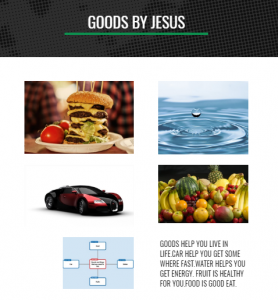
Third graders at Holladay Elementary have been learning about goods and services in Social Studies (SOL3.7) and main idea/summarizing in Language Arts (SOL3.6f,g,h). So today students in Ms. Edelblut’s and Ms. Howard’s classes practiced these skills by creating their own websites. First, we reviewed main idea/details using a web. The main idea is the center of the web, and the details are the branches. After several examples, we determined that knowing the main idea helps you summarize. Next, the students decided whether they wanted to make a website about goods or services. We used Popplet to make a main idea/details web for planning out our websites. We wrote a summarizing sentence about goods or services in the center, then provided examples of specific goods and services in the branches. I showed them how to change the colors of the bubbles and even draw images inside. We saved the diagram as a .JPG image (Gear > Export > As JPG File). Then we went to their Google drive and clicked New > More > Google Sites. We created a new Google Site and wrote the title, “Goods” or “Services” and their names. We uploaded our Popplet diagram, then typed a paragraph about our topic, using the diagram for guidance. We made sure the first sentence was the main idea or summarizing sentence. Then we wrote additional sentences for the details. Finally we added images of our specific examples (the details) and published our websites. We shared the links on Google classroom, but you can see them all here.


Kindergarten Baby Animals

Kindergarteners at Trevvett Elementary have been learning about baby animals and how they look different from the adult animals, and sometimes they have special names (K.7d). Today students in Ms. Gouldman’s and Ms. Haskins’ classes created animated images showing a baby animal turning into an adult. First we brainstormed different kinds of animals and their babies so that we had a variety of ideas. There are also some great websites you can use to review: Cricket (match the baby to the adult), National Wildlife Federation (show what a baby will look like when it grows up), BBC (match the baby animal to its parents), National Geographic (baby animals memory), and Turtle Diary (help the adult find the baby). After our review, the students chose the animal they wanted to illustrate. Then we went to ABCYa! Animate, and I showed the students how to use the drawing tools to draw a baby animal. Next, we clicked the second frame at the top and drew the adult version of the animal. We slowed down the animation with the speed button and set it to loop so it would repeat (just like a life cycle). Finally we pressed the Export button to save it as a .GIF file and uploaded it to a Padlet so we could see everyone’s. You can take a look at their animations here.


2nd Grade Matter Comics

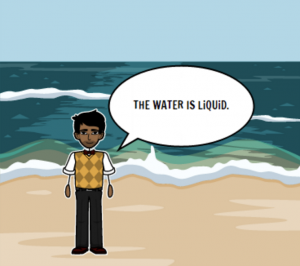
Second graders at Laburnum Elementary have been learning about the states of matter (SOL2.3), so today students in Ms. MacKenzie’s class created states of matter comics using StoryboardThat. First we reviewed different types of solids, liquids, and gases so everyone wasn’t doing the same ones. I’ve found that students are very creative when it comes to solids, but they need a little help thinking of different liquids and gases. I pointed out that anything that flows is a liquid: lava, honey, ketchup, even applesauce. For gases, we talked about the sun and the gas giants, as well as helium, oxygen, hydrogen, and more. Then we used the three-panel comic on StoryboardThat to illustrate the three types of matter. We clicked and dragged background scenes to each panel, then we added characters. I showed them how to use the “Edit Pose” button to change their poses and facial expressions. Finally we added the speech bubbles (textables) and typed a sentence in each one describing the state of matter shown. We used the snipping tool to take a screenshot of our finished comics and posted them on Google classroom. You can see them all here.


2nd Grade 2-digit Addition or Subtraction

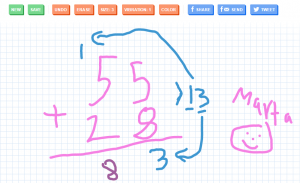
Second graders at Trevvett Elementary have been learning how to add and subtract two-digit numbers (SOL2.6 & 2.7), so today students in Ms. Golden’s class used Sketchtoy to animate the steps. SketchToy is a cool website that replays anything you draw. The students could choose to show the steps in solving a 2-digit addition or subtraction problem. I encouraged them to use different colors for the ones and tens. When they finished, they clicked “Save” and pasted the link to Google classroom so they could watch each others’ animations. It’s great for teachers because they can observe the process the students’ go through to solve the problems. Plus, they can speed it up, slow it down, or pause it as they watch the replay (using the play bar at the bottom). The students really enjoy how you can also add different vibrations to the sketch. After the students solved their math problems, I wanted to show them different ways to use SketchToy, so we used it to illustrate a plant growing and a frog life cycle (SOL2.4a,b). You can see all their drawings here.


1st Grade Character Feelings

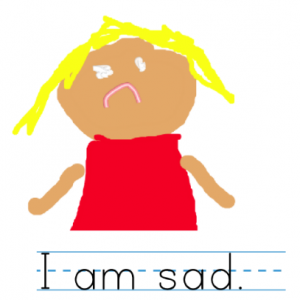
First graders at Holladay Elementary have been learning how to identify characters’ feelings in stories they read, using the illustrations and context clues (SOL1.9). Today students in Ms. Sokolowski’s and Ms. Shelly’s classes drew illustrations of characters showing feelings and wrote sentences about them. Ms. Shelly’s class used ABCYa! Storymaker for this project. First they painted a character’s face showing happiness, sadness, fear, anger, or some other emotion. Then they typed a complete sentence about the character. We saved the images as PDF files and uploaded them to a Padlet, that you can see here. Ms. Sokolowski’s class used StoryboardThat for their project. StoryboardThat is a website for creating comics. The students made a 3-panel comic with three characters showing different emotions. I showed them how to use the “Edit Pose” button on each character to change their facial expressions and poses. Then we added speech bubbles, or “Textables,” and typed sentences about their emotions. We took a screenshot of the comics to save them and uploaded them to a Padlet as well. You can see their projects here (some of the situations they illustrated are quite humorous!


3rd Grade Elapsed Time Comics

Third graders at Varina Elementary have been learning about elapsed time in one-hour increments (SOL3.11b). Today, students in Ms. Long’s class created comics to show their own elapsed time math problems. First we discussed different situations that take several hours, like a sports game, a special event, or traveling. Each student thought of an idea, then we opened a 3-panel comic in StoryboardThat. I showed them how to add a background scene to each frame and how to use the “Edit Scene” button to change things in the background. Next we added characters, customized their hair and skin colors, and changed their poses and facial expressions with the “Edit Pose” button. Finally we added speech bubbles to each frame: the first one told the starting time, the second one told either the ending time or the duration (like 2 hours), and the last one asked a question about the elapsed time. We took a screenshot of our comics and posted them to Google classroom. Students answered each others’ questions in the comments. You can see all their comics here.


2nd Grade Habitats & American Indians Comics

Second graders at Laburnum Elementary have been learning about animal habitats in Science (SOL2.5b) and American Indian tribes in Social Studies (SOL2.2). Today they could chose an animal or one of the three tribes (Powhatan, Lakota, and Pueblo) and create a comic with three facts. We used StoryboardThat to create the comic. First we added the background scenes. There were pictures of almost every kind of habitat for the animals, as well as pictures that look like the Eastern Woodlands, Great Plains, and southwestern desert for the tribes. I showed how they could click “Edit Scene” to change the weather in the picture. Next we clicked the “Characters” tab at the top and clicked “1600s to 1800s” for pictures of the American Indians or the “Animals” tab to find pictures of the animals they needed. The characters also have an “Edit Pose” button that allows the students to customize their poses and expressions. Finally we clicked the “Textables” tab at the top and added speech bubbles. In each speech bubble the students wrote a complete sentence with one fact (such as the animal’s habitat or the Indian’s home). We posted them to Google classroom, but you can see them all here.