Tag: GoogleDocs

4th Grade Fire Safety Diagrams
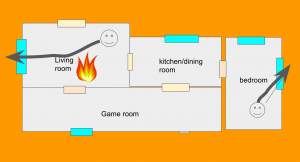
October 9-15th is Fire Prevention week in memory of the famous Chicago Fire on October 9th, 1871. Fourth graders at Trevvett Elementary had a visit from the fire truck today, and students in Ms. Harlow’s class created digital fire escape floor plans for their homes. First we discussed the importance of creating a plan for everyone in your family to get out of a burning house and the need to practice different scenarios where the fire may be blocking an exit. I explained that a creating a floor plan with arrows for directions is a good place to start, like the fire escape diagrams hanging in each classroom. There are a couple of websites students can use to create fire escape routes such as The Burn Institute and The Fire Escape Planner. They could even design 3-D models of their home with Planner5d, Homestyler, RoomSketcher, or HomebyMe. However, I needed to show them how to make Google slideshows, so we created our fire escape plans using Google slides. I made a blank Google slides template and shared a copy with each student in Google classroom. On the first slide we clicked the “Background” button and searched for a picture of fire to use. Then we added a title and our names in a font, size, and color of our choice. I showed them how to add a new blank slide by clicking the arrow next to the “+” button in the top left corner. On this slide we created the floor plan of our house using the shapes tool. We used rectangles for the rooms, doors, and windows. Then we used the text tool to add labels to each room. Many students used the smile shape to add their family members, but I explained that they could also do a Google image search for a “person icon.” I pointed out that adding “icon” to their search would provide simple drawings with transparent backgrounds. We used that strategy to search for a “fire icon” and added a fire to the house, blocking an exit. Then students used the arrow tool to show how the people would escape. I showed them how to change the thickness and color of the arrow using the buttons to the right of the arrow tool. Finally we published our slideshows (File > Publish to the web) and pasted the links to Google classroom. You can see their projects here.
3rd Grade Comparing Rules & Laws

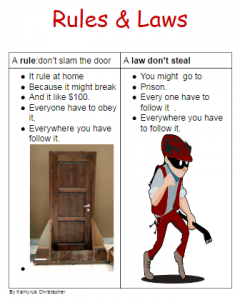
captureThird graders at Trevvett Elementary have been learning about the difference between rules and laws (SOL3.10a). The teachers developed a project as an alternative assessment where the students create posters comparing rules and laws, so today Ms. Hufnell’s students made digital posters using Google docs. Some of the students worked with a partner while others worked individually. First I made copies of a blank Google doc for each student in Google classroom. I showed them how to create a fancy title by changing the font, size, and color. Then we inserted a 2×2 table. In the first row, students wrote the rule and the law that they chose. I showed them how to make the important words bold. In the second row students described the rule and law, and I showed them how to make bullet points. Finally, the students clicked Insert > Image > Search and searched for images that reflected the rule and and law they chose. We published our posters to Google classroom so everyone could see them. You can check out some of their projects here.


3rd Grade Animal Adaptations

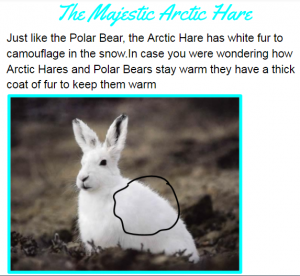
captureThird graders at Varina Elementary have been learning about animal adaptations in Science (SOL3.4) and writing for a variety of purposes in Language Arts (SOL3.9). So today students in Ms. Lanham’s class wrote about animal adaptations using Google docs. This was my first lesson with them, so I wanted to introduce them to Google classroom and the basics of word processing. First I posted a blank Google doc template to Google classroom and set it to make a copy for each student. I instructed them to choose an animal they were curious about and do a bit of research in another tab. A good way to get some quick facts is just to type the name of the animal and “adaptations” into a Google search. We discussed the importance of putting the information in their own words and not plagiarizing. Then we went back to the Google doc and typed a creative title. I showed them how to change the font, size, and color of their title. Next they wrote a few sentences about some of the adaptations their animal had to help it survive. Finally, instead of simply adding a picture of the animal, we clicked Insert > Drawing so we could circle or otherwise point out the various adaptations seen in the image. When they were finished, the students published their writing and posted the links to Google classroom. You can read all their animal reports here.


4th Grade Bordering States Place Value

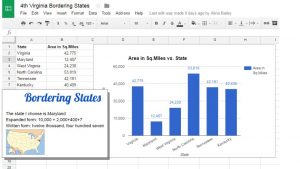
border-place-valueFourth graders at Holladay Elementary have been learning about the bordering states in Social Studies (VS.2a) and place value in math (SOL4.1a). Today students in Ms. Zimmerman’s class found the place value of the sizes of the bordering states. I posted a template to Google classroom that you can download here, and I set it so that all the students could edit it. Then I instructed them to research and find out the size of each state. The first student to find the answer wrote it in the correct cell (I explained that it’s like a race, but if they see a color in the cell, that means someone else is already in that one). We discovered that the quickest way to find the answer is to Google “size of [state name].” The template automatically creates a graph of the data. You can see their finished graph here. Next they opened a blank Google doc and selected a bordering state to write about. I showed them how to import the graph (Insert > Chart > From Sheets), and they wrote the area in written form and expanded form. You can take a look at a student sample here.


5th Grade Scientific Method

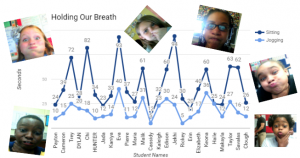
captureFifth graders at Varina Elementary have been learning about the scientific method in Science (SOL5.1) and nonfiction text features in Language Arts (SOL5.6a). To reinforce those concepts, students in Ms. Rumans’ and Ms. Gallahan’s classes conducted a quick experiment and wrote about the scientific method they followed, including some nonfiction text features. First I made a copy of a blank Google doc for each student in Google classroom. I usually like to review word processing skills for my first technology lesson. I showed them how to add a title and change the font, size and color. Then we wrote about our experiment using the vocabulary words we have learned: hypothesis, independent variables, and dependent variables. I demonstrated how to make the important words bold (a feature of nonfiction text). Next we opened this template (I changed the Share settings to “Anyone with the link can edit”) and each student typed their name in column A using the row with their student number. First we timed how long we could hold our breath while sitting quietly using Google stopwatch (just do a Google search for “stopwatch”). Then we ran in place for a minute and timed how long we could hold our breath. Students recorded their times in columns B and C. The template automatically generates a line graph. After collecting our data, the students went back to their own Google docs and clicked Insert > Chart > From Sheets. They navigated to the spreadsheet we just completed and clicked on the graph. Finally we added a photo of ourselves holding our breath by clicking Insert > Image > Take a snapshot. I linked their individual documents to their names on the spreadsheet. You can check out Ms. Gallahan’s class results here.


1st Grade Coin Values

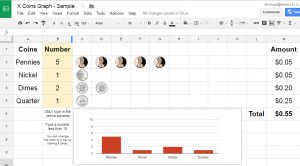
CaptureFirst graders at Laburnum Elementary have been learning how to find the value of coins up to $1.00 (SOL1.7b) and understand picture graphs (SOL1.14). Today students in Ms. Wingfield’s class practiced these skills using Google docs. First, to review the values of the coins and picture graphs I gave them a spreadsheet that you can copy here. Students can enter a number of coins (less than 10) in the colored squares, and the spreadsheet automatically generates a picture graph and provides the value. You can see a sample here. Once the students had experimented with the spreadsheet, they opened a Google slideshow template that I posted to Google classroom (you can make a copy here). They typed their name on the first slide, and on the second slide they had to type an equivalent coins statement (like “5 pennies = 1 nickel”). Then they could make copies of the coin images they needed to show their equivalence, and they could delete the ones they didn’t need. You can see a sample here.


5th Grade Shapes & Angles

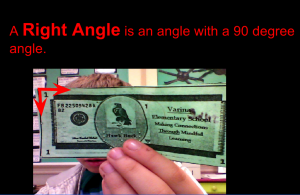
CaptureFifth graders at Varina Elementary have been studying angles (SOL5.12) and plane figures (SOL5.13), so today students in Ms. Parker’s class created slideshows about shapes and angles found in real life. I posted a blank Google slideshow template in Google classroom and made a copy for each student. For the title page we searched for a good background image to represent shapes. On subsequent slides, the students wrote sentences about angles and shapes, typing the important words in bold. Then they clicked the image button and either took a photo with the webcam or searched for an image online representing the geometric concept. Next they clicked the Shapes button and added arrows or shapes to highlight the relevant part of the image. The students also added transitions and animations to their slideshow. We only had time in class to make the first slide, but the students went on afterwards and added additional slides. You can see them all here.


2nd Grade Menus

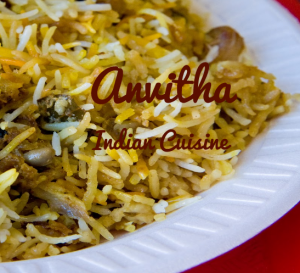
CaptureMs. Jefferson at Davis Elementary emailed me with a project idea she had for her class: “I would like for the kids to create menus. One of our language arts sols includes real world reading, so on Wednesday the kids will start creating menus for a pretend restaurant. We will also include math by using prices for items written correctly using the dollar sign and decimal point or the cent sign. When you come on Thursday, the kids should be ready to use their drafts to create on the computer.” This was a great idea, and I really like how it included elements of both language arts and math. I created a simple Google slides brochure template with a line down the middle of the slide for the menu fold. I gave a copy to each student on Google classroom, but only one student in each group opened the slideshow so they could all be on the same document. First I showed them how to add a Background image. I explained that the image shouldn’t be too distracting from the text. Food closeup photos work well, but images with lots of different types of food are distracting. Next the students added a title with the name of their restaurant and a subtitle with their names or a description of their cuisine. Davis is a multicultural school, so there were many ethnic restaurants. The second slide was the inside of the menu, so I showed the students how to add a table for the foods and the prices. They also added some images of the dishes they served. Finally, we published our menus to the web (File > Publish to the web) and pasted the links to Google classroom. You can see them all here.


3rd Grade Water Cycle Slideshow

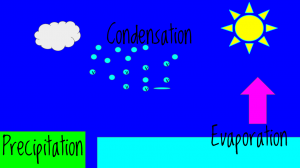
CaptureThird graders at Laburnum Elementary have been learning about the water cycle (SOL3.9), so today students in Ms. Tyler’s class created animated water cycles using Google slides. First we looked at a sample animated water cycle to review. I posted a blank slideshow template in Google classroom and set it to make a copy for each student. On the first slide we clicked the Background button and searched for a good image to represent the water cycle (clouds, ocean, rain, etc). We added a title and our names, changing the font, size, and color to coordinate with the background image. Next, we added a new slide and changed the Background color to a sky blue. We used the shapes tool to place blue and green rectangles at the bottom for the ocean and land. We also used the shapes tool to add an arrow, a sun, a cloud, and a circle for a rain drop. I showed them how to change the border thickness and color of each shape. Once we got the raindrop looking the way we wanted, we copied and pasted it multiple times until we had a bunch of rain drops. Then we grouped them together by dragging across all of them and clicking Arrange > Group. Finally, we added text boxes to label each part of the water cycle (evaporation, condensation, and precipitation). To animate the water cycle, we clicked on the background and then clicked the Transition button at the top. Each object in the picture had to be clicked in the order it was supposed to appear, and we added an animation to it. When the students were finished, they clicked File > Publish to the web and copied the link. We posted them to Google classroom so our classmates could see the, but you can see them here.


5th Grade Sound Slideshows

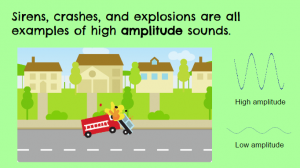
CaptureFifth graders at Holladay Elementary have been studying sound (SOL5.2), so today students in Ms. DiMatteo’s class created Google slideshows about two characteristics of sound waves: frequency and amplitude (SOL5.2b). First we explored these topics with various interactive websites. With the “Wave on a String” website, students can create their own waves and adjust the frequency and amplitude. With the “Virtual Oscilloscope” students can turn on their microphones and actually see how different sound waves look on the oscilloscope. With the “Oscilloscope & Sounds” website students can press different keys on a piano to see how the pitch is reflected in the frequency. They can also adjust the volume slider to see how that affects the amplitude. I suggest turning both of the dials to #1 at the beginning so the sound waves are big enough. The last site we explored is another virtual oscilloscope that lets students experiment with changing the pitch and volume. Now the students were ready to create their slideshows. I posted a template on Google classroom that you can copy here. On the cover slide, we clicked the Background button and searched for an image having to do with sound. We also typed our names in the blank. The next slide is about frequency, so I instructed the students to think of an animal or object that makes a high or low frequency sound and create an animation using ABCYa!Animate to illustrate it. We exported our animations as GIF files and added them to our slide. On the last slide we went through the same process, but this time, illustrating amplitude. Unfortunately we ran into problems with the animations only playing once and then disappearing. For this reason, I have no student samples to share, but I figured out a solution. You can upload your animation to EZGIFMaker, press the “Animate It” button, and download the newly created GIF file. That webtool also lets you delete frames that had mistakes. You can take a look at my sample here. P.S. If you are studying sound, be sure to check out our very own Matt Caratachea’s awesome sound video!