Tag: animation

4th Grade Animated Revolutionary War Heroes
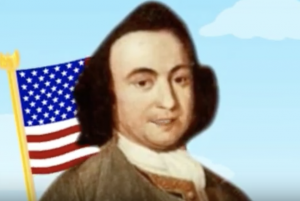
Fourth graders at Trevvett Elementary have been learning about Revolutionary War heroes like Thomas Jefferson, George Mason, Jack Jouett, and James Armistead Lafayette (VS.5, VS.6). Students in Ms. Adamonis’ class have each chosen a person to research and have prepared a written speech for the person describing his life and actions. Today we took their speeches and created animated faces using SitePal, so it looks and sounds like the famous heroes are actually talking. First we did a Google image search to find an image of the person. The best images are the ones where the person is facing forward. For people who don’t have a portrait online (like Jack Jouett) we searched for a Revolutionary War era/colonist costume model. Next we uploaded the image to SitePal (click Demo > Classic Demo > 3D > Create Your Own) and followed the directions to mark the eyes, nose, ears, chin, and mouth (this is important for the animation to look realistic). Then we clicked the “Audio” button and chose “TTS” (Text to Speech). We either copied and pasted our speech from our original document or typed it in the box. We chose a voice and an accent, then previewed it to be sure everything sounded correct. SitePal really helps with punctuation and spelling because you can hear right away when something isn’t right. Finally we used Screencastify to record our video and save it to our Google drive. We posted the links to Schoology, but you can take a look at some student projects here.

2nd Grade Magnet Animations

Second graders at Laburnum Elementary have been learning about magnets and how opposite poles attract and like poles repel (SOL2.2). Today students in Ms. Jones’ class created magnet animations using ABCYa!Animate. First I explained how animation works (it’s a series of still pictures that are viewed rapidly so it looks like objects in the pictures are moving). I also explained that their animations would show magnets attracting to and repelling from each other. Most students chose to draw bar magnets, but they could also have drawn horseshoe magnets. They knew to paint the north pole red, and the south pole could be any color (traditionally, it is blue or grey). We used the “Text” tool to add an “N” and an “S” at the respective poles. After they drew their first magnet, we grouped it together so we could move it as one object. Then they drew their second magnet with the opposite pole facing the first one. We grouped that one together as well. Next we used the “Copy Frame” button to copy our picture and move the magnets a little closer to each other. We also typed the word “Attract.” We continued copying the frames and moving the magnets closer to each other until the opposite poles touched. Now it was time to show “Repel.” I taught them how to flip the magnet around so like poles were facing each other (put the cursor in the corner of the magnet and click and drag the curly arrow that appears). We typed “Repel,” and copied the frames, moving the magnets further apart in each frame. Finally clicked the “Loop” button so the animation played over and over, then we exported it as a GIF. We shared our animations on Google classroom, but you can see them all here. (UPDATE: I taught a similar lesson with Ms. Ernst’s class and posted them to a Padlet).


3rd Grade Matter Animations

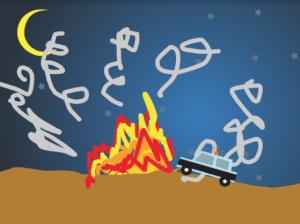
Third graders at Trevvett have been learning about how matter undergoes physical and chemical changes (SOL3.3). Physical changes don’t change the type of matter, like breaking, cutting, or melting. Chemical changes change the type of matter, like burning, cooking, and rusting. Today students in Ms. Robinison’s class used ABCYa! Animate to create animations showing physical or chemical changes. First we brainstormed different types of changes they could illustrate so that we had a variety. I showed them how they could add a background image if they wanted. Next we used the paint tools and the “Images” library to create our first picture. I explained how to group objects together so they would move. Then we copied the frame and students added motion. Some showed change by adding additional parts or erasing parts of their first image. We continued copying and changing the frames until we had a complete animation of the process. Finally we uploaded our animations to an album in Schoology, and the students added comments to each others’ pictures, identifying the type of changes. You can see all their animations here.


5th Grade Figurative Language Animations

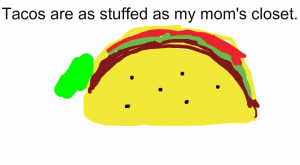
Fifth graders at Trevvett Elementary have been learning about different types of figurative language such as simile, metaphor, hyperbole, and personification (SOL5.4d). Today students in Ms. Capano’s class created animations to make figurative language sentences come to life! First we shared examples of figurative language that they had heard before. We brainstormed different ways you could illustrate the literal meaning of well-known phrases, like “faster than a speeding bullet” or “slow as a turtle.” I explained that today they needed to create their own sentence with figurative language. Then we would make an animated GIF that flashed back and forth between the literal and figurative meaning of their sentence. We went to ABCYa! Animate to create the animation. We used the text tool to type our sentence, and I showed them how to use the drawing tools to illustrate it. Next we clicked the copy cat button and changed the picture to show the literal meaning. When we were finished, we saved our animations using the export button and uploaded them to a Media Album in Schoology. You can take a look at their finished animations here.


1st Grade Equality Animations

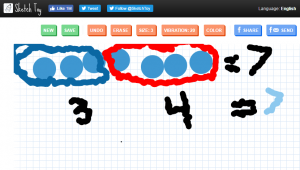
First graders at Trevvett have been learning about equality (SOL1.18), so today students in Ms. Lang’s class created equality animations using Sketchtoy. Sketchtoy is a cool web tool that replays whatever you draw, letting you watch the whole process in fast speed. It’s great for showing the steps in solving a problem or illustrating a scientific cycle (like the water cycle or a life cycle). First I showed them how to select a large size pen and a color of their choice. They drew a row of dots, making as many as they wanted, as long as the total number of dots was under 18. Next we selected a smaller pen size and and wrote “=” and the total number of dots. Then the students chose a new color and circled a portion of the dots, writing the number of dots they circled underneath. Finally, they chose one more color, circled the remaining dots, and wrote that number beneath. They also wrote “=” and the total of the two groups. They added some animation (probably their favorite part), and we saved it by clicking the save button. When you save in Sketchtoy, it gives you a link to share. We copied the students’ links and pasted them into a Padlet so they could watch each others’ animations. You can see them all here.


5th Grade Animated Rock Cycle

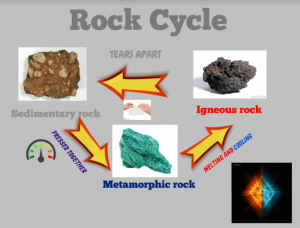
captureFifth graders at Trevvett Elementary are currently studying the rock cycle (SOL5.7a,b), so students in Mr. Hilton’s class and Ms. Catlett’s class created animated rock cycles using Biteslide and Gickr. First we went to Biteslide to design the rock cycle diagram. Biteslide is a paid site, but you can use the Demo for free (click “Try Demo”). It’s great for designing posters, diagrams, and slideshows because it has built-in templates, clip art, and a filtered Google image search. Students added a background image and a title. Then they searched for images of metamorphic, igneous, and sedimentary rocks and labeled them. Next they added arrows with explanations describing how rocks change from one form to another. I gave them a tip for finding pictures with no background by adding “icon” to their search (“fire icon” for example). Once their diagrams were complete, we took screenshots of them using the Snipping Tool. To prepare for the animation, we deleted parts of the diagram in reverse order and continued taking screenshots until we just had the first rock type left. Finally we uploaded our screenshots to Gickr which created an animated .gif file of our diagram. You can see all their diagrams here.


Techapalooza 2016

captureEvery August we host an elementary technology conference here in Henrico, Virginia. This year it was called Techapalooza, and it had a music festival theme. We had a full day of presentations by fantastic educators sharing how they use technology in their classrooms. There were also food trucks, great door prizes, and DJs spinning tunes. It was a great day all around! You can check out the conference blog here, and if you join the G+ community, you’ll find links to most of the presentations. I presented on two topics. First I shared examples of how teachers and students have created their own videos, animations, and music using free, easy-to-use webtools. It was called “EDM: Educators Doing Multimedia” (since EDM, Electronic Dance Music, is often heard at music festivals). My second presentation was about using student response webtools in the classroom. There are several sites that give you live feedback from assessments, and some of the sites provide practice with TEI (technology-enhanced item) questions, similar to those found on recent standardized tests. You can explore the tools I shared here: “PLUR: Processing Live Uploaded Responses” (since PLUR–peace, love, unity, respect–is the music festival mantra). If you couldn’t make it to our technology conference this year, come out next August!


4th Grade Moon Animations

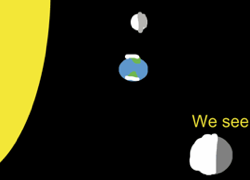
Screen Shot 2016-05-01 at 3.19.41 PMThe phases of the moon give us a beautiful calendar in the sky, but sometimes that calendar is difficult to read. Is the first quarter when the right or left side is lit up? Is the moon waxing or waning? Answering these questions takes a bit of perspective, and that’s why animation is an excellent way to broaden students’ understanding of these processes, especially if the students create the animation themselves. Third graders at Varina Elementary used ABCYa! Animate to create animated .gifs of four moon phases: (1) new moon, (2) first quarter, (3) full moon, and (4) last quarter (SOL3.8a). In order to be accurate, the students had to do some research. They had to find out which direction the moon orbits the Earth and what the moon looks like from Earth at different positions. Once they had their facts, they illustrated the position of the Sun, Earth, and moon for each phase, showing what we see from our perspective here on Earth. Next they exported the four images as one animated .gif file. Then they posted their animations to Google classroom with a question for their classmates to answer. After watching each other’s animations and answering each other’s questions, these third graders have a much clearer understanding of how the moon phases happen and the order in which they occur. This was actually submitted as an H21 lesson, which means you can download the lesson plan here. Student samples: Layla Obey and Erin Hardin.


4th Grade Electric Circuits

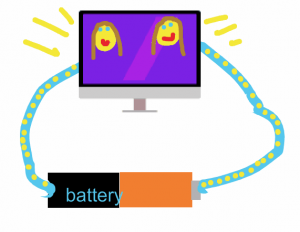
CaptureFourth graders at Varina Elementary have been learning about electricity and circuits (SOL4.3), so today students in Ms. Burcham’s class created animated circuits. First we discussed the parts of a circuit. To keep things simple for the amount of time we had, we limited our circuits to a power source for generating electricity (battery) and an object that converts the electrical energy into light, sound, heat, or motion. We left off the switch, but students could easily create other animations in the future with switches and additional parts. I posted a link to ABCYa!Animate on Google Classroom, and the first object we drew was the power source. I showed them how to use the shapes tool to draw a simple battery. We discussed the positive and negative end (the positive end is the part with the knob) and which direction the current would flow out of the battery so our animations would be accurate. When one student said it flows from positive to negative and another said it flows the opposite way, I said that they both were right, in a sense. The actual flow of electrons is from the negative end to the positive end, but when Benjamin Franklin and other early scientists wrote about electricity, before the electron had been discovered, they said that the flow was from the positive to the negative end. So that “current” was called “conventional current” because it was based on convention, or tradition. Many circuit diagrams show the flow of electricity according to convention, or from positive to negative, so that’s the way we showed it today. I also related it back to their force and motion unit (SOL4.2) by asking whether a battery has potential or kinetic energy. They were correct in stating that it has potential energy. Any resistor on the circuit, like a light bulb, slowed the flow of electrons due to friction. So now that their concepts were correct, they could draw the rest of the diagram. We drew the wire, making sure it connected to both ends of the battery so the electricity could flow, and we drew an object to be powered by the battery along the route of the wire. For each frame we represented the current by yellow dots along the wire. When the dots reached the object, we made it do something, like turn on or move. Then we continued the dots back to the battery. When we finished our animations, we exported them as GIF files and uploaded them to Google classroom with a question for our classmates to answer. You can see them all here (bonus if you can find the battery with no potential energy).


4th Grade Patterns

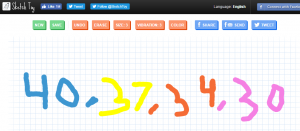
CaptureFourth graders at Varina Elementary have been learning about numeric and geometric patterns (SOL4.15), so today students in Ms. Thomas’ and Ms. Connell’s classes created patterns using a variety of webtools. Ms. Thomas’ class hadn’t used Google slides yet, so I wanted to show them how to make an animated slideshow. I posted a blank template on Google classroom and set it to make a copy for each student. When they opened their copy, each student clicked the Background button at the top and searched for a pattern image to use. Then they typed their title and name. Next, we created a new slide and chose a background color. I showed them how to add shapes and change the border and fill colors. They created their patterns with shapes, then I explained how to add a transition to each shape so that they appeared in order. When they were finished, we clicked the Share button and changed the privacy settings so that anyone with the link could view the slideshow. The students pasted their links to Google classroom so that their classmates could try to solve their patterns. Ms. Connell’s class had already made slideshows, so I showed them three webtools for animation: Parapara, SketchToy, and ABCYa!Animate. The students could choose which one they wanted to use, and they could use more than one if they had time. Parapara is good for quick, simple animations. Sketchtoy redraws anything you draw with cool vibrating lines. I’ve showcased ABCYa! Animate many times on this blog because it’s one of the best animation webtools for kids that I’ve seen. Ms. Connell’s class created both geometric and numeric patterns. You can see them all here.