Tag: video

4th Grade Virginia Regions Videos

captureFourth graders at Holladay Elementary have been learning about the regions of Virginia and their products (VS.10b) in Social Studies. Since Ms. Rivara let me know that she wants to do more video projects with her class this year, I taught them how to use WeVideo to create short movies about the regions of Virginia. First we got in self-selected groups, and each group discussed the region they wanted to do. One student from each group signed into WeVideo with their Google account. We switched from Timeline mode to Storyboard mode (using the 3 lines in the top left corner) to use a simpler layout at the beginning. We clicked on the Title slide and added the name of our region. Next I showed them how to use the red record button to record their introduction using the webcam. We added that to our video storyboard by clicking and dragging it. Then we searched online for pictures of our region and added those our video storyboard as well. I explained how to use the microphone button to record a voiceover, and we switched over to Timeline mode (using the 3 lines) so that we could adjust the duration of the photos to match our voiceover. Finally we clicked the Themes button and chose a theme with the effects and music we liked. When the students finished editing their videos, we clicked the Finish button, chose the 480 size to load it faster, and published it. Now we could copy our links and paste them to Google classroom so we could watch each other’s videos. You can see them all here. UPDATE 10/13/2016 Ms. Adamonis’ 4th graders at Trevvett did a similar project which you can see here.

Tags:


Reading Olympics Raps

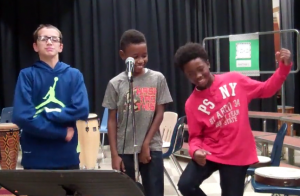
captureEvery year Ms. Teague, the librarian at Holladay Elementary, hosts a Reading Olympics competition for 4th and 5th grade students. The students have to read at least five books from the book list by March, then they compete in the Olympics by answering questions about the books with their teams. You can learn more about it on Mrs. Teague’s blog. It’s been very effective at getting the students engaged and excited about reading. In fact, this year, three fifth grade boys were so excited that they came up with the idea of creating a rap for the competition. They worked with the music teacher, Ms. Jones, and me to compose and record their rap. I showed them how to use ButtonBass to generate a good beat that matched their lyrics. Then Ms. Jones used a flip camera to record and edit their video. She published it on the school website, shared it on the morning announcements, and you can check it out here. Way to go, guys!


Tags:


Techapalooza 2016

captureEvery August we host an elementary technology conference here in Henrico, Virginia. This year it was called Techapalooza, and it had a music festival theme. We had a full day of presentations by fantastic educators sharing how they use technology in their classrooms. There were also food trucks, great door prizes, and DJs spinning tunes. It was a great day all around! You can check out the conference blog here, and if you join the G+ community, you’ll find links to most of the presentations. I presented on two topics. First I shared examples of how teachers and students have created their own videos, animations, and music using free, easy-to-use webtools. It was called “EDM: Educators Doing Multimedia” (since EDM, Electronic Dance Music, is often heard at music festivals). My second presentation was about using student response webtools in the classroom. There are several sites that give you live feedback from assessments, and some of the sites provide practice with TEI (technology-enhanced item) questions, similar to those found on recent standardized tests. You can explore the tools I shared here: “PLUR: Processing Live Uploaded Responses” (since PLUR–peace, love, unity, respect–is the music festival mantra). If you couldn’t make it to our technology conference this year, come out next August!


Laburnum Enters Local Video Contest

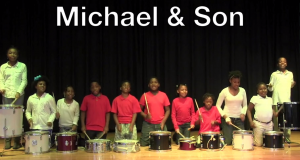
CaptureStudents at Laburnum Elementary have been working hard on a video for the annual Michael & Son Jingle Contest. Michael and Son is a plumbing/remodeling company that offers cash prizes to area schools that create a video featuring their jingle, “If you can’t we can, Michael and Son.” Ms. Allison, the music teacher at Laburnum, has been working with students after school on a drum line performance of the jingle. Today I filmed them and helped Ms. Alison with the submission process. The students did a great job performing, and they even dressed up in uniforms. You can watch their video here. The contest ends soon, so be sure to vote for Laburnum using the link above. I hope you win, Laburnum and Ms. Allison!


Tags:


5th Grade Sound Movie

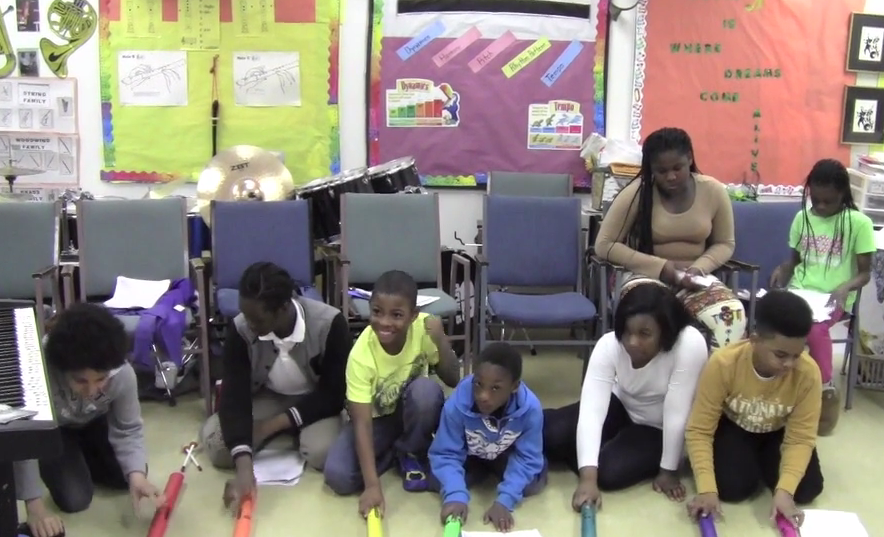
videoMs. Allison, the music teacher at Laburnum Elementary, wanted to make an educational music video with her fifth grade students. She knew they were studying sound (SOL5.2) in science, and she also knew that singing is an excellent way to improve learning and recall information (see also this article). So she wrote a song with lyrics that reviewed the various sound concepts such as wavelength, frequency, and amplitude. Then over a period of several weekly classes, the fifth grade students rehearsed the song, memorized their lines, and practiced playing different instruments. Today I filmed their performance, and they did a great job! You can see their final video here. The students enjoy seeing themselves on film and will watch the video repeatedly, which is a great way to review! If you’d like me to help with a video project in your class just let me know.


Tags:


4th Grade Famous Virginians Come to Life!

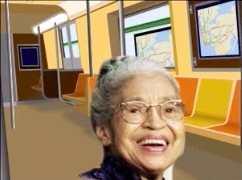
Screen Shot 2015-08-12 at 11.04.38 PMFourth graders at Davis Elementary have been learning about famous Virginians in the 20th century (VS.9d), so today we brought them to life with the magic of technology! First the students decided whether they wanted to work in groups or alone. This project, like any project that uses an online tool, goes a lot smoother if students are working in groups since less computers are using the bandwidth. Once they selected their group, they chose a famous Virginian and found an image of the person online. I explained that they needed a good clear photo of the person’s face looking straight ahead. Next we downloaded a screen recording Chrome extension called Screencastify. We would need this tool in the last step to record our videos. Now we were ready to go to SitePal where the real magic happens. We clicked “Create Your Own” talking avatar and uploaded the image of our famous Virginian. The site guides you through the process of animating the head. Then the students wrote a paragraph in the Text-to-Speech section with facts for the “talking head” to say. They also chose a voice. We used Screencastify to record the videos since there isn’t another way to save them. Finally they posted their videos to Google classroom so they could watch each others’. You can watch them too by clicking here.


4th Grade Review Videos

Screen Shot 2015-08-12 at 3.26.13 PMFourth graders at Davis Elementary have been reviewing for upcoming end-of-the-year tests, so today students in Ms. White’s class helped each other by preparing review videos on various topics. First the they decided whether they wanted to work in groups or alone. This project actually works better if most of the students are in groups since it is bandwidth intensive. Once they were with their groups, they agreed on a topic and did some quick research using the Internet and their class notes. They also collected images to use in their video. Next we went to WeVideo, which is a great site for making and editing online videos. The students signed in with their Google accounts and opened the movie editor. We used the storyboard mode, instead of the timeline mode, since it was simpler for their first video (click the 3 lines in the top left corner to switch from one mode to the other). They uploaded the images they collected and recorded a few clips of themselves explaining the topic. Then they organized their media in the editor, added a Title screen and captions, and selected a theme. Themes make it easy to add filters, transitions, and music automatically, but each of those effects can also be changed individually. Finally the students published their videos, copied the links, and posted them to Google classroom so they could watch each others’ movies for review. You can see some of them here.


5th Graders Rapping for Good Grades

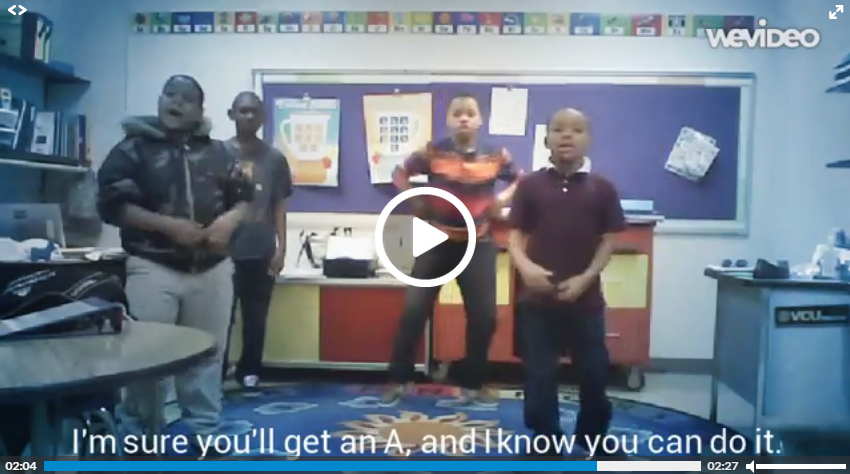
rapA group of talented 5th graders in Ms. Satterfield’s class at Laburnum Elementary have been writing their own rap songs to encourage students to make good grades and try hard in school. Using popular tunes like “No Flex Zone” and “Drop that Nae Nae,” they have rewritten the lyrics to promote a positive message. They have also choreographed dance moves to go along with each song. When they performed live for the entire school a couple of months ago, everyone loved it! I wanted them to be able to record a music video so we could keep showing their raps to the students even after they went on to middle school next year. So we used WeVideo to record and edit their videos. If you are missing the old Mac iMovie, you should try WeVideo. You can upload or record videos right in the app. Then you can add music, titles, and special effects. What sets it apart from iMovie is that you can collaborate with others on your projects since its online. Check out a couple of their songs here, and share them with your class!


Tags:


4th Grade Pixiclip Videos

Screen Shot 2015-06-01 at 10.21.20 AMFourth graders at Varina Elementary have been learning how to multiply 2-digit numbers (SOL4.4b), so today students in Ms. Burcham’s class created their own “how-to” videos explaining how they do it. As students create their videos, they have to break the process down into steps and explain each step. Not only is this valuable for the students, but it also helps the teacher see how the students are thinking each step of the way. They can identify exactly where in the problem solving process misunderstandings occur. Another benefit of creating “how-to” videos is that students can go back to the videos later if they need a quick review. We used a webtool called Pixiclip to record our videos. It’s a great tool that doesn’t require a login. You can record audio or video and you can draw, type, or upload files on a virtual whiteboard. First the students created their own multiplication problem to solve. I encouraged them to challenge themselves though, and not make it a simple problem. Next they chose the strategy they would use to solve it and recorded their steps. Those who finished early went on to make videos showing where the different people groups settled in Virginia (VS.4b), since they are studying colonial times in Social Studies. I gave them a map to use to save some time. We posted all our links to Google classroom, but you can see some of their videos by clicking here.


2nd Grade Animal Videos

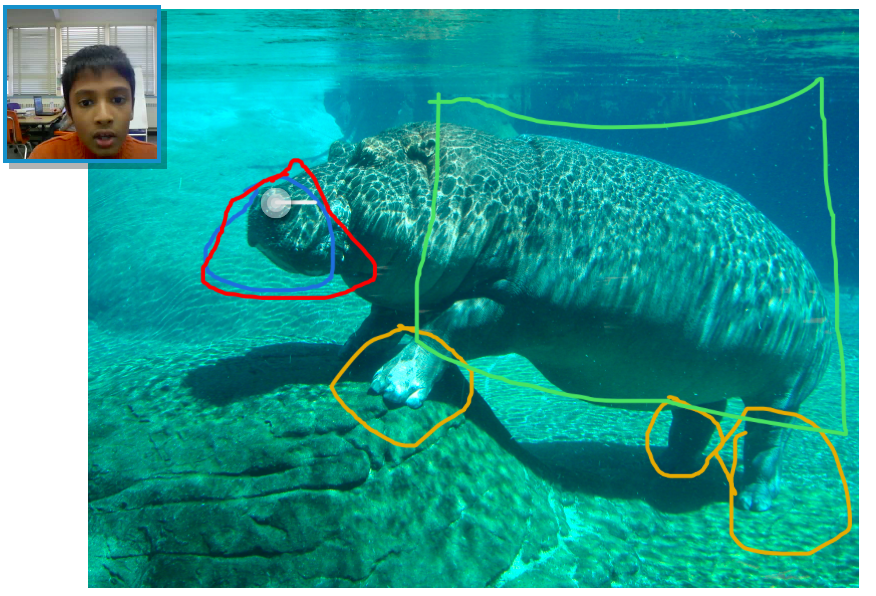
Screen Shot 2015-05-29 at 1.33.54 PMSecond graders at Davis Elementary have been learning about living systems (SOL2.5) and how animals’ adaptations help them survive, so today students in Ms. Jefferson’s class created animal videos using Pixiclip. Pixieclip is an online whiteboard where you can draw, type, or upload photos, and it records your webcam so you can explain what you are doing. The students first chose an animal they were interested in learning more about. We did some quick online research to identify the animal’s special features that help it survive. We also downloaded a photo of our animal. Next we went to Pixiclip and uploaded the photo. There are 3 choices: start doodling (no audio or video), add audio message, or add video message. I explained that they could choose to make an audio or video message, depending on if they wanted to be filmed. They dragged their photo to the whiteboard which triggers the recording to start. Then the students used the pen tool to circle special features on their animals and explained the function of each one. When they were finished, they posted their links to the Google classroom page so they could watch each others’ videos. I posted a few to a Google doc that you can see here.