Tag: webtools

3rd Grade Water Conservation Posters
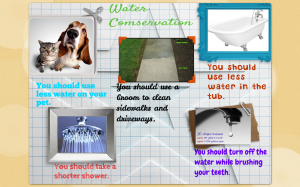
Tamia3Third graders in Ms. Tate’s class at Chamberlayne Elementary have been learning about water conservation (SOL3.6d, 3.9e). Today they made posters to hang around the school encouraging students to conserve water. We decided to make them online using a site called BeeClip so we could share them with others who don’t attend Chamberlayne. First the students decided which were the most important facts from their research to include on their posters. They typed them up using BeeClip’s text feature. Next they used BeeClip’s built in Google Image Safe Search to look for pictures that related to their text. Finally they selected some of BeeClip’s stickers to add decoration to their posters. In order to save the posters without having an account, the students had to take screenshots. Then we uploaded the screenshots to an online photo sharing site called CoMemories. You can see them all by clicking here. The projects turned out great, and the students were proud of their professional looking posters that will be displayed around the school.


4th Grade Class eBook

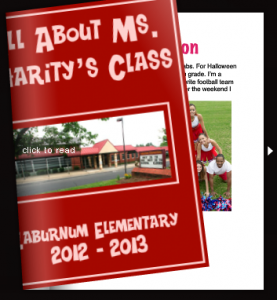
Picture 2Today 4th graders in Ms. Charity’s class at Laburnum Elementary created their own class eBook. You can create one fairly easily with your class as well! The cool thing about eBooks is that they can be read by anyone on almost any platform (computers, iPods, iPads, etc), and all you need is a word processing program (such as Word or Pages) and an Internet connection. We used Pages for this project. The students first typed a paragraph about themselves. I showed them how to change the font, size, and color of the title. You usually want to keep the main text in a common font because some devices will not display strange fonts correctly. Then they added a photo of themselves using PhotoBooth and searched the Internet for a picture of something else they had written about in their paragraph (which they highlighted in bold text). In order to publish their writings as an eBook, it must be a PDF document. So I combined them into one Pages document and saved it as a PDF (go to Print > PDF > Save as PDF). Then I uploaded it to FlipSnack which is a webtool for making eBooks or flipbooks. Flipsnack converts it into an online book that can be read anywhere and even embedded on a webpage (as you can see below)


5th Grade Journey to the Center of Earth

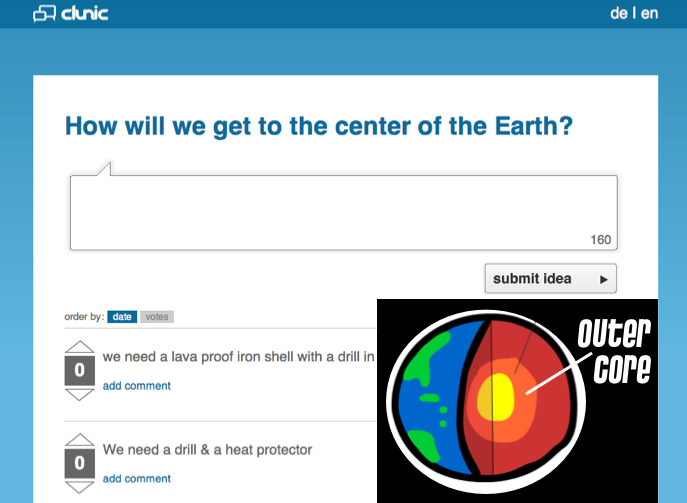
This summer, NASA sent the Curiosity rover to Mars, and their video explaining the process is amazing. You can view it here. Obviously, many of the skills we want to teach our students (critical thinking, problem solving, creativity, collaboration, communication, research, innovation, etc.) were involved in designing the rover and its transportation. Since 5th graders at Chamberlayne Elementary have been learning about the layers of the Earth (SOL 5.7), we tried designing a module for traveling to the center of the Earth. We had to figure out how to travel through each layer and what kinds of tools we would need to do the job without getting burned up or crushed. There are several sites students can use for research: Harcourt, Interactives, and a site I made. We started today by brainstorming ideas using a site called Clunic. Clunic allows anyone to share ideas and others can vote them up or down and make comments. You can see what we did by clicking here. After getting ideas and doing some additional research, students were going to get in groups and design a module. They could diagram it using online tools (like Kerpoof or DrawTo), or using programs on the computer (like Pixie or Keynote). They could even diagram it on paper if they chose. Then students could present their ideas by making a website using CheckThis or PageFin. I created a sample that you can see here.


4th Grade Virginia Regions BeeClip Posters

I’ve shared several ideas for projects your students could do about the regions of Virginia on this blog (search for “regions” in the search box). Here’s a new one we did today using BeeClip. One of the best things about BeeClip is the safe Google image search that is incorporated within the website. The students used that to find pictures of places, products, and industries for their chosen region. They could also upload photos that I provided for them. Then they added labels using the stickers and the text tool. Finally we entered full screen mode and took a screenshot to save it (Command + Shift + 3). Screenshots are saved to the Documents folder, so students can drag them from there to their own folders. If you would like your students to save their work online so they can keep working on it later, you would have to set up an account. Otherwise it’s free to use with no login required.


4th Grade Virginia Regions Maps

There are many technology projects your students can do to review the Virginia Regions: a video, a website, a rap, a Keynote slideshow, or even a comic. Today in fourth grade at Chamberlayne Elementary, we made interactive maps online. There are many free sites for creating maps, but here’s what we found when we tried out three of them. A really cool one by National Geographic is called MapMaker. Your students can draw on maps, measure distances, add symbols, and see overlays with interesting data like population and climate. However, we couldn’t get it to load in class. So next we tried AniMaps which also lets you draw on maps and add symbols, but we found it was too complicated for the students, and had some glitches like panning and zooming too rapidly. At last we had success with ScribbleMaps. The students were able to draw the regions on the map, add labels, and search a huge library of symbols to show the products and industries of the regions. What I like best about it is that it gives two links for saving. One allows you to go back and edit it (using a password instead of a login). The other link is for simply sharing your map. I included both links on a GoogleDoc with all the student maps. You can see that by clicking here. Take a look at a student sample, and notice that you can zoom in and out and click on the symbols. It was a great way for the students to review the regions!


3rd Grade “Guess Who” Game

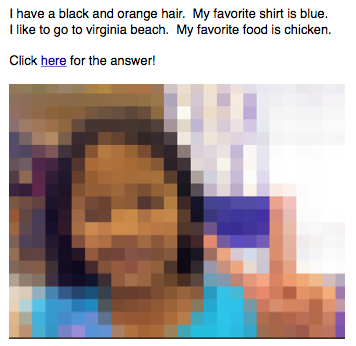
Today third graders at Laburnum Elementary created their own class “Guess Who” game to learn more about each other. First I gave them a Pages template that you can download by clicking here. It includes some bookmarks and links so that viewers can click and see the answer. Once students opened the template, they added a title using the Styles button. Next they typed four our five sentences about themselves. They could write about their family members, friends, pets, favorite foods, sports, etc. Then they took their picture using Photo Booth and uploaded it to a cool site called PicMonkey. PicMonkey is great because you can add cool effects to photos for free without having to register. We picked the Pixelate filter to make the picture extremely difficult to identify. I helped them take a screenshot of their pixellated photo and add it to the document. Then we added their real photo to the bottom of the document with their names. So when viewers tried to guess who it was based on the written clues and the scrambled picture, they could click on a link to reveal the true identity of the student. You can see how it works with this sample, and if you’d like to see them all, I converted them into an online flipbook that you can view here.


4th Grade “About Me” Posters

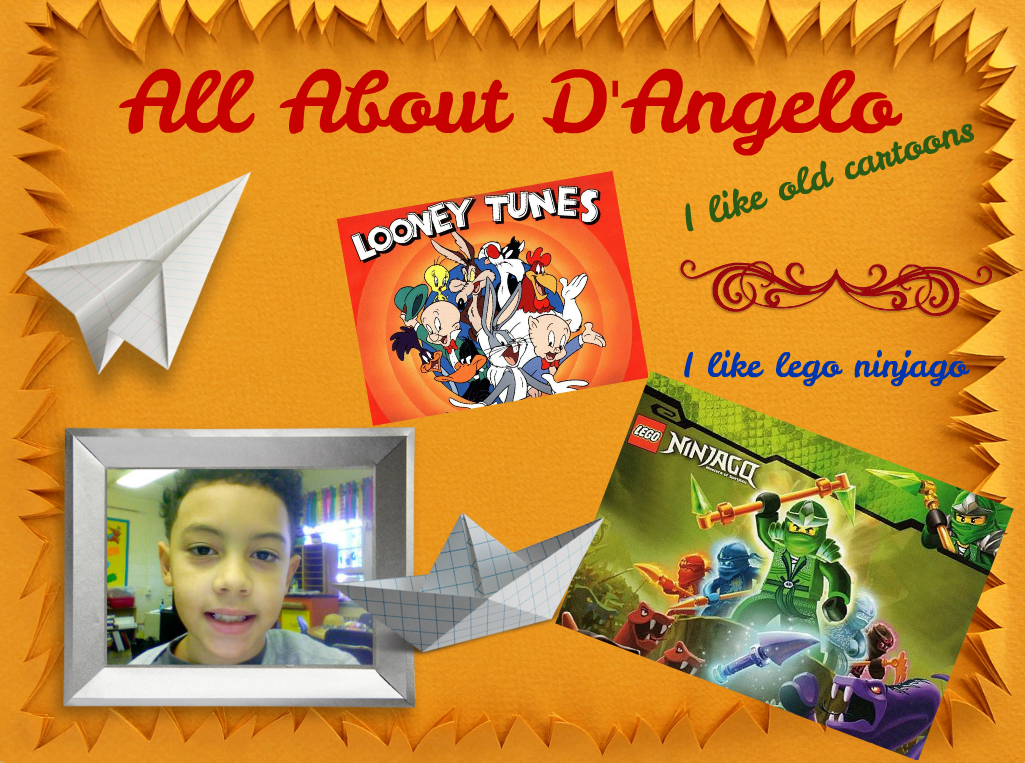
Here at the beginning of the year it’s always a great idea to give your students the opportunity to introduce themselves to you and to each other. There are so many different ways to do this type of project. We’ve done movies, comics, Keynote slideshows, and Pages documents. I’m always on the lookout for new ideas though, and I found a cool website called BeeClip that I wanted to try out with a class. Ms. Waggoner at Chamberlayne Elementary was all for it, so I went to her fourth grade class today, and her students had a good time making posters about themselves. This site is great because it doesn’t require a login to use it. Students can upload their photos, add text and stickers, and even search for pictures online with a built in safe Google image search. Once they created their posters we went to full-screen mode and took a screenshot of it (Apple + Shift + 3). Screenshots are saved to the Documents folder on student computers. Next I uploaded the posters to Comemories which is a great way to share photos instantly. You can see all the posters here.


New Sign Ups This Year

It’s the start of a new school year, and each year I need to find a new way for teachers to sign up for lessons with me. Usually what happens is the site I was using for free goes over to a pay format. This happened with Acuity and Genbook. Last year I used Check Appointments but that got blocked by our firewall this year for some reason. So I searched again for a new one, and I’m sharing what I found with you because you might like to set up an online sign up sheet for parent conferences. I use YouCanBookMe for teachers to sign up to use the COWs (Computers On Wheels). It works great and integrates perfectly with Google calendar (you can see an example here). You might like to try it for parent conferences, but I can’t use it for my lessons since it uses set time slots. I need flexible time slots so teachers can sign up for 30-, 45-, or 60-minute lessons. I thought I found a solution with TungleMe, which also works well with Google Calendar, but that was a bit too complicated. I finally settled on SetMore. It’s simple, it allows for flexible scheduling, and it’s free. The only downside is it doesn’t integrate with Google Calendar. But I like it. So to sign up for lessons with me, please use this link or you can just go to my homepage and click the “book now” button. Thanks, and I am looking forward to another great year of working with you and your students!


Kindergarten Summer Plans… with a Twist

I’m amazed at the opportunities technology provides for students to publish their work. Just a few short years ago the only way to publish your students’ work was to post it in the school hallways. Now students’ work can be easily published online for the whole world to see! I’ve been using Checkthis a lot lately with students because it is an incredibly simple way for them to publish a one page website with many advanced options such as adding pictures, videos, maps, and polls. I’ve used it from kindergarten to fifth grade. You can search my blog for checkthis to see some of the lessons I’ve done with it. Today I used it in kindergarten with two classes. They were learning how to write complete sentences with capitals and periods, and their assignment was to type a sentence or two about their summer plans. This is a typical end-of-the-year assignment, so we added a twist by showing them how to turn that into a website and add a picture of a sun (they could choose which sun picture to use, but we limited their search for the sake of time… plus “sun” was easy for them to spell). Then I collected their links together into one GoogleDoc that you can see here and here. Take a look at a few student samples and feel free to leave a comment: Jabne (she even had an animated sun), Kylie, Daniel, Adriana, and Ashley.


Making a Collaborative Map in 5th Grade

One of the great things about using Google Apps in the classroom is that students can collaborate on the same document at the same time. So partners could be writing in a Google Doc, entering data into a Google Spreadsheet, or making a Google Slideshow… together, even if they aren’t in the same class, or the same school! Today Ms. Lizotte’s fifth graders at Chamberlayne Elementary created a collaborative Google Map for their “Amazing Mail Race” project. Earlier this year they sent out letters to schools all over the USA and waited to see which schools replied. Here at the end of the year, they wanted to see all the different states where they received mail from displayed in one big map. So each student was assigned a letter/state to plot on the map. They chose an icon, marked the state, and wrote their name and where the letter was from. Then we embedded the map into a website created with CheckThis. You can see the website by clicking here. The map is interactive so be sure to click on the icons and zoom out, because they even received mail from as far away as Alaska! You could adapt this activity to your class by making collaborative maps about the explorers or Civil War battles or whatever else you are studying that can be displayed on a map. Let me know how I can help!