3rd Grade Explorers Spreadsheet & Map

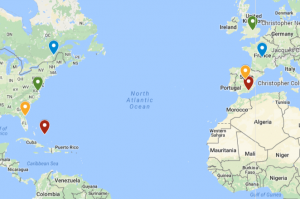
Third graders at Laburnum Elementary have been learning about the first European explorers in the New World (SOL3.5c,d). Today students in Ms. Burgess’ class learned how to enter data about the explorers into a spreadsheet and upload it into a Google map. I gave each student a copy of an “Explorers Spreadsheet” (you can make a copy of the spreadsheet here). The explorers’ names are already on the spreadsheet, but students had to do research to enter the remaining information – sponsor country, final destination, and length of trip. For the length of the trip, we first tried finding the mileage of the trip, but realized it was easier to find the length of the trip in days. We were surprised by what we discovered in our research because the lengths of the various trips were very different from our initial predictions. After we entered the data, we highlighted it all and clicked the graph button to make a bar graph. Next we went to “My Google Maps” and clicked the “Add Layer” button. We imported our spreadsheet from Google Drive and checked off “Sponsor” for the placemarks and “Explorer” for the label. Then Google maps automatically created the placemarks in the correct spots. To create an additional set of placemarks for the destinations, we repeated the steps above, but checked off “Landed” for the placemarks. Finally, students could customize the placemarkers by changing the colors and adding photos. You can see a sample spreadsheet here (they were all pretty much the same) and a sample map here.


Kindergarten Living & Nonliving Things

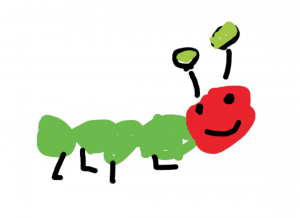
Kindergarten students at Holladay Elementary have been learning about living and nonliving things in Science (SOL K.6) and how to spell words phonetically to describe pictures in Language Arts (SOL K.12c). Today students in Ms. Ambrose’s class used ABCYa!Storymaker to draw and write about a living or nonliving thing. First we brainstormed a variety of things so that the students weren’t all drawing the same ones. Then they used the paint tools to draw a picture of the item they chose. This requires the students to practice clicking and dragging, which is an important computer skill. They also quickly learned how to use the undo button to fix mistakes (and we explained that, unfortunately, life doesn’t have an undo button). Next, we clicked the writing button on the side and a familiar-looking sheet of lined paper appeared on the screen. I showed them how to use Shift to make a capital letter, and we all typed the first word of our sentence, “I.” Then we typed “am a,” and the students finished their sentences with the name of their object, spelled phonetically. You can see them all here.


3rd Grade Animated Water Cycle

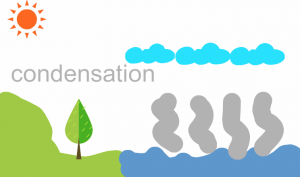
Third graders at Varina Elementary have been learning about the water cycle (SOL3.9), so today students in Ms. Cathcart’s class created animated water cycles using ABCYa!Animate. Before we got started, we reviewed the parts of the cycle and what was happening in each part: evaporation, condensation, precipitation, and runoff. On the first frame of our animation we painted a scene with water and land and typed the title. We duplicated the scene with the copycat button and added some evaporation. I pointed out that evaporation is actually invisible, but we had to show it somehow. On subsequent frames we continued adding parts to the cycle until we finished with water runoff from the land back into the sea. We clicked the Looping button so our animation would play repeatedly, then exported it as a .GIF file using the orange Export button. To share our animations, we uploaded them to a Padlet that you can see here.


5th Grade Midwest Region Comics

Fifth graders at Trevvett Elementary have been learning about the regions of the United States this year, and they are currently focusing on the Midwest Region. Today students in Ms. Adamonis’ class created comics about the Midwest using StoryboardThat. First, we spent a few minutes researching the Midwest (SOL5.9). I encouraged them to look for interesting facts that their classmates may not already know. Some key words to use in search engines are: midwest + interesting facts, fun facts, interesting places, landmarks, trivia, etc. We also discussed how to double check their facts and evaluate the reliability of websites, since we found some “facts” that weren’t true (like roller skates weren’t actually invented in the midwest as this site claimed). Next, the students chose three of the most interesting facts to illustrate in their comic. We went to StoryboardThat and created a new comic with three panels (one for each fact). I explained that they should create their comic like a storyboard for a tv show or a documentary. The students chose different backgrounds and characters and customized them using the blue “Edit” button. Then they added speech bubbles (textables) and typed the facts they discovered in their research. Finally, we took screenshots of our comics and uploaded them to CoMemories. We have been using Schoology albums to share our work, but we found that comics do not display large enough in this format, so that’s why we chose CoMemories instead. You can see all their midwest comics here.


3rd Grade Goods & Services Websites

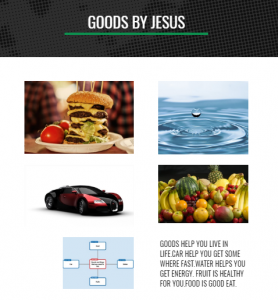
Third graders at Holladay Elementary have been learning about goods and services in Social Studies (SOL3.7) and main idea/summarizing in Language Arts (SOL3.6f,g,h). So today students in Ms. Edelblut’s and Ms. Howard’s classes practiced these skills by creating their own websites. First, we reviewed main idea/details using a web. The main idea is the center of the web, and the details are the branches. After several examples, we determined that knowing the main idea helps you summarize. Next, the students decided whether they wanted to make a website about goods or services. We used Popplet to make a main idea/details web for planning out our websites. We wrote a summarizing sentence about goods or services in the center, then provided examples of specific goods and services in the branches. I showed them how to change the colors of the bubbles and even draw images inside. We saved the diagram as a .JPG image (Gear > Export > As JPG File). Then we went to their Google drive and clicked New > More > Google Sites. We created a new Google Site and wrote the title, “Goods” or “Services” and their names. We uploaded our Popplet diagram, then typed a paragraph about our topic, using the diagram for guidance. We made sure the first sentence was the main idea or summarizing sentence. Then we wrote additional sentences for the details. Finally we added images of our specific examples (the details) and published our websites. We shared the links on Google classroom, but you can see them all here.


5th Grade Shapes with Google Drawings

Fifth graders at Varina Elementary have been learning about 2-D shapes: parts of a circle (SOL5.9), angles and triangles (SOL5.12), and plane figures (SOL5.13). Today, students in Ms. Shiew’s class used Google Drawing to illustrate a variety of these shapes. First we went to their Google drive and clicked New > More > Google Drawings. I showed them how to use the Shapes tool to create a shape then use the paint bucket to change the fill color. The students actually found a new feature I hadn’t seen before–you can now have a gradient fill! I also showed them how to use the line tool to create congruent markers on equal sides of the shapes or to add chord, diameter, or radius lines to the circle. They used the editing tools to change the color, thickness, and endpoints of the lines (and shape outlines). To label the endpoints, students used the text box tool and typed letters. Finally, we clicked File > Download As > PNG Image. I explained that one difference between PNG and JPG images is that the PNG image will have a transparent background. We shared our images on Google classroom with questions for our classmates to answer, like “What is the line AB on the circle?” or “What type of triangle is in my picture?” You can see all their shapes here.


Kindergarten Baby Animals

Kindergarteners at Trevvett Elementary have been learning about baby animals and how they look different from the adult animals, and sometimes they have special names (K.7d). Today students in Ms. Gouldman’s and Ms. Haskins’ classes created animated images showing a baby animal turning into an adult. First we brainstormed different kinds of animals and their babies so that we had a variety of ideas. There are also some great websites you can use to review: Cricket (match the baby to the adult), National Wildlife Federation (show what a baby will look like when it grows up), BBC (match the baby animal to its parents), National Geographic (baby animals memory), and Turtle Diary (help the adult find the baby). After our review, the students chose the animal they wanted to illustrate. Then we went to ABCYa! Animate, and I showed the students how to use the drawing tools to draw a baby animal. Next, we clicked the second frame at the top and drew the adult version of the animal. We slowed down the animation with the speed button and set it to loop so it would repeat (just like a life cycle). Finally we pressed the Export button to save it as a .GIF file and uploaded it to a Padlet so we could see everyone’s. You can take a look at their animations here.


2nd Grade Matter Comics

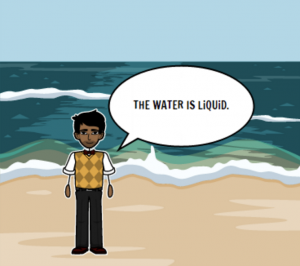
Second graders at Laburnum Elementary have been learning about the states of matter (SOL2.3), so today students in Ms. MacKenzie’s class created states of matter comics using StoryboardThat. First we reviewed different types of solids, liquids, and gases so everyone wasn’t doing the same ones. I’ve found that students are very creative when it comes to solids, but they need a little help thinking of different liquids and gases. I pointed out that anything that flows is a liquid: lava, honey, ketchup, even applesauce. For gases, we talked about the sun and the gas giants, as well as helium, oxygen, hydrogen, and more. Then we used the three-panel comic on StoryboardThat to illustrate the three types of matter. We clicked and dragged background scenes to each panel, then we added characters. I showed them how to use the “Edit Pose” button to change their poses and facial expressions. Finally we added the speech bubbles (textables) and typed a sentence in each one describing the state of matter shown. We used the snipping tool to take a screenshot of our finished comics and posted them on Google classroom. You can see them all here.


4th Grade Animal Research Websites

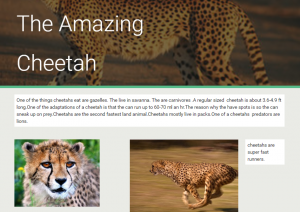
Fourth graders at Holladay Elementary have been learning about animal ecosystems in Science (SOL4.5) and measuring length in Math (SOL4.6). Today students in Ms. Rivara’s class researched an animal and created a website about it. First the students chose their animals (we made sure that there weren’t too many duplicates by brainstorming a variety). Next, I gave them some guidelines for their research: they had to find out the animal’s (1) habitat, (2) predators, (3) prey or diet, (4) length, and (5) an interesting fact. I showed them how to do quick Google searches to find the information they needed, such as “animal name + predators,” for example. There are also several great sites for researching animals: National Geographic Kids, Go Wild by WWF, A-Z Animals, and Arkive (more advanced reading, but lots of photos and videos). To create the websites we used the new Google sites. Students went to their Google drive and selected “New > More > Google Sites.” They added a title and found a suitable background header image. Then they added a text box and typed the facts they found in their own words (we reviewed the problems with plagiarism). For images, the students used the built-in Google image search to find copyright-free pictures of their animals. I showed them how to add a caption by double clicking next to a picture and choosing the text box option from the pop-up menu. Some students even added videos after class. Finally we published the websites and pasted the links to Google classroom. You can see them all here.


4th Grade Measurement Movies

Fourth graders at Trevvett Elementary have been learning how to estimate and measure length in both metric and U.S. customary units (SOL4.7). Today students in Ms. Town’s class created measurement movies using WeVideo. First we reviewed the different customary units of measurement from smallest to largest (inches, feet, yards, and miles), and we reviewed the metric units (millimeter, centimeter, meter, kilometer). Then I explained that they would create movies about the units with a partner or by themselves. Each group chose a unit until all the units were chosen. The students logged into WeVideo with their Google accounts and created a new video project. I outlined three main requirements for the video: (1) introduce themselves, (2) describe their unit of measurement, and (3) give examples of objects that would be measured by that unit. For the first two parts, students used the built-in webcam to record their video directly to WeVideo. For the third part, students had to do some research online and find images of appropriately-sized objects. They downloaded their images to the desktop, then imported them into WeVideo. Finally, we selected themes with music, and I showed them how to adjust the volume so the music wasn’t too loud. We published our videos and pasted the links into Schoology so our classmates could watch them and comment on them. You can see them all here.


Tags: