Tag: webtools

1st Grade Spring PowToons

Screen Shot 2015-08-12 at 2.42.19 PMFirst graders at Davis Elementary have been learning about the changes that happen in the weather, plants, animals, and people in the spring (SOL1.7), so today students in Ms. Long’s class created animated spring pictures using PowToon. First we discussed some of the changes that happen, and I showed them a few samples so they would get an idea of how a finished PowToon animation looks. Once they had their ideas, we helped them log into PowToon with their Google accounts and get started. First we changed the background and added text. I showed them how each element has it’s own timeline for when it appears and when it leaves. Next we looked through the various free clipart galleries and added some images that were spring related. The last step was to add a speech bubble and make one of the characters say a sentence about the spring. We copied the links to our finished PowToons and posted them to Google classroom so our classmates could watch our animations. You can see a few samples here.

4th Grade Interactive Plant Diagrams

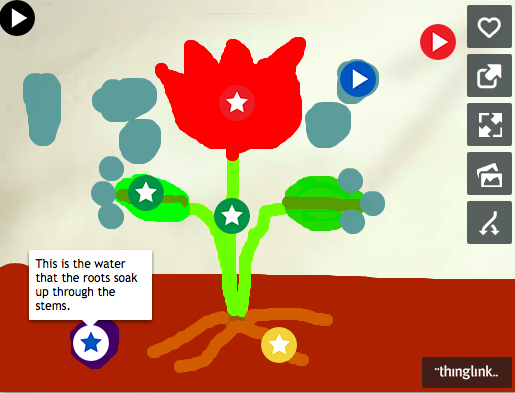
Screen Shot 2015-08-12 at 2.04.51 PMFourth graders at Davis Elementary have been learning about plant anatomy and life processes (SOL4.4), so today students in Mr. Cochran’s class created interactive plant diagrams using ArtPad and ThingLink. I usually use ArtPad in the lower grades, but older grades love it too, and it’s a great tool for creating a quick drawing. The students used ArtPad to draw their plant, then they used the snipping tool to get a screenshot of it, and they uploaded it to ThingLink. Next they added icons to label the parts of their plant. Each icon can be customized to show text, images, videos, and links that appear when a visitor rolls over the icon. The students wrote sentences describing the function of each part, and they also linked to the ArtPad replay of their drawing (since they really liked that feature). Finally they posted the links to their interactive diagrams on Google classroom so their classmates could see their work. You can explore a few examples here. I was impressed to see that some students went on afterwards and used ArtPad to draw maps of the regions of Virginia like this.


3rd Grade Economics Popplets

Screen Shot 2015-08-12 at 12.09.45 PMThird graders at Holladay Elementary have been learning about natural resources, capital resources, and human resources in economics (SOL3.7). Their benchmark tests also revealed that they need additional practice identifying the main idea and details in what they read (SOL3.5,3.6). Making a diagram is a great way to clarify main idea and details, so today students in Ms. Middleton’s class created business diagrams using Popplet. First the students decided what kind of business they wanted to have, and they created a bubble with the name of their business. I showed them how to change the color of the bubble and draw a picture. Then we added three bubbles connected to that bubble (click the little dots around the bubble to add connecting bubbles). We labeled them natural resources, capital resources, and human resources. We also drew a picture for each one and made the bubbles different colors. I explained that if we were going to write a paragraph about our business, those would be the main ideas for three paragraphs. Now we would add the details. Students added connecting bubbles to each type of resource with items from their business that pertained to that category. When they were finished, they downloaded their images and posted them to Google classroom so they could see each others’ work. You can take a look at some of them here.


Kindergarten Spring Math Pictures

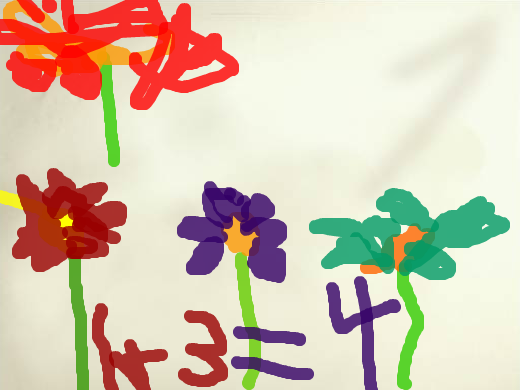
Screen Shot 2015-08-11 at 3.42.11 PMNow that winter is finally over, Kindergarteners at Holladay have been learning about the plants and animals of spring (SOLK.9). They’ve also been learning how to find one more or one less in math (SOLK.4b). So today students in Ms. Green’s class created spring math pictures using ABCYa!Paint. First we helped them log into Google classroom where I had posted the link to the website. Once there, I showed them how to add spring stickers or paint spring pictures like flowers or rainbows. They were instructed to only paint a small number of things. Next they saved their pictures and uploaded them to Google classroom. They also typed “one more” or “one less” with their post for their classmates to solve. Finally the students looked at each others’ pictures, counted the number of spring things, figured out one more or one less, and typed their answers in the comments. You can see their pictures and some of the comments here. UPDATE: I taught a similar lesson with Ms. Feldman’s kindergarten class at Davis. This time they used ArtPad and painted spring addition pictures. You can see those here.


3rd Grade Solar System Soap Operas

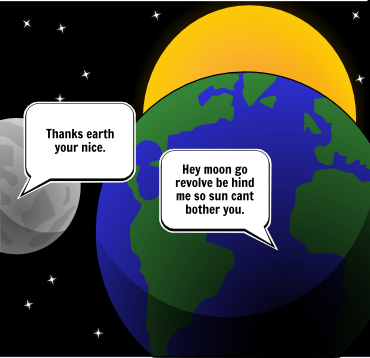
Screen Shot 2015-08-11 at 11.23.26 AMThird graders at Davis Elementary have been learning about the motions of the Earth, sun, and moon (SOL3.8a). They have also been learning how to identify the problem and solution in the stories they read (SOL3.5h). So today students in Ms. Eller’s class wrote solar system soap operas about problems and solutions that the Earth, sun, and moon might have. First we brainstormed some possible problems that they might have if they had personalities and could talk (personification). Next I explained that we would be creating a three-panel comic using StoryboardThat. The first panel would present the problem, the second panel would show them trying to solve the problem, and the last panel would present the solution. We signed into StoryboardThat with our Google accounts, and I showed them how to change the background of each panel using the Scenes tab. Then we added Characters. I explained that they could use the clip art categories to find images or they could search for a specific picture. Finally we used the Textables to create speech bubbles. I pointed out that this was the most important part. They had to be very careful about what they typed in the speech bubbles so that the problem and solution were clear. When they were finished, they pasted the links to their comments in Google classroom with a question for their classmates to answer. You can take a look at their comics here, and read some of the comments.


4th Grade Battlefield Fractions

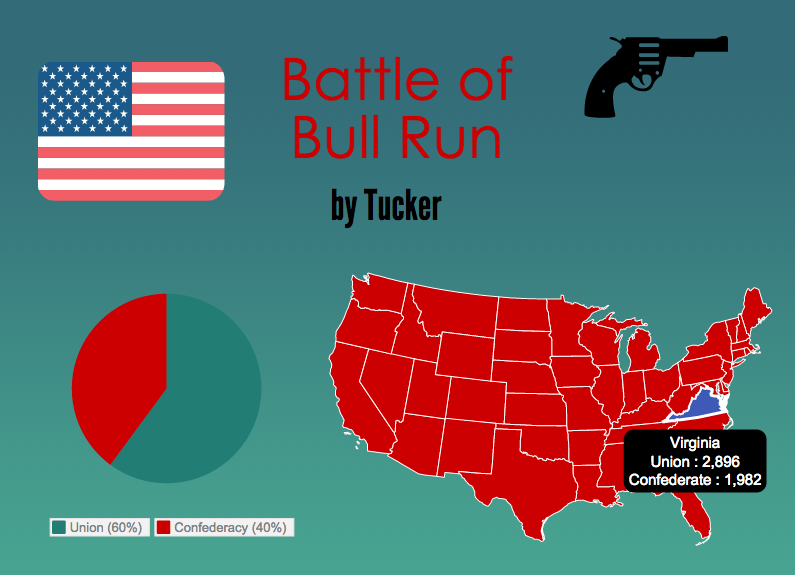
Screen Shot 2015-08-06 at 4.04.19 PMFourth graders at Davis Elementary have been learning about the Revolutionary War and Civil War battles fought in Virginia (VS.5c & VS.7b). They have also been learning how to compare fractions (Math SOL4.2a). So today students in Ms. White’s class compared the fractions of casualties in each battle to determine which battle was Virginia’s greatest victory. First students chose a battle they wanted to research. We used Wikipedia to quickly find the number of casualties on both sides. Next we went to Piktochart to create an infographic to display our findings. I showed them how to choose a template, add a title, and change the font, size, and color. Next we added a map of the United States (under Tools). They had to erase the data that was already in the map and replace it with the battle casualties data. Then they changed the colors for Virginia and the rest of the map. After that we added a pie chart showing the casualties (students had to type the data again and change the colors). I pointed out that they should try to limit the colors in their infographics to three or four colors. Last, they added some icons (under Graphics) to decorate their infographics. Finally we posted our infographics to our Google classroom page, and our classmates estimated and compared the fractions shown in the pie charts using the comments section under each infographic. After analyzing the fractions, we determined Virginia’s greatest victory. Which battle do you think it was? Take a look at some samples here. If you would like additional information about this lesson, including the lesson plan, you can find it on our county’s Henrico21 website. UPDATE: I taught a similar lesson in Ms. Burcham’s class at Varina, and you can see their infographics here.


3rd Grade Educational Coins

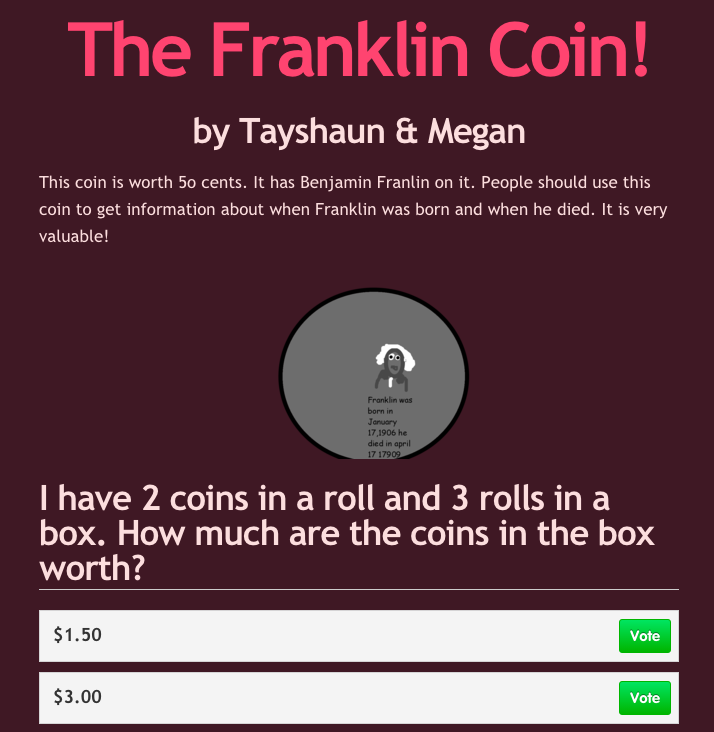
Screen Shot 2015-08-06 at 11.50.28 AMThird graders at Varina have been learning about money and multiplication in math (SOL3.8 & 3.2), so today students in Ms. Leo’s class designed their own educational coins and made up multiplication problems about them for their classmates to solve. First we discussed how the U.S. Mint designs new coins to sell and how, if people don’t like the designs, they won’t buy them. There are thousands of unused dollar coins sitting in vaults because no one wants them. I asked the students to guess the most popular coin (surprisingly, it’s the penny). Since they were also learning about the water cycle in science (SOL3.9), I told them to put something educational on their coins from science (water cycle, plant cycle, frog cycle, butterfly cycle, related to the circle shape of coin) or social studies (Greece, Rome, famous Americans, etc). They could either work with a partner or by themselves. Partners divided up the tasks, so one designed the coin using Pixie and the other designed a website about the coin using CheckThis. The website had to persuade people to buy the coin. Then they made a math multiplication word problems to explain how the coins are packaged and shipped out to banks (rolls of coins in boxes). Their sites were published to the classroom page, but you can take a look at them here.


4th Grade Facts & Opinions About Famous People

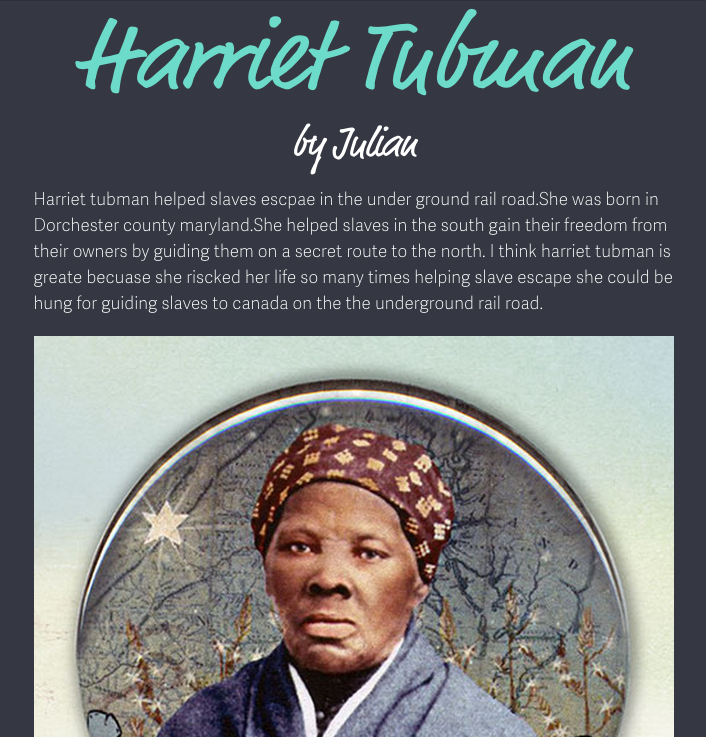
Screen Shot 2015-08-05 at 10.24.53 AMFourth graders at Holladay Elementary have been studying famous Americans from the pre-Civil War time period (VS.7), and their benchmark tests revealed that many of them needed help distinguishing between facts and opinions (SOL4.6h). This is a very important skill, since most propaganda and persuasive articles are a mixture of both facts and opinions. So today we created websites about the famous Americans that included facts and opinions, and our classmates had to decide how we were trying to persuade people to feel about the person. First I asked them to choose a famous American from the pre-Civil War era (John Brown, Harriet Tubman, Abraham Lincoln, or Nat Turner). Next we signed into CheckThis with our Google accounts. I showed them how to change the theme, colors, and fonts of the webpage. They researched their famous person online to gather some facts. Then they wrote a paragraph about him or her and added some opinions of their own. Next they added a photo of the person. Finally, each student wrote a poll question at the bottom of their site, asking their classmates to identify how they were trying to persuade their readers to feel about the famous American. You can take a look at some of their websites here.


5th Grade Northeast Region Thinglinks

Screen Shot 2015-08-03 at 11.16.05 AMFifth graders at Davis Elementary have been learning about the northeast region of the United States (NE1.2, NE2.2), and they have been learning how to write to inform (SOL5.7). So today, students in Ms. Bailey’s class created interactive Thinglink maps highlighting some of the interesting places in each state. First we needed to get a map of the northeast region. I gave them a link to Google maps and showed them how to choose either the standard view or a satellite image (click the box in the bottom left corner). Once they had the map centered on the northeast region, I showed them how to take a screenshot using the Snipping Tool. Then we went to Thinglink and logged in with our Google accounts. The students uploaded their map and added hotspots to different cities in the northeast region that they had been researching. For each hotspot, I taught them how to customize the icon, upload an image, and write an informative paragraph about the place of interest. We only had time to do one or two places, but Ms. Bailey continued the project with her class, and they were able to add several more on their own. You can see their final projects here.


4th Grade Measurement with Tech Takeout

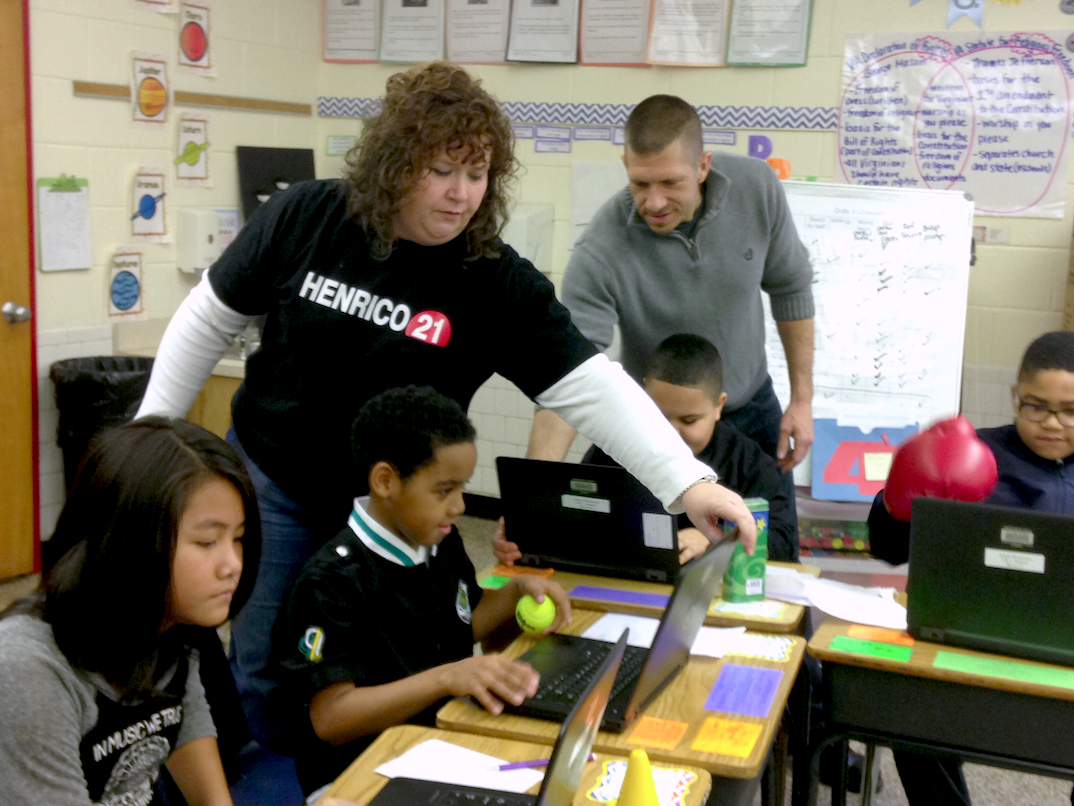
Screen Shot 2015-08-05 at 9.03.31 AMThis year all the elementary ITRTs have been working on a special project called Tech Takeout. We look at the needs of different schools and choose a school to focus all our resources on for one fun, intensive day of learning. Today we went to Adams Elementary to help the 4th graders with measurement. I worked with Ms. Wright, another ITRT, to help students create measurement websites using CheckThis. We brought a collection of interesting items including a Samurai Jack action figure, a boxing glove, a geode, a blowfish, a piranha, a bottle of Wonder Woman nail polish, a back scratcher, and a treasure chest from Paraguay. Each student in our group chose an item to weigh, and they used a balance to measure the mass of the item. Then they headed over to CheckThis to make their website. Within CheckThis the students were able to take a picture of themselves holding their item. Below that they created a poll asking the weight of their item. At the bottom of each website the students took a second picture of themselves holding a piece of paper with the correct answer. Ms. Wright and I added all their websites to one page so the students could view each others’ websites and answer the questions. You can see all the other projects from the Tech Takeout day at Adams Elementary here. UPDATE: Later, in March, we did a similar project at Baker Elementary. Check out the measurement websites they made here. We did the answer part differently by making a link to a Google doc instead of having the answer right on the website.