Category: 5th Grade

5th Grade Cell Videos

CaptureFifth graders at Laburnum Elementary have been learning about the parts of a cell (SOL5.5) in science, and they have been working on their oral presentation skills (SOL5.2) and evaluating media messages (SOL5.3) in language arts. So today students in Ms. Satterfield’s class created instructional videos about cells using Pixiclip. Pixiclip is a webtool that allows you to record your webcam as you draw and write on a virtual whiteboard. First I gave the students a brief lesson on how to use the various tools, and we discussed good oral presentation skills, then they were able able to get started right away. As they drew the cell parts they described each one. When their videos were done we shared the links in Google classroom so they could evaluate and comment on each other’s videos. Take a look at some student examples here.

5th Grade Cell Comparisons

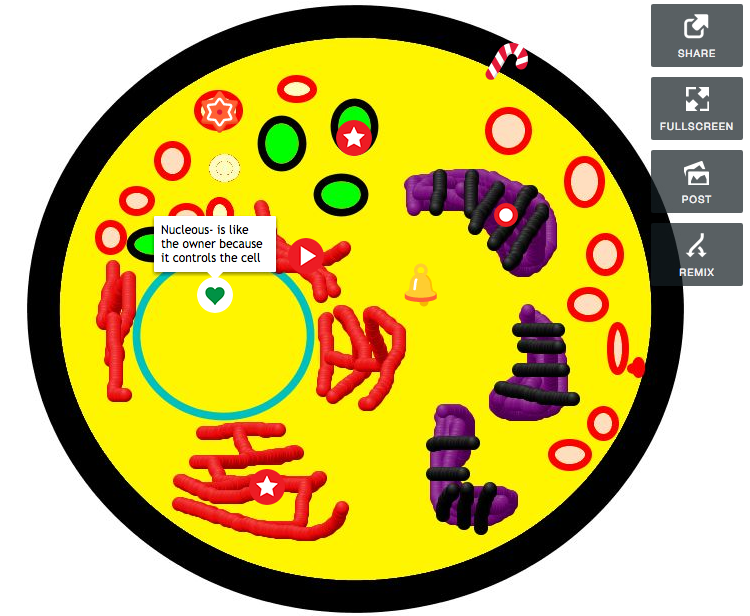
Screen Shot 2015-06-05 at 3.40.13 PMFifth graders at Laburnum Elementary have been learning about cells and various cell structures (SOL5.5a), so today students in Ms. Conway’s and Ms. E.Hall’s classes created interactive cell diagrams using Thinglink. First they chose whether to draw a plant or animal cell, then they used Pixie to illustrate the cell and its parts. Next they logged into Thinglink with their Google account and uploaded their drawings. Instead of just asking the students to label the parts and their functions, we wanted them to do a bit of higher-level thinking. So we instructed them to compare the cell to some other organized entity and its parts, like a school, a team, or a machine. The example I gave them was comparing the cell to a swimming pool. The nucleus is like the lifeguard because they tell everything in the cell what to do. The cytoplasm is like the water in the pool because it contains all the objects in the cell. The mitochondria are like the filters because they provide energy and keep things moving in the cell. The cell membrane is like the walls of the pool holding it all together. The students got very creative with their comparisons. You can take a look at examples from each class here.


5th Grade Light Websites

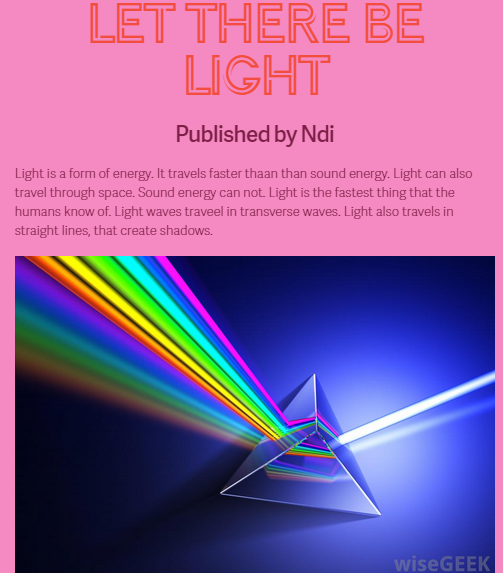
NdiFifth graders at Holladay Elementary have been learning about light and its properties (SOL5.3), so today students in Ms. Dimatteo’s class created light websites using CheckThis. First they logged into their Google accounts and went to Google classroom where I posted the link. Ms. Dimatteo gave them the directions for their projects and told them that they could pick the subtopic of light that they wanted to research. Next I showed them how to customize the colors and fonts for their webpage. We focused on writing the text first, since that was the most important part. We encouraged the students to make sure they had their facts correct by using their notes or doing research online. Then I showed them how to search for and add a photo. Finally they added a question for their visitors to answer. We posted the links to Google classroom so they could visit each others’ pages and answer the questions. You can take a look at them here.


5th Grade Northeastern State Comparisons

Screen Shot 2015-05-21 at 10.37.30 AMFifth graders at Davis Elementary have been learning about the northeastern region of the United States (NE1.1, NE2.2b). Their benchmark tests also revealed that they need extra practice with collecting, organizing, and interpreting data (Math SOL5.15). So today students in Ms. Elsea’s class gathered data about the northeastern states and presented their information with infographics. First, I instructed the students to choose two northeastern states to compare. We used Measure of America to get data about the population, education, economics, health, or whatever topic the students wanted to compare for their two states. Next we went to Piktochart to make our infographics. I showed them how to change the background and choose a font and color scheme. I encouraged them to use just a few colors and to be consistent with the colors across all the graphics and text. One of the first graphics we added was a map showing our two states. Then we added a pie chart comparing the data we had gathered, and I showed them how to add clip art that related to their data. Some students were able to add several graphics. Finally, we copied the links to our infographics, and posted them to our Google classroom page so we could see each others’ presentations. Take a look at some of them here.


5th Grade Facts and Opinions

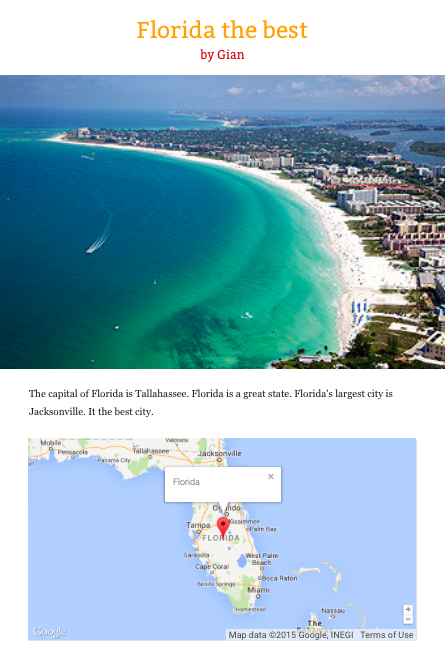
Screen Shot 2015-05-13 at 2.24.28 PMFifth graders at Holladay Elementary have been learning about the states in the southeastern region of the United States (SE2.2b,c), so today students in Ms. Filer’s class created websites about a southeastern state of their choice. Since they had recently completed their benchmark tests, I was looking at the data, and I noticed that many fifth graders had a hard time identifying the point of view of the author and distinguishing between facts and opinions (SOL 5.5f, 5.6i). So I wanted to include those skills in my lesson as well. First we talked about point of view and how to identify the author’s point of view. Did the author have a positive or negative view of the topic they were writing about? Since our websites would be about a place, we looked at some online reviews for a local place, the Lewis Ginter Botanical Gardens. It was fairly easy to identify the author’s point of view by the words they used. Clearly some people enjoyed the gardens, while others did not. Next we practiced identifying facts and opinions in the reviews. I pointed out that usually a review could be considered more reliable if it included facts, instead of just opinions. We discussed where we should go to get the most reliable facts. Would the Botanical Gardens website be the most reliable, or could it be biased? I explained that the students would be creating a website about a southeastern state, and they would have to include facts and opinions, so it would be best if they had actually been to that state. I pointed out that the reader should be able to identify your point of view and tell whether you had positive or negative feelings about the state. The students could research their state using books or websites, and we used Tackk to create our websites. Tackk allows them to add text, maps, and photos of their state. After creating their websites, they posted the links on Google classroom with a question for their classmates to identify the facts, opinions, and viewpoint. Take a look at some samples here. This lesson was also submitted to Henrico21, so if you’d like to see the complete lesson plan, click here.


5th Grade Nonfiction Text Elements

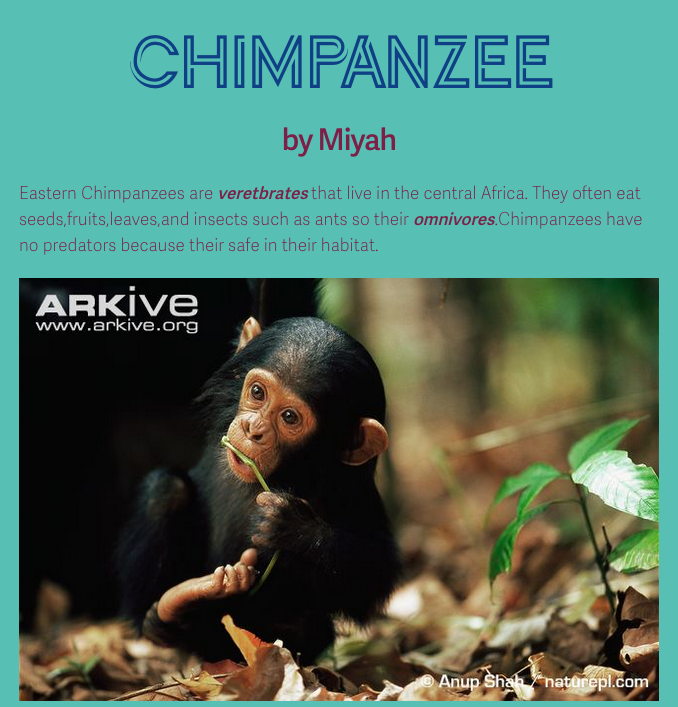
Screen Shot 2015-05-01 at 12.38.10 PMFifth graders at Holladay Elementary have been learning about elements of nonfiction text like captions, headings, bold print, graphics, etc (SOL5.6) so today students in Ms. Sharpe’s class practiced including these elements in their own nonfiction text. First we researched an invertebrate or vertebrate of their choice, since they are learning how to classify animals in science (SOL5.5). After finding a few facts about their animals online, I showed them how to create a simple webpage using CheckThis. They typed the information in their own words and chose important vocabulary terms to make bold. They also added a photo and a map of their animal’s range and put captions under each image. Finally they published their websites and posted the links to the Google classroom page so they could read each others’ nonfiction texts. You can see some of their websites by clicking here.


5th Grade Elapsed Time Maps

Screen Shot 2015-05-01 at 8.37.18 AMFifth graders at Laburnum Elementary have been learning how to find elapsed time in math (SOL5.10), and they’ve been studying the southeast region of the United States in social studies (SE1.2). So today students in Ms. Conway’s class created elapsed time word problems using Google maps. First they signed into their Google accounts and I posted a link to My Google Maps on the classroom page. They clicked “Create a new map” and placed a marker on a city in the southeast region that they are interested in visiting. They labeled their marker and added a photo of the city by clicking the camera icon and doing a Google image search. Next they clicked the directions icon (it looks like a curved arrow), and calculated the time and distance from Richmond to their city. Finally they clicked the pencil icon on their marker label and typed an elapsed time word problem in the description box. We shared our maps by clicking the Share button and making it viewable by anyone with the link. Then we posted our links to the Google classroom page for our classmates to solve. See how many you can solve by taking a look at them here.


5th Grade Order of Operations

5thOrderOperationsFifth graders at Varina Elementary have been learning about order of operations in math (SOL5.7) so today Ms. Chisom’s class created a spreadsheet showing how the order of operations works. First we did a quick warm up in Google classroom. I asked them to write two number sentences with the same 3 numbers in the same order with the same operations that had different answers. Many of them figured out that the trick was to add parentheses. Next I assigned them a blank spreadsheet in Google Classroom (that way it would automatically be shared with the teacher). I instructed them to write the column headings: “Number” for columns A-C and then “A+BxC” in column D and “(A+B)xC” in column E. They could write any 3 single-digit numbers in cells A2, B2, and C2. I explained that we would use formulas for the other cells so that they could change the numbers in A2, B2, and C2 and still get an answer. That introduces them to the concept of variable which they will learn later on this year (SOL5.18). I showed them how to write the first formula “=A2+B2*C2,” and I asked them to figure out how to write the second formula “=(A2+B2)*C2.” They experimented with changing the numbers in A2, B2, and C2. Then I asked them to try and find some numbers that would result in the same answer for both formulas. Some of them figured out that if they put a 1 in C2 they would get the same answer. You could extend the activity by including subtraction and division, but that’s all we had time for today!


5th Grade Collaborative Writing

5thcollabFifth graders at Holladay Elementary have been learning about plot elements and conflict resolution (SOL5.5c) so today students in Ms. Filer’s class wrote collaborative stories where one partner began the story with a problem, and the other ended it with a solution. Before we got started, I gave them a quick warm-up in Google classroom asking them to write an example of a story conflict. They came up with great ideas from winning a football game to surviving a forest fire to having an eating disorder in the middle of a tornado! Next I assigned a Google word processing document to each student in Google classroom. I taught them the basics of changing the font, size, and color since this was the first time many of them had used Google Docs. Then they started writing their stories, focusing on the conflict. I showed them how to Insert > Image and search for a picture that reflected their story’s problem. The next step was to collaborate with a partner. In Google you can click the Share button and give a friend editing rights to your document. However, for us, it was simpler and faster just to switch seats. So partners read the first part of the story then wrote a logical conclusion that resolved the conflict (using a different color font). I showed them how to “Take a snapshot” with the Image panel and they added of photo of themselves with their partners. Finally we clicked the Share button, copied the link, and pasted it to our Google classroom page.


5th Grade Ocean Floor Diagram

KasmiraFifth graders at Holladay Elementary have been studying the ocean (SOL5.6) in science, and they have been learning about line graphs in math (SOL5.15). So today Ms. Haislip’s students made line graphs of the Ocean Floor. First we had to collect our data. I showed them how they could use Google Earth to find the ocean depth at various spots. The goal was to take measurements at different places (the continental shelf, the continental slope, the continental rise, the abyssal plain, a sea mount, and a trench), and then enter that data into our spreadsheet. To save time, different groups of students could find a specific feature and share that measurement with the class. Next we opened a Google spreadsheet and wrote down the different features in the first column. We entered the depths in the second column. I explained that they would need to duplicate some of the measurements so that we would have a couple of points to plot (for example, the abyssal plain would need at least 2 equal points in order to make a straight line). Then I showed them how to make a line graph out of the data (it was actually an area graph so that it could be filled in with a color). I let them figure out how to adjust the data so that the resulting graph looked like the ocean floor. They learned the difference between negative and positive numbers very quickly! The final step was to customize the color and size and publish their graphs. I took screenshots using the snipping tool and posted them to CoMemories (which is a quick and easy way to share pictures). You can see their graphs here.