Category: 4th Grade

4th Grade Comparing Fractions
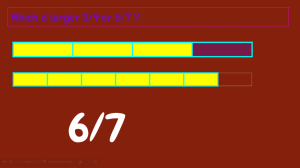
CaptureFourth graders at Varina Elementary have been learning how to compare fractions (SOL4.2a), so today students in Ms. Connell’s class compared fractions using Google slides. I gave them a blank slideshow in Google classroom and showed them how to change the font, size, and color of the title (“Fractions”) and subtitle (their name). Next we added a background image to the title slide. For the second slide, we added a background color instead of an image. The students typed a sentence asking their classmates to tell whether one fraction was greater or less than another fraction. I asked them to pick fractions that were challenging to compare, for example 2/3 and 7/12, instead of simple ones like 1/2 and 1/4 that could easily be compared. We used tables to show the fractions. I taught them how to add a table with the table button and to click and drag across the correct total number of squares (the denominator of the fraction). We used the paint bucket to fill in the number in the numerator. When you add tables to a slide, they are automatically the same size and the squares are equal, so it really worked out well for comparing the fractions (unless the students re-sized them on accident). Next, we added a text box with the answer and used transitions so the answer appeared at the end. Finally, we published our slideshows and pasted the links to Google classroom. You can see them all here.
4th Grade New Year Goals

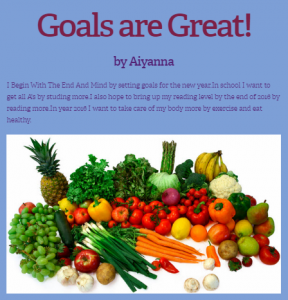
CaptureHolladay Elementary is a Leader in ME Lighthouse school (the first elementary school in Virginia to reach that status), and students here try to show the 7 habits of highly effective people. Fourth graders in Ms. Tonello’s class wanted to include the 7 habits in their goals for the new year. Today I showed them how to publish their goals by making a quick website with CheckThis. First we went to CheckThis, and I showed them how to choose the fonts and colors for their website by clicking the “Aa” button in the top right corner. Next they typed their title, subtitle, and wrote about their goals for 2016. We clicked the green “+” button to add photos that represented each goal. Then we added a poll question to allow visitors to vote on which idea they liked best. Finally we published the websites and pasted the links to Google classroom so they could visit each others’ pages. You can see them all here, and feel free to answer their poll questions.


4th Grade Polls from the Past

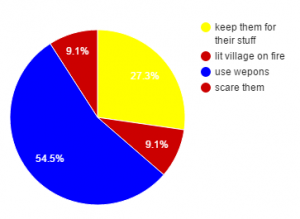
CaptureWith Presidential elections coming up next year, it seems that public opinion polls are popping up everywhere, asking Americans for their views on issues ranging from economics to the environment. Today students in Mr. Cochran’s class created public opinion polls from the past. They are currently learning about the Jamestown colony (VS.3) so they created created polls asking the Jamestown settlers or the Powhatan Indians for their input on different problems they faced. First they had to decide if they were going to poll the settlers or the Indians. Then I showed them how to create a Google form with a multiple choice poll question. We customized our forms by changing the header images and adding photos. Next the students walked around the room and answered each others’ poll questions as if they were a Jamestown settler or a Powhatan Indian. After the voting was finished, I showed them how to view the responses in a spreadsheet. The students graphed the results and posted them to Google classroom. You can see all of them here.


4th Grade Nonfiction Text Features

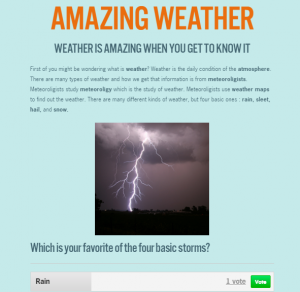
website2Fourth graders at Davis Elementary have been learning about nonfiction text features (SOL4.6a) and drawing conclusions using textual information (SOL4.6f). So today students in Ms. White’s class created nonfiction websites using CheckThis. Since they have been studying clouds (Science SOL4.6) and Jamestown (VS.3), they made their websites about one of those topics. First we reviewed text features to include like bold type, headings, captions, and photographs. I also explained that their classmates would be using the information in their websites to draw conclusions, so they needed to be thinking of good questions to ask about their topics. Next, we went to CheckThis and created a website without signing in. Since students can’t create an account, we had to finish the website during the one hour lesson, which wasn’t a problem for this class. I showed them how to customize the colors and fonts of their page. Then the students typed their information, making important words bold. I was surprised at how much they were able to type in such a short time! They also added a photo and a poll. The polling feature is one of the reasons I prefer CheckThis to other webpage-creation services because it adds an interactive element to the students’ websites. Finally we published our sites, copied the links, and posted them to Google classroom with a good question for our classmates to answer in the comments. You can take a look at all their websites here.


4th Grade Interactive Word Problems

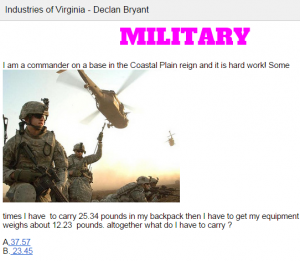
Capture1Fourth graders at Davis Elementary have been learning how to add and subtract decimals in Math (SOL4.5c), and they have been studying Virginia industries in Social Studies (VS.10b). Today I showed them how to use Google Docs to create interactive decimal word problems about the industries of Virginia. First I shared a blank template with them in Google classroom. I reviewed how to add a title and change the font, size, and color. The students chose a region and an industry, then they wrote a word problem that involved adding or subtracting decimals. They also added a photo of the industry (Insert > Image). For the interactive part, we created multiple choice answers that, when clicked, would let the visitor know if they were right or wrong. The process involved using bookmarks and links. First we skipped about 20 lines down the document and wrote a “correct” message, like “You’re right!” Then we skipped about 20 more lines and wrote an “incorrect” message, like “Try again!” We added a bookmark next to the title, the correct message, and the incorrect message (Insert > Bookmark). Next we highlighted each answer choice and turned it into a link by clicking the link button (it has a chain icon) and linked the choices to the correct bookmark. Finally we highlighted the correct and incorrect messages and linked them to the title bookmark so visitors could click them and go back to the top. Take a look at some student examples here.


4th Grade Virginia Weather Graphs

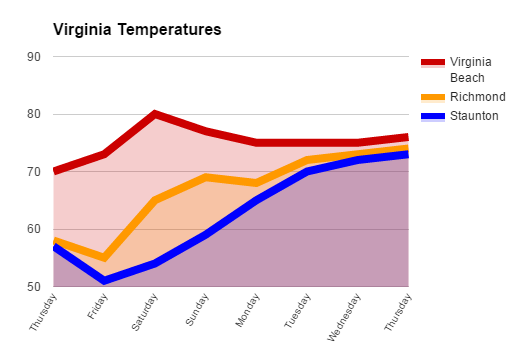
VAGraphFourth graders at Davis Elementary are learning about weather in science (SOL4.6), Virginia regions in social studies (VS.2b), and graphing in math (SOL4.14). So today students in Mr. Cochran’s class researched current temperatures in different regions of Virginia and graphed them. I gave them a template that you can copy here. First we clicked the “City” link and looked at the current temperatures in different Virginia cities. I showed them how they could click the column headings to sort by that category, so we sorted by temperature. We took a city from the highest temperatures (Virginia Beach), a city in the middle temperatures (Richmond), and a city in the low temperatures (Staunton). Then we located those cities on a map of Virginia and discussed why the temperatures might be different. The students noticed that the colder cities were further west (higher altitude) and north (higher latitude). Next we looked at the weekly forecast for the three cities (linked on the spreadsheet). Your students could choose their own cities to graph, but we just graphed the temperatures for the three cities we researched to save time. On the spreadsheet I showed them how they could click the “Thursday” cell and drag the small blue square handle down through seven more cells to have them fill in with the days of the week. Then they filled in the rest of the cells with the temperatures. Next we clicked the graph button and chose a line graph. I showed them how to customize the color and thickness of the lines, and we added a title. They posted their graphs to Google classroom, but you can take a look at some here.


4th Grade Primary Sources

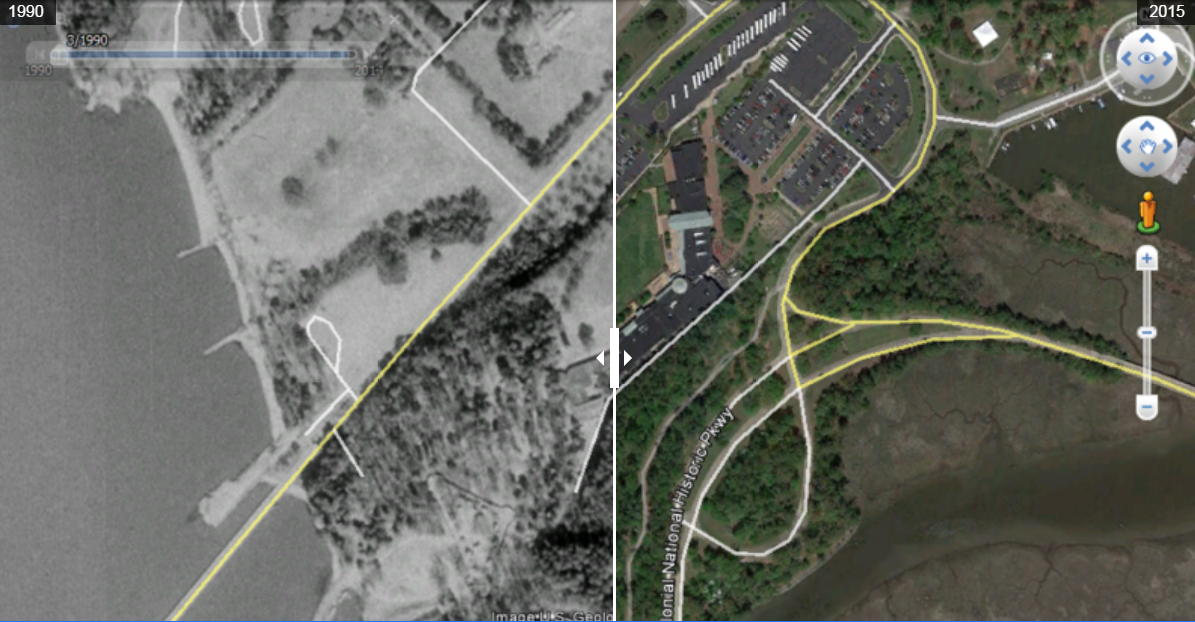
JuxtaFourth graders at Davis Elementary are learning about primary and secondary sources (VS.1a), so today students in Ms. White’s and Ms. Bennett’s classes collected and analysed their own primary sources. First we discussed primary sources and why they are valuable. We looked at some Civil War photos, some photos of Abraham Lincoln, and a contemporary painting of George Washington. The students correctly identified all of these as primary sources. I explained that they would be going back in time today to take a photograph of a place, and then we would be comparing that old photo with a modern one. First we opened up Google Earth, and I told them to find a place in which they were interested. We discussed examples like their neighborhood, a favorite vacation spot, or a place that was important to their family. We zoomed in fairly close, so we were able to see roads and buildings. Next I showed them how to use the timeline feature and we went back in time. I asked if this was a primary or secondary source. We figured out that it was a primary source because it was a photograph taken by a satellite at that time. We used the Snipping Tool to take a screenshot of the place and saved it to our desktop. Then we dragged the timeline to the present and took another screenshot. We combined the two images using a cool webtool called Juxtapose. The images have to be hosted online to get the links, so we uploaded them to Comemories. Then we copied the links and pasted them in Juxtapose. Juxtapose turns them into a before/after comparison complete with a slider. The students could now compare the images and see how the places changed over time. Take a look at some student examples here.


4th Grade Famous Virginians Come to Life!

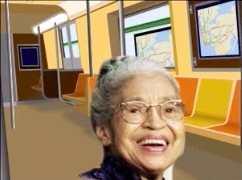
Screen Shot 2015-08-12 at 11.04.38 PMFourth graders at Davis Elementary have been learning about famous Virginians in the 20th century (VS.9d), so today we brought them to life with the magic of technology! First the students decided whether they wanted to work in groups or alone. This project, like any project that uses an online tool, goes a lot smoother if students are working in groups since less computers are using the bandwidth. Once they selected their group, they chose a famous Virginian and found an image of the person online. I explained that they needed a good clear photo of the person’s face looking straight ahead. Next we downloaded a screen recording Chrome extension called Screencastify. We would need this tool in the last step to record our videos. Now we were ready to go to SitePal where the real magic happens. We clicked “Create Your Own” talking avatar and uploaded the image of our famous Virginian. The site guides you through the process of animating the head. Then the students wrote a paragraph in the Text-to-Speech section with facts for the “talking head” to say. They also chose a voice. We used Screencastify to record the videos since there isn’t another way to save them. Finally they posted their videos to Google classroom so they could watch each others’. You can watch them too by clicking here.


4th Grade Review Videos

Screen Shot 2015-08-12 at 3.26.13 PMFourth graders at Davis Elementary have been reviewing for upcoming end-of-the-year tests, so today students in Ms. White’s class helped each other by preparing review videos on various topics. First the they decided whether they wanted to work in groups or alone. This project actually works better if most of the students are in groups since it is bandwidth intensive. Once they were with their groups, they agreed on a topic and did some quick research using the Internet and their class notes. They also collected images to use in their video. Next we went to WeVideo, which is a great site for making and editing online videos. The students signed in with their Google accounts and opened the movie editor. We used the storyboard mode, instead of the timeline mode, since it was simpler for their first video (click the 3 lines in the top left corner to switch from one mode to the other). They uploaded the images they collected and recorded a few clips of themselves explaining the topic. Then they organized their media in the editor, added a Title screen and captions, and selected a theme. Themes make it easy to add filters, transitions, and music automatically, but each of those effects can also be changed individually. Finally the students published their videos, copied the links, and posted them to Google classroom so they could watch each others’ movies for review. You can see some of them here.


4th Grade Interactive Plant Diagrams

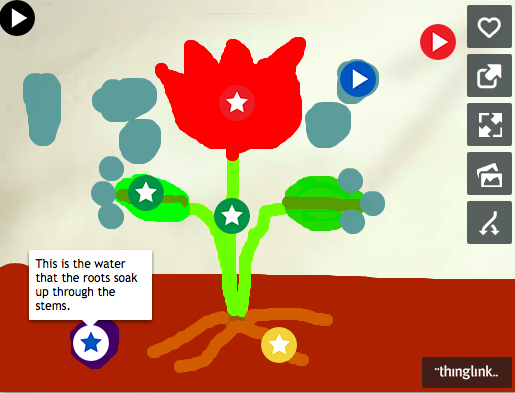
Screen Shot 2015-08-12 at 2.04.51 PMFourth graders at Davis Elementary have been learning about plant anatomy and life processes (SOL4.4), so today students in Mr. Cochran’s class created interactive plant diagrams using ArtPad and ThingLink. I usually use ArtPad in the lower grades, but older grades love it too, and it’s a great tool for creating a quick drawing. The students used ArtPad to draw their plant, then they used the snipping tool to get a screenshot of it, and they uploaded it to ThingLink. Next they added icons to label the parts of their plant. Each icon can be customized to show text, images, videos, and links that appear when a visitor rolls over the icon. The students wrote sentences describing the function of each part, and they also linked to the ArtPad replay of their drawing (since they really liked that feature). Finally they posted the links to their interactive diagrams on Google classroom so their classmates could see their work. You can explore a few examples here. I was impressed to see that some students went on afterwards and used ArtPad to draw maps of the regions of Virginia like this.