Category: Social Studies

3rd Grade Goods & Services Websites
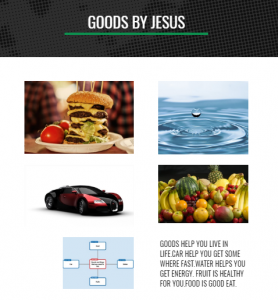
Third graders at Holladay Elementary have been learning about goods and services in Social Studies (SOL3.7) and main idea/summarizing in Language Arts (SOL3.6f,g,h). So today students in Ms. Edelblut’s and Ms. Howard’s classes practiced these skills by creating their own websites. First, we reviewed main idea/details using a web. The main idea is the center of the web, and the details are the branches. After several examples, we determined that knowing the main idea helps you summarize. Next, the students decided whether they wanted to make a website about goods or services. We used Popplet to make a main idea/details web for planning out our websites. We wrote a summarizing sentence about goods or services in the center, then provided examples of specific goods and services in the branches. I showed them how to change the colors of the bubbles and even draw images inside. We saved the diagram as a .JPG image (Gear > Export > As JPG File). Then we went to their Google drive and clicked New > More > Google Sites. We created a new Google Site and wrote the title, “Goods” or “Services” and their names. We uploaded our Popplet diagram, then typed a paragraph about our topic, using the diagram for guidance. We made sure the first sentence was the main idea or summarizing sentence. Then we wrote additional sentences for the details. Finally we added images of our specific examples (the details) and published our websites. We shared the links on Google classroom, but you can see them all here.
4th Grade Animated Revolutionary War Heroes

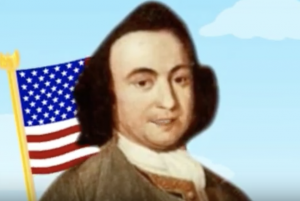
Fourth graders at Trevvett Elementary have been learning about Revolutionary War heroes like Thomas Jefferson, George Mason, Jack Jouett, and James Armistead Lafayette (VS.5, VS.6). Students in Ms. Adamonis’ class have each chosen a person to research and have prepared a written speech for the person describing his life and actions. Today we took their speeches and created animated faces using SitePal, so it looks and sounds like the famous heroes are actually talking. First we did a Google image search to find an image of the person. The best images are the ones where the person is facing forward. For people who don’t have a portrait online (like Jack Jouett) we searched for a Revolutionary War era/colonist costume model. Next we uploaded the image to SitePal (click Demo > Classic Demo > 3D > Create Your Own) and followed the directions to mark the eyes, nose, ears, chin, and mouth (this is important for the animation to look realistic). Then we clicked the “Audio” button and chose “TTS” (Text to Speech). We either copied and pasted our speech from our original document or typed it in the box. We chose a voice and an accent, then previewed it to be sure everything sounded correct. SitePal really helps with punctuation and spelling because you can hear right away when something isn’t right. Finally we used Screencastify to record our video and save it to our Google drive. We posted the links to Schoology, but you can take a look at some student projects here.


2nd Grade Habitats & American Indians Comics

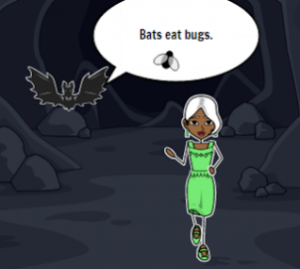
Second graders at Laburnum Elementary have been learning about animal habitats in Science (SOL2.5b) and American Indian tribes in Social Studies (SOL2.2). Today they could chose an animal or one of the three tribes (Powhatan, Lakota, and Pueblo) and create a comic with three facts. We used StoryboardThat to create the comic. First we added the background scenes. There were pictures of almost every kind of habitat for the animals, as well as pictures that look like the Eastern Woodlands, Great Plains, and southwestern desert for the tribes. I showed how they could click “Edit Scene” to change the weather in the picture. Next we clicked the “Characters” tab at the top and clicked “1600s to 1800s” for pictures of the American Indians or the “Animals” tab to find pictures of the animals they needed. The characters also have an “Edit Pose” button that allows the students to customize their poses and expressions. Finally we clicked the “Textables” tab at the top and added speech bubbles. In each speech bubble the students wrote a complete sentence with one fact (such as the animal’s habitat or the Indian’s home). We posted them to Google classroom, but you can see them all here.


1st Grade Services with -ing words

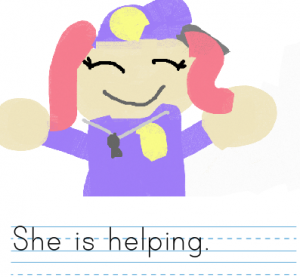
First graders at Holladay Elementary have been learning about goods and services (SOL1.7) and -ing words (SOL1.6e). So today students in Ms. Wimmer’s class wrote sentences about people who provide services, and we used -ing words to describe their work. First we reviewed some of the services they’ve been learning about: firefighters, policemen, barbers, teachers, doctors, etc. Then we talked about action words that end with -ing to describe what these community helpers do: helping, teaching, cutting, etc. (A great site to review services is Scholastic’s Listen & Read. It has several short articles about various services which can be read aloud). Next we used ABCYa! Storymaker to write and illustrate our sentences. The students used the paint tools to draw a picture of the service, then they wrote a complete sentence starting with “He/She is” and ending with an “-ing” word describing what they do. We took a screenshot of each student’s work (using the Snipping Tool) and uploaded them to CoMemories. You can see them all here.


4th Grade Revolutionary War Websites

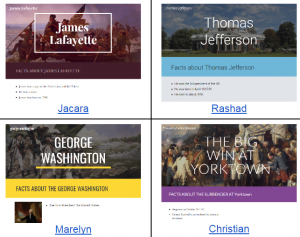
Fourth graders at Holladay Elementary have been learning all about the Revolutionary War (VS.5) and nonfiction text elements (SOL4.6). Today students in Ms. Zimmerman’s class chose a Revolutionary War battle or person and created an informative website about the topic using the new Google sites. Google sites has made some dramatic changes in its layout and interface that allow you to create a great-looking site in minutes. The students logged into their Google drive, then clicked New > More > Google Sites. They typed the name of their Revolutionary War battle or person in the title box. Next they chose a theme for their website by clicking the Themes tab on the right. The theme changes the default fonts, colors, and layout of the site. We clicked back on the Insert tab and added a text box. The students changed it to a Heading (SOL4.6a) using the dropdown menu and typed “Facts about ___ (their topic)” Now it was time to do some research. We opened a new tab in the browser and searched for our battle or famous person. The students could also use their class notes. I discussed the importance of writing the facts in their own words and the problems that could result from plagiarism. Back on their website, the students added another text box and typed their facts using the bullets option. I showed them how to add an image by clicking the Images button on the right and doing a Google search for their battle or person. In order to make a caption (another nonfiction text element they’ve learned about), we had to double click on the section with the photo, chose Text from the popup menu, and type our caption. We changed it to a Subheading so it would stand out. Finally we added a map (since graphics are an important part of nonfiction text) by clicking the Map button in the Insert panel and searched for the location of the battle or a place of importance in the person’s life. The students added a caption to explain the map, then we published our websites using the Publish button. You may want to check under “Settings” to be sure that it is public on the web. We posted the links to our websites on Google classroom, but you can see them all here.


3rd Grade Measuring the Colosseum

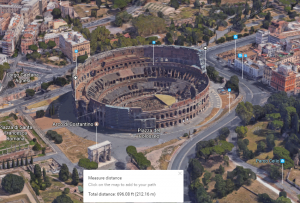
Third graders at Holladay Elementary have been studying ancient Greece and Rome in Social Studies (SOL3.1) and measurement in Math (SOL3.9). Today students in Ms. Middleton’s class practiced measuring the Roman Colosseum using Google maps. I previously taught a lesson on measuring the Parthenon, but I wanted to show them the new 3-D feature, so we looked at the Colosseum today (the Parthenon isn’t in 3-D yet). First we found Italy on the map and discussed its shape (peninsula) and the Mediterranean Sea that surrounds it. Then we zoomed into Rome and looked for the Colosseum (it’s called “Colosseo” on the map). Once we were close enough to see its circular shape, we switched to Google Earth view (click the button in the bottom left corner) and clicked the 3-D button on the right. I showed the students how to hold down the CTRL key and click and drag to rotate the view. They were amazed that all the buildings and terrain were in 3-D! It’s a great way to show students the hilly landscape. It also helps develop map skills (SOL3.4). Now it was time to measure the Colosseum. We discussed what unit we should use, and we made an estimate on Padlet. Then we right clicked on one side of the Colosseum and clicked “Measure Distance.” When we clicked the other side, it automatically gave us the distance across. We used the Snipping Tool to take a screenshot, and we uploaded our screenshots to the Padlet. You can see them all here.


1st Grade Past, Present, & Future Comics

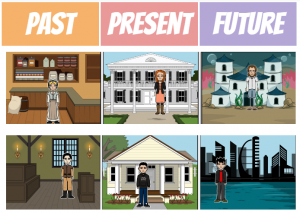
First graders at Holladay Elementary have been learning to distinguish among past, present, and future (SOL1.1). Today students in Ms. Valvoda’s class used StoryboardThat to create imaginary scenes from the past, present, and future. We started with the present, since that is the time we are most familiar with. I showed them how to find modern backgrounds using the Scenes tab. Next we clicked on the Characters tab and chose a person that was dressed in clothes from the present. I demonstrated how to change the color of the person’s hair, skin, and eyes using the pop-up menu items. Then we went to the U.S. History Scenes tab at the top and chose a background to represent the past. We discussed ways that the past scenes were different from today (they used fire for lighting and cooking, buildings were made of wood and stone, animals were used for transportation and work). For our Characters, we clicked on the 1600s-1800s tab and chose a person from the past. We noticed that the fashion styles for men and women were very different. Finally, the students had to be creative to think what life might be like in the future. They could pick any background scene and any character they wanted, as long as they could explain how it showed the future. Some of their visions of the future were very interesting–from military dystopias to underwater cities! You can see them all here.


2nd Grade Lakota Indians

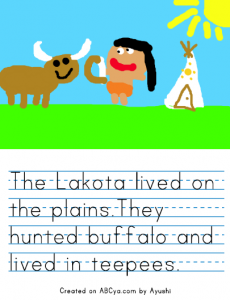
Second graders at Trevvett Elementary have been learning about three different Indian groups: the Powhatan, Lakota, and Pueublo (SOL2.2). Today students in Mr. Weldon’s class used ABCYa! StoryMaker to draw and write about the Lakota Indians (the tribe they are currently studying). As we were navigating to the website, we discussed their background knowledge of the Lakota–where they lived, what they hunted, their transportation and occupations, as well as how they dressed and built their houses. With StoryMaker, there is a drawing part (blue button) and a writing part (yellow button). First we painted a picture of the Lakota Indians, including their environment, homes, and animals. Next we typed complete sentences (SOL2.13a) about the Indians, using the vocabulary words we have learned. When we were finished, we clicked the Print button and saved it as a PDF. Then we uploaded it to a Padlet that you can see here. Sharing the students’ written work online via Padlet (or any other webtool) is one of the advantages digital assignments have over traditional written assignments. Students and parents have access to their work from anywhere, and they can review it anytime they want. Plus, students are getting valuable practice with word processing and other computer skills.


1st Grade Writing about the Past

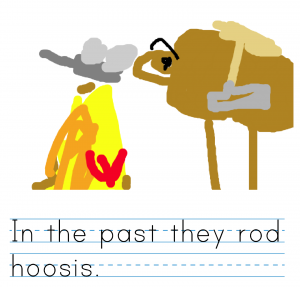
First graders at Trevvett Elementary have been learning about life in the past in History (SOL1.1) and how to write complete sentences with capitals and punctuation in English (SOL1.13e). Today students in Ms. Fletcher’s class showed off their skills by writing sentences about the past. We used ABCYa! Storymaker because it has a familiar writing paper template and an age-appropriate font. The students got to the website all by themselves by typing “ABCYa” in a Google search, clicking the link, then clicking the 1st grade button, and finding the Storymaker link on that page. First we discussed different ideas they could write about so they weren’t all writing about the same thing. We talked about how they cooked on a fire, traveled using horses and wagons, washed clothes in a bucket or the river, went to school in a one-room schoolhouse, sent letters instead of texts, and many more ideas. The students typed their sentence about the past using Shift to make a capital at the beginning and remembering their period at the end. We encouraged them to use sight words and sound out any unknown words (SOL1.12c). Then they used their newly-learned click-and-drag skill to draw a picture illustrating their sentence. When they were finished we saved them as PDF files (click the Print button). Finally we helped them upload their files to a Padlet (a free online bulletin board). You can see them all here (click each one to view the whole page).


4th Grade Jamestown Maps

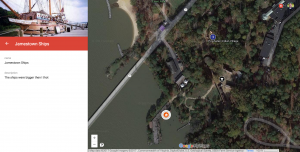
Fourth graders at Trevvett Elementary have been studying Jamestown, the first permanent English settlement in America (VS.3), and they recently took a field trip there. Today students in Ms. Harlow’s class reflected on their trip and what they have learned. I posted a link to My Google Maps on Google classroom. My Google Maps allows you to create your own map (you can also access it through your Google Drive by clicking New > More > Google My Maps). We titled our map “Jamestown,” and I showed them how to find Jamestown by zooming instead of using the search box. First, we switched to Google Earth view (click the box in the bottom left corner) and zoomed into Virginia. Then we found the James River and zoomed into one of the big bends in the river. As we zoomed in, we saw Jamestown appear on the north bank. We continued to zoom into Jamestown until we saw the park and the dock. Students were amazed that they could actually see the ships, the fort, and the Powhatan Indian village. They already knew that the park isn’t the true location of Jamestown, but we were able to find the true location nearby. I showed them how to add markers to different parts of the map. They wrote a description for each marker, explaining what they learned or what surprised them at that spot. I also showed them how to click the camera button and add a photo. Finally we gave our map some finishing touches by customizing the markers (click the paint bucket, and you can change its color and the icon on the marker). We clicked the Share button and shared our maps with “anyone with the link.” The students posted their links to Google classroom, but you can see them all here.