Category: Social Studies

2nd Grade Pixie Community Map

mapSecond graders at Holladay Elementary have been learning all about maps and cardinal directions so today they put their knowledge to use and created a map in Pixie complete with a compass rose, symbols, and a key. I showed them how to use stickers for the symbols and then shrink them to fit in the legend. We used the paint tool to add other features like rivers, lakes, and roads. Next they added their own photo using the built-in webcam and narrated a tour of their community using the recording tool. In the recording I asked them to give the cardinal directions for the various places of interest such as, “We have cattle farms in the southwestern region of our community.” Their projects turned out great, and the teacher was really able to see how well her students understood the maps concepts. You can see a student sample by clicking here.
Tags:


3rd Grade Basic Rights Comic

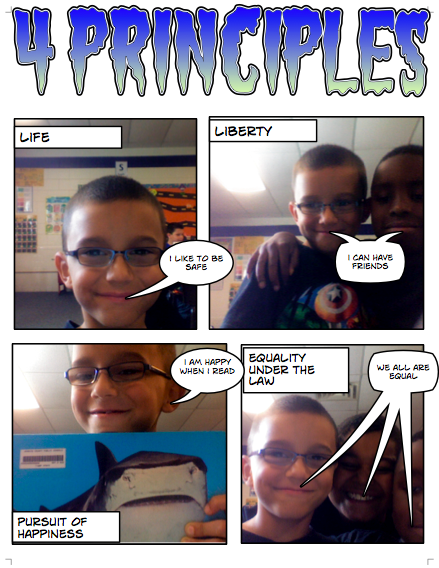
Third graders at Holladay Elementary have been learning about the four basic principles of a democracy: life, liberty, the pursuit of happiness, and equality under the law (SOL 3.11a). Today they tried to think of ways to convey those principles in a comic. They had to use the camera feature and compose pictures with their friends. They could use props they found in the classroom as well. Since these are very abstract ideas, they had to really think and be creative! Some students even drew their pictures and photographed them, like this student. I showed them how they could change the style of just about anything in their comics – the text, the colors, and the pictures. The projects turned out great, and afterwards, the students seemed to have a much better grasp of the four basic principles.


2nd Grade Change Over Time Comic

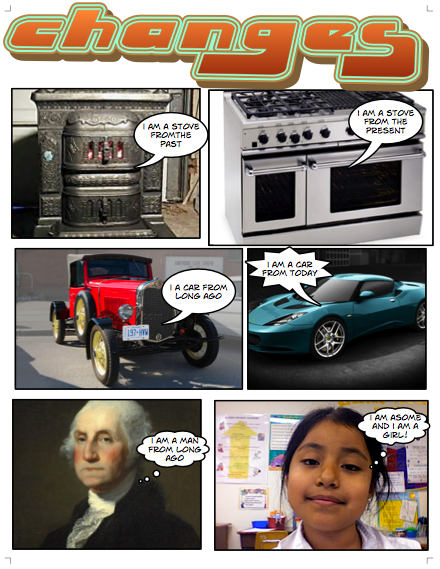
Today 2nd graders at Chamberlayne Elementary made comics about how communities change over time (SOL 2.3). They created this comic from scratch using Comic Life, so there’s no template to download, but you can download the folder of pictures we used by clicking here. It has over 75 photos of cars, houses, and tools from the past and present. First the students set up their comics with six panels. Then they searched for pictures that showed what life was like in the past. They dragged those photos into their comic and looked for corresponding pictures from present day life to put in the opposite panel. They also added a famous American from the past and a photo of themselves in the present. I showed them how they could change the style of the photos to look more “comic-like.” Finally they added labels and speech bubbles to explain how things have changed. You can see a student sample by clicking on the photo.


4th Grade Virginia Regions BeeClip Posters

I’ve shared several ideas for projects your students could do about the regions of Virginia on this blog (search for “regions” in the search box). Here’s a new one we did today using BeeClip. One of the best things about BeeClip is the safe Google image search that is incorporated within the website. The students used that to find pictures of places, products, and industries for their chosen region. They could also upload photos that I provided for them. Then they added labels using the stickers and the text tool. Finally we entered full screen mode and took a screenshot to save it (Command + Shift + 3). Screenshots are saved to the Documents folder, so students can drag them from there to their own folders. If you would like your students to save their work online so they can keep working on it later, you would have to set up an account. Otherwise it’s free to use with no login required.


4th Grade Virginia Regions Maps

There are many technology projects your students can do to review the Virginia Regions: a video, a website, a rap, a Keynote slideshow, or even a comic. Today in fourth grade at Chamberlayne Elementary, we made interactive maps online. There are many free sites for creating maps, but here’s what we found when we tried out three of them. A really cool one by National Geographic is called MapMaker. Your students can draw on maps, measure distances, add symbols, and see overlays with interesting data like population and climate. However, we couldn’t get it to load in class. So next we tried AniMaps which also lets you draw on maps and add symbols, but we found it was too complicated for the students, and had some glitches like panning and zooming too rapidly. At last we had success with ScribbleMaps. The students were able to draw the regions on the map, add labels, and search a huge library of symbols to show the products and industries of the regions. What I like best about it is that it gives two links for saving. One allows you to go back and edit it (using a password instead of a login). The other link is for simply sharing your map. I included both links on a GoogleDoc with all the student maps. You can see that by clicking here. Take a look at a student sample, and notice that you can zoom in and out and click on the symbols. It was a great way for the students to review the regions!


Making a Collaborative Map in 5th Grade

One of the great things about using Google Apps in the classroom is that students can collaborate on the same document at the same time. So partners could be writing in a Google Doc, entering data into a Google Spreadsheet, or making a Google Slideshow… together, even if they aren’t in the same class, or the same school! Today Ms. Lizotte’s fifth graders at Chamberlayne Elementary created a collaborative Google Map for their “Amazing Mail Race” project. Earlier this year they sent out letters to schools all over the USA and waited to see which schools replied. Here at the end of the year, they wanted to see all the different states where they received mail from displayed in one big map. So each student was assigned a letter/state to plot on the map. They chose an icon, marked the state, and wrote their name and where the letter was from. Then we embedded the map into a website created with CheckThis. You can see the website by clicking here. The map is interactive so be sure to click on the icons and zoom out, because they even received mail from as far away as Alaska! You could adapt this activity to your class by making collaborative maps about the explorers or Civil War battles or whatever else you are studying that can be displayed on a map. Let me know how I can help!


1st Grade Talking Pictures with Voiki

First graders in Ms. Reese’s class at Laburnum Elementary have been learning about how the location of a community and its climate affect the way people live, dress, and eat (SOL 1.6). So today each student chose a type of community and created a talking person who lives there using a cool site called Voiki. With Voiki, you create a character by choosing the background, skin color, facial features, and clothing. Then you make them talk by choosing a voice and typing what you want them to say. There are even some famous people to choose from like George Washington, Abraham Lincoln, and President Barack Obama! The students made their characters describe the place where they live, its climate, the clothing they wear, the activities they do, and the foods they eat. When they were finished I published all the links into one GoogleDoc for easy access. Take a look at these student examples: Beach Lady, Japanese Guy, Snow Woman, and Beach Lady 2.


4th Grade Thinglink Interactive Photos

Mrs. Waggoner’s fourth graders at Chamberlayne Elementary wanted a fun way to review the famous Virginians that they have been learning about this year. So I introduced them to a site called Thinglink. It lets you create interactive photos like online newspapers sometimes publish with hotspots that provide information when you rollover them. I created a couple of examples to show the students first. One was a picture of a horned lizard with hotspots describing its adaptations. Another was a timeline of the Civil War with hotspots describing the different events. So once the students had an idea of what the site could do, they picked a famous Virginian, embedded the photo in a Thinglink, and added hotspots describing the person’s accomplishments. When they were finished I posted all the links to a GoogleDoc so anyone could access all the pictures for review… even at home! Hopefully you can see there are a lot of ways to use this site in your classroom. Take a look at some student examples: Stonewall Jackson, Maggie Walker, James Lafayette, Robert E. Lee, and Arthur Ashe.


2012 Video Contest Winners!

Each year the Virginia Trekkers have a video contest where students create their own Trekker video about sites of historical significance near their home town. We got some great submissions this year, but the winners for 2012 were from Lovettsville Elementary in Loudon County. They did a fantastic job filming about their German heritage. They even had their own “Lovettsville Lookouts” tshirts! You can see their winning submission here. Today we drove up there to present them with their reward… a dance party! It was a lot of fun, and we captured all their crazy dance moves on film! If you would like to enter our contest for 2013, you can download the application here. While we up in that part of Virginia, we also filmed at Harpers Ferry (VS.7a) and the George C. Marshall (VS.9b) Center in Leesburg. You can check out that video here. By the way, if you’re ever up in Leesburg, be sure to stop by Mom’s Apple Pie Company. Their homemade pies are amazing!


4th Grade Student-Created Review Questions

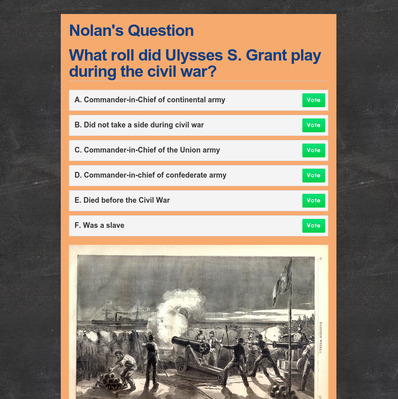
Teachers are always looking for fun, fresh ways to review information with their students. Why not have your students create their own review questions online so that they can review at home? Plus, there’s the built-in motivation of wanting to show off their hard work to each other. That’s what we did today in Ms. Basham’s 4th grade class at Johnson Elementary. We discussed how to create good questions and answer choices (like on a test). We practiced using the ActiVotes (clickers) with some sample online multiple choice answers (students had to make up the questions). You can generate a large number of questions when you only display the answer choices like this, and you get instant feedback from the clickers. If you would like a brief tutorial on using the ActiVotes click here. Once the students understood how to create good questions, I showed them how to make a webpage using CheckThis. They added a title, a picture, and a poll question (so students would have to vote on the answers). I gathered all the URLs into a GoogleDoc so they could visit each others’ websites at home for additional review. The teacher can also use the websites for more ActiVote questions and even share them with her team!