Category: Science

3rd Grade Precipitation Probability Maps

Screen Shot 2015-08-04 at 4.49.55 PMThird graders at Holladay Elementary have been learning about the water cycle in science (SOL3.9) and probability in math (SOL3.18), so today Ms. Cowart’s students created precipitation probability maps. First we reviewed how probability relates to weather forecasting, and after so many snow days in February, the students were expert weathermen! We discussed the terms “likely”, “unlikely”, “certain,” and “impossible.” Next I posted a link to Google Maps on their Google classroom page and instructed them to click the “Create a New Map” button. They chose a type of precipitation/storm they had learned about (thunderstorm, snow, tornado, hurricane) and added an icon of it to their map. Then I showed them how to type a sentence and add a picture to it. They also added colored lines showing the probable paths of the storm. Finally they published their maps and posted the links to Google classroom. Their classmates added comments identifying the probability of the storm hitting Virginia. You can take a look at some of the maps and see the comments here.


2nd Grade Magnet Fractions Animations

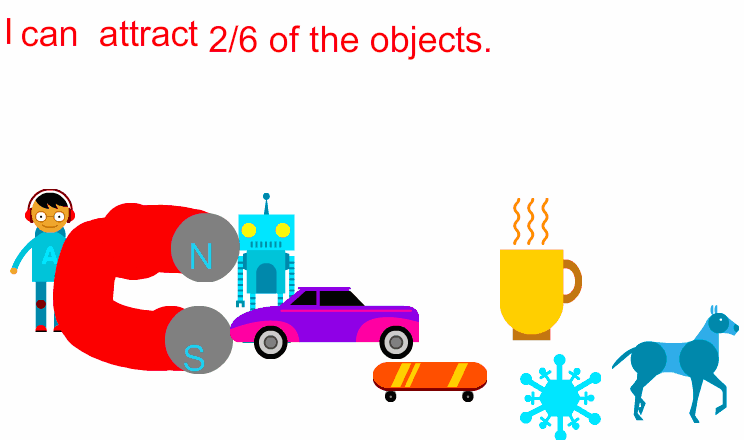
Screen Shot 2015-08-03 at 4.51.48 PMSecond graders at Holladay Elementary have been learning about magnets (SOL2.2) and fractions (SOL2.3) so today students in Ms. Gardner’s class created magnet fractions animations. First we reviewed the types of magnets (horseshoe or bar), their poles, and what types of objects they attract. Then I posted a link to ABCYa! Animate on Google classroom. I instructed them to use the clipart to add a person to their picture. Next they drew a magnet and labeled the poles with an N or an S. Then they went to the clipart library and added various objects that would be attracted to the magnet and others that would not. I showed them how to copy the picture into new frames and how to move the objects slowly toward the magnet in each frame. Finally they typed a sentence telling the fraction of objects that the magnet attracted. We published our finished animations to Google classroom. You can take a look at some of them here.


2nd Grade Matter Fractions

CaptureSecond graders at Holladay Elementary are learning about fractions in math (SOL2.3) and the states of matter in science (SOL2.3) so today students in Ms. Crostic’s class created matter fractions animations. First we discussed fractions and the parts of fractions. Looking at a sample group of solids, liquids, and gasses, we made fractions, identifying the denominator as the total number of things in the group, and the numerator as the smaller number of solids, or liquids, or gasses in the group. Next we went to ABCYa! Animate to create the animations. The students added clip art images of their choice to represent their own groups of solids, liquids, and gasses. In one frame they circled the total number of objects, and in the other frames they circled the specific groups of solids, liquids, or gasses. When the animations were finished, the students posted them to their Google classroom page with a question for their classmates to answer like, “What fraction are liquids?” They answered each others’ questions in the comments. I put a few examples into a Google doc that you can view here.


5th Grade Elements Websites

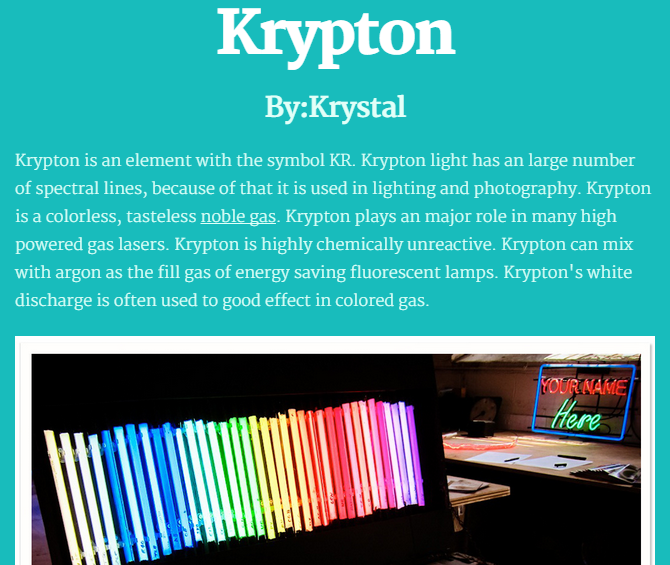
KrystalFifth graders at Varina Elementary have been learning about the elements in science (SOL5.4c) and cause-effect relationships in reading (SOL5.5j), so today we created cause-effect elements websites in Ms. Long’s class. First the students chose an element that they were interested in learning more about using the Interactive Table of Elements (other good resources are The Picture Periodic Table and the Simplified Periodic Table). I gave them some time to research their element and take a few notes. We reviewed plagiarism and copyright and discussed the importance of putting the knowledge they gained in their own words. Next we went to CheckThis, and I taught them how to use that tool to create their own website about the element. The students could change the fonts and colors and add pictures. They also needed to add an interactive poll question about a cause-effect relationship involving their element. We discussed cause-effect words they could use like “why” and “because” and “what would happen if…?” For example, we discovered that my sample element, aluminum, is used to build space ships, and we we asked ourselves why? We discovered that the cause was the lightness of aluminum. The students did a great job on their elements websites. If you’d like to see their sites and answer their cause-effect questions, click here.


5th Grade Cell Videos

CaptureFifth graders at Laburnum Elementary have been learning about the parts of a cell (SOL5.5) in science, and they have been working on their oral presentation skills (SOL5.2) and evaluating media messages (SOL5.3) in language arts. So today students in Ms. Satterfield’s class created instructional videos about cells using Pixiclip. Pixiclip is a webtool that allows you to record your webcam as you draw and write on a virtual whiteboard. First I gave the students a brief lesson on how to use the various tools, and we discussed good oral presentation skills, then they were able able to get started right away. As they drew the cell parts they described each one. When their videos were done we shared the links in Google classroom so they could evaluate and comment on each other’s videos. Take a look at some student examples here.


4th Grade Force Storyboards

forceFourth graders at Davis Elementary have been learning about force, motion, and energy in science (SOL4.2) and narrative elements in language arts (SOL4.5). So today students in Ms. Bennett’s class created comics about potential and kinetic energy using StoryboardThat. First they logged into their Google accounts, which allowed them to log into StoryboardThat with just a few clicks. We discussed narrative elements like characters, setting, problem, and solution. I showed them how to add different characters and settings to their comics and customize them. Next we brainstormed different problem-solution situations that would illustrate potential and kinetic energy. We talked about ways to increase potential energy (pulling back, squatting down, rotating, etc). Now the students were ready to create their 3-panel comics showing how a character solved a problem using potential and kinetic energy. When they were finished, they posted the links to their comics on Google classroom so they could see each others’ and add comments. Check out some students examples here.


5th Grade Cell Comparisons

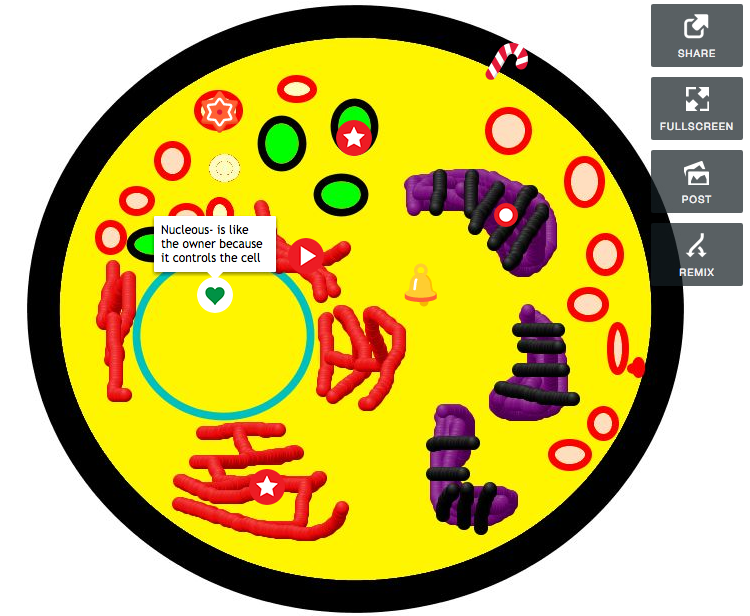
Screen Shot 2015-06-05 at 3.40.13 PMFifth graders at Laburnum Elementary have been learning about cells and various cell structures (SOL5.5a), so today students in Ms. Conway’s and Ms. E.Hall’s classes created interactive cell diagrams using Thinglink. First they chose whether to draw a plant or animal cell, then they used Pixie to illustrate the cell and its parts. Next they logged into Thinglink with their Google account and uploaded their drawings. Instead of just asking the students to label the parts and their functions, we wanted them to do a bit of higher-level thinking. So we instructed them to compare the cell to some other organized entity and its parts, like a school, a team, or a machine. The example I gave them was comparing the cell to a swimming pool. The nucleus is like the lifeguard because they tell everything in the cell what to do. The cytoplasm is like the water in the pool because it contains all the objects in the cell. The mitochondria are like the filters because they provide energy and keep things moving in the cell. The cell membrane is like the walls of the pool holding it all together. The students got very creative with their comparisons. You can take a look at examples from each class here.


1st Grade Push-Pull Animations

Screen Shot 2015-06-03 at 3.10.09 PMFirst graders at Holladay Elementary have been learning about force, and specifically push and pull motions (SOL1.2). So today students in Ms. Schemmel’s class created push and pull animations to illustrate these forces. We used ABCYa! Animate to create the animations. First we reviewed and demonstrated push and pull motions. I pointed out that the force is usually in front of an object when pulling, and it’s behind the object when pushing. The students used clip art and their own drawings to illustrate either a push or a pull. After saving the finished animations as GIF files, we uploaded them to our Google classroom page so we could look at each others’ and comment on them. I posted a few examples here for you to see. (UPDATE: I have been posting animated GIFs to Padlet lately and they seem to be working better. See here and here.)


5th Grade Light Websites

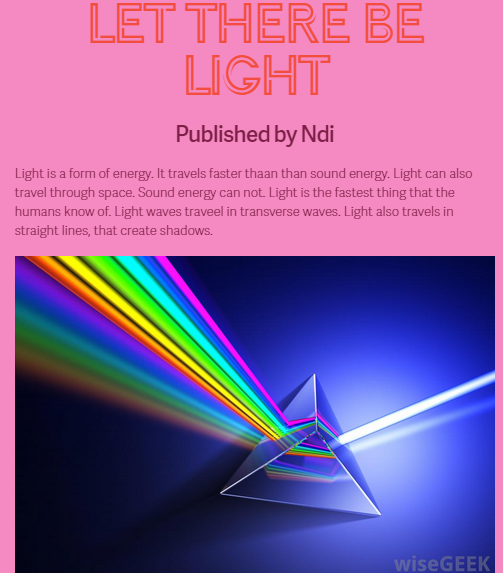
NdiFifth graders at Holladay Elementary have been learning about light and its properties (SOL5.3), so today students in Ms. Dimatteo’s class created light websites using CheckThis. First they logged into their Google accounts and went to Google classroom where I posted the link. Ms. Dimatteo gave them the directions for their projects and told them that they could pick the subtopic of light that they wanted to research. Next I showed them how to customize the colors and fonts for their webpage. We focused on writing the text first, since that was the most important part. We encouraged the students to make sure they had their facts correct by using their notes or doing research online. Then I showed them how to search for and add a photo. Finally they added a question for their visitors to answer. We posted the links to Google classroom so they could visit each others’ pages and answer the questions. You can take a look at them here.


2nd Grade Animal Videos

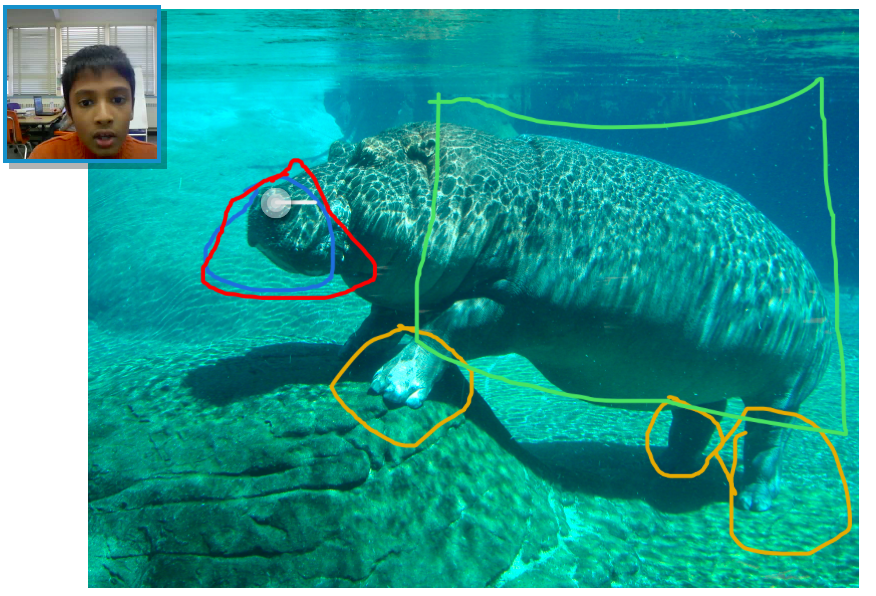
Screen Shot 2015-05-29 at 1.33.54 PMSecond graders at Davis Elementary have been learning about living systems (SOL2.5) and how animals’ adaptations help them survive, so today students in Ms. Jefferson’s class created animal videos using Pixiclip. Pixieclip is an online whiteboard where you can draw, type, or upload photos, and it records your webcam so you can explain what you are doing. The students first chose an animal they were interested in learning more about. We did some quick online research to identify the animal’s special features that help it survive. We also downloaded a photo of our animal. Next we went to Pixiclip and uploaded the photo. There are 3 choices: start doodling (no audio or video), add audio message, or add video message. I explained that they could choose to make an audio or video message, depending on if they wanted to be filmed. They dragged their photo to the whiteboard which triggers the recording to start. Then the students used the pen tool to circle special features on their animals and explained the function of each one. When they were finished, they posted their links to the Google classroom page so they could watch each others’ videos. I posted a few to a Google doc that you can see here.