Category: Science

4th Grade Moon Animations
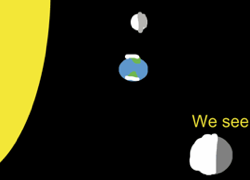
Screen Shot 2016-05-01 at 3.19.41 PMThe phases of the moon give us a beautiful calendar in the sky, but sometimes that calendar is difficult to read. Is the first quarter when the right or left side is lit up? Is the moon waxing or waning? Answering these questions takes a bit of perspective, and that’s why animation is an excellent way to broaden students’ understanding of these processes, especially if the students create the animation themselves. Third graders at Varina Elementary used ABCYa! Animate to create animated .gifs of four moon phases: (1) new moon, (2) first quarter, (3) full moon, and (4) last quarter (SOL3.8a). In order to be accurate, the students had to do some research. They had to find out which direction the moon orbits the Earth and what the moon looks like from Earth at different positions. Once they had their facts, they illustrated the position of the Sun, Earth, and moon for each phase, showing what we see from our perspective here on Earth. Next they exported the four images as one animated .gif file. Then they posted their animations to Google classroom with a question for their classmates to answer. After watching each other’s animations and answering each other’s questions, these third graders have a much clearer understanding of how the moon phases happen and the order in which they occur. This was actually submitted as an H21 lesson, which means you can download the lesson plan here. Student samples: Layla Obey and Erin Hardin.
Kindergarten Seasons Animations

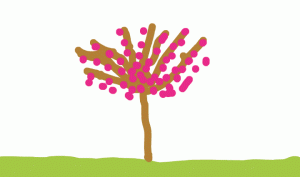
seasonsKindergarten students at Davis Elementary have been learning about Earth patterns, cycles, and seasons (SOL K.9 & K.10), so today Ms. Feldman’s class created animations to show how trees change through the seasons. We used ABCYa! Animate to create the animations. On the first frame, students painted a line across the bottom for the ground and filled it in with the paint bucket. Then we painted a tree with some bare branches. We copied our picture four times using the copy cat button. Then the students went back to each frame to add details for the specific seasons. For spring, we added blossoms to the tree; for winter, we changed the color of the ground to light grey and painted snowflakes; for summer, we painted green leaves on the tree; and for fall, we painted different colored leaves falling to the ground. Some students added additional creative details. We downloaded our finished animations as GIF files, then I took them to a page I created on Padlet so they could post their animations. They double clicked on the “bulletin board,” typed their name in the title, and uploaded their animation. A cool feature of Padlet is that animated gifs stay animated on the board, so you can see all the changing trees here.


4th Grade Electric Circuits

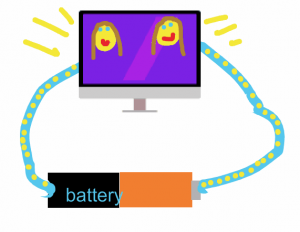
CaptureFourth graders at Varina Elementary have been learning about electricity and circuits (SOL4.3), so today students in Ms. Burcham’s class created animated circuits. First we discussed the parts of a circuit. To keep things simple for the amount of time we had, we limited our circuits to a power source for generating electricity (battery) and an object that converts the electrical energy into light, sound, heat, or motion. We left off the switch, but students could easily create other animations in the future with switches and additional parts. I posted a link to ABCYa!Animate on Google Classroom, and the first object we drew was the power source. I showed them how to use the shapes tool to draw a simple battery. We discussed the positive and negative end (the positive end is the part with the knob) and which direction the current would flow out of the battery so our animations would be accurate. When one student said it flows from positive to negative and another said it flows the opposite way, I said that they both were right, in a sense. The actual flow of electrons is from the negative end to the positive end, but when Benjamin Franklin and other early scientists wrote about electricity, before the electron had been discovered, they said that the flow was from the positive to the negative end. So that “current” was called “conventional current” because it was based on convention, or tradition. Many circuit diagrams show the flow of electricity according to convention, or from positive to negative, so that’s the way we showed it today. I also related it back to their force and motion unit (SOL4.2) by asking whether a battery has potential or kinetic energy. They were correct in stating that it has potential energy. Any resistor on the circuit, like a light bulb, slowed the flow of electrons due to friction. So now that their concepts were correct, they could draw the rest of the diagram. We drew the wire, making sure it connected to both ends of the battery so the electricity could flow, and we drew an object to be powered by the battery along the route of the wire. For each frame we represented the current by yellow dots along the wire. When the dots reached the object, we made it do something, like turn on or move. Then we continued the dots back to the battery. When we finished our animations, we exported them as GIF files and uploaded them to Google classroom with a question for our classmates to answer. You can see them all here (bonus if you can find the battery with no potential energy).


3rd Grade Water Cycle Slideshow

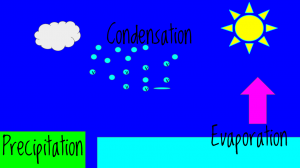
CaptureThird graders at Laburnum Elementary have been learning about the water cycle (SOL3.9), so today students in Ms. Tyler’s class created animated water cycles using Google slides. First we looked at a sample animated water cycle to review. I posted a blank slideshow template in Google classroom and set it to make a copy for each student. On the first slide we clicked the Background button and searched for a good image to represent the water cycle (clouds, ocean, rain, etc). We added a title and our names, changing the font, size, and color to coordinate with the background image. Next, we added a new slide and changed the Background color to a sky blue. We used the shapes tool to place blue and green rectangles at the bottom for the ocean and land. We also used the shapes tool to add an arrow, a sun, a cloud, and a circle for a rain drop. I showed them how to change the border thickness and color of each shape. Once we got the raindrop looking the way we wanted, we copied and pasted it multiple times until we had a bunch of rain drops. Then we grouped them together by dragging across all of them and clicking Arrange > Group. Finally, we added text boxes to label each part of the water cycle (evaporation, condensation, and precipitation). To animate the water cycle, we clicked on the background and then clicked the Transition button at the top. Each object in the picture had to be clicked in the order it was supposed to appear, and we added an animation to it. When the students were finished, they clicked File > Publish to the web and copied the link. We posted them to Google classroom so our classmates could see the, but you can see them here.


5th Grade Sound Slideshows

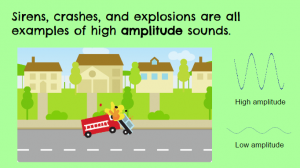
CaptureFifth graders at Holladay Elementary have been studying sound (SOL5.2), so today students in Ms. DiMatteo’s class created Google slideshows about two characteristics of sound waves: frequency and amplitude (SOL5.2b). First we explored these topics with various interactive websites. With the “Wave on a String” website, students can create their own waves and adjust the frequency and amplitude. With the “Virtual Oscilloscope” students can turn on their microphones and actually see how different sound waves look on the oscilloscope. With the “Oscilloscope & Sounds” website students can press different keys on a piano to see how the pitch is reflected in the frequency. They can also adjust the volume slider to see how that affects the amplitude. I suggest turning both of the dials to #1 at the beginning so the sound waves are big enough. The last site we explored is another virtual oscilloscope that lets students experiment with changing the pitch and volume. Now the students were ready to create their slideshows. I posted a template on Google classroom that you can copy here. On the cover slide, we clicked the Background button and searched for an image having to do with sound. We also typed our names in the blank. The next slide is about frequency, so I instructed the students to think of an animal or object that makes a high or low frequency sound and create an animation using ABCYa!Animate to illustrate it. We exported our animations as GIF files and added them to our slide. On the last slide we went through the same process, but this time, illustrating amplitude. Unfortunately we ran into problems with the animations only playing once and then disappearing. For this reason, I have no student samples to share, but I figured out a solution. You can upload your animation to EZGIFMaker, press the “Animate It” button, and download the newly created GIF file. That webtool also lets you delete frames that had mistakes. You can take a look at my sample here. P.S. If you are studying sound, be sure to check out our very own Matt Caratachea’s awesome sound video!


5th Grade Force & Motion Animations

CaptureSince the upcoming 5th grade SOL test has questions from the 4th grade science curriculum, fifth graders at Varina have been reviewing force and motion (SOL4.2). So today students in Ms. Gallahan’s class created animations showing potential and/or kinetic energy. First we discussed the differences between them. One way to get students to think about kinetic and potential energy is to ask them how to increase each one. How would you increase the potential energy of a toy car on a ramp? (Answer: make the ramp higher or make the car heavier) How would you increase the potential energy of a bow and arrow? (Answer: pull back farther on the bow string). How would you increase the kinetic energy of a runner? (Answer: run faster). After our brief discussion, the students were ready to make thoughtful animations. I posted the link to ABCYa! Animate on Google classroom and showed them how to use the tools. The students created their animations frame by frame and exported them as GIF files. Next, we posted them to Google classroom with questions for our classmates to answer. You can see their animations and questions here.


5th Grade Light & Sound Animations

CaptureFifth graders at Davis Elementary are studying light and sound (SOL5.2 & 5.3) so today we made animations about their different properties. First we brainstormed ideas (frequency, amplitude, wavelength, refraction, reflection, spectrum, etc), and I shared a couple of sample animations, one for sound and one for light. I explained that they would need to post their animation on Google classroom with a thoughtful question for their classmates to answer. To practice, we generated a few questions for the sample animations. Next, I posted the link to ABCYa! Animate on Google classroom and showed the students how to use the animation tool. One part that the students really liked was the option to upload a photo for the background picture. After the students illustrated each frame, they exported their finished animations as GIF files and uploaded them to Google classroom. They also posted their question for their classmates to answer in the comments. You can see their animations here.


3rd Grade Simple Machines

CaptureThird graders at Holladay Elementary have been studying simple machines (SOL3.2), so today students in Ms. Middleton’s and Ms. Edelblut’s classes created animations to show how different simple machines work. I posted a similar lesson a couple of years ago here, but I did a couple of things differently this time that I wanted to share with you. In Ms. Edelblut’s class, we used ABCYa!Animate and added a real photo for the background. First we did a Google image search for a background photo, then on ABCYa! we clicked the “Edit background” button and chose “Import photo.” It added a cool effect to the animations. You can see some student samples here. In Ms. Middleton’s class we used a different site I just discovered called ParaPara. It’s much simpler than ABCYa!Animate, but you have to draw everything, and there is no copy button, so you have to redraw your picture for every frame. For that reason I advised the students to keep their drawings very simple. The final animation isn’t saved as a .gif file either, but you can view them online. Several students were able to make two or three animations! You can see Ms. Middleton’s animations here .


Kindergarten Shadows Animations

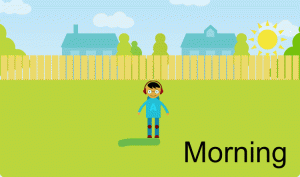
shadowsKindergarten students at Davis Elementary have been learning about shadows (SOLK.8) so today Ms. Dunkum’s class created shadows animations using ABCYa!Animate. Kindergarten students have a generic login, so instead of sharing the link with them, we had to type it in manually for each one. While we were doing that we discussed shadows: what causes them, which direction they point, and whether they are long or short. Once we were all on the animation page, I showed them how to pick a background. We made sure we picked a background where the sun would be visible (no night or underwater scenes). Next the students picked an image of a person they liked and an image of the sun. Since the sun image was orange, we clicked it, and then clicked the yellow color to change it. I instructed them to put the rising sun in the east (right side of the picture). Then we used the paint brush tool to paint a long shadow under the person, opposite the direction of the sun. Finally, we used the text tool to type “Morning,” and our first picture was done. We copied it with the copy cat button, moved the sun to the top center of the page, repainted a short shadow directly under the person, and typed the word, “Noon.” For the last frame, we used the copy cat button, moved the setting sun to the west (left side of the page), painted a long shadow under the person pointing away from the sun, and typed “Afternoon.” When we pressed the play button, the animation looked like the sun was moving across the sky and the shadows were moving along with it. Unfortunately, we didn’t have a way for the students to save their animations since kindergarten students don’t log in, but you can see a sample animation here.


3rd Grade Time & Matter

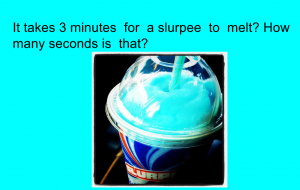
CaptureThird graders at Holladay Elementary have been learning about the states of matter in science (SOL3.3) and equivalent time in math (SOL3.12), so today we created Google slideshows exploring how long it would take for different types of matter to change states in equivalent times. First I made a blank Google slideshow and posted it to Google classroom so every student got a copy. On the cover slide, I showed them how to pick a background image about time using a Google image search. Then we added a title and our names and changed the font, size, and color of the text. Next we added a new slide, and I instructed the students to think of a type of matter that could melt and/or freeze. They wrote a sentence about how long it would take for their matter to change states, and they also wrote a question for their classmates to answer about the equivalent time in another unit (seconds, minutes, hours, etc). They added a picture of their type of matter, and I showed them how to add transitions and animations to the slide. Finally we published them to the web and posted the links on Google classroom so the students could solve each others’ problems. You can see all their slideshows here.