Category: Math

3rd Grade Parthenon Perimeter
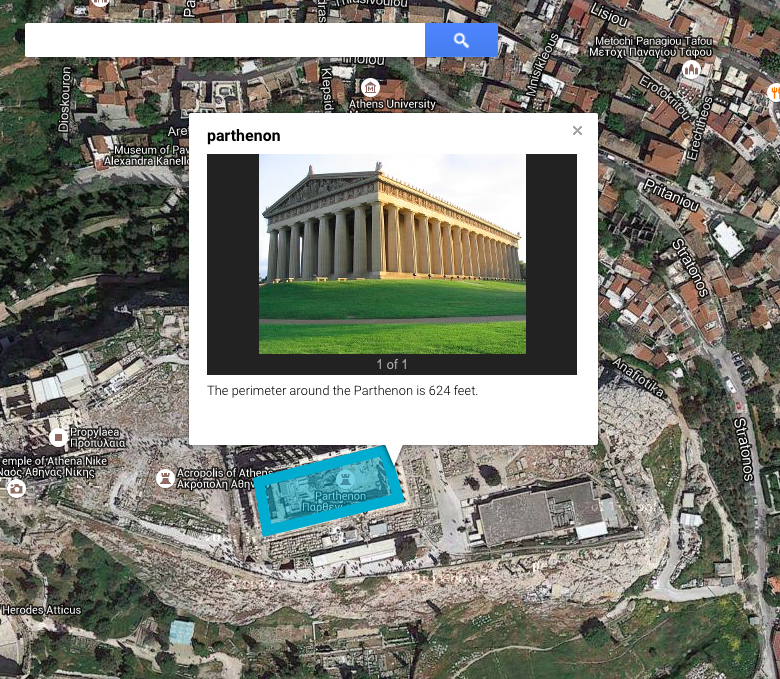
Screen Shot 2015-05-12 at 8.02.58 AMThird graders at Davis Elementary have been learning about the architecture of the ancient Greeks (SOL3.1) and how to identify Greece on a map (SOL3.4). They have also been studying perimeter in math (SOL3.9d). So today students in Ms. Eller’s class found the Parthenon using Google maps and calculated the perimeter of it. First we signed into our Google accounts and went to Google classroom where I posted a link to My Google Maps. The students clicked “Create a Map,” and we talked about where Greece was located. First we found Europe, then we located the Mediterranean Sea. Since the map was labeled, it was easy to find Greece. We zoomed in on Greece, and I instructed them to keep zooming in on the labeled city of Athens. Once they were closer to the city, we started zooming in on a green patch labeled “Acropolis.” Then we switched over to Satellite view (click Base Map in the left menu box). Now we could actually see the Parthenon and its columns! By the way, if you would like to give your class a virtual tour of the Parthenon you could go to it in regular Google maps and drag the yellow peg man from the bottom right tool bar to one of the blue dots that appear near the Parthenon for a Street View panoramic tour of the site! To calculate the perimeter of the Parthenon you could use the ruler tool and measure all the sides, but we used the line tool and drew a rectangle around the Parthenon. I showed them how to change the color and thickness of the shape using the paint bucket that appears next to the shape in the left-hand key. When you click the shape after you’ve saved it, a box pops up that gives you the perimeter. We clicked the pencil on the box to edit it and wrote the perimeter in the description (other people who view the map won’t see the perimeter unless it’s in the description). We also clicked the camera tool to add a photo of the Parthenon. We posted the links to our maps in Google classroom so we could compare our measurements with our classmates’. You can look at some of their maps here.


2nd Grade American Indian Math

Screen Shot 2015-05-12 at 10.01.42 AMSecond graders at Davis Elementary have been learning about three American Indian tribes: the Powhatan, the Lakota, and the Pueblo Indians (SOL2.2). They have also been learning how to solve and create their own addition and subtraction story problems (SOL2.21). So today students in Ms. Vest’s class created story problems about American Indians. First they chose a tribe, then we opened Pixie, and I showed them how to add stickers and paint to make a picture of the tribe. We discussed features to include like the landscape, their homes, the animals they hunted, and the modes of transportation they used. We exported the finished pictures as .jpg files, then we posted them to our Google classroom page. I instructed them to type a story problem to go with their picture. Then their classmates could try solving the problems and writing the answers in the “Comments” section. You can take a look at some of their problems on Padlet.


Tags:


3rd Grade Ancient Greece Word Problems

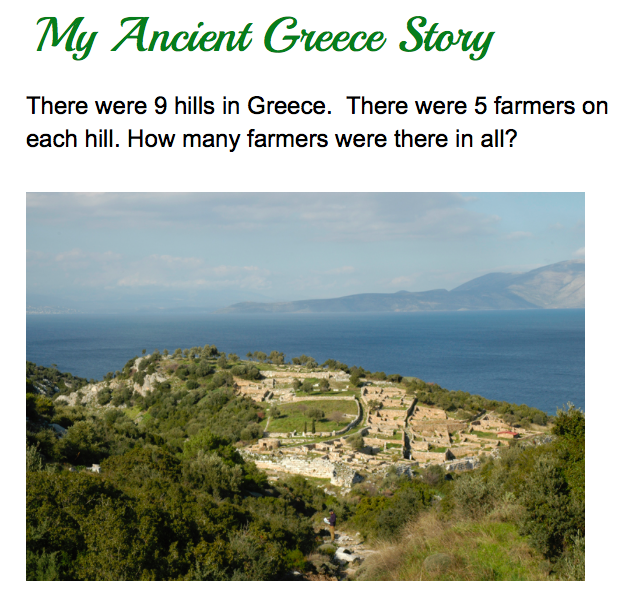
PursellThird graders at Laburnum Elementary have been learning about the contributions and the economy of the ancient Greeks in social studies (SOL3.1, 3.7), and they’ve been learning how to solve multiplication word problems in math (SOL3.6). So today students in Ms. Ford’s class wrote their own ancient Greece multiplication word problems for their classmates to solve. First I created an assignment in Google classroom and gave them a blank Google docs template. Since this was their first time using Google docs, I showed them how to change the font, size, and color of the text. They added a customized title, then we brainstormed ideas for the multiplication problem. We discussed what the land and architecture in ancient Greece were like, and we also considered the different jobs that people in ancient Greece had. I explained that multiplication involves groups of things, so I told them to think about situations in the lives of the ancient Greeks that would include groups (soldiers, Olympics, trading ships, olive and grape orchards, buildings, etc). They typed their questions, then I showed them how to add a picture using the built-in Google image search. We posted the problems to the Google classroom page so the students could solve each others’ problems. You can try solving some yourself here.


5th Grade Elapsed Time Maps

Screen Shot 2015-05-01 at 8.37.18 AMFifth graders at Laburnum Elementary have been learning how to find elapsed time in math (SOL5.10), and they’ve been studying the southeast region of the United States in social studies (SE1.2). So today students in Ms. Conway’s class created elapsed time word problems using Google maps. First they signed into their Google accounts and I posted a link to My Google Maps on the classroom page. They clicked “Create a new map” and placed a marker on a city in the southeast region that they are interested in visiting. They labeled their marker and added a photo of the city by clicking the camera icon and doing a Google image search. Next they clicked the directions icon (it looks like a curved arrow), and calculated the time and distance from Richmond to their city. Finally they clicked the pencil icon on their marker label and typed an elapsed time word problem in the description box. We shared our maps by clicking the Share button and making it viewable by anyone with the link. Then we posted our links to the Google classroom page for our classmates to solve. See how many you can solve by taking a look at them here.


3rd Grade Coins & Money

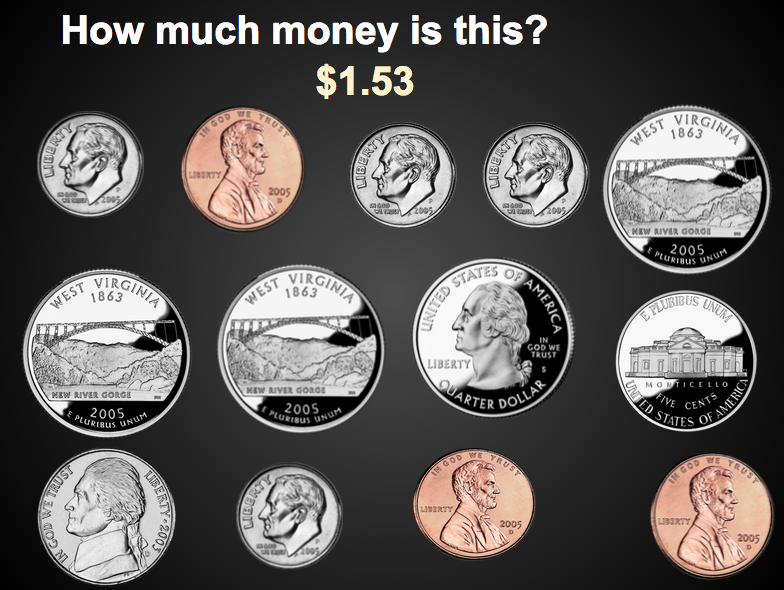
Screen Shot 2015-04-22 at 8.34.56 AMThird graders at Davis Elementary have been learning about coins and money in Math (SOL3.8). Today, students in Ms. Cousins’ class created interactive money problems for their classmates to solve using Google slides. I created a template that you can download here, and I created an assignment in Google classroom, making a copy of the template for each student. When they opened their copy, I showed them how to add their names to the first slide. On the second slide I showed them how to copy, paste and delete the coins so that they had a new, challenging number of coins for their classmates to add up. Then they had to figure out the answer and add it to their slide. I taught them how to change the color of the text and add an animation, so the answer would appear when the viewer clicked on the slide. Finally we posted our slideshow links to the classroom page so we could look at each others’ problems and try to solve them. We also checked to see if our answers matched their answers. You can take a look at all their slideshows here.


1st Grade Graphs

Screen Shot 2015-03-26 at 12.48.12 PMFirst graders at Laburnum Elementary have been learning how to gather data by counting and tallying (SOL1.14) and how to display that data in graphs (SOL1.15), so today students in Ms. Tyler’s class practiced those skills using the computer. First we logged into their Google accounts (with lots of help) and went to Google classroom. I posted a question: “What is your favorite ice cream of these 3 choices: vanilla, chocolate, or strawberry?” The students clicked where it said “Add a comment” and typed their favorite flavor. They loved seeing their classmates’ names pop up. We counted how many students liked each flavor and wrote tally marks on the board. Next I posted a Google spreadsheet template to the classroom page and clicked the button “Make a copy for each student.” You can make a copy of the template to use with your class as well. The template has two tabs at the bottom. The first tab is the one the students will use. The tab labeled “Key” is a finished sample for your reference. I showed the students how to type the flavors in the first column (some of them needed help with that). Then they typed in the numbers. The graph will automatically build itself as the students type. We discussed what words we needed to add to the title and added “Ice Cream” to it. Finally I showed the students how to change the colors of the bars (click them and then click the paint bucket). That was all we had time for, but you could extend the lesson by asking questions like, “Which flavor had the most votes? the least?” Try graphing other favorites like colors, foods, animals, sports, etc.


3rd Grade Word Problems

Screen Shot 2015-03-15 at 10.25.03 AMThird graders at Laburnum have been working with word problems, so today Ms. Collins’ class created their own word problems for their classmates to solve. I also got to teach them some word processing skills with Google Docs. First I assigned them a blank document in Google classroom. I showed them how to change the font, size, and color of the title text. Next they wrote an addition or subtraction word problem using larger numbers (2- or 3-digit) to make it challenging for their friends. I taught them how to add a picture using the Insert > Image > Search sequence. They found an image that went along with their word problem. Finally I showed them how to share their document with their classmates by clicking the blue Share button, and then clicking the grey link circle in the window that opened to turn it green. That copied the link which they then pasted to the classroom page. Now they could click “Add a comment” under their friends’ links and type in their answers. You can take a look at some of their word problems here.


5th Grade Order of Operations

5thOrderOperationsFifth graders at Varina Elementary have been learning about order of operations in math (SOL5.7) so today Ms. Chisom’s class created a spreadsheet showing how the order of operations works. First we did a quick warm up in Google classroom. I asked them to write two number sentences with the same 3 numbers in the same order with the same operations that had different answers. Many of them figured out that the trick was to add parentheses. Next I assigned them a blank spreadsheet in Google Classroom (that way it would automatically be shared with the teacher). I instructed them to write the column headings: “Number” for columns A-C and then “A+BxC” in column D and “(A+B)xC” in column E. They could write any 3 single-digit numbers in cells A2, B2, and C2. I explained that we would use formulas for the other cells so that they could change the numbers in A2, B2, and C2 and still get an answer. That introduces them to the concept of variable which they will learn later on this year (SOL5.18). I showed them how to write the first formula “=A2+B2*C2,” and I asked them to figure out how to write the second formula “=(A2+B2)*C2.” They experimented with changing the numbers in A2, B2, and C2. Then I asked them to try and find some numbers that would result in the same answer for both formulas. Some of them figured out that if they put a 1 in C2 they would get the same answer. You could extend the activity by including subtraction and division, but that’s all we had time for today!


3rd Grade Rounding Calculator

3rdRoundingThird graders at Laburnum Elementary have been learning how to round numbers to the nearest ten and hundred (SOL3.1b) so today I showed the students in Ms. Collins’ and Ms. Ford’s classes how to make a rounding calculator. First, for a warm-up activity, we went to Google classroom and I posted an announcement that said, “What is a number that will round to 40?” The students clicked “Add comment” and posted their ideas (any number between 35-44). Next I asked them if they thought computers could round faster than they could. We discussed that even though computers are faster than humans, they aren’t smarter. People have to program computers, and today, I explained, we were going to program the computer to round for us. I gave them a template that you are welcome to copy (a finished sample is on Sheet 2). First they could write whatever 2- or 3-digit numbers they wanted down column A. I told them to try to make it hard for the computer. Next in cell B2 we wrote the rounding formula =ROUND(A2,-1) which rounds the number in cell A1 to the tens place (the -1 means one place to the right of the decimal). Then I showed them how to drag the little blue square in the corner of B2 down through the rest of column B. It automatically rounded all the numbers in column A! Finally I asked them to figure out and test a formula in C2 that would round A2 to the nearest hundred. Many of them realized that it was =ROUND(A2,-2). If you have time, you could go on and write a formula that would round the numbers in column A to the nearest thousand.


3rd Grade Number Patterns

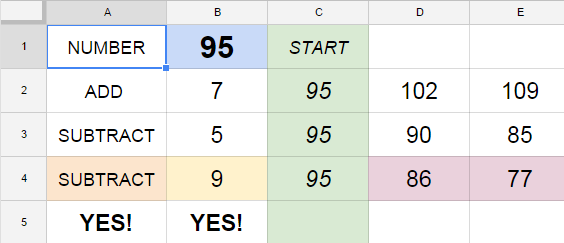
3rdPatternsThird graders at Holladay have been learning about number patterns (SOL3.19) so today I taught them how to create and solve their own number patterns using Google spreadsheets. First I gave them a spreadsheet template that you can copy here. There is a finished sample on Sheet 2 of the template with directions for your reference. The students entered a 2-digit number in the top blue box, and it is automatically entered into the green boxes. Then the students enter a number they want to repeatedly add to it and a number they want to repeatedly subtract from it. The pattern is instantly generated by a formula in the spreadsheet, but I wanted to teach them how to create their own formula. So in the purple cell next to the last green box (C4), they entered whatever pattern they wanted to show, using the basic formula =C4+? or =C4-? I showed them how to drag the tiny blue square in the bottom corner of the box across the other purple cells to create the repeating pattern. Finally they switched seats and tried to figure out each others’ patterns by typing “Add” or “Subtract” in the red box and the number in the orange box. The spreadsheet lets them know if they are right or wrong.