Category: Language Arts

1st Grade Writing about the Past
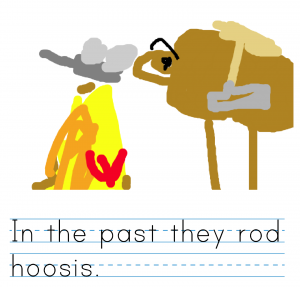
First graders at Trevvett Elementary have been learning about life in the past in History (SOL1.1) and how to write complete sentences with capitals and punctuation in English (SOL1.13e). Today students in Ms. Fletcher’s class showed off their skills by writing sentences about the past. We used ABCYa! Storymaker because it has a familiar writing paper template and an age-appropriate font. The students got to the website all by themselves by typing “ABCYa” in a Google search, clicking the link, then clicking the 1st grade button, and finding the Storymaker link on that page. First we discussed different ideas they could write about so they weren’t all writing about the same thing. We talked about how they cooked on a fire, traveled using horses and wagons, washed clothes in a bucket or the river, went to school in a one-room schoolhouse, sent letters instead of texts, and many more ideas. The students typed their sentence about the past using Shift to make a capital at the beginning and remembering their period at the end. We encouraged them to use sight words and sound out any unknown words (SOL1.12c). Then they used their newly-learned click-and-drag skill to draw a picture illustrating their sentence. When they were finished we saved them as PDF files (click the Print button). Finally we helped them upload their files to a Padlet (a free online bulletin board). You can see them all here (click each one to view the whole page).
5th Grade Animal Comics

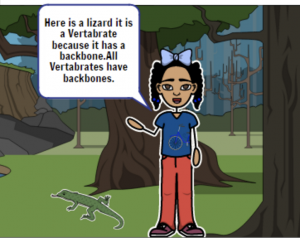
Fifth graders at Laburnum Elementary have been learning about vertebrates and invertebrates (SOL5.5b), so today students in Ms. Hall’s class created comics to help explain the difference between these two types of animals. We used StoryboardThat to create our comics. StoryboardThat is the best webtool around for creating comics because of its huge library of customizable clipart. I’ve used often in lessons (you can search my blog for other examples). The only problem with using it at the elementary level is that its terms of service specify that only students 13 years of age or older can have accounts. So we don’t let our students create accounts, but they can still make comics using the free version, then we save them by taking screenshots. First we created our three scenes (the free version is limited to 3 or 6 scenes). I explained that the first scene needed to be an introduction, the second scene would be about vertebrates, and the last scene would be about invertebrates. The students had to plan out which animals they were going to focus on so they could chose appropriate habitats for the backgrounds. A cool new feature on StoryboardThat allows you to customize the background scene by changing the weather and the time of day (click the blue “Edit Scene” button). Next the students added characters and animals (click the Characters tab at the top, then choose the Animals submenu). You can customize the characters as well by clicking the “Edit Pose” button. Finally we added speech bubbles, called “Textables” here, and typed complete sentences explaining the differences between vertebrates and invertebrates. I showed them how to take a screenshot of their finished comics using the Snipping Tool (or Command+Shift+4 on a Mac), and we shared them on Google classroom. You can see all their comics here.


1st Grade Animal Sentences

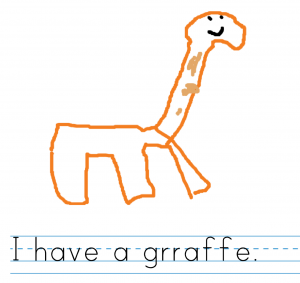
First graders at Trevvett Elementary have been learning about animals in science (SOL1.5) and how to write complete sentences with a capital and a period in Language Arts (SOL1.13e). Today students in Ms. Lucas’ class used ABCYa! Storymaker to draw an animal of their choice and type a complete sentence about the animal. First we helped them log into their accounts which, in itself, is a major accomplishment. Then we helped them navigate to the website, and I showed them how to use the drawing tools to draw an animal. We talked about a variety of different animals to help them get ideas and not all draw the same one (everyone seems to love cheetahs)! Next, we clicked the writing button (yellow button on the right side) to write our sentences. I really like how this site uses the lined paper format familiar to first graders and a kid-friendly font. I taught them how to use Shift to make the first letter a capital. I also explained that they should press the space bar once between each word. After they typed their sentences, I pointed out where the period key was for the ending. We pressed the green button on the right side to see both the writing and the painting together. Then we clicked the Print button to save it as a PDF. I wanted to save them all to one place, so I tried out a new feature in Google forms: file upload. I created a short URL to a simple form http://tinyurl.com/lucasform, and we helped the students upload their PDFs to the form. It automatically creates a folder in Google drive where all the files are collected. It worked great! You can see all their hard work from today here.


3rd Grade Create a Holiday Logo

Third graders at Trevvett Elementary have been learning about being a good citizen and celebrating national holidays, like Veterans Day (SOL3.11). Students in Ms. Robinson’s class created their own national holiday, and today she asked me to help them make a logo to represent their holiday. First we talked about logos. They are easily recognized symbols with simple designs and just a one or two colors. I showed them a few logos to see if they could recognize them (Apple, T-Mobile, Xbox, Android, Playstation, Olympics, McDonalds, Domino’s, etc). Some logos even have hidden symbols (like the arrow in FedEx, 31 in Baskin Robins, two people sharing a chip in Tostitos, the letter g/face in Goodwill, and the kiss in Hershey Kisses). I explained that the logos they create for their holiday needed to be simple and easily understood, but they could also have hidden messages or surprises. I gave them each a copy of a blank Google doc in Google classroom and showed them how to type the name of their holiday and change the font, size, and color. We discussed the importance of fonts in logos and realized that the most important thing was that it was easy to read. There are not many cursive fonts in logos (Coca-Cola is a famous exception). Next we went to LogoMakr to design our logo. This is a great site for any kind of illustration because there’s no login, it has a huge collection of clip art, you can customize the colors, and your art is quickly downloaded as a PNG file with a transparent background. After students created their logos, we imported them into our Google doc (Insert > Image > Upload from your computer) and wrote about the holiday. Finally we published our work to Google classroom. You can see all the holiday logos here.


5th Grade Ocean Food Chain

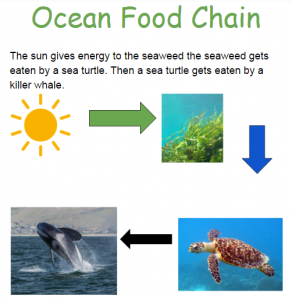
Fifth graders at Varina Elementary have been reading and writing nonfiction text (SOL5.6 & 5.7) and they have been learning about ocean food chains in Science (SOL5.6). So today students in Ms. Primrose’s and Mr. Williams’ classes created an ocean food chain in Google drawing and wrote about it. First I gave them each a copy of a blank Google doc in Google classroom. I showed them how to add the title and change the font, size, and color. Next we had to research our food chain. The students could pick whichever sea creatures they were interested in, but they had to have the correct predator-prey relationships. For example, they couldn’t have a jellyfish eating an octopus. I explained how to open a new tab and ask Google questions like, “What is an ocean plant? What eats seaweed? What predators does a dolphin have?” Once they had their correct food chain facts, they wrote about the sequence in their Google doc. Then we clicked Insert > Drawing, and the students created their food chain diagram using images (click the Image button > Search) and arrows (click the Shapes button). Finally, we clicked File > Publish to the web, copied the link, and posted our projects to Google classroom. You can see them all here.


3rd Grade Animal Adaptations

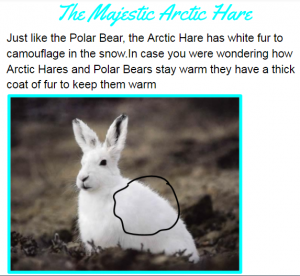
captureThird graders at Varina Elementary have been learning about animal adaptations in Science (SOL3.4) and writing for a variety of purposes in Language Arts (SOL3.9). So today students in Ms. Lanham’s class wrote about animal adaptations using Google docs. This was my first lesson with them, so I wanted to introduce them to Google classroom and the basics of word processing. First I posted a blank Google doc template to Google classroom and set it to make a copy for each student. I instructed them to choose an animal they were curious about and do a bit of research in another tab. A good way to get some quick facts is just to type the name of the animal and “adaptations” into a Google search. We discussed the importance of putting the information in their own words and not plagiarizing. Then we went back to the Google doc and typed a creative title. I showed them how to change the font, size, and color of their title. Next they wrote a few sentences about some of the adaptations their animal had to help it survive. Finally, instead of simply adding a picture of the animal, we clicked Insert > Drawing so we could circle or otherwise point out the various adaptations seen in the image. When they were finished, the students published their writing and posted the links to Google classroom. You can read all their animal reports here.


5th Grade Scientific Method

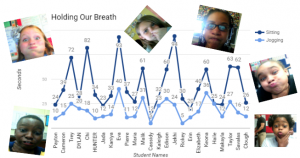
captureFifth graders at Varina Elementary have been learning about the scientific method in Science (SOL5.1) and nonfiction text features in Language Arts (SOL5.6a). To reinforce those concepts, students in Ms. Rumans’ and Ms. Gallahan’s classes conducted a quick experiment and wrote about the scientific method they followed, including some nonfiction text features. First I made a copy of a blank Google doc for each student in Google classroom. I usually like to review word processing skills for my first technology lesson. I showed them how to add a title and change the font, size and color. Then we wrote about our experiment using the vocabulary words we have learned: hypothesis, independent variables, and dependent variables. I demonstrated how to make the important words bold (a feature of nonfiction text). Next we opened this template (I changed the Share settings to “Anyone with the link can edit”) and each student typed their name in column A using the row with their student number. First we timed how long we could hold our breath while sitting quietly using Google stopwatch (just do a Google search for “stopwatch”). Then we ran in place for a minute and timed how long we could hold our breath. Students recorded their times in columns B and C. The template automatically generates a line graph. After collecting our data, the students went back to their own Google docs and clicked Insert > Chart > From Sheets. They navigated to the spreadsheet we just completed and clicked on the graph. Finally we added a photo of ourselves holding our breath by clicking Insert > Image > Take a snapshot. I linked their individual documents to their names on the spreadsheet. You can check out Ms. Gallahan’s class results here.


2nd Grade Menus

CaptureMs. Jefferson at Davis Elementary emailed me with a project idea she had for her class: “I would like for the kids to create menus. One of our language arts sols includes real world reading, so on Wednesday the kids will start creating menus for a pretend restaurant. We will also include math by using prices for items written correctly using the dollar sign and decimal point or the cent sign. When you come on Thursday, the kids should be ready to use their drafts to create on the computer.” This was a great idea, and I really like how it included elements of both language arts and math. I created a simple Google slides brochure template with a line down the middle of the slide for the menu fold. I gave a copy to each student on Google classroom, but only one student in each group opened the slideshow so they could all be on the same document. First I showed them how to add a Background image. I explained that the image shouldn’t be too distracting from the text. Food closeup photos work well, but images with lots of different types of food are distracting. Next the students added a title with the name of their restaurant and a subtitle with their names or a description of their cuisine. Davis is a multicultural school, so there were many ethnic restaurants. The second slide was the inside of the menu, so I showed the students how to add a table for the foods and the prices. They also added some images of the dishes they served. Finally, we published our menus to the web (File > Publish to the web) and pasted the links to Google classroom. You can see them all here.


1st Grade Earth & Sun Stories

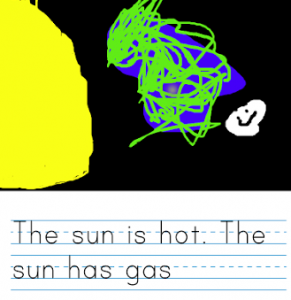
CaptureFirst graders at Holladay Elementary have been learning about the Earth and the sun in science (SOL1.6), and they have been learning how to write complete sentences in English (SOL1.13d), so today they wrote Earth & Sun stories with Storymaker. Storymaker gives students a fun way to write and illustrate stories on the computer. First we illustrated the picture. Students used the paint bucket to fill in the background with black. Then we discussed the relative sizes of the sun, Earth, and moon, and they painted them as realistically as possible. Some students even included the moon’s craters! Next we worked on the writing part. I instructed the students to write facts about the Earth, sun, and moon in complete sentences. They used phonetic spelling (SOL1.12c) for words they didn’t know, and they used capitals and periods (SOL1.13e). Finally we saved our stories and published them to Google classroom. I put them all on a Google doc so you can read them here.


1st Grade Winter Compound Words

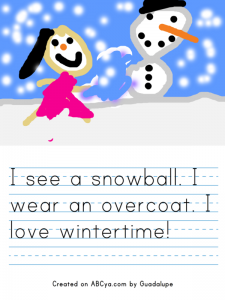
Story_Maker1First graders at Holladay Elementary are learning about winter in science (SOL1.7) and compound words in Language Arts (SOL1.6g), so today students in Ms. Schemmel’s class wrote and illustrated sentences with winter compound words. We used ABCYa! Storymaker, which is a great site for writing in the lower grades. First we brainstormed a list of winter compound words: snowman, earmuffs, overcoat, wintertime, snowball, gingerbread, fireplace, snowflake, iceberg, frostbite, evergreen, peppermint, sweatshirt, turtleneck, pullover, snowplow, etc. Next students typed a sentence or two about winter using some of the compound words we discussed. I explained how to start each sentence with a capital using Shift, put a space between each word with the space bar, and end each sentence with a period. It’s also important to explain to first graders that when they get to the end of the line, it will automatically go to the next line if they just keep typing. When they finished their sentences, they used the painting tools to paint a winter picture. I showed them how to use the paint bucket to fill in the sky and the spray can to make snowflakes. When they were finished, we saved them, and I uploaded them to CoMemories. You can see them all here.