Category: Language Arts

4th Grade Animated Revolutionary War Heroes
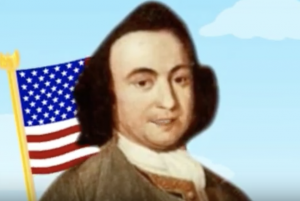
Fourth graders at Trevvett Elementary have been learning about Revolutionary War heroes like Thomas Jefferson, George Mason, Jack Jouett, and James Armistead Lafayette (VS.5, VS.6). Students in Ms. Adamonis’ class have each chosen a person to research and have prepared a written speech for the person describing his life and actions. Today we took their speeches and created animated faces using SitePal, so it looks and sounds like the famous heroes are actually talking. First we did a Google image search to find an image of the person. The best images are the ones where the person is facing forward. For people who don’t have a portrait online (like Jack Jouett) we searched for a Revolutionary War era/colonist costume model. Next we uploaded the image to SitePal (click Demo > Classic Demo > 3D > Create Your Own) and followed the directions to mark the eyes, nose, ears, chin, and mouth (this is important for the animation to look realistic). Then we clicked the “Audio” button and chose “TTS” (Text to Speech). We either copied and pasted our speech from our original document or typed it in the box. We chose a voice and an accent, then previewed it to be sure everything sounded correct. SitePal really helps with punctuation and spelling because you can hear right away when something isn’t right. Finally we used Screencastify to record our video and save it to our Google drive. We posted the links to Schoology, but you can take a look at some student projects here.
1st Grade Character Feelings

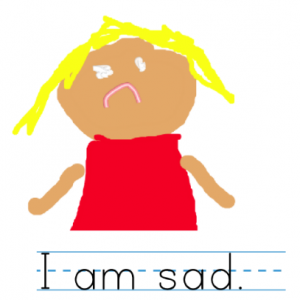
First graders at Holladay Elementary have been learning how to identify characters’ feelings in stories they read, using the illustrations and context clues (SOL1.9). Today students in Ms. Sokolowski’s and Ms. Shelly’s classes drew illustrations of characters showing feelings and wrote sentences about them. Ms. Shelly’s class used ABCYa! Storymaker for this project. First they painted a character’s face showing happiness, sadness, fear, anger, or some other emotion. Then they typed a complete sentence about the character. We saved the images as PDF files and uploaded them to a Padlet, that you can see here. Ms. Sokolowski’s class used StoryboardThat for their project. StoryboardThat is a website for creating comics. The students made a 3-panel comic with three characters showing different emotions. I showed them how to use the “Edit Pose” button on each character to change their facial expressions and poses. Then we added speech bubbles, or “Textables,” and typed sentences about their emotions. We took a screenshot of the comics to save them and uploaded them to a Padlet as well. You can see their projects here (some of the situations they illustrated are quite humorous!


1st Grade Services with -ing words

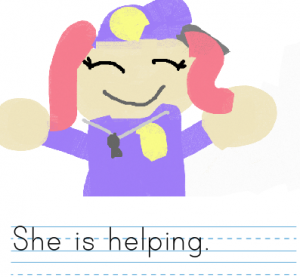
First graders at Holladay Elementary have been learning about goods and services (SOL1.7) and -ing words (SOL1.6e). So today students in Ms. Wimmer’s class wrote sentences about people who provide services, and we used -ing words to describe their work. First we reviewed some of the services they’ve been learning about: firefighters, policemen, barbers, teachers, doctors, etc. Then we talked about action words that end with -ing to describe what these community helpers do: helping, teaching, cutting, etc. (A great site to review services is Scholastic’s Listen & Read. It has several short articles about various services which can be read aloud). Next we used ABCYa! Storymaker to write and illustrate our sentences. The students used the paint tools to draw a picture of the service, then they wrote a complete sentence starting with “He/She is” and ending with an “-ing” word describing what they do. We took a screenshot of each student’s work (using the Snipping Tool) and uploaded them to CoMemories. You can see them all here.


5th Grade Cereal Box Book Report Videos

Fifth graders in Ms. Catlett’s class at Trevvett Elementary have been working on cereal box book reports (SOL5.2 & 5.3). If you want to learn more about the project and the rubric used to evaluate it click here. My job was to show them how to create a video for their project. We used WeVideo, and signed in with their Google accounts. The students clicked “Create a new video,” and we switched to Storyboard Mode (click the three lines in the top left corner). Then we clicked the “Title” slide in the bottom and edited it by clicking the pencil icon. I showed them how to do a Google image search for their book cover. We downloaded it from the Internet (right click on the image and click “Save image as…”), then we uploaded it to WeVideo (click the green cloud icon). Next the students clicked the red record button, installed the WeVideo extension, and recorded themselves describing their book and their cereal box. When they were finished, they added a text slide with “The End.” Finally, we clicked the Themes button and changed the theme of the movie. Each theme has its own accompanying music, so we had to turn that down using the volume slider in Timeline Mode (click the three lines in the top left corner again). To publish the videos, we clicked “Finish” and copied the link into Google classroom. You can see them all here.


5th Grade Figurative Language Animations

Fifth graders at Trevvett Elementary have been learning about different types of figurative language such as simile, metaphor, hyperbole, and personification (SOL5.4d). Today students in Ms. Capano’s class created animations to make figurative language sentences come to life! First we shared examples of figurative language that they had heard before. We brainstormed different ways you could illustrate the literal meaning of well-known phrases, like “faster than a speeding bullet” or “slow as a turtle.” I explained that today they needed to create their own sentence with figurative language. Then we would make an animated GIF that flashed back and forth between the literal and figurative meaning of their sentence. We went to ABCYa! Animate to create the animation. We used the text tool to type our sentence, and I showed them how to use the drawing tools to illustrate it. Next we clicked the copy cat button and changed the picture to show the literal meaning. When we were finished, we saved our animations using the export button and uploaded them to a Media Album in Schoology. You can take a look at their finished animations here.


4th Grade Revolutionary War Websites

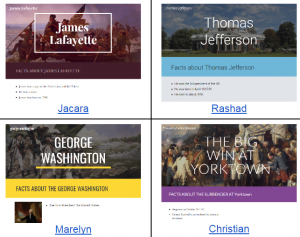
Fourth graders at Holladay Elementary have been learning all about the Revolutionary War (VS.5) and nonfiction text elements (SOL4.6). Today students in Ms. Zimmerman’s class chose a Revolutionary War battle or person and created an informative website about the topic using the new Google sites. Google sites has made some dramatic changes in its layout and interface that allow you to create a great-looking site in minutes. The students logged into their Google drive, then clicked New > More > Google Sites. They typed the name of their Revolutionary War battle or person in the title box. Next they chose a theme for their website by clicking the Themes tab on the right. The theme changes the default fonts, colors, and layout of the site. We clicked back on the Insert tab and added a text box. The students changed it to a Heading (SOL4.6a) using the dropdown menu and typed “Facts about ___ (their topic)” Now it was time to do some research. We opened a new tab in the browser and searched for our battle or famous person. The students could also use their class notes. I discussed the importance of writing the facts in their own words and the problems that could result from plagiarism. Back on their website, the students added another text box and typed their facts using the bullets option. I showed them how to add an image by clicking the Images button on the right and doing a Google search for their battle or person. In order to make a caption (another nonfiction text element they’ve learned about), we had to double click on the section with the photo, chose Text from the popup menu, and type our caption. We changed it to a Subheading so it would stand out. Finally we added a map (since graphics are an important part of nonfiction text) by clicking the Map button in the Insert panel and searched for the location of the battle or a place of importance in the person’s life. The students added a caption to explain the map, then we published our websites using the Publish button. You may want to check under “Settings” to be sure that it is public on the web. We posted the links to our websites on Google classroom, but you can see them all here.


5th Grade Animal Habitat Comics

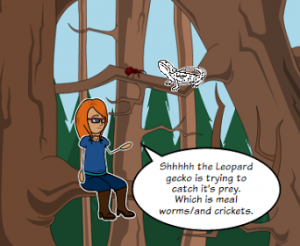
Fifth graders at Varina Elementary have been reviewing animal habitats and ecosystems (SOL4.5), so today students in Ms. Rumans’ class created animal habitat comics. We used StoryboardThat to create the comics. First students selected a wild animal of their choice. I told them to pick an animal they were interested in and curious about. To broaden their horizons a bit, we discussed a variety of wild animals so they all didn’t pick cheetahs (which are insanely popular with elementary students for some reason). Once they picked their animals, they had to research their animals’ habitats and food webs. I showed them some quick guidelines for getting the information they needed by typing “name of animal” + “habitat” or “predators” or “prey” into a Google search. We used the basic layout on StoryboardThat with three panels, and each panel had to explain one of these facts. First we used the Scenes tab to get images of the animals’ habitats. Most of the habitats are included in the clip art. However, when it came to adding the animals, the clip art is somewhat limited. So students had to be creative and use animals that looked similar. I think the best example of creative problem-solving was using the hedgehog image for a beaver! I also showed them how to use the search box to look for additional items they needed, like nuts for a squirrel. They quickly found the blood splatter clip art which truly enhanced their predator/prey images. Finally we added the speech bubbles, and students wrote their facts in complete sentences. Some of them got creative with that too, writing it like it was a television documentary. I think you’ll enjoy looking at their final projects here.


1st Grade Winter Changes

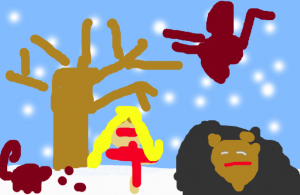
First graders at Holladay Elementary have been learning about changes in the weather during winter, and the effect those changes have on animals, plants, and humans (SOL1.7). They have also been learning how to write complete sentences (SOL1.13). Today students in Ms. Sokolowski’s class and Ms. Harris’s class practiced writing sentences about winter to accompnay digital drawings they created with ABCYa! Storymaker. First we drew our winter pictures. We used the paint bucket to make the sky blue, then we used the big roller brush to paint the ground white with snow. The spray can tool was perfect for drawing snowflakes in the sky. The students added people, animals, and plants, showing how they are affected by the winter (for example, they drew people wearing coats, trees without leaves, and animals hibernating or migrating). Next we clicked the yellow button on the side to type a complete sentence beginning with “In winter….” Finally we clicked the green button to print our assignments and saved them as PDF files. We shared them on a Padlet that you can see here: Ms. Sokolowski and Ms. Harris.


Kindergarten Gingerbread Men

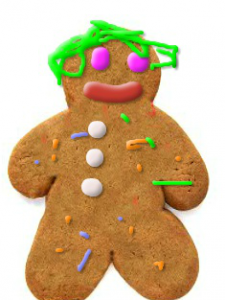
Kindergarten students in Ms. Sharpe’s class at Trevvett Elementary have been reading The Little Gingerbread Man and other gingerbread stories this week. Today I showed them how they can make their own gingerbread men using this website. Kindergarten students are used to using their fingers on the iPads, but in order to prepare them for using laptops, they need to practice clicking and dragging using the trackpad. So any website that reinforces those skills is worth incorporating into your lessons occasionally. Her students were also able to follow one and two step directions (K.3g) as I showed them how to choose from different colors of frosting and different sized nozzles to decorate their virtual cookies. When they were finished, we clicked the save button, and tried typing their names, but some of them just typed the first letter. Then we uploaded them to a Padlet that you can see here. Now it’s easy to refer back to these images for future oral language practice or even to review math concepts. Since their work is shared online, Ms. Sharpe can send the link home to parents, and they can view their child’s work, print it out, or email it to friends and relatives. The best part about decorating digital gingerbread cookies–there was no mess to clean up!


2nd Grade Lakota Indians

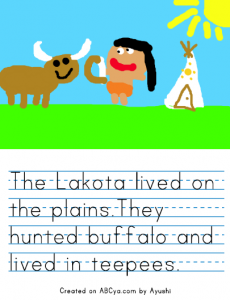
Second graders at Trevvett Elementary have been learning about three different Indian groups: the Powhatan, Lakota, and Pueublo (SOL2.2). Today students in Mr. Weldon’s class used ABCYa! StoryMaker to draw and write about the Lakota Indians (the tribe they are currently studying). As we were navigating to the website, we discussed their background knowledge of the Lakota–where they lived, what they hunted, their transportation and occupations, as well as how they dressed and built their houses. With StoryMaker, there is a drawing part (blue button) and a writing part (yellow button). First we painted a picture of the Lakota Indians, including their environment, homes, and animals. Next we typed complete sentences (SOL2.13a) about the Indians, using the vocabulary words we have learned. When we were finished, we clicked the Print button and saved it as a PDF. Then we uploaded it to a Padlet that you can see here. Sharing the students’ written work online via Padlet (or any other webtool) is one of the advantages digital assignments have over traditional written assignments. Students and parents have access to their work from anywhere, and they can review it anytime they want. Plus, students are getting valuable practice with word processing and other computer skills.