Category: Language Arts

4th Grade Planet Books
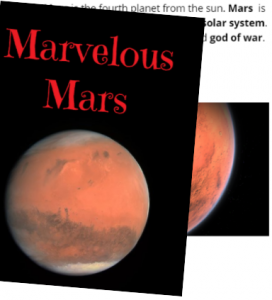
Fourth graders at Holladay Elementary have been learning about the planets in Science (SOL4.7), and they have been identifying nonfiction text structures in Language Arts (SOL4.6a). Today, students in Ms. Anthony’s class used BookCreator to make books about the planets with nonfiction text structures. First, they chose a planet to research and spent a few minutes exploring websites and books about the planet. Next, we reviewed nonfiction text structures they observed in their research: bold print, photos, captions, diagrams, etc. I explained that they would need to include some of those features in their planet book. We signed into Book Creator with our Google accounts and entered the teacher’s class code. Then they clicked the “New Book” button to get started. I showed them how to add text with the + button and how to modify the text font, size and color with the i button. They made their important words bold. We also added images with the built-in image search and typed captions. Some students took photos and video with the webcam feature, but we found that those seemed to take a long time to load. Hopefully that feature gets upgraded in the future. We didn’t use the drawing tool, but that is also available. Finally, we published our planet books, and I linked them all into one book. You can read their finished book here.


5th Grade Fact Opinion Posters

Fifth graders at Trevvett Elementary have been learning how to distinguish between facts and opinions (SOL5.6i), and they have been writing with adjectives and adverbs in English (SOL5.8b). Today, students in Ms. Golden’s class used PicMonkey to create winter posters that included facts, opinions, adjectives, and adverbs. First we reviewed clues for differentiating facts and opinions. Facts are undeniable truths that can be proven with evidence. They are true for everyone, even if they don’t believe it. For example, “He is driving quickly over the speed limit” is a fact. It can be proven with measuring devices (even if the driver doesn’t believe it). Opinions are usually based on feelings, and they can be different for different people. For example, “He is a bad driver” is an opinion. You do not have to agree with it. Next, we identified the adjectives and adverbs in the sample sentences (and other sentences the students came up with). I explained that they would be creating winter posters with two sentences about winter. One needed to be a fact and the other needed to be an opinion. Their classmates would try to differentiate them. They also needed to include an adjective and/or adverb in each sentence. To make the posters, we went to PicMonkey and clicked “Edit a photo.” This allows you to edit a photo without logging into an account. The students took photos of themselves with their webcams and uploaded them. Then they used the special Winter effects to decorate their pictures with frost, snow, rosy cheeks, and clip art. I showed them how to use the text tool to write their sentences and how to change the color of the adjective or adverb. They saved their photos and uploaded them to a discussion in Schoology with a question for their classmates to answer (What is the opinion? What is the fact? What is the adverb? What is the adjective?). You can see them all here.


3rd Grade 3-D Animal Reports

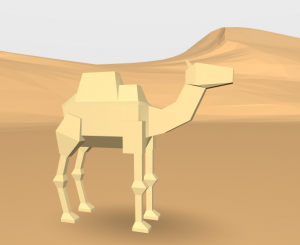
Third graders at Holladay Elementary have been studying animals and their habitats in Science (SOL3.4, 3.5, 3.6). They have also been learning about how to write research reports in Language Arts (SOL3.11). Today students in Ms. Ambrose’s class researched an animal of their choice with PebbleGo and created a 3-D report using CoSpaces. First, students selected an animal and used PebbleGo to find out about its habitat and its design, or adaptations. We discussed whether PebbleGo is a reliable website (it is :). Next, we logged into CoSpaces with our Google accounts, and I showed them how to choose a background image that looked like the animal’s habitat. Then we searched for a 3-D model of our animal (or an animal that looked similar). I explained that they can change the color of their animal by right clicking on it. They also needed to use the right-click to make the model accessible in Blockly (the coding language). We wanted to code the animal to speak about itself and share the facts we learned, but before we could do that, we had to record ourselves. We used Vocaroo to record and save an MP3 file (you could also use Audacity). We uploaded the file to CoSpaces using the Upload button. Finally, in Blockly, we added a few bits of code to make the animal speak when you click on it. Some of the students even added code to make the animal move. We published our projects and shared the links on Schoology. You can see them all here.


3rd Grade Animal Nonfiction Books

Third graders at Varina Elementary have been learning about animals in Science and nonfiction text elements in Reading (SOL3.6c). Today students in Ms. Hummel’s class used Book Creator to design a nonfiction book about an animal. First the students chose an animal and did some quick research online to find interesting facts about their animal. Then they signed into Book Creator with the teacher’s class code (to get the code, teachers should click on their class library from the drop down menu and click “Invite”). Students chose “New Book” and clicked the i button to choose a color for their book. They added a title by clicking the + button and selecting “Text.” I demonstrated how to customize the text’s font, size, and color using the i button. Next, they added a photo of their animal using the built-in image search by clicking the + button and “Import.” We flipped to the next page and started typing facts. Since we wanted to include nonfiction text features like bold text, captions, and photos, I showed them how to make important words bold by highlighting them and clicking the “B.” Finally we created an “About the Author” page. Book Creator has a special feature that let’s students take photos and videos right within the app, so they added photos or videos of themselves. I combined all the books together in one book (click the “books” button, then “Combine books”). You can read it here (I did similar book projects today with 5th Grade Oceans and 4th Grade Weather).


5th Grade Multiple Meaning Words

Fifth graders at Trevvett Elementary have been learning about words with multiple meanings and homophones (SOL5.4). Today students in Ms. Brown’s class created a Google slideshow to illustrate two different meanings of a word or a pair of homophones using context clues. First we utilized the Schoology discussion feature to brainstorm multiple-meaning words. You can see a short sample of the discussion by clicking on the photo accompanying this post. Notice the student names and photos are blurred out. You can do that using a cool site called FacePixelizer. Next the students opened a blank Google slideshow (the quickest way is to give them a direct link to their Google slides). I showed them how to search for an background image that isn’t too distracting by clicking the Background button > Image > Choose > Search. Some good search terms to use are “texture” or “bokeh” (blurred lights). Then we changed the title to “Multiple Meaning Words” and added their name to the subtitle. I also demonstrated how they could change the font, size, and color of the words. On the next slide we typed a sentence using both meanings of the word or homophone, and we underlined them. I explained how to add transitions and animations to the slide as well. Finally, I showed them how to add an image illustrating the sentence. We shared our slideshows with each other on Schoology. You can see them all here. (UPDATE: I taught a similar lesson with Ms. Hall’s class at Holladay on 10/10, but we did it a little differently. I have added them to that page).


5th Grade Review with Chatbots

Fifth graders at Holladay Elementary have been reviewing for exams, so today students in Ms. Neal’s class created review questions for each other in the form of a chatbot. A chatbot is an online virtual assistant that you’ve probably already had interactions with if you’ve used the chat feature on a business website. The chatbot is programmed to ask you questions and give replies based on your answers. We used a website called Fobi.io which turns any Google form into a cool-looking chatbot. First we created the Google Form by going to our Google drive and choosing New > More > Google Forms. I explained that the first question should be: “What is your name?” Then the students had to come up with two multiple choice educational questions about any topic they’ve learned about this year in 5th grade (we brainstormed a list of topics, in case they had trouble remembering). They could also create additional questions of their own if they had time. We published our forms by clicking the “Send” button and copied the link. Next we went to Fobi.io and pasted the link to our form. Now we could program the chatbot Fobio to reply to each of the questions. For example, if an answer was correct, he could say, “Great job!” or if it was wrong, he could say, “Try again!” The students were very creative in their responses. You can take a look at some of their chatbots here.


3rd Grade Mali Comics

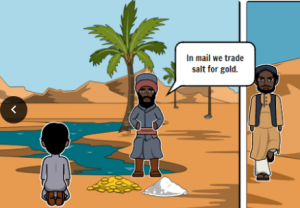
Third graders at Varina Elementary have been learning about the Empire of Mali (SOL3.2), so today students in Ms. Galvin’s class created comics about Mali using StoryboardThat. First we reviewed what they learned, and I wrote a word bank on the board: Africa, empire, Mali, gold, salt, trade, route, pilgrimage, Mansa Musa, Sundiata, Niger River, griot, Timbuktu, Sahara, etc. Next, we went to StoryboardThat, and I showed them how to search in the Scenes for background images that look like Mali. We compared the images from the American southwest desert with the ones of the Sahara Desert so they wouldn’t pick the wrong kind of desert. Next we searched the Characters for people that looked like the people of ancient Mali. I did a Google image search to show them how the people really dressed. I also demonstrated how to customize the characters by changing their skin colors and poses. Finally we added speech bubbles from the Textables, and students wrote complete sentences with facts about Mali. Since our students cannot have accounts (they are under 13), we saved our comics by taking screenshots using the Snipping Tool. Then we uploaded them to a shared Google folder so we could read each others’ comics. You can take a look at all of them here.


5th Grade Planet Websites

Fifth graders at Varina Elementary have been reviewing the planets in our solar system (SOL4.7), so today students in Ms. Primrose’s class researched a planet of their choice and created a website about it using the new Google sites. First we reviewed the planets, their order, and interesting facts about each one to get the students thinking. We discussed how the Earth is unique in space, and is not named after a god. The other planets are mostly named after Roman gods, except Uranus, which is named after a Greek god. (By the way, did you know Uranus was first named after King George)? After the students chose a planet that interested them, they conducted their research online. There are several good sites, but the ones we used are ESA Kids (good facts, written at on elementary reading level), Solar System Scope (an interactive, animated solar system), and the basic Google search page. Other websites sites that your students can explore in a center or station are PixelSpace (shows the vast scale of the solar system if the moon were the size of a pixel); Scale of the Universe (shows not only the relative sizes of the planets, but many other objects in the universe), and Neave Planetarium (shows students where the planets and constellations are in the sky tonight). Next, it was time to create our website using Google sites. Students went to their Google drive and clicked New > More > Google sites. The students typed a creative title for their planet webpage, then typed some facts in their own words (we discussed the problems with plagiarism). Finally, students added photos using the built-in Google image search. We published our websites, and shared the links on Google classroom. You can see them all here.


5th Grade Midwest Region Comics

Fifth graders at Trevvett Elementary have been learning about the regions of the United States this year, and they are currently focusing on the Midwest Region. Today students in Ms. Adamonis’ class created comics about the Midwest using StoryboardThat. First, we spent a few minutes researching the Midwest (SOL5.9). I encouraged them to look for interesting facts that their classmates may not already know. Some key words to use in search engines are: midwest + interesting facts, fun facts, interesting places, landmarks, trivia, etc. We also discussed how to double check their facts and evaluate the reliability of websites, since we found some “facts” that weren’t true (like roller skates weren’t actually invented in the midwest as this site claimed). Next, the students chose three of the most interesting facts to illustrate in their comic. We went to StoryboardThat and created a new comic with three panels (one for each fact). I explained that they should create their comic like a storyboard for a tv show or a documentary. The students chose different backgrounds and characters and customized them using the blue “Edit” button. Then they added speech bubbles (textables) and typed the facts they discovered in their research. Finally, we took screenshots of our comics and uploaded them to CoMemories. We have been using Schoology albums to share our work, but we found that comics do not display large enough in this format, so that’s why we chose CoMemories instead. You can see all their midwest comics here.


3rd Grade Goods & Services Websites

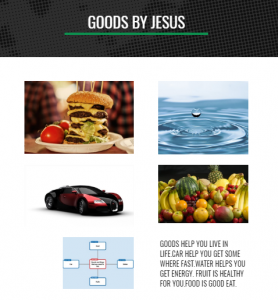
Third graders at Holladay Elementary have been learning about goods and services in Social Studies (SOL3.7) and main idea/summarizing in Language Arts (SOL3.6f,g,h). So today students in Ms. Edelblut’s and Ms. Howard’s classes practiced these skills by creating their own websites. First, we reviewed main idea/details using a web. The main idea is the center of the web, and the details are the branches. After several examples, we determined that knowing the main idea helps you summarize. Next, the students decided whether they wanted to make a website about goods or services. We used Popplet to make a main idea/details web for planning out our websites. We wrote a summarizing sentence about goods or services in the center, then provided examples of specific goods and services in the branches. I showed them how to change the colors of the bubbles and even draw images inside. We saved the diagram as a .JPG image (Gear > Export > As JPG File). Then we went to their Google drive and clicked New > More > Google Sites. We created a new Google Site and wrote the title, “Goods” or “Services” and their names. We uploaded our Popplet diagram, then typed a paragraph about our topic, using the diagram for guidance. We made sure the first sentence was the main idea or summarizing sentence. Then we wrote additional sentences for the details. Finally we added images of our specific examples (the details) and published our websites. We shared the links on Google classroom, but you can see them all here.