Tag: webtools

2nd Grade Egypt Comics
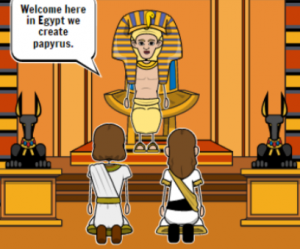
CaptureSecond graders at Holladay Elementary are learning about ancient Egypt and its contributions (SOL2.1) so today students in Ms. Brown’s class created comics about ancient Egypt using StoryboardThat. I posted a link to StoryboardThat on Google Classroom so the students could access it easily, and once we arrived at the site, we clicked “Create a Storyboard.” To find backgrounds that relate to ancient Egypt, we clicked the “Historical” tab and scrolled to the end. There are also ancient Egyptian characters under the “Classical Era” tab. I showed the students how to customize the characters’ skin, eyes, hair, clothing, and poses. Then we added “Textables,” or speech bubbles, and the students typed complete sentences with facts about ancient Egypt. I put a word bank on the board to help with spelling: pharaoh, hieroglyphics, pyramid, Nile, papyrus, mummy, etc. Since you have to be 13 to have an account and save your comics on StoryboardThat, we saved our work by taking a screenshot of it (Dell Start icon > Snipping tool). Finally we uploaded our comics to Google classroom and posted a question for our classmates to answer. You can see some student samples here.
5th Grade Perimeter

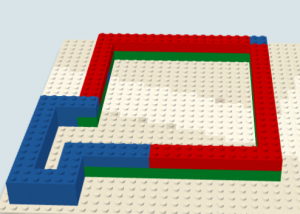
CaptureFifth graders at Varina Elementary have been learning how to find the perimeter of shapes (SOL5.8a), so today students in Ms. Shiew’s class created shapes out of virtual building blocks and asked their classmates to calculate the perimeter. First I posted a link to Build with Chrome on Google classroom. This is a great site for anyone who loves Legos (which means everyone in the world). Students could select different colors and sizes of bricks to build their shape. I explained that they would have to figure out the perimeter of their own shape before asking their classmates to do it, so they shouldn’t make it too complicated. Once the students finished building their shape, we took a screenshot of it (using the Snipping Tool on the Dell Start Menu). Then I posted a link to CheckThis on Google classroom, and the students created a simple webpage and uploaded their pic. Next they added a poll to their webpage and listed some possible perimeters, including the correct one. We used the knobs on the bricks as our unit of measurement. Finally the students published their webpages and posted the links to Google classroom so their classmates could figure out the perimeters of their shapes. You can see their projects here.


Kindergarten States of Matter

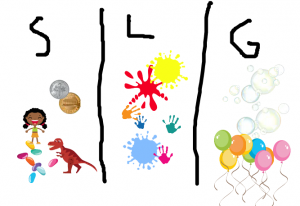
untitled_paintKindergarten students at Laburnum Elementary have been learning that water occurs in different phases (SOL K.5a): solid, liquid, and gas. Ms. Daniels has been teaching her class that other types of matter occur in different phases as well. So today her students practiced sorting matter into solids, liquids, and gases using ABCYa!Paint. This would be a great activity for Pixie, due to the abundance of stickers, however, as I mentioned before, we are having problems with Pixie showing up when kindergarten students log in with their generic login. ABCYa!Paint has enough stickers and stamps to provide a couple of examples for each phase of matter, so it worked fine for this activity. First the students drew two lines down the paper, making three groups and wrote an S, L, and G in each one for solid, liquid, and gas. Then they used stickers and stamps to put examples in each category. For gas we used the bubbles and balloons, for liquids we used the different paint splats, and most of the other images were solids. When they were finished, we saved their pictures and uploaded them to CoMemories so everyone could see them. You can see a few examples here.


Kindergarten Living & Nonliving Things

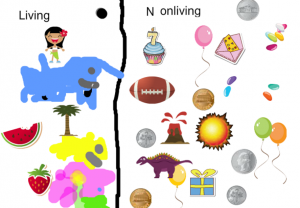
CaptureKindergarten students at Davis Elementary have been learning how to differentiate between living and nonliving things (SOLK.6). Today Ms. Dickey’s class sorted pictures of objects into two groups (SOLK.1d): living and nonliving. First we went to ABCYa!Paint and drew a straight line down the center. ABCYa! Paint has become a more reliable tool for painting in kindergarten since Pixie sometimes doesn’t show up with the kindergarten login. Next we used the text tool to type “Living” on one side of the line and “Nonliving” on the other. Then the students used the Stickers and the Stamp tool to add different images to the correct category. Some of them also painted pictures of objects they couldn’t find. We even had a good debate about whether dinosaurs should go in the living or the nonliving group. Once they were finished, we saved the image with the Save button and uploaded the pictures to CoMemories. CoMemories is a great, easy-to-use webtool for uploading pictures from a variety of computers and users. It’s as simple as dragging and dropping the picture onto the webpage. Even kindergarteners can do it! You can see all their pictures here.


4th Grade Hanover Tavern Padlets

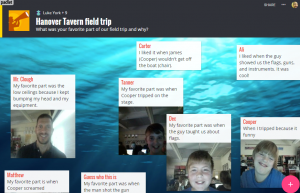
CaptureFourth graders at Davis Elementary just took a field trip to the Hanover Tavern to learn more about Patrick Henry and the Revolutionary War Era in Virginia (VS.5). Today students in Ms. White’s class reflected on what they learned using Padlet. I posted a link to Padlet on Google classroom, and the students signed in using their Google accounts. Since this is on the HCPS CORE Resources list, it’s OK for students to sign in and set up accounts. Padlet is a great webtool that provides an online bulletin board for your students to post text, images, and even videos. First we clicked the “New Padlet” button at the top to create our Padlet. Students customized the wallpaper and the icon, and typed a title. For the Description, students wrote an open-ended question for their classmates to answer on their Padlet. We discussed the difference between open-ended questions (like, “What was your favorite part and why?” or “What is something that surprised you?” or “What would you like to have explored more?”) and one-answer questions (like, “When did the Revolutionary War start?” or “Did you have fun?”). Next, students clicked the Share button, and we made sure that the Privacy was set to Secret (only people with the link could view it). Then we copied the link and pasted it to Google classroom. Now students could click on each others’ links and add posts to the Padlets by double clicking on them. They typed their name for the title of each post and their answer to the question in the box. They could also click the camera button and take a photo of themselves. We made sure that we didn’t put our posts on top of anyone else’s. With Padlet, you can move your own post, but not other people’s (the creator can move anyone’s posts though). You can see some student samples here.


Kindergarten Seasons Animations

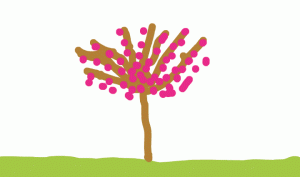
seasonsKindergarten students at Davis Elementary have been learning about Earth patterns, cycles, and seasons (SOL K.9 & K.10), so today Ms. Feldman’s class created animations to show how trees change through the seasons. We used ABCYa! Animate to create the animations. On the first frame, students painted a line across the bottom for the ground and filled it in with the paint bucket. Then we painted a tree with some bare branches. We copied our picture four times using the copy cat button. Then the students went back to each frame to add details for the specific seasons. For spring, we added blossoms to the tree; for winter, we changed the color of the ground to light grey and painted snowflakes; for summer, we painted green leaves on the tree; and for fall, we painted different colored leaves falling to the ground. Some students added additional creative details. We downloaded our finished animations as GIF files, then I took them to a page I created on Padlet so they could post their animations. They double clicked on the “bulletin board,” typed their name in the title, and uploaded their animation. A cool feature of Padlet is that animated gifs stay animated on the board, so you can see all the changing trees here.


4th Grade Famous Americans Comics

CaptureFourth graders at Laburnum Elementary have been studying 20th Century famous Virginians (VS.9), so today students in Ms. Robinson’s class chose one of them and created a comic about their accomplishments. I posted a link to StoryboardThat on Google classroom, and once students accessed the website, they clicked the “Create a Storyboard” button. I explained that their comic would have three panels. Each panel needed to provide an important fact or accomplishment for the Virginian they chose. We discussed ideas for backgrounds and where to find authentic-looking characters (mostly from the 1900s tab). I also showed them how to customize the characters by changing their color, clothing, and poses. After students added backgrounds and characters to each panel, I showed them how to add speech bubbles. We discussed the importance of writing complete sentences that explain the facts and accomplishments. Students could open a new tab to do additional research if necessary. Once they were finished, I showed them how to take a screenshot of their comics (Click the Start button > Snipping Tool) to save them since they can’t create accounts. Finally we posted our comics to Google classroom for everyone to see. You can see them here.


3rd Grade Money & Change Comics

CaptureThird graders at Laburnum Elementary have been learning how to count money and make change (SOL3.8), so today students in Ms. Ford’s class created comics about buying things and getting change back. I posted a link to StoryboardThat on Google classroom, and when students opened the website we clicked “Create a Storyboard.” First we looked at the background Scenes and discussed possible places where money is exchanged: grocery store, restaurant, shopping mall, movie theater, school, etc. I explained that their comic would have 3 frames: the first one would be about how much the item costs, the second one would be about how much money the character paid, and in the last frame, a character would ask a question for the students to solve, like, “How much change would I get back?” For the characters, I demonstrated how to customize their colors, costumes, and expressions. I also showed the students how to use the Search box to find additional props, like money and objects to buy. The last step in making the comic was to add the speech bubbles and type complete sentences in each frame about the money story problem. When they were finished, the students took screenshots of their comics and uploaded them to Google classroom for their classmates to solve. You can see some examples here.


5th Grade Sound Slideshows

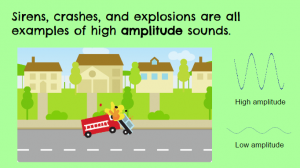
CaptureFifth graders at Holladay Elementary have been studying sound (SOL5.2), so today students in Ms. DiMatteo’s class created Google slideshows about two characteristics of sound waves: frequency and amplitude (SOL5.2b). First we explored these topics with various interactive websites. With the “Wave on a String” website, students can create their own waves and adjust the frequency and amplitude. With the “Virtual Oscilloscope” students can turn on their microphones and actually see how different sound waves look on the oscilloscope. With the “Oscilloscope & Sounds” website students can press different keys on a piano to see how the pitch is reflected in the frequency. They can also adjust the volume slider to see how that affects the amplitude. I suggest turning both of the dials to #1 at the beginning so the sound waves are big enough. The last site we explored is another virtual oscilloscope that lets students experiment with changing the pitch and volume. Now the students were ready to create their slideshows. I posted a template on Google classroom that you can copy here. On the cover slide, we clicked the Background button and searched for an image having to do with sound. We also typed our names in the blank. The next slide is about frequency, so I instructed the students to think of an animal or object that makes a high or low frequency sound and create an animation using ABCYa!Animate to illustrate it. We exported our animations as GIF files and added them to our slide. On the last slide we went through the same process, but this time, illustrating amplitude. Unfortunately we ran into problems with the animations only playing once and then disappearing. For this reason, I have no student samples to share, but I figured out a solution. You can upload your animation to EZGIFMaker, press the “Animate It” button, and download the newly created GIF file. That webtool also lets you delete frames that had mistakes. You can take a look at my sample here. P.S. If you are studying sound, be sure to check out our very own Matt Caratachea’s awesome sound video!


1st Grade Time Slideshow

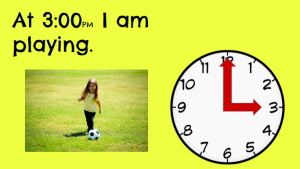
CaptureFirst graders at Holladay Elementary have been learning how to tell time using analog and digital clocks (SOL1.8). Today, we practiced telling time with analog clocks in Ms. French’s class. I gave each student a Google slideshow template that you can copy here. On the first slide, the students typed their names and we discussed what time was shown on the clock. On the other slides they clicked and dragged the correct clock hands to show the times. They could delete the unused hands by clicking on them and pressing the Backspace button (optional). Then they typed a sentence about an activity they would do at that time. I pointed out that the times were all PM so they were in the afternoon or night. I also showed them how to click the image button and search for a picture of the activity by typing it in the box (words like eating, playing, sleeping, etc). After adding photos to each slide, we went back to the first slide and I showed them how to watch their presentation by clicking the “Present” button. You can see a sample slideshow here. UPDATE 3/16/2016 I taught a similar lesson in Ms. Pope’s 1st grade class at Laburnum, except this time we used Storymaker. You can see those samples here.