Tag: GoogleDocs

Kindergarteners Can Google!
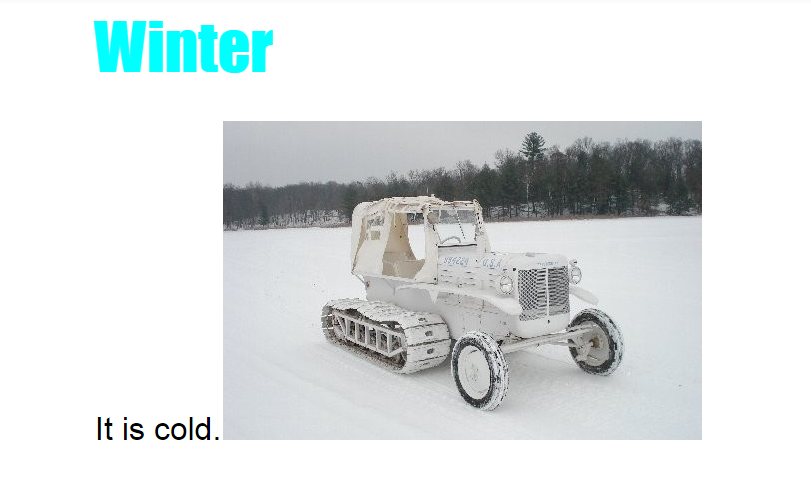
AlanThis year, with the transition to Dell and the focus on using Google apps, it’s been a challenge for the very young students to just log into their Google accounts. But today, kindergarteners in Ms. Brown’s class at Holladay Elementary showed that they were ready to create on the computers! We helped them log into their Google accounts and got them set up with Google classroom. I gave them an assignment to write about winter using Google Docs. They opened the blank template, and I showed them how to change the font, size, and color of the title. Next we practiced writing one complete sentence with a capital (using Shift) and a period. Finally I showed them how to do a Google image search for a winter picture. We posted their documents on Google classroom so they could read each others’ stories. I was impressed with how well they did! Take a look at their writing here.

4th Grade Planet Comparisons

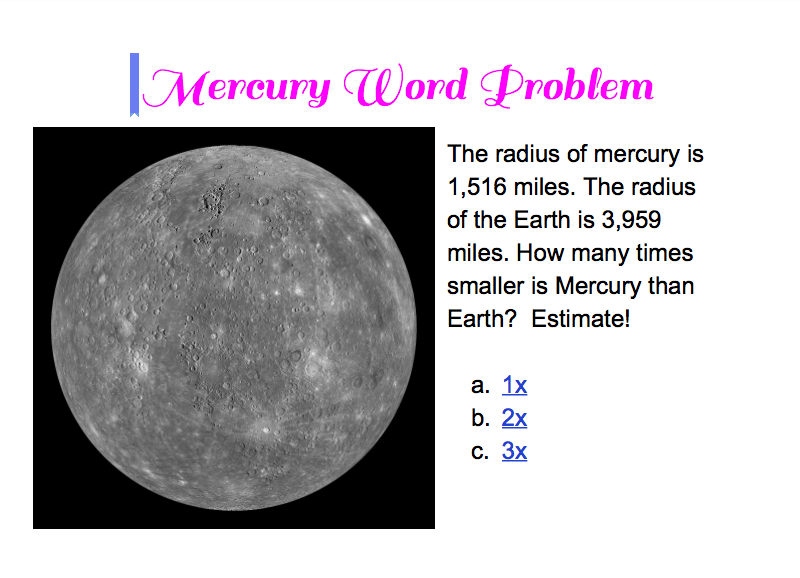
Screen Shot 2015-05-18 at 12.41.27 PMFourth graders at Laburnum have been studying the planets in science (SOL4.7) and they’ve been learning how to estimate and solve multiplication and division problems in math (SOL4.4). So today students in Ms. Butler’s class created their first Google docs comparing the sizes of the planets. First we logged into Google classroom, and I posted an assignment with a blank Google doc. I explained that we would be comparing the radius of Earth with the radius of another planet. The students chose the planet they wanted to compare, and I taught them how to do a quick Google search for “(name of planet) radius” to find out the length of the radius. We left that information open in a tab for our reference and went back to our Google doc to add the title. I demonstrated how to change the font, size, and color of the title text. Then we added a photo of the planet, and I encouraged them to try to match the color of their title with the color of the planet. I also explained that it would be great if they could find a photo of their planet and the Earth. Next they wrote a word problem for their classmates to solve. The general format would be to give the radius of the Earth and the radius of their planet and ask about how many times bigger or smaller the planet was in comparison with Earth. The students would have to round the numbers and divide in order to figure it out. I showed them how to share their documents on the Google classroom page, and they tried to solve each others’ problems, writing the answers in the comments section. I wanted you to be able to see them as well, so I added an interactive part to each one (we didn’t have time to do that in class), and posted them here. UPDATE 1/8/2015: I taught a similar lesson in Ms. White’s class at Davis, but we made websites instead of Google Docs.


4th Grade Planet Elapsed Time

Screen Shot 2015-05-13 at 11.25.38 AMFourth graders at Varina Elementary have been studying the planets in science (SOL4.7) and in math, elapsed time was a topic they need to review based on their benchmark scores (SOL4.9), so today students in Ms.Burcham’s and Ms.Dixon’s classes created planet elapsed time story problems. I presented them with a situation: “You are an astronaut. You have been given the incredible opportunity to explore a planet of your choice. But you only have enough oxygen to last one complete day on the planet. How will you calculate what time you must leave the planet?” The first step was to select a planet. We used an animated 3-D view of the solar system to help us make our decision. Once we selected our planet, we discussed what factors determine the length of a day, and we conducted research to find out long a day actually lasts on our planet. We discovered that if you type “length of day on (planet)” into Google, you will get the answer quickly. Next we created word problems using Google slides and images. This was their first time making Google slideshows so I posted the assignment into Google classroom with a blank template for each student. I showed them how to add slides, text, images, and transitions. For their story problem, the students provided the length of day and the time they arrived, and their classmates had to figure out what time they must leave the planet. We posted our slideshows to Google classroom for everyone to view, and the students posted their answers in the comments section. Can you save the astronauts? Try some here. This lesson was submitted to our county’s Henrico 21 website, so if you’d like to see the complete lesson plan, click here.


3rd Grade Coins & Money

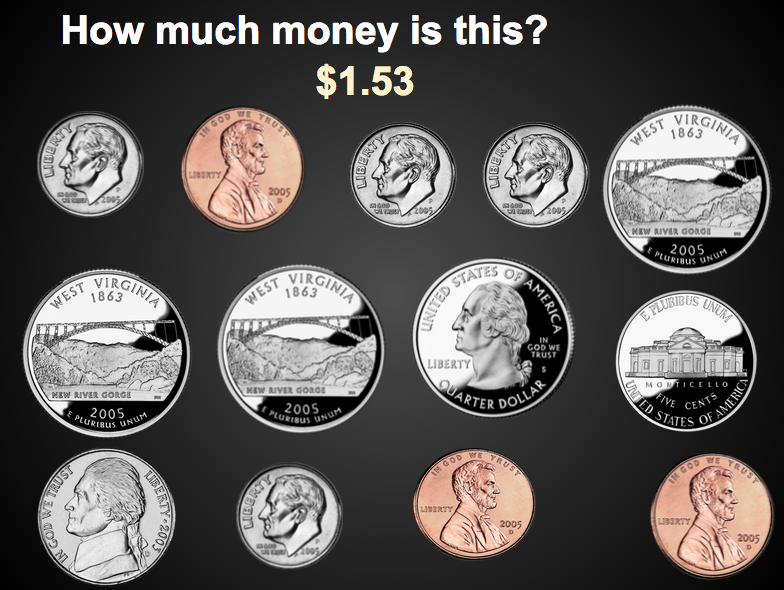
Screen Shot 2015-04-22 at 8.34.56 AMThird graders at Davis Elementary have been learning about coins and money in Math (SOL3.8). Today, students in Ms. Cousins’ class created interactive money problems for their classmates to solve using Google slides. I created a template that you can download here, and I created an assignment in Google classroom, making a copy of the template for each student. When they opened their copy, I showed them how to add their names to the first slide. On the second slide I showed them how to copy, paste and delete the coins so that they had a new, challenging number of coins for their classmates to add up. Then they had to figure out the answer and add it to their slide. I taught them how to change the color of the text and add an animation, so the answer would appear when the viewer clicked on the slide. Finally we posted our slideshow links to the classroom page so we could look at each others’ problems and try to solve them. We also checked to see if our answers matched their answers. You can take a look at all their slideshows here.


3rd Grade Food Chains

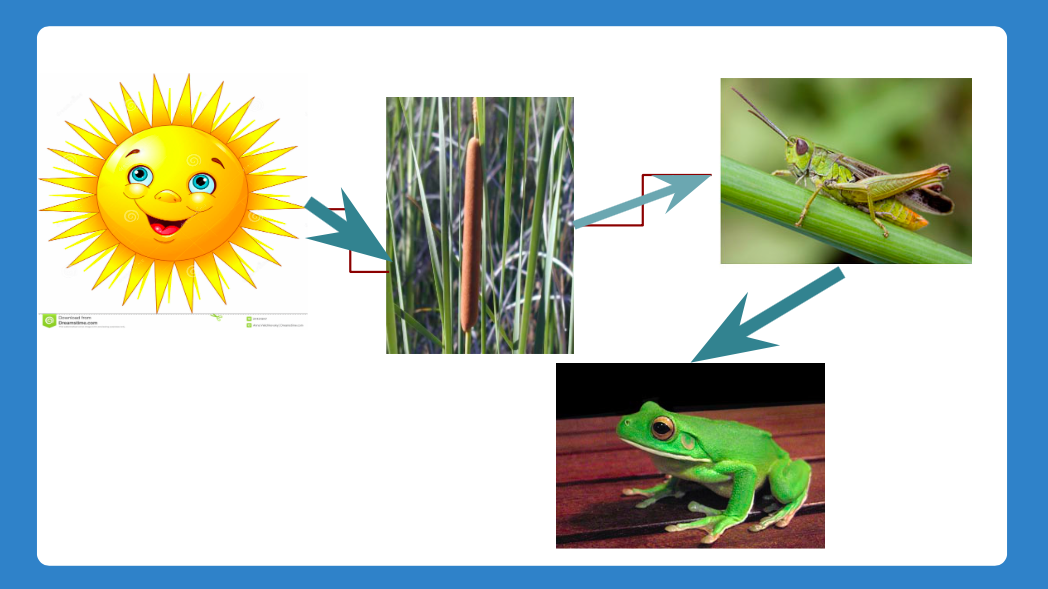
Screen Shot 2015-04-15 at 12.32.41 PMThird graders at Davis Elementary are learning about food chains (SOL3.5) and ecosystems (SOL3.6) so today students in Ms. Eller’s class created animated aquatic and terrestrial food chains using Google slides. First we discussed food chains and how they were the same and different in various ecosystems. All of them start with the sun which gives energy to plants. The plants are different, as well as the animals that eat the plants and each other. The students chose an ecosystem they wanted to research and present. I created an assignment in Google classroom with a blank Google slideshow template. They wrote the type of food chain for the title and their name for the subtitle. I showed them how to create a new slide and use the research tool to find a picture of the sun. Next we found a picture of a plant that lives in the ecosystem (pond, ocean, desert, etc). I taught them how to add an arrow showing the flow of energy from the sun to the plant. We discussed where the next arrow would point (to an animal that eats the plant). The students added additional animal photos and arrows to connect them into a food chain. Finally I showed them how to add animations to make the food chain grow in sequence. We posted the finished slideshows to the classroom page. You can see them all here.


1st Grade Graphs

Screen Shot 2015-03-26 at 12.48.12 PMFirst graders at Laburnum Elementary have been learning how to gather data by counting and tallying (SOL1.14) and how to display that data in graphs (SOL1.15), so today students in Ms. Tyler’s class practiced those skills using the computer. First we logged into their Google accounts (with lots of help) and went to Google classroom. I posted a question: “What is your favorite ice cream of these 3 choices: vanilla, chocolate, or strawberry?” The students clicked where it said “Add a comment” and typed their favorite flavor. They loved seeing their classmates’ names pop up. We counted how many students liked each flavor and wrote tally marks on the board. Next I posted a Google spreadsheet template to the classroom page and clicked the button “Make a copy for each student.” You can make a copy of the template to use with your class as well. The template has two tabs at the bottom. The first tab is the one the students will use. The tab labeled “Key” is a finished sample for your reference. I showed the students how to type the flavors in the first column (some of them needed help with that). Then they typed in the numbers. The graph will automatically build itself as the students type. We discussed what words we needed to add to the title and added “Ice Cream” to it. Finally I showed the students how to change the colors of the bars (click them and then click the paint bucket). That was all we had time for, but you could extend the lesson by asking questions like, “Which flavor had the most votes? the least?” Try graphing other favorites like colors, foods, animals, sports, etc.


3rd Grade Word Problems

Screen Shot 2015-03-15 at 10.25.03 AMThird graders at Laburnum have been working with word problems, so today Ms. Collins’ class created their own word problems for their classmates to solve. I also got to teach them some word processing skills with Google Docs. First I assigned them a blank document in Google classroom. I showed them how to change the font, size, and color of the title text. Next they wrote an addition or subtraction word problem using larger numbers (2- or 3-digit) to make it challenging for their friends. I taught them how to add a picture using the Insert > Image > Search sequence. They found an image that went along with their word problem. Finally I showed them how to share their document with their classmates by clicking the blue Share button, and then clicking the grey link circle in the window that opened to turn it green. That copied the link which they then pasted to the classroom page. Now they could click “Add a comment” under their friends’ links and type in their answers. You can take a look at some of their word problems here.


5th Grade Order of Operations

5thOrderOperationsFifth graders at Varina Elementary have been learning about order of operations in math (SOL5.7) so today Ms. Chisom’s class created a spreadsheet showing how the order of operations works. First we did a quick warm up in Google classroom. I asked them to write two number sentences with the same 3 numbers in the same order with the same operations that had different answers. Many of them figured out that the trick was to add parentheses. Next I assigned them a blank spreadsheet in Google Classroom (that way it would automatically be shared with the teacher). I instructed them to write the column headings: “Number” for columns A-C and then “A+BxC” in column D and “(A+B)xC” in column E. They could write any 3 single-digit numbers in cells A2, B2, and C2. I explained that we would use formulas for the other cells so that they could change the numbers in A2, B2, and C2 and still get an answer. That introduces them to the concept of variable which they will learn later on this year (SOL5.18). I showed them how to write the first formula “=A2+B2*C2,” and I asked them to figure out how to write the second formula “=(A2+B2)*C2.” They experimented with changing the numbers in A2, B2, and C2. Then I asked them to try and find some numbers that would result in the same answer for both formulas. Some of them figured out that if they put a 1 in C2 they would get the same answer. You could extend the activity by including subtraction and division, but that’s all we had time for today!


4th Grade Inferring & Predicting

4thInferPredictFourth graders at Varina Elementary have been learning how to make inferences and predictions (SOL4.5h,i) so today students in Ms. Dixon’s class practiced creating their own using Google Docs. Since this was their first time using Google docs, I also wanted to teach them some basic word processing skills such as changing the font, size, and color of the text. I instructed them to write about a person saying or doing things in such a way that the reader could infer how a person was feeling, without actually telling the reader how the person was feeling. Then a partner read their situation and inferred how the person was feeling. They wrote their reply in a different color. Next, the partner wrote a new scenario where the reader would have to make a prediction about what would happen next. They switched back, and the original writer wrote their prediction in a different color. If you had additional time, you could show your students how to insert a picture, but this was just a quick lesson. It gave the students some practice inferring and predicting while also learning some basic word processing skills.


5th Grade Collaborative Writing

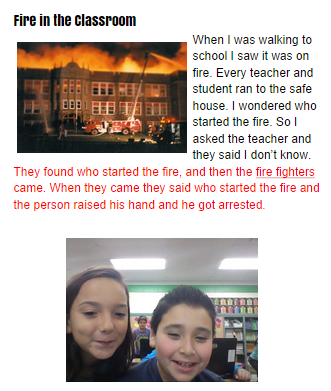
5thcollabFifth graders at Holladay Elementary have been learning about plot elements and conflict resolution (SOL5.5c) so today students in Ms. Filer’s class wrote collaborative stories where one partner began the story with a problem, and the other ended it with a solution. Before we got started, I gave them a quick warm-up in Google classroom asking them to write an example of a story conflict. They came up with great ideas from winning a football game to surviving a forest fire to having an eating disorder in the middle of a tornado! Next I assigned a Google word processing document to each student in Google classroom. I taught them the basics of changing the font, size, and color since this was the first time many of them had used Google Docs. Then they started writing their stories, focusing on the conflict. I showed them how to Insert > Image and search for a picture that reflected their story’s problem. The next step was to collaborate with a partner. In Google you can click the Share button and give a friend editing rights to your document. However, for us, it was simpler and faster just to switch seats. So partners read the first part of the story then wrote a logical conclusion that resolved the conflict (using a different color font). I showed them how to “Take a snapshot” with the Image panel and they added of photo of themselves with their partners. Finally we clicked the Share button, copied the link, and pasted it to our Google classroom page.