Tag: spreadsheet

5th Grade Comparing Virginia Rivers
Fifth graders at Laburnum Elementary have been reviewing the rivers of Virginia (VS.2c) and watersheds (SOL4.9) in Social Studies and Science. They have also been multiplying decimals in Math (SOL5.5a). So today students in Mr. Hofilena’s class used those skills to compare Virginia Rivers. First we discussed ways to compare the rivers. Everyone agreed that we should compare the length, but I also suggested comparing the discharge. Discharge is the amount of water flowing down the river, measured in cubic feet per second. We discussed factors that influence discharge: river depth and width, rainfall, and the velocity of the current. Next I gave them a Google Sheets template that you can copy here. The students had to do their own research to find the length and discharge for each river (Google “River name length” and “River name discharge”). They entered the data into the correct cells on the spreadsheet (using only numbers, no units). Then I showed them how to highlight the data and analyze it using the new “Explore” button in the bottom right corner. We used the Insert Chart button (top toolbar) to create graphs of the data. It was interesting to see how the length compared with the discharge. For example, the Rappahannock River is almost 6 times the length of the York, but its discharge is only 1.5 times that of the York. What does that tell us about the two rivers? We didn’t have time to do further comparisons, but I’ve added them to the template. You could convert the discharge to gallons per second with a formula (CELL*7.48052). Then convert that to bathtubs per second (the average bathtub holds 40 gallons) to help students visualize it better. You could also figure out how long it would take to drive the length of the river by dividing the total miles by 60 (assuming you are driving 60 MPH). You could even compare the rivers using the York as the unit. Take a look at a sample here.

4th Grade Virginia Weather Graphs

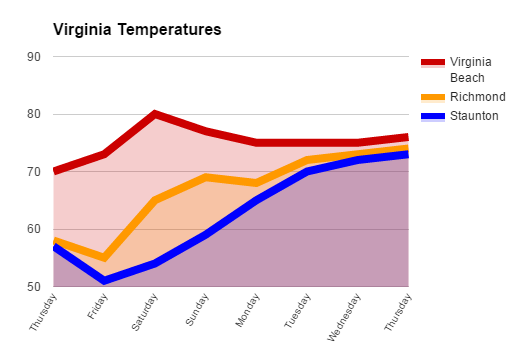
VAGraphFourth graders at Davis Elementary are learning about weather in science (SOL4.6), Virginia regions in social studies (VS.2b), and graphing in math (SOL4.14). So today students in Mr. Cochran’s class researched current temperatures in different regions of Virginia and graphed them. I gave them a template that you can copy here. First we clicked the “City” link and looked at the current temperatures in different Virginia cities. I showed them how they could click the column headings to sort by that category, so we sorted by temperature. We took a city from the highest temperatures (Virginia Beach), a city in the middle temperatures (Richmond), and a city in the low temperatures (Staunton). Then we located those cities on a map of Virginia and discussed why the temperatures might be different. The students noticed that the colder cities were further west (higher altitude) and north (higher latitude). Next we looked at the weekly forecast for the three cities (linked on the spreadsheet). Your students could choose their own cities to graph, but we just graphed the temperatures for the three cities we researched to save time. On the spreadsheet I showed them how they could click the “Thursday” cell and drag the small blue square handle down through seven more cells to have them fill in with the days of the week. Then they filled in the rest of the cells with the temperatures. Next we clicked the graph button and chose a line graph. I showed them how to customize the color and thickness of the lines, and we added a title. They posted their graphs to Google classroom, but you can take a look at some here.


5th Grade Number Patterns

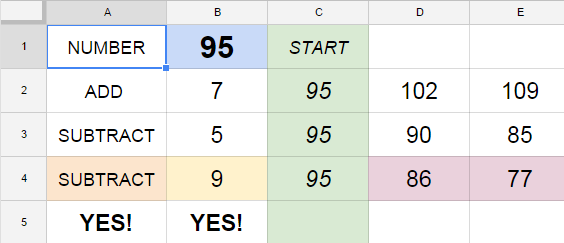
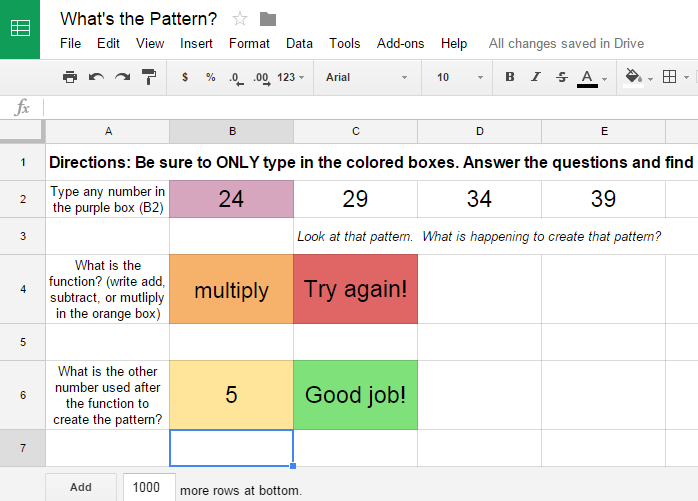
PatternFifth graders at Davis Elementary are reviewing addition, subtraction, multiplication, and division (SOL5.4) as well as studying number patterns (SOL5.17). So today students in Mr. Cangelosi’s class created number patterns for their classmates to solve using Google spreadsheets. First I gave them a template to use and shared it using Google classroom. Feel free to make a copy of the template for yourself. There’s a sheet on the template with an example for your reference. We discussed how spreadsheets work and how each cell has a name (like C5). Then we looked at the first formula to see how it was written to create a pattern. The students changed the formula to create their own pattern. Then they dragged the blue square from the cell that had the formula across the other cells in the row to continue the pattern. Next they changed the answer responses in the other formulas to reflect the correct answers and wrote their own feedback words (like, “Way to go!” or “Did you spell it correctly?”). Finally they posted their spreadsheets to Google classroom so their classmates could try to figure out their patterns. You can try to solve some here.


1st Grade Flower Fraction Graphs

MykalaFirst graders at Laburnum have been learning about spring (Science SOL1.7) and fractions (Math SOL1.3). So today students in Ms. Wingfield’s class made spring flower fraction graphs. First we helped them log into Google classroom where I gave them a Google spreadsheet template that you can copy here (File > Make a Copy). The students had a choice of four flower bouquets photos. They picked one and deleted the others. Then they counted the number of flowers for each color. They typed the color and the number into the correct columns on the spreadsheet and a graph was automatically generated. Below the graph, you can see the fractions of the group. Click the sample tab at the bottom of the template to see a finished product. You can also take a look at the student samples here.


5th Grade Decibel Day

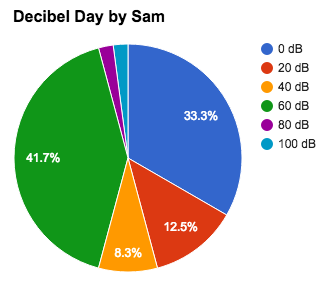
Screen Shot 2015-08-06 at 1.34.33 PMFifth graders at Holladay Elementary have been learning about sound in science (SOL5.2) and fractions in math (SOL5.2), so today students in Ms. DiMatteo’s class figured out the fractions of their day spent at different decibel levels. First we discussed what decibels measure (they are a way to measure the loudness or amplitude of the sound waves). Next we researched decibels using a variety of websites: Bouncy Balls, Dangerous Decibels, and the Interactive Sound Ruler. That last website has a valuable scale giving examples of sounds at different decibel levels. We used it to calculate the percentage of our day we spend at each level. I posted a Google spreadsheet template on Google classroom for the students to use. I made some changes to the template after teaching this lesson to simplify things. You can make a copy of the template here. It has some samples for you to look at in the tabs (sheets) at the bottom. Once we figured out how many hours we spend at each decibel level, we wrote a formula to convert it into a percentage. This is where we used fractions because the formula was a fraction with a variable in the numerator (# of hours)/24 hours. Next we highlighted all the percentages and created a pie chart. When the students posted their spreadsheets to Google classroom they estimated the fraction of their day spent at a certain level. You can take a look at some examples here.


1st Grade Graphs

Screen Shot 2015-03-26 at 12.48.12 PMFirst graders at Laburnum Elementary have been learning how to gather data by counting and tallying (SOL1.14) and how to display that data in graphs (SOL1.15), so today students in Ms. Tyler’s class practiced those skills using the computer. First we logged into their Google accounts (with lots of help) and went to Google classroom. I posted a question: “What is your favorite ice cream of these 3 choices: vanilla, chocolate, or strawberry?” The students clicked where it said “Add a comment” and typed their favorite flavor. They loved seeing their classmates’ names pop up. We counted how many students liked each flavor and wrote tally marks on the board. Next I posted a Google spreadsheet template to the classroom page and clicked the button “Make a copy for each student.” You can make a copy of the template to use with your class as well. The template has two tabs at the bottom. The first tab is the one the students will use. The tab labeled “Key” is a finished sample for your reference. I showed the students how to type the flavors in the first column (some of them needed help with that). Then they typed in the numbers. The graph will automatically build itself as the students type. We discussed what words we needed to add to the title and added “Ice Cream” to it. Finally I showed the students how to change the colors of the bars (click them and then click the paint bucket). That was all we had time for, but you could extend the lesson by asking questions like, “Which flavor had the most votes? the least?” Try graphing other favorites like colors, foods, animals, sports, etc.


5th Grade Order of Operations

5thOrderOperationsFifth graders at Varina Elementary have been learning about order of operations in math (SOL5.7) so today Ms. Chisom’s class created a spreadsheet showing how the order of operations works. First we did a quick warm up in Google classroom. I asked them to write two number sentences with the same 3 numbers in the same order with the same operations that had different answers. Many of them figured out that the trick was to add parentheses. Next I assigned them a blank spreadsheet in Google Classroom (that way it would automatically be shared with the teacher). I instructed them to write the column headings: “Number” for columns A-C and then “A+BxC” in column D and “(A+B)xC” in column E. They could write any 3 single-digit numbers in cells A2, B2, and C2. I explained that we would use formulas for the other cells so that they could change the numbers in A2, B2, and C2 and still get an answer. That introduces them to the concept of variable which they will learn later on this year (SOL5.18). I showed them how to write the first formula “=A2+B2*C2,” and I asked them to figure out how to write the second formula “=(A2+B2)*C2.” They experimented with changing the numbers in A2, B2, and C2. Then I asked them to try and find some numbers that would result in the same answer for both formulas. Some of them figured out that if they put a 1 in C2 they would get the same answer. You could extend the activity by including subtraction and division, but that’s all we had time for today!


Word Sort Spreadsheet

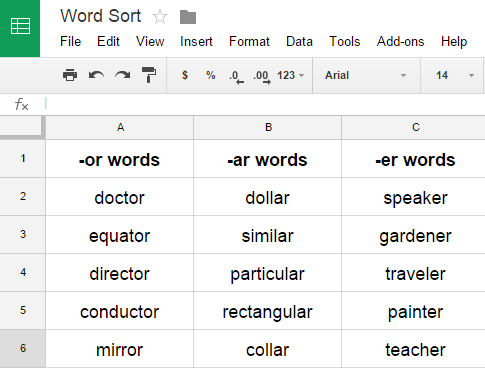
WordSortI’ve been doing lots of spreadsheet lessons this year because most of my schools are focusing on math skills. However, spreadsheets can be used for other things besides math… like word sorts. Most students have to do weekly word sorts, and a spreadsheet is a useful tool for them to keep their word sorts organized. Today I showed some of the 2nd and 3rd grade teachers at Davis Elementary how to do this. Give each student a word sort spreadsheet (you can make a copy of it). If you distribute it using Google classroom, it will automatically be shared with you. Students can do all their word sorts on the same spreadsheet by adding new sheets at the bottom. That makes it very easy for you to manage since you have just one document for each student, and you can access them anytime right in your Google Drive! Students write their column headings at the top, then write the correct words in each category. When it’s time for a new word sort, they would click the arrow in the Sheet tab at the bottom and click Duplicate. They can give their new sheet a name, like Week 3, and delete all the old data by highlighting it and clicking the Backspace key. Now they are ready for a new sort.


3rd Grade Rounding Calculator

3rdRoundingThird graders at Laburnum Elementary have been learning how to round numbers to the nearest ten and hundred (SOL3.1b) so today I showed the students in Ms. Collins’ and Ms. Ford’s classes how to make a rounding calculator. First, for a warm-up activity, we went to Google classroom and I posted an announcement that said, “What is a number that will round to 40?” The students clicked “Add comment” and posted their ideas (any number between 35-44). Next I asked them if they thought computers could round faster than they could. We discussed that even though computers are faster than humans, they aren’t smarter. People have to program computers, and today, I explained, we were going to program the computer to round for us. I gave them a template that you are welcome to copy (a finished sample is on Sheet 2). First they could write whatever 2- or 3-digit numbers they wanted down column A. I told them to try to make it hard for the computer. Next in cell B2 we wrote the rounding formula =ROUND(A2,-1) which rounds the number in cell A1 to the tens place (the -1 means one place to the right of the decimal). Then I showed them how to drag the little blue square in the corner of B2 down through the rest of column B. It automatically rounded all the numbers in column A! Finally I asked them to figure out and test a formula in C2 that would round A2 to the nearest hundred. Many of them realized that it was =ROUND(A2,-2). If you have time, you could go on and write a formula that would round the numbers in column A to the nearest thousand.


3rd Grade Number Patterns

3rdPatternsThird graders at Holladay have been learning about number patterns (SOL3.19) so today I taught them how to create and solve their own number patterns using Google spreadsheets. First I gave them a spreadsheet template that you can copy here. There is a finished sample on Sheet 2 of the template with directions for your reference. The students entered a 2-digit number in the top blue box, and it is automatically entered into the green boxes. Then the students enter a number they want to repeatedly add to it and a number they want to repeatedly subtract from it. The pattern is instantly generated by a formula in the spreadsheet, but I wanted to teach them how to create their own formula. So in the purple cell next to the last green box (C4), they entered whatever pattern they wanted to show, using the basic formula =C4+? or =C4-? I showed them how to drag the tiny blue square in the bottom corner of the box across the other purple cells to create the repeating pattern. Finally they switched seats and tried to figure out each others’ patterns by typing “Add” or “Subtract” in the red box and the number in the orange box. The spreadsheet lets them know if they are right or wrong.